What Are Expenses?
Expenses are costs incurred while running your business, such as rent, utilities, staff salaries, or operational services.
Recording expenses helps you track spending, control costs, and maintain accurate financial records in Prokip.
When to Record Expenses
You should record expenses:
-
Whenever money is spent for business operations
-
After payments for services, utilities, or staff-related costs
-
To track business, customer, or staff-related expenditures
-
For accurate reporting and financial analysis.
Before You Start
-
Ensure the Expense module is enabled under Profile → Modules
-
Confirm who the expense is for (Business, Customer, or Staff)
-
Identify the expense categories you want to create (e.g., Rent, Utilities, Salary)
Steps
-
Log in to your Prokip account
-
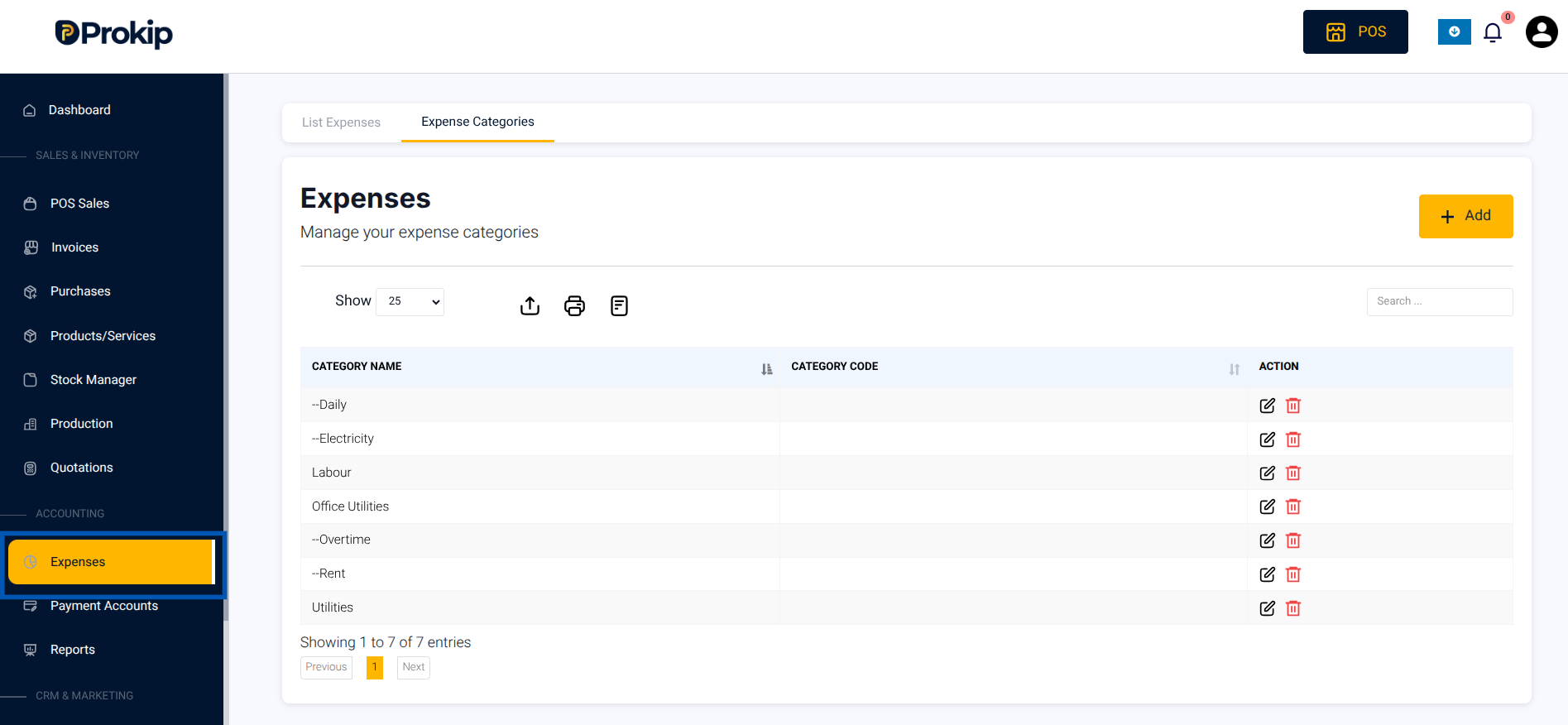
Click Expenses on the left-side menu.
Key Interface Areas
The Expenses module includes:
-
Expense Categories – Used to organize expenses
-
List Expenses – Displays all recorded expenses
-
Add Expense Button – Used to record a new expense
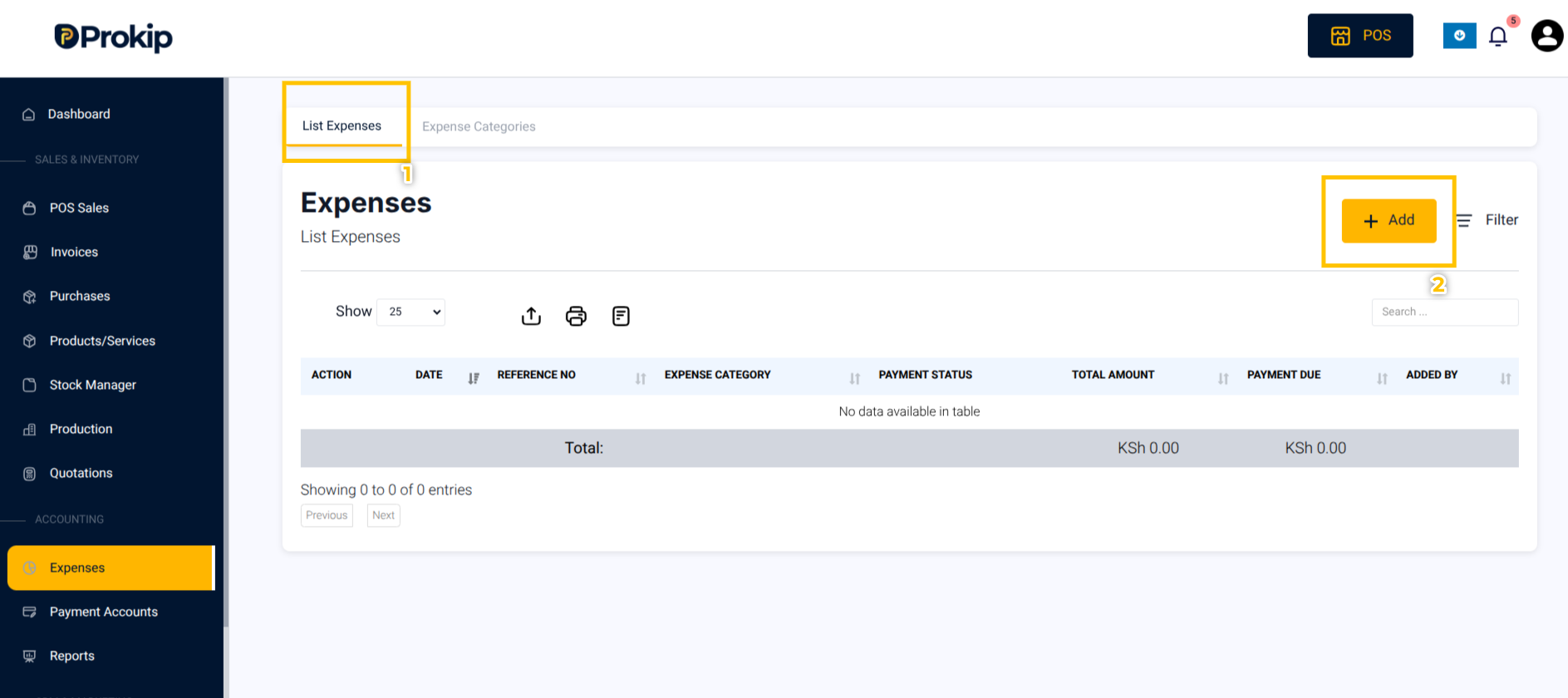
3. Click List Expenses.
4. Click Add.
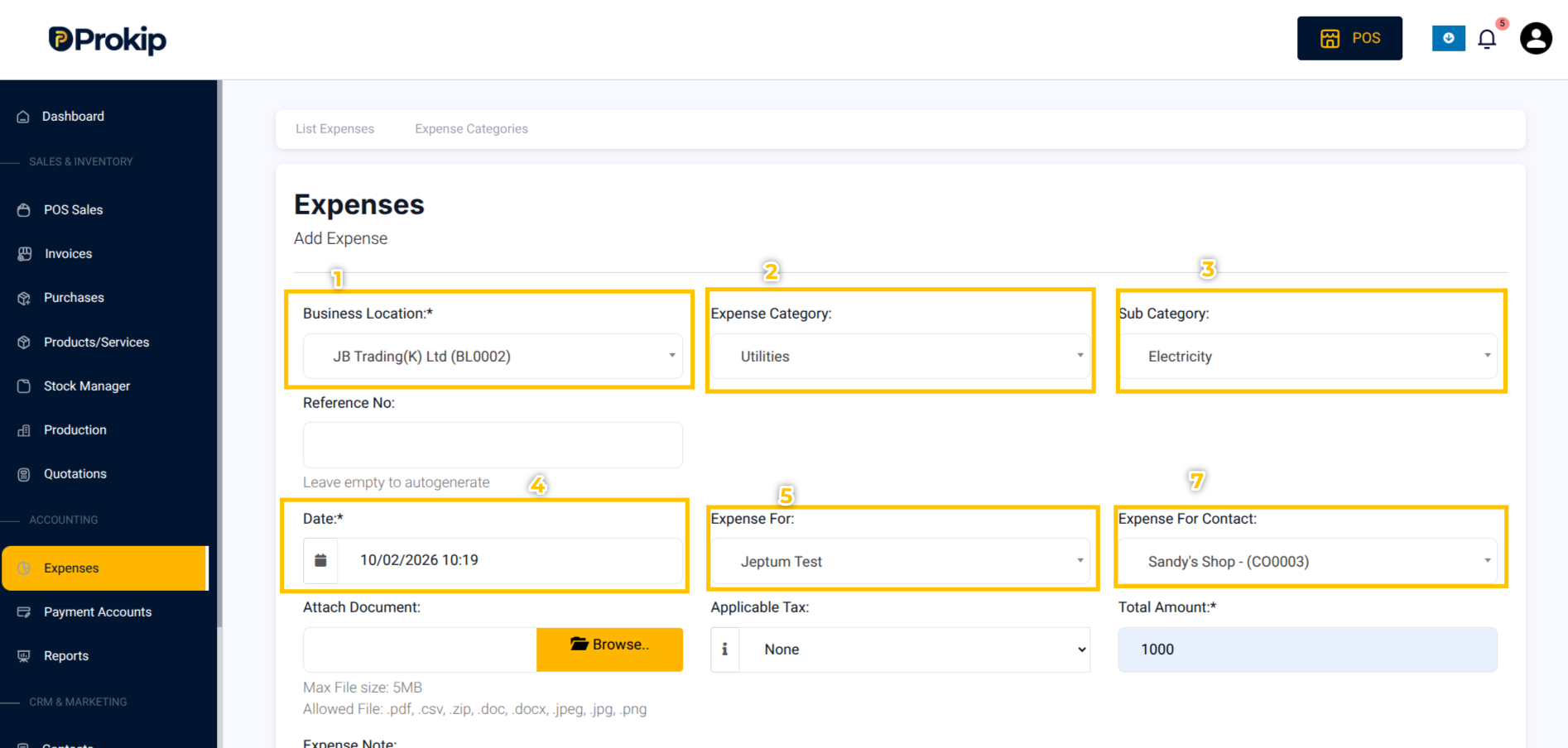
5. Select the Business Location
6. Select the Expense Category (e.g., Utilities).
7. Select the Sub-Category(if applicable)
8. Select who the Expense is for from the Expense For drop-down list.
Note that Expenses can be for:
- Business: General company expense
- Customer: Cost related to a customer order
- Staff: Payment made to an employee
9. Select the Expense For Contact
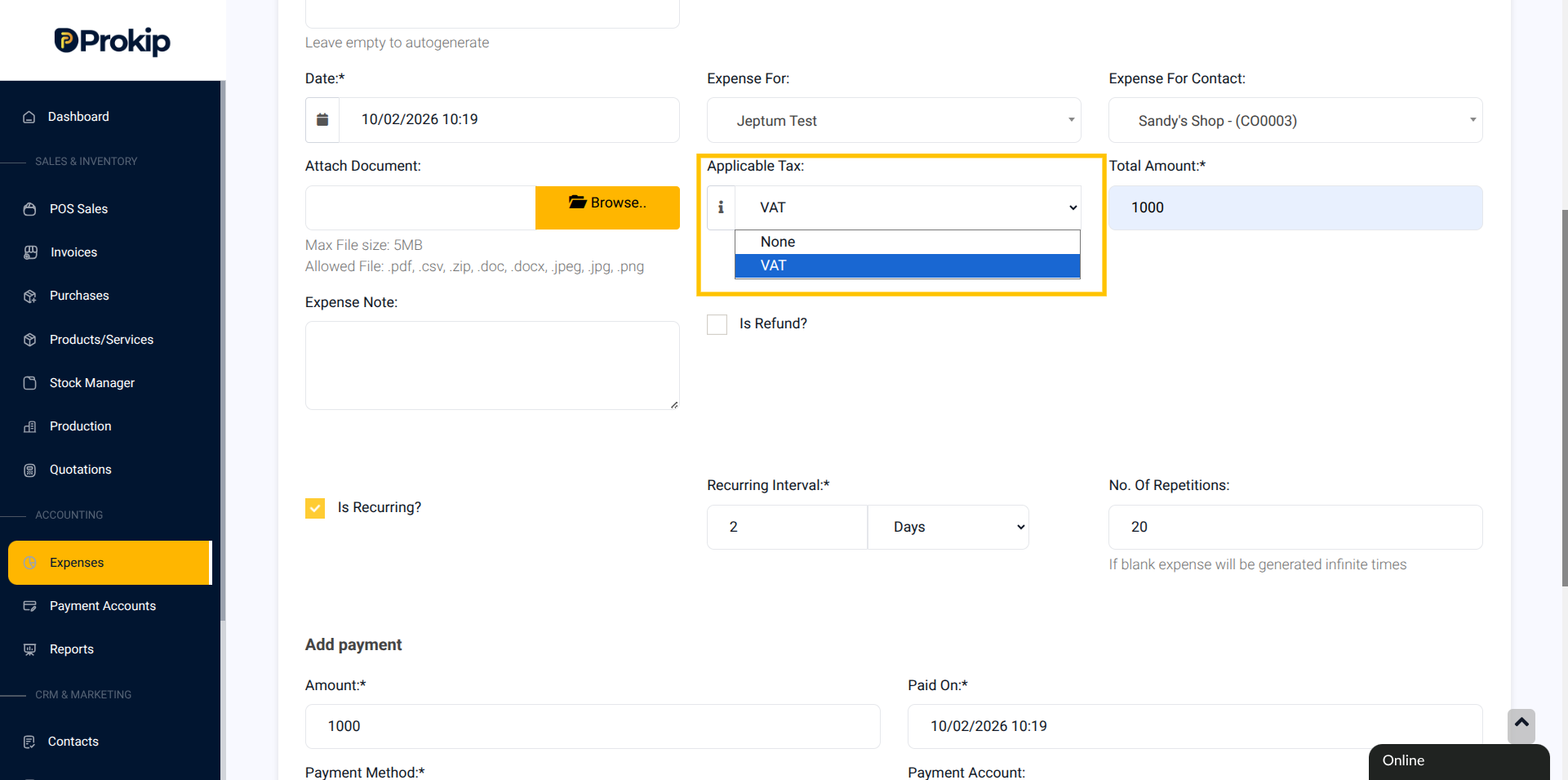
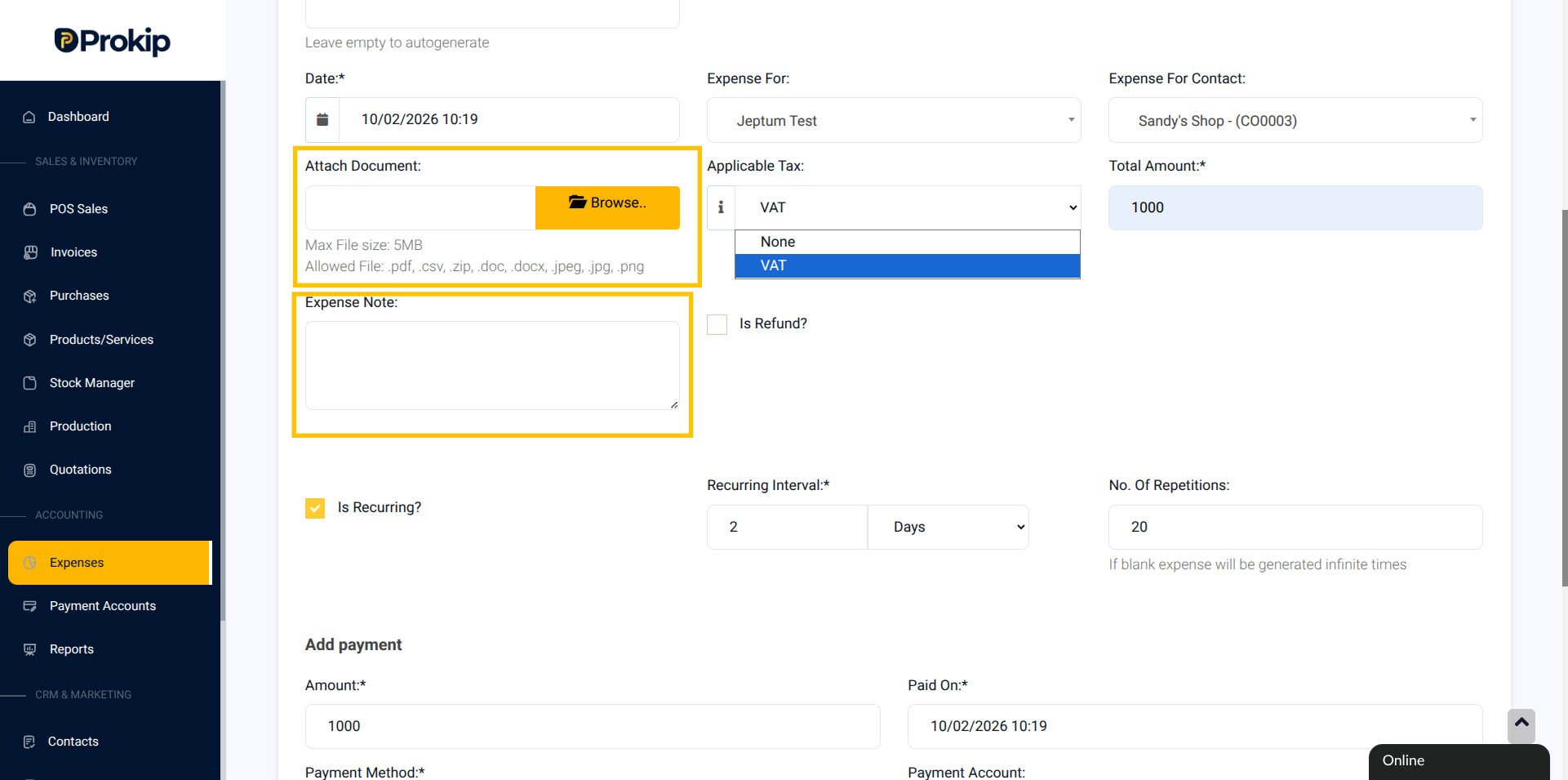
10. Select the Applicable Tax. Click None if tax is not applicable.
11. (Optional) Attach a Receipt or Note
Enter description in the Expense Note.
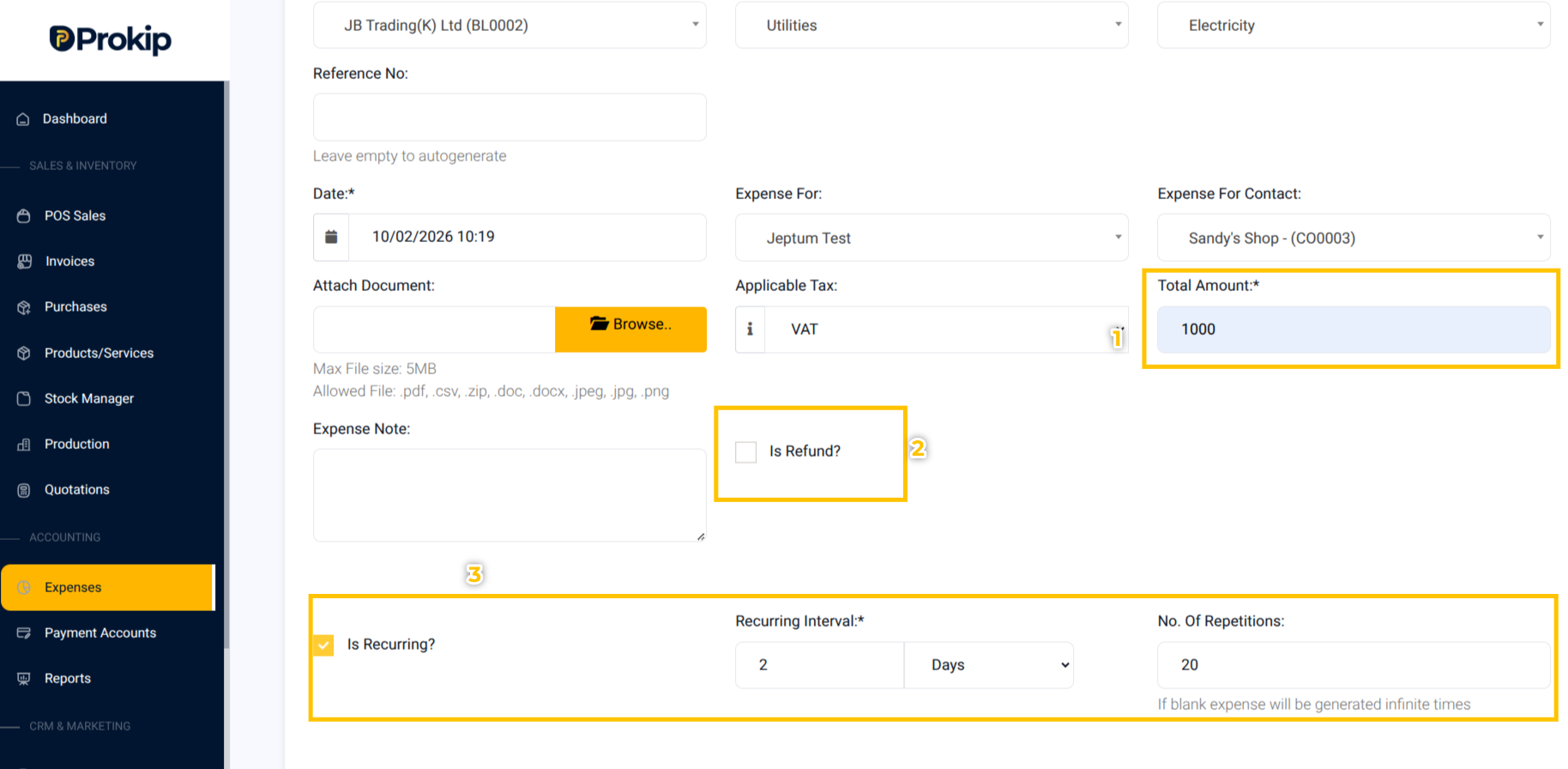
12. Enter the Total Amount Spent
13. Check Is Refund if it is a refund
14. Check Is Recurring if it is a recurring expense. Input the Recurring Interval whether in Days, Months or Years.
Input the Number of Repetitions.
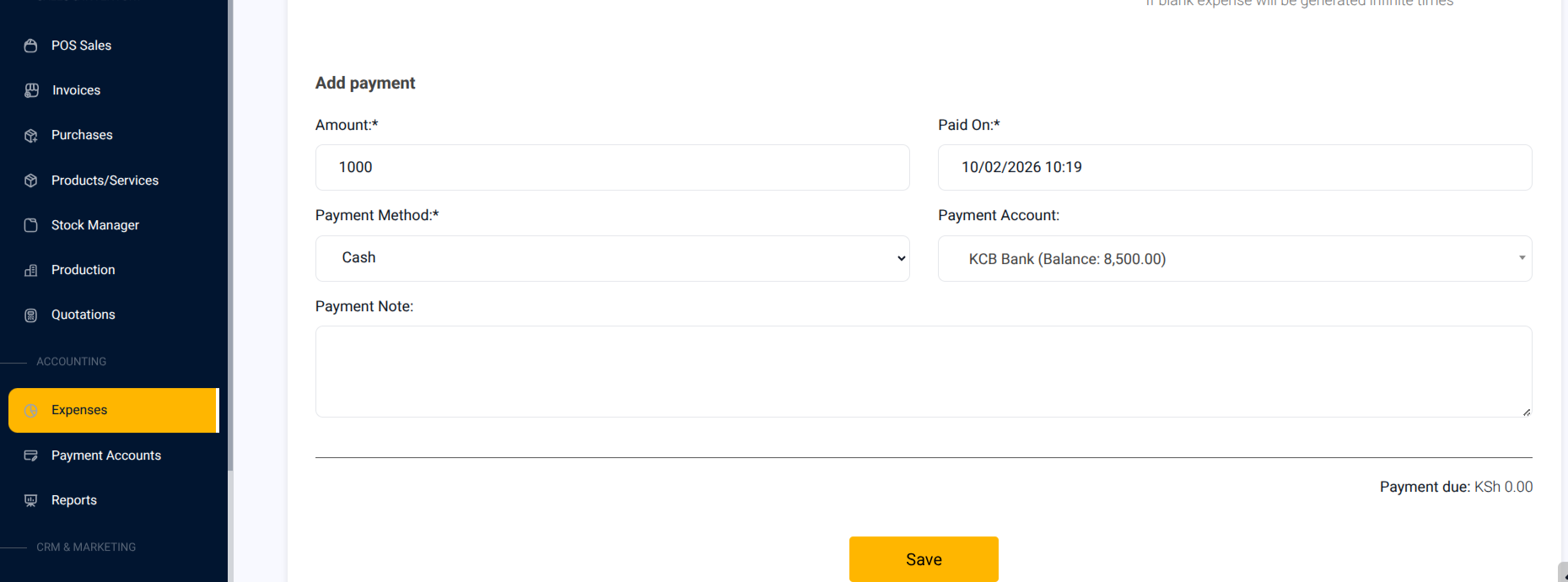
15. Add Payment Amount, Payment Date, Payment Method and the Payment Account.
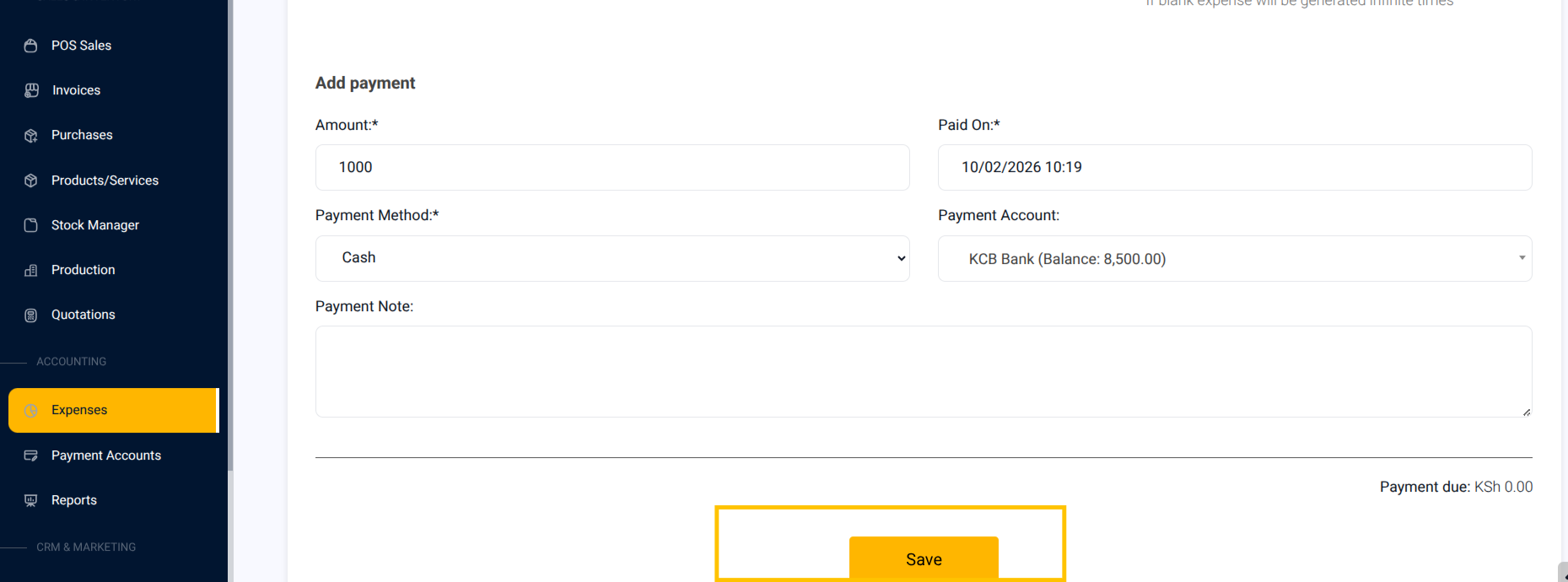
16. Click Save.
What Happens Next
After saving an expense:
-
The expense is successfully recorded and added to your expense list.
-
It reduces your profit in the Profit and Loss Report.
- Linked expense appears under the correct category.
- Reports update automatically for accounting accuracy.