How to enable booking
Managing Booking allows you to handle customer reservations or appointments directly in Prokip.
It ensures better scheduling, avoids overbooking, and enhances customer experience.
Steps
- Login to prokip
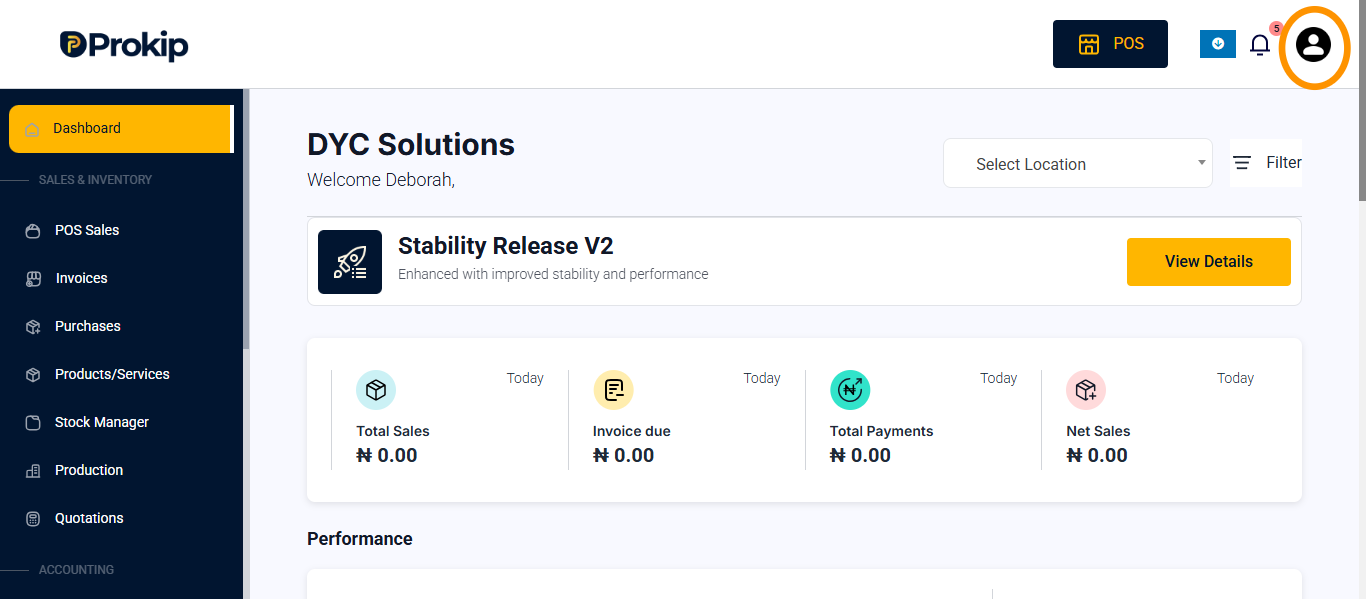
- Click on profile icon
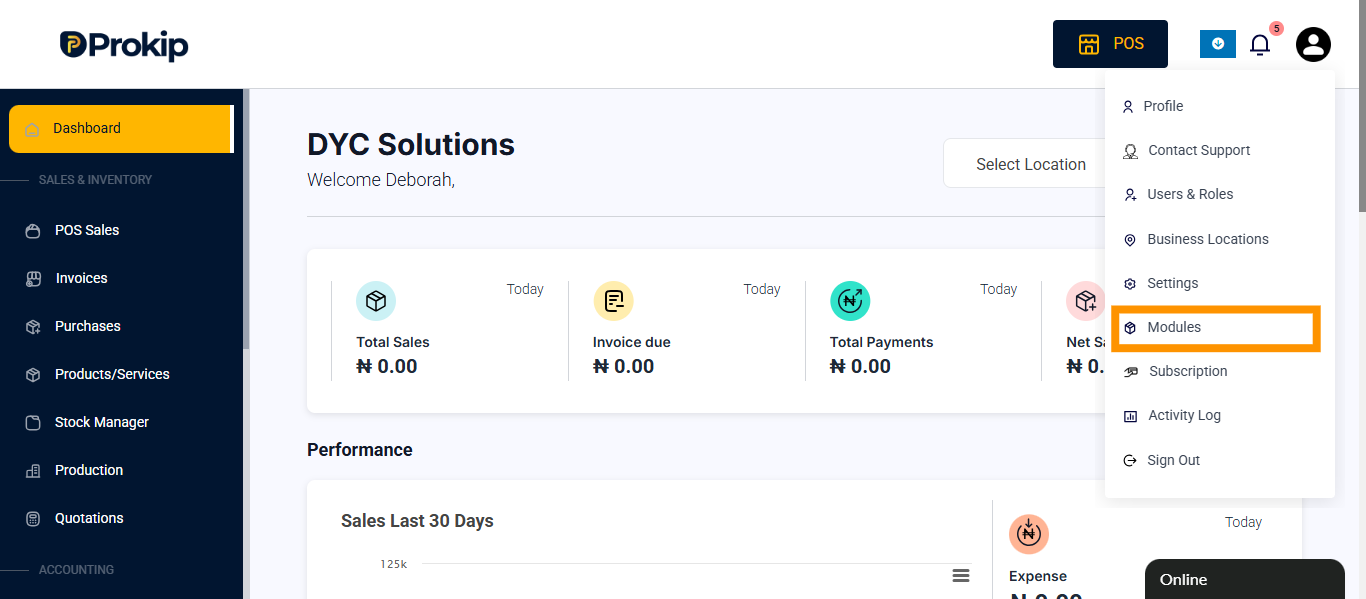
- Click on modules
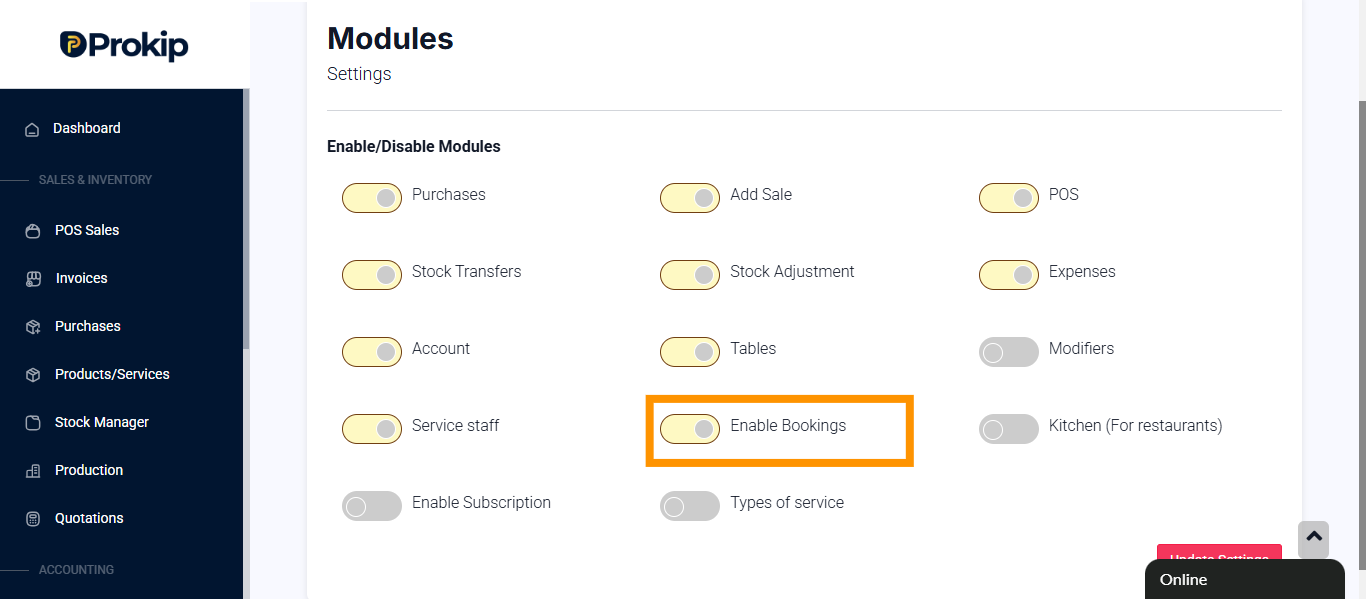
- Click on enable booking
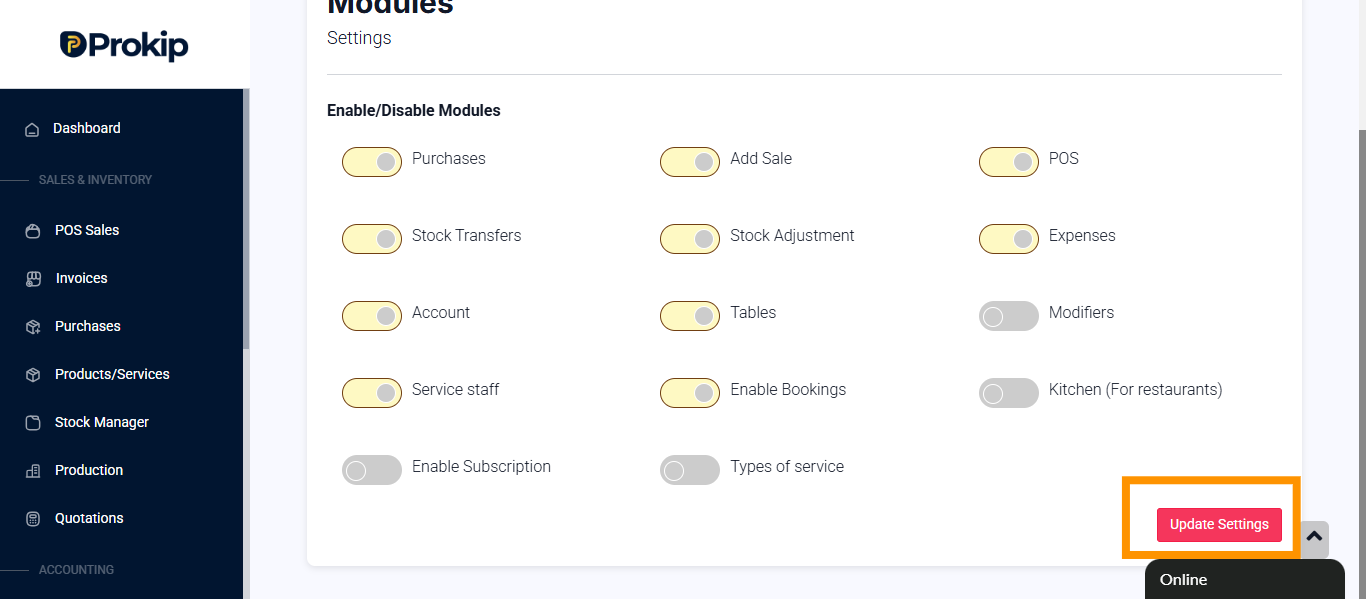
- Click on update
How to add bookings
Steps
- Log in to Prokip.
- Click on Bookings
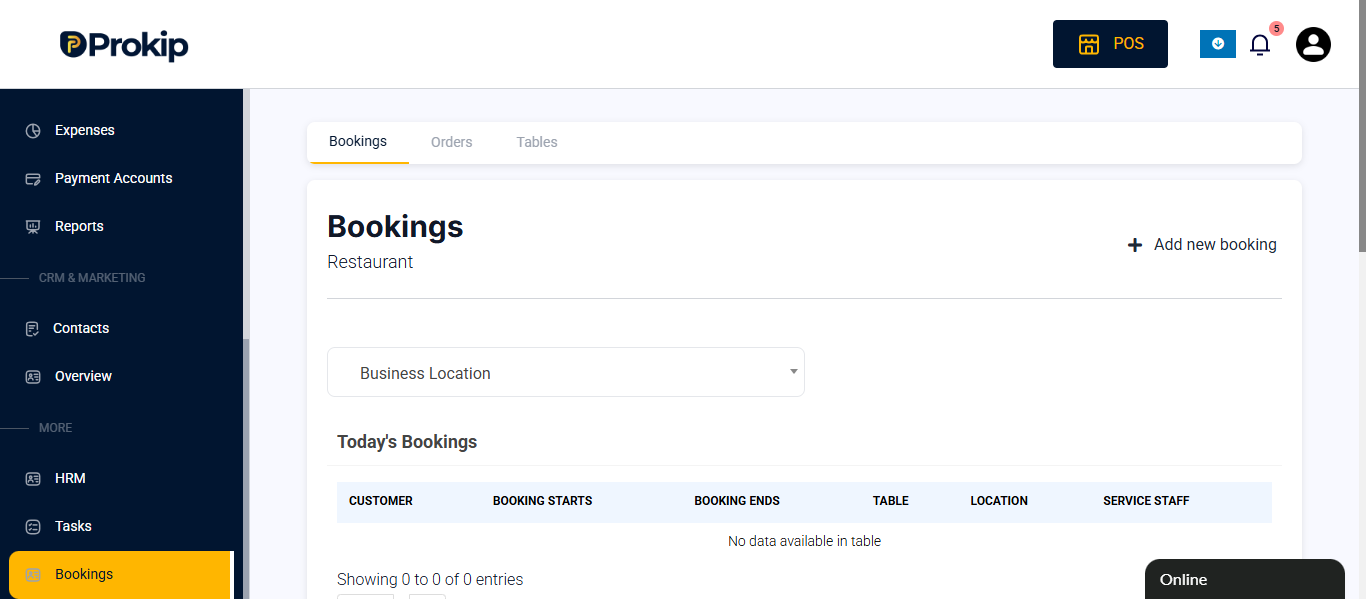
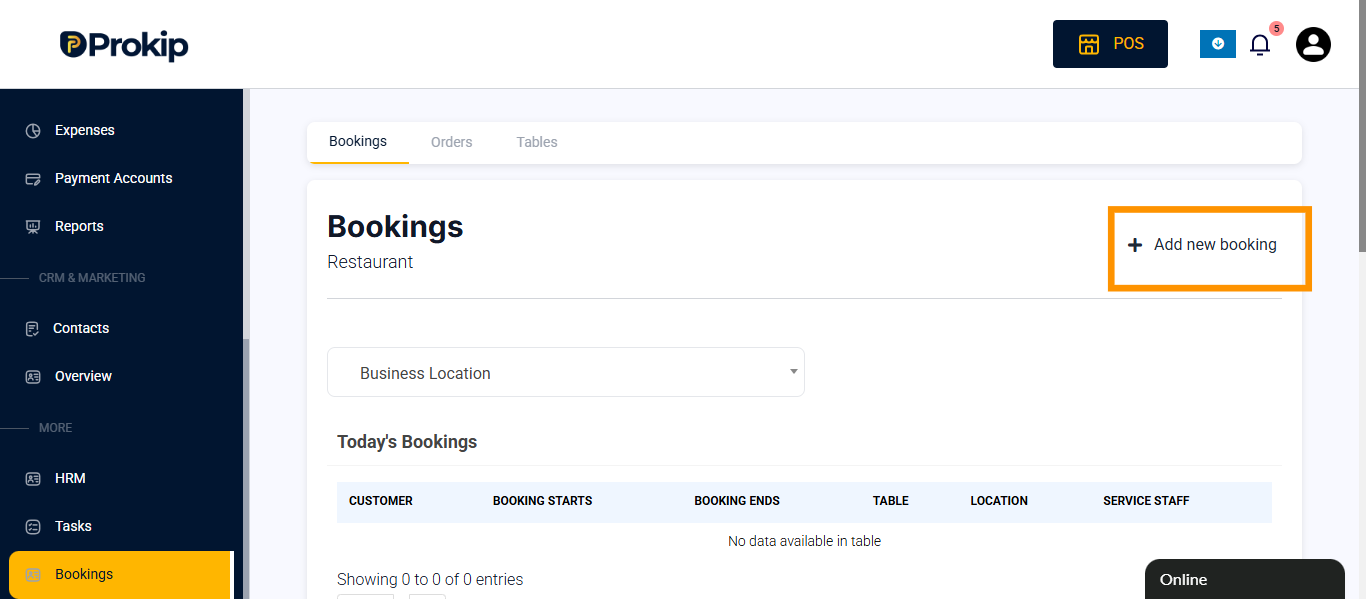
- Click on the Add new booking.
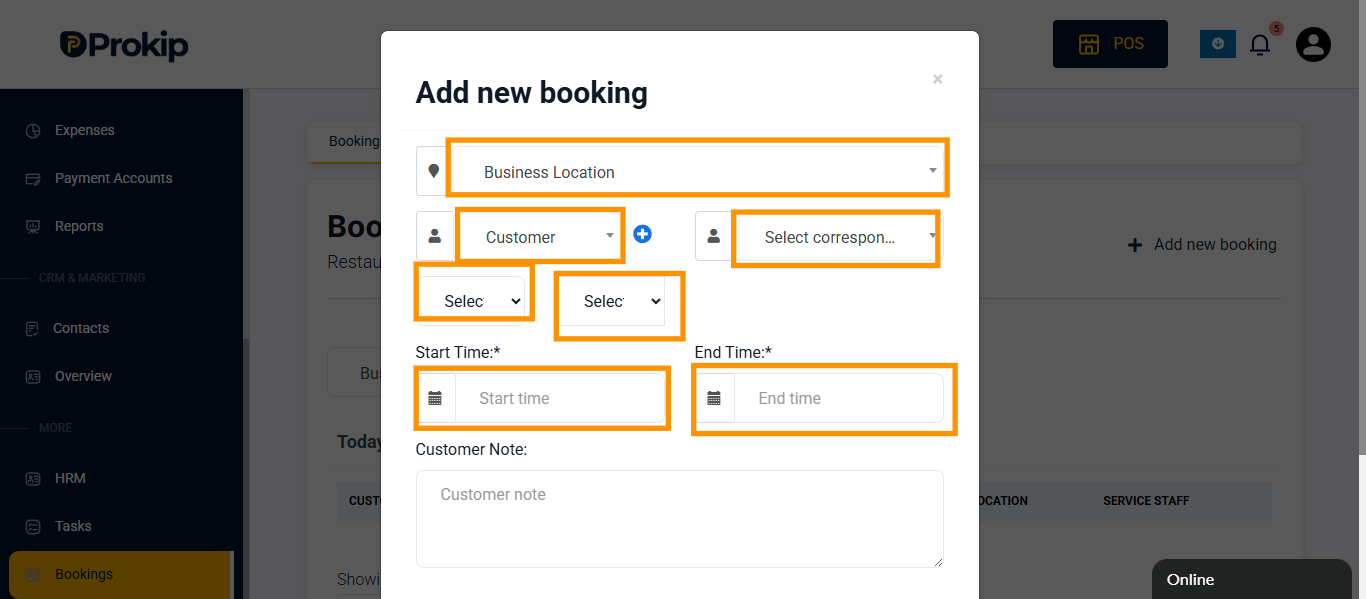
- Enter details
-
- Select location
- Select Customer Name,
- Selct correspondent
- Select table
- Select service staff
- Choose start time and end time
- Enter customer name.
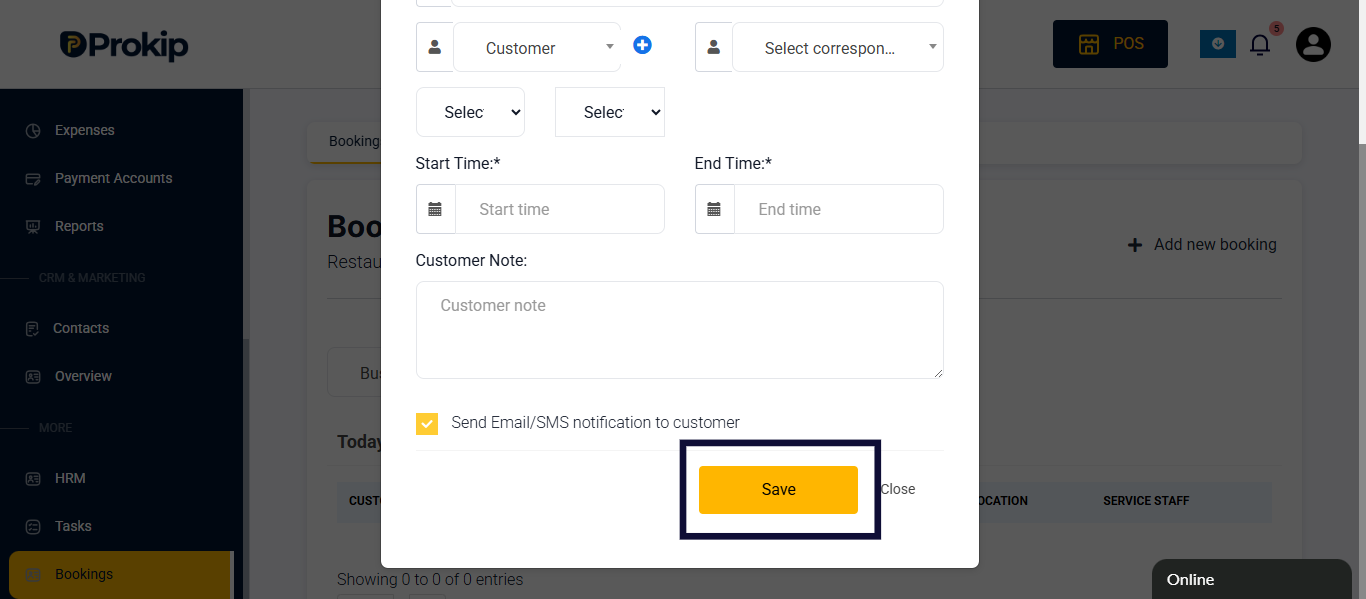
5. Click on save
Tips
- Use booking reminders to follow up with customers before their reserved time.
- Bookings can be filtered by only location
FAQ
Q: Can I edit or cancel a booking?
A: No, bookings can only be deleted
Q: Does booking automatically assign a table?
A: No, You can only assign (optional)
Q: Do you need a service staff
A: Yes, service staff is needed