Purpose
Create and manage transfers between locations, for example, moving items from one warehouse to another.
Before you start
- Confirm both source and destination locations exist.
- Confirm products involved have SKUs and are not duplicates with available quantities.
- Check that quantities at the source location are sufficient.
Steps
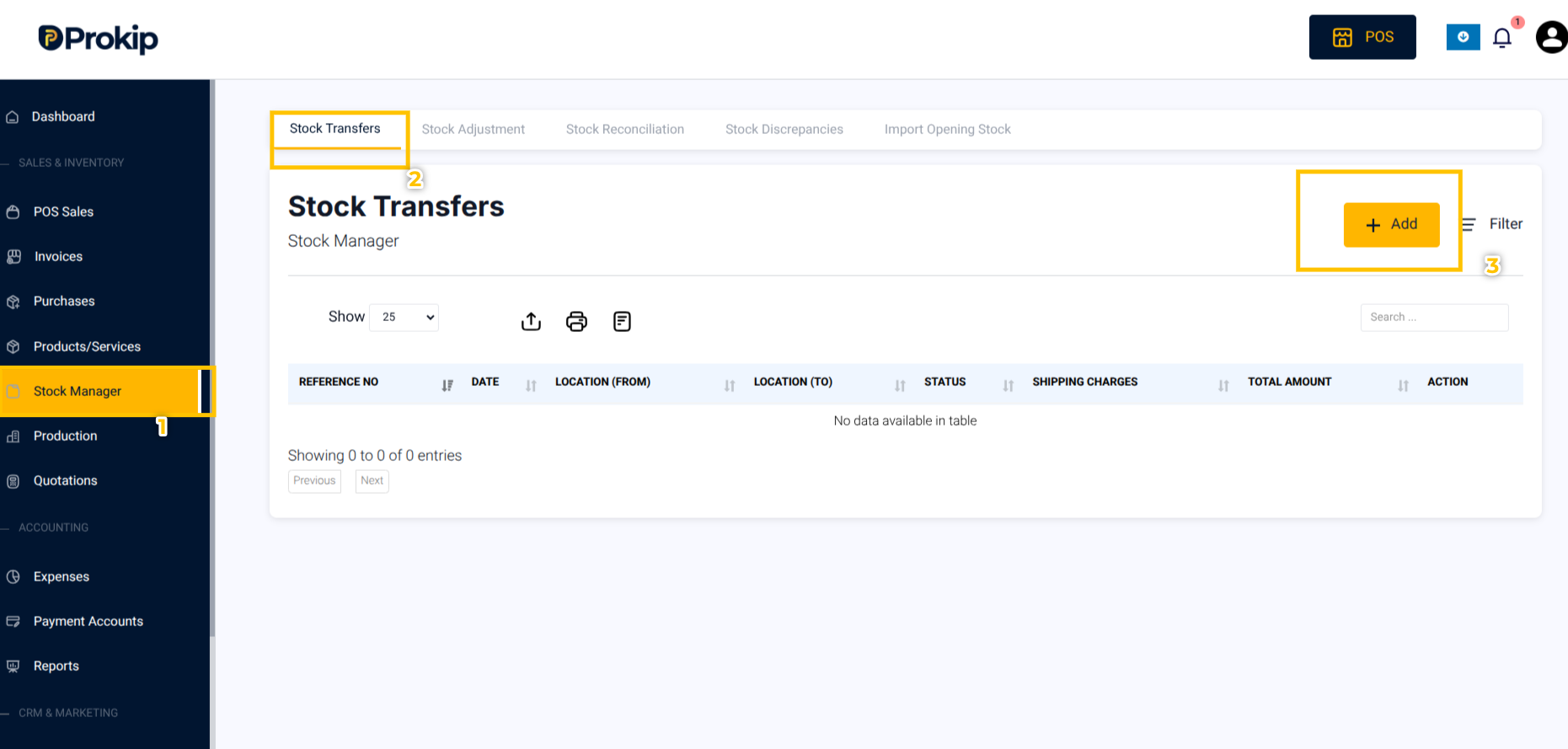
1.On the left-hand side of the screen,Click Stock Manager
2.Click on Stock Transfers at the top bar.
3. Click Add
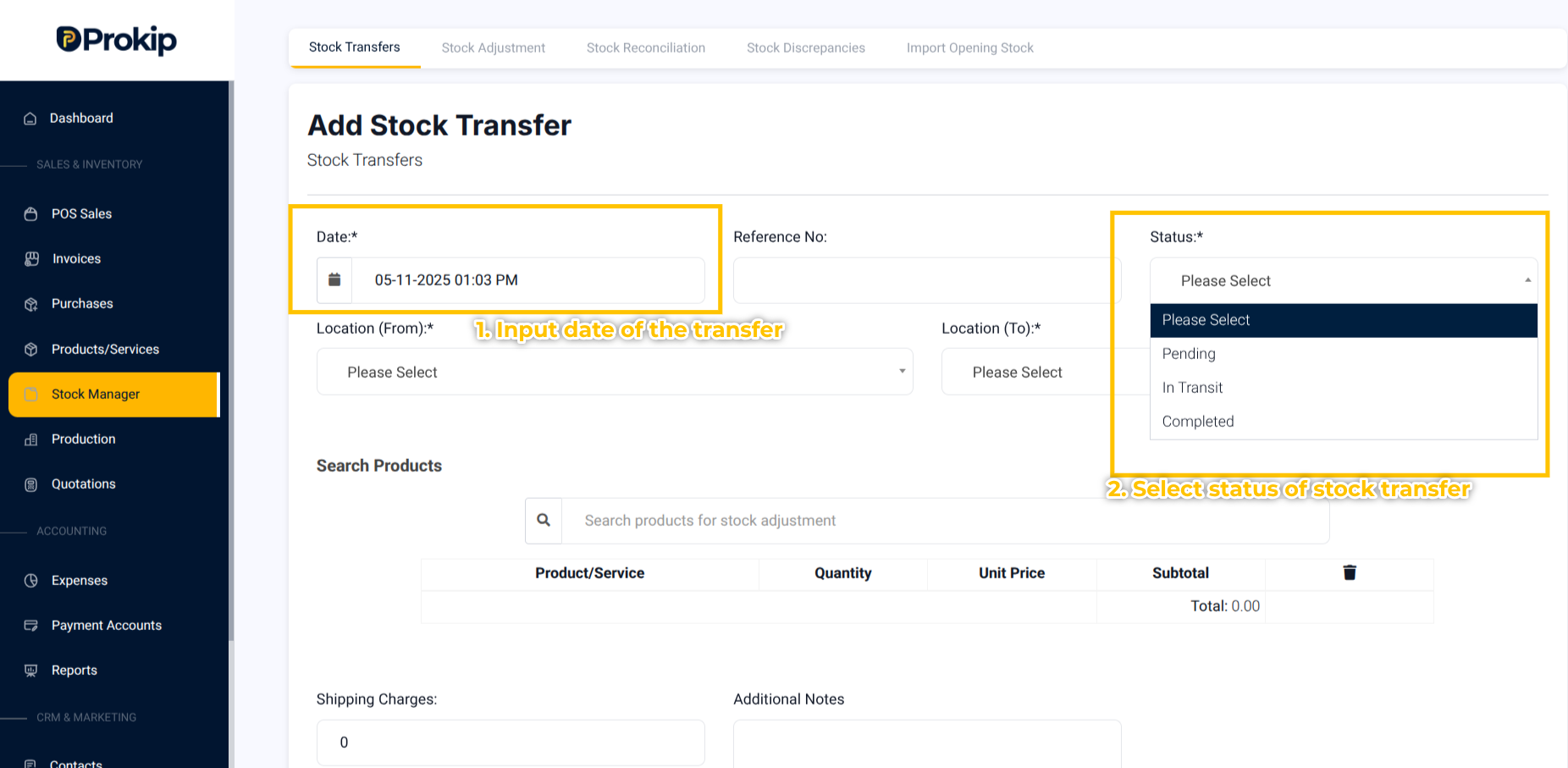
4. Select the status of the transfer whether:
a) Pending
b) In Transit
c) Completed
Note: If the status is Pending or In Transit, the stock will not be transferred yet.
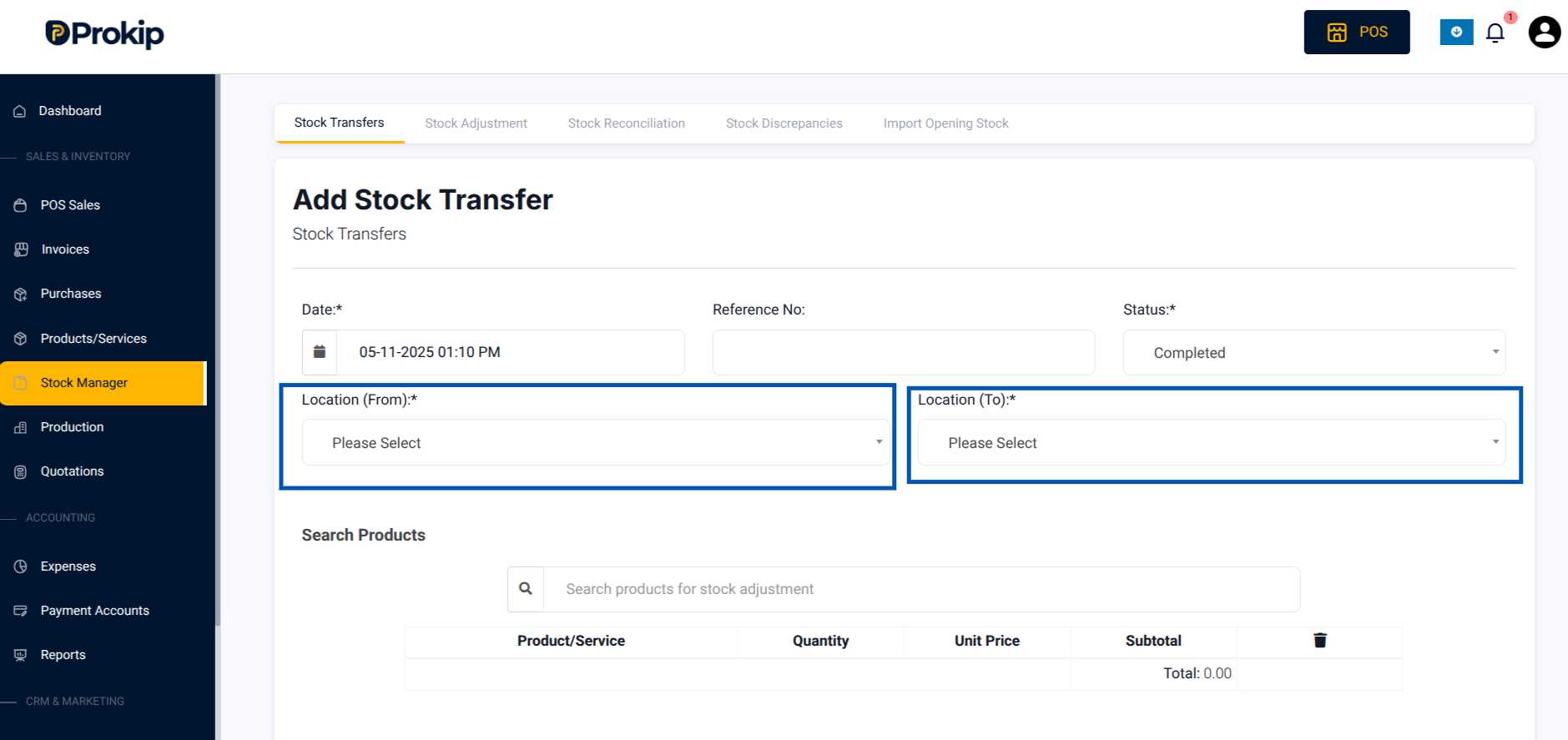
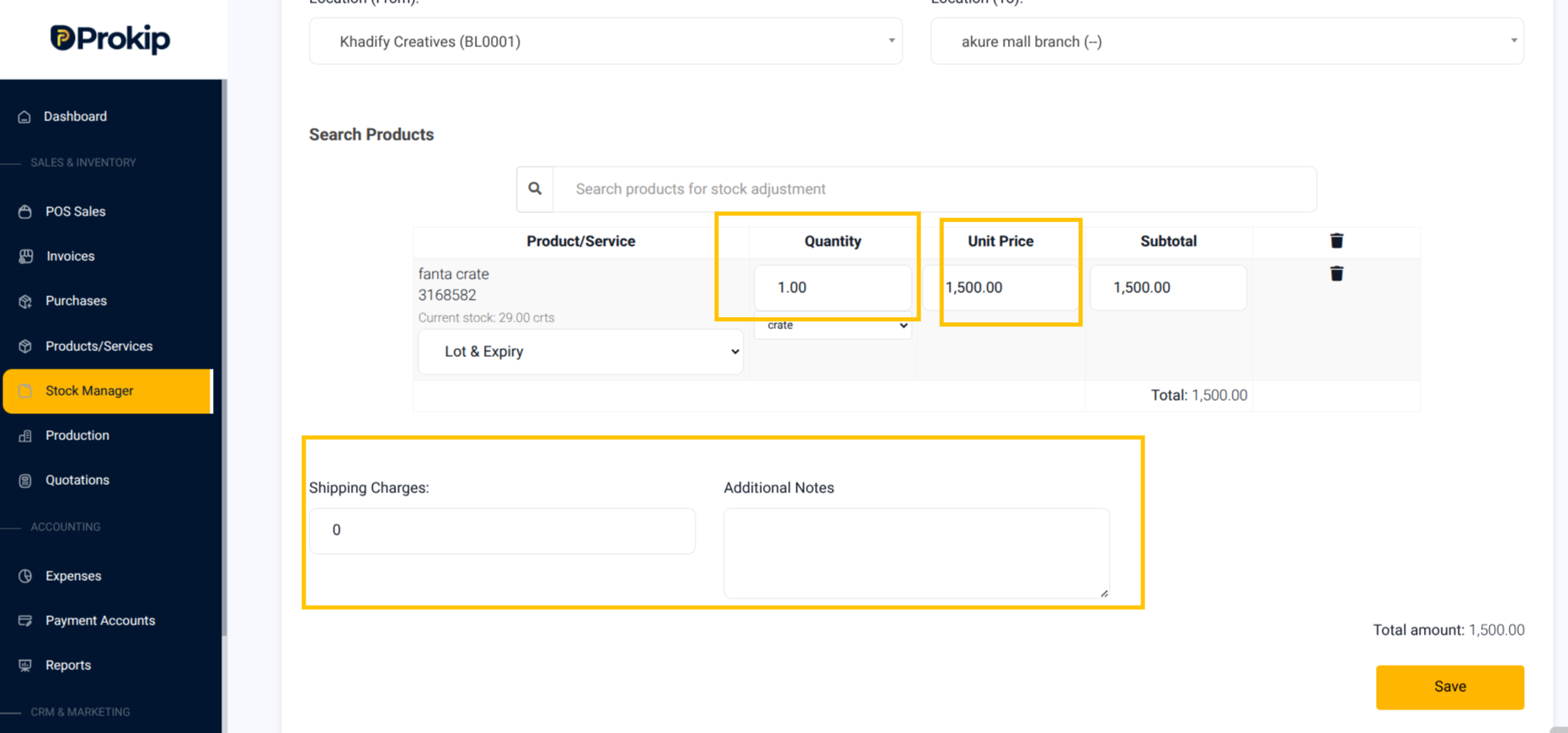
5. Select Location From (Source Location) and Location To ( Destination Location).
6. Search and select the product by SKU or name.
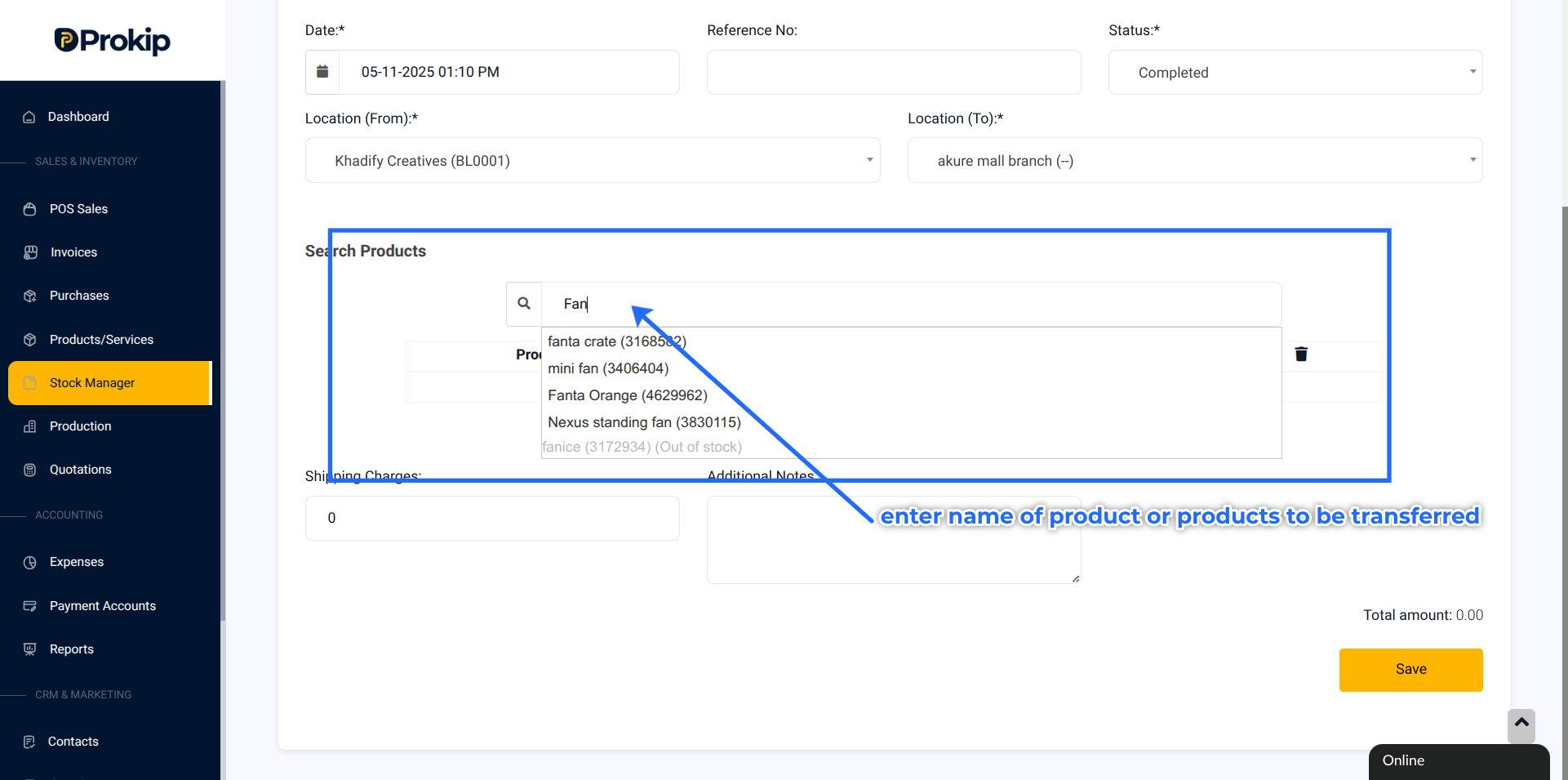
7. Enter the Quantity to transfer.
8. Optional:
-
- Enter any Shipping Costs Incurred.
- Add Notes or transfer reference number.
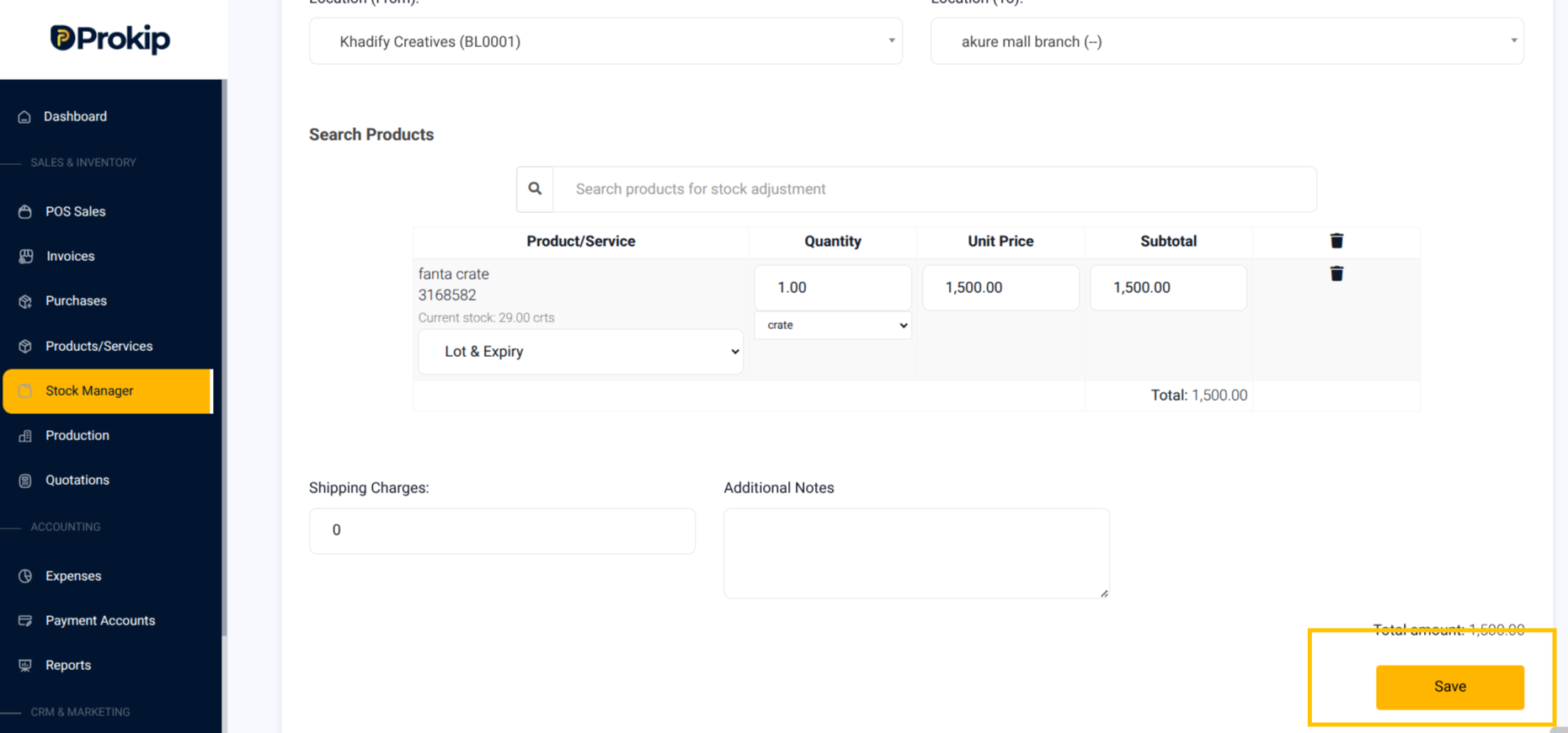
9. Click Save
Once saved, the stock transfer is successfully created.
What happens next
- Pending / In Transit: Stock quantities is not affected and it will not yet be deducted until marked Completed.
Completing a Stock Transfer
-
When the physical movement of stock has taken place:
-
Click on the transfer with Pending status.
-
Change the status to Completed.
-
Click Update.
-
Once the status is changed to Completed, the stock is immediately transferred from the source location to the destination location.
- Completed: Stock immediately moves from source to destination.
Tips / Troubleshooting
- If you cannot add a product, confirm the product exists at both locations
Common mistakes & fixes
- Mistake: Transferring more than available quantity.
Fix: Reduce quantity to available amount or increase source stock first.
- Mistake: Wrong location selected.
Fix: Delete transfer and create a new transfer with correct locations.