Overview
In Prokip, a Combo Tax (Tax Group) is a combination of two or more existing single tax rates applied together to products or services.
Important: Sub-taxes must already exist as single tax rates before they can be combined into a tax group.
Step 1: Create a Tax Group (Combo Tax)
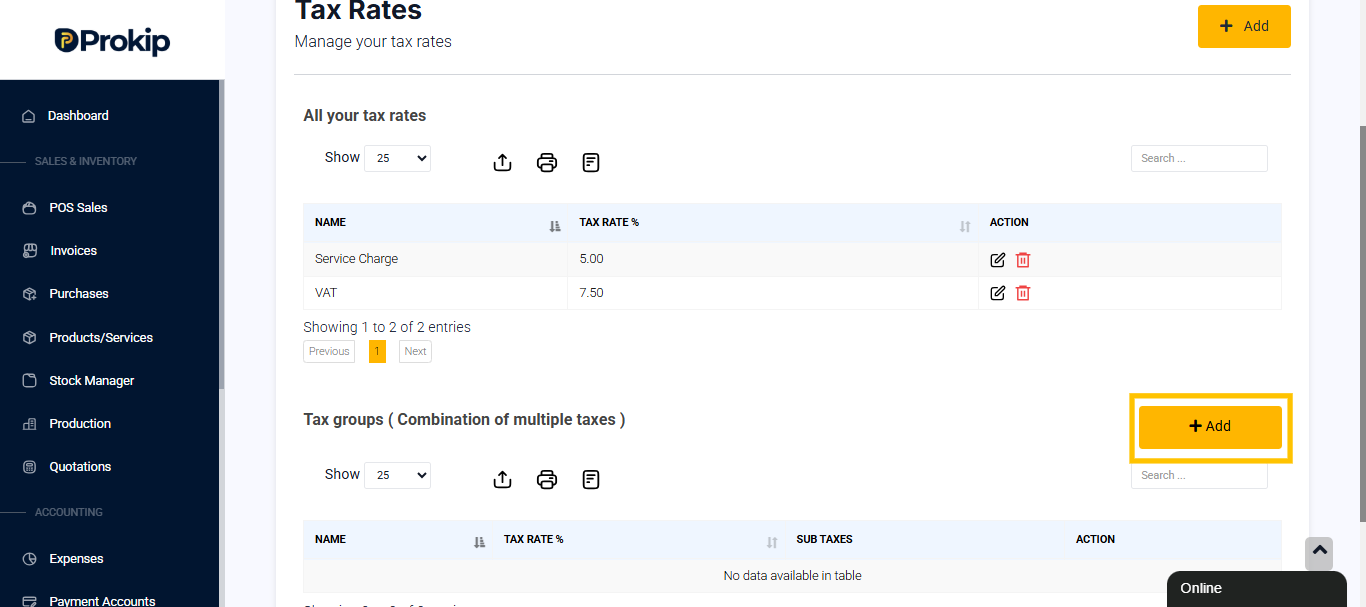
Once the single taxes exist, scroll to:
Tax groups (Combination of multiple taxes)
- Click on Add to add the Tax Group
-
You can give it a name like: Combo Tax Charge
-
Select the Sub Taxes from the single taxes that already exist e.g:
-
VAT
-
Service Charge
-
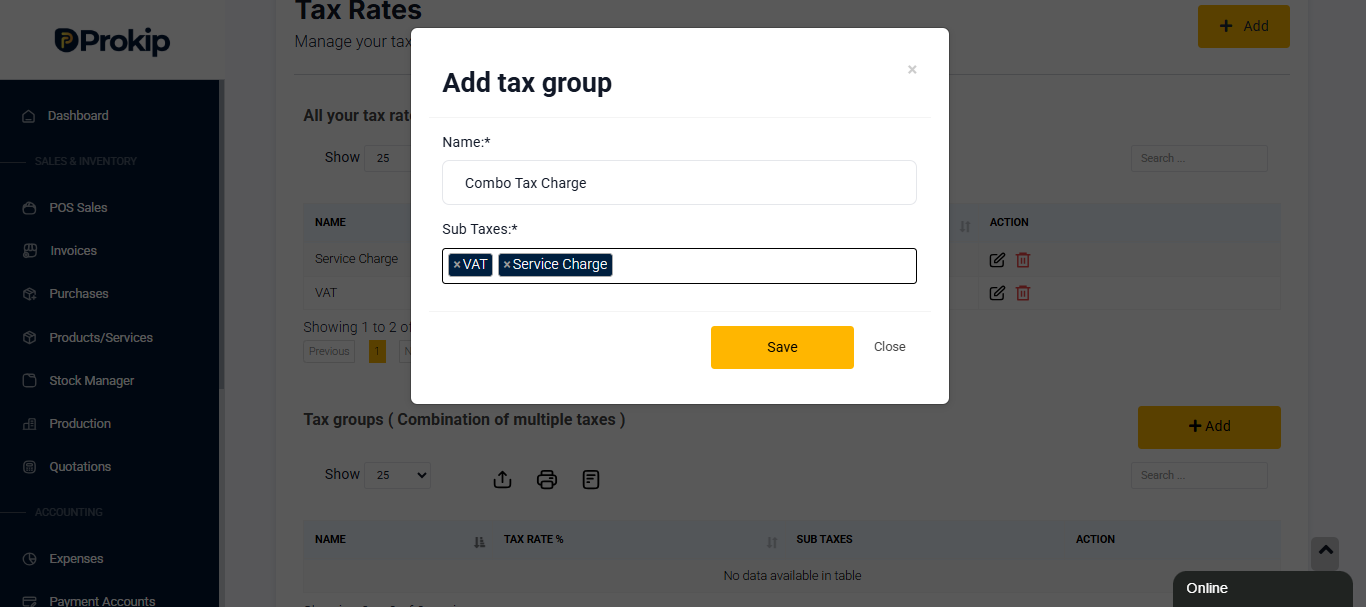
Prokip will automatically calculate the combined tax rate.
Example Result
How the Combo Tax Works
-
The combo tax can be assigned to products or services
-
Both sub-taxes are applied together during a sale
- Tax is calculated based on the product or combo price
When to Use a Combo Tax
Use a combo tax when:
-
Your business charges combined taxes for some items like VAT + Service Charge
-
You want one tax selection instead of multiple
-
You sell combo or bundled products
-
You want accurate tax reporting
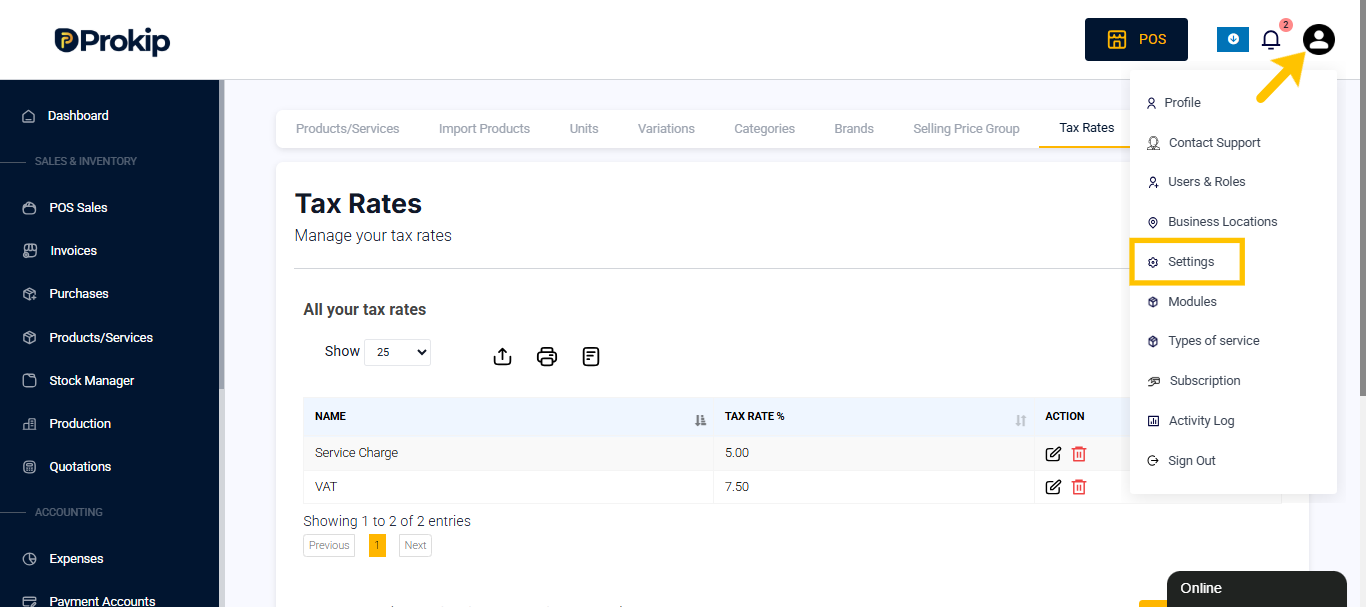
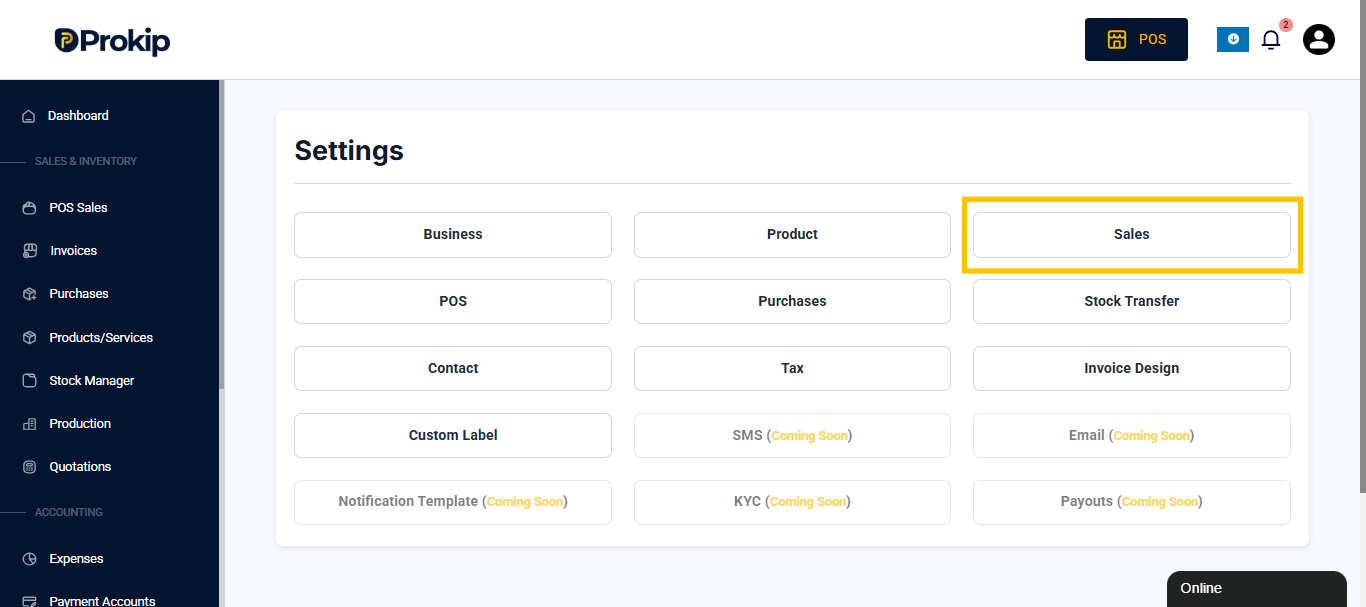
Step 2: Apply Combo TAX Automatically to All Sales (Invoice & POS)
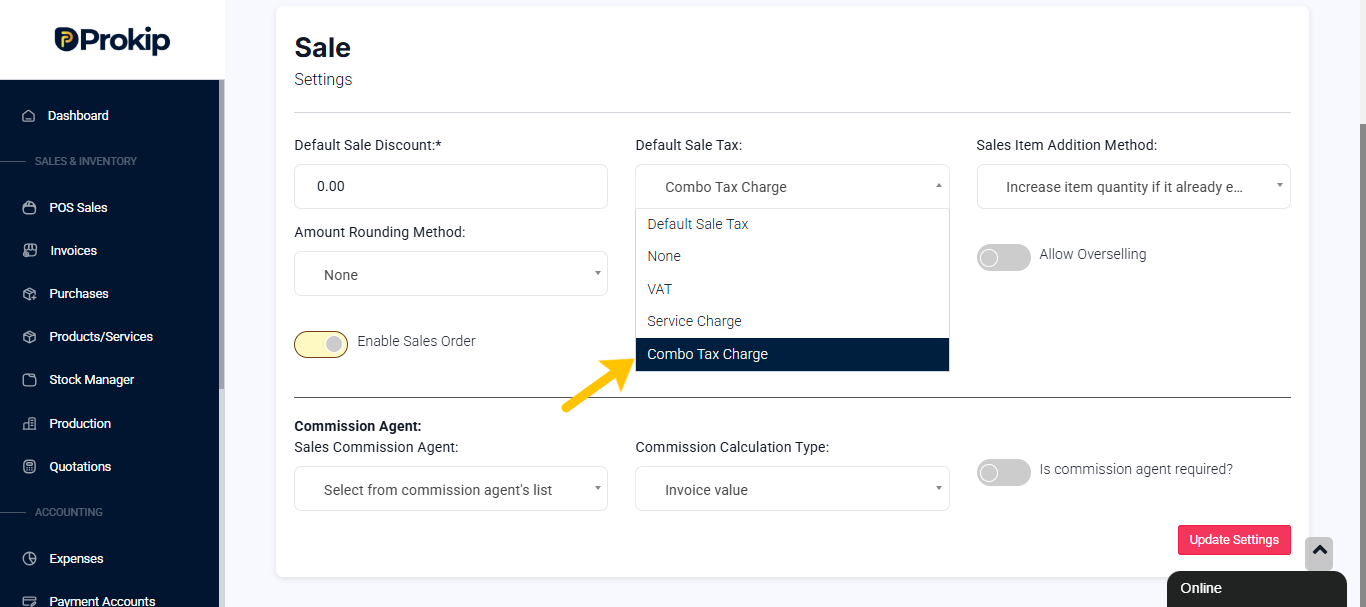
Step 3: Apply VAT Only to Selected Products
- Go to Products/Services
- Click Action → Edit on the product
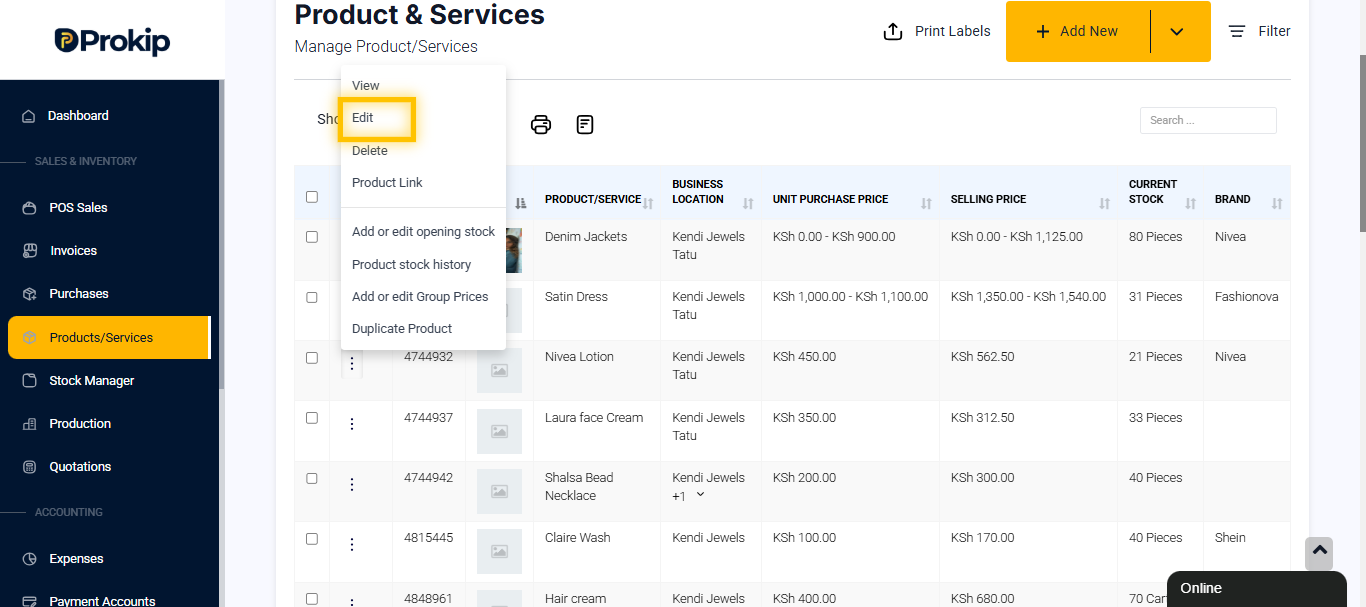
- Toggle Taxable ON, if it is not ON already
- Select the combo Tax as Applicable Tax and Selling Price Tax Type as Inclusive.
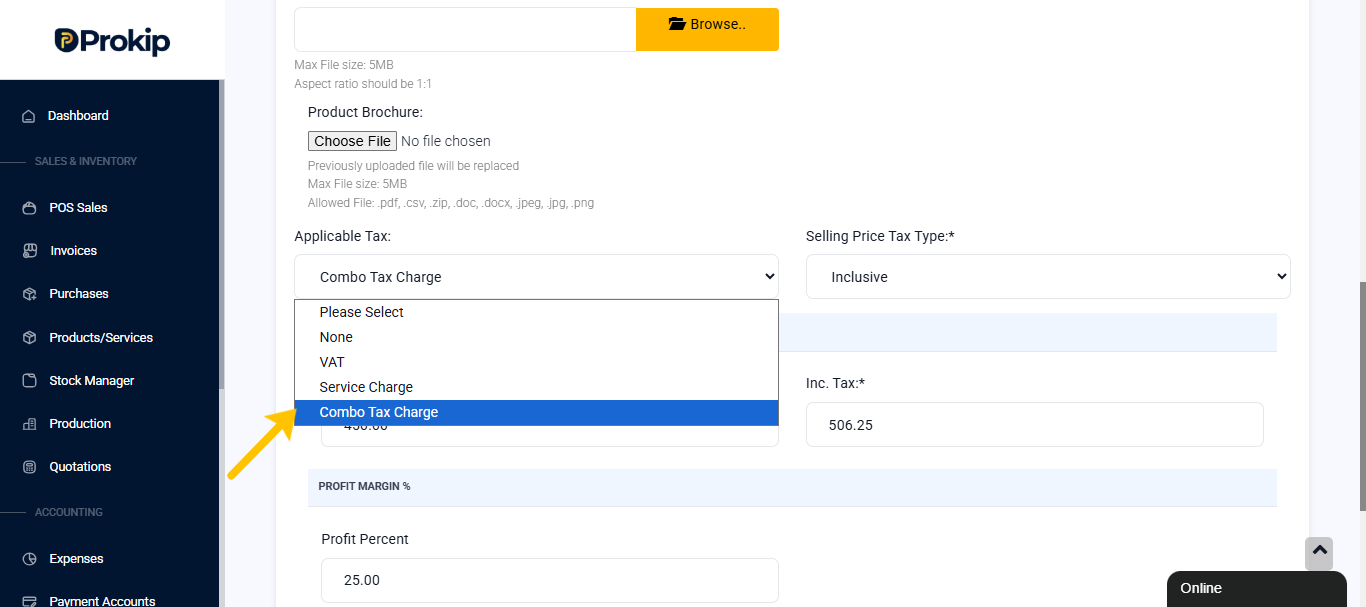
- Click Update
Only those products set up like this will incur the combo tax on their invoice.
Step 4: Apply VAT at POS (Optional)
- Go to POS
- Add the item
- Click on Order Tax below
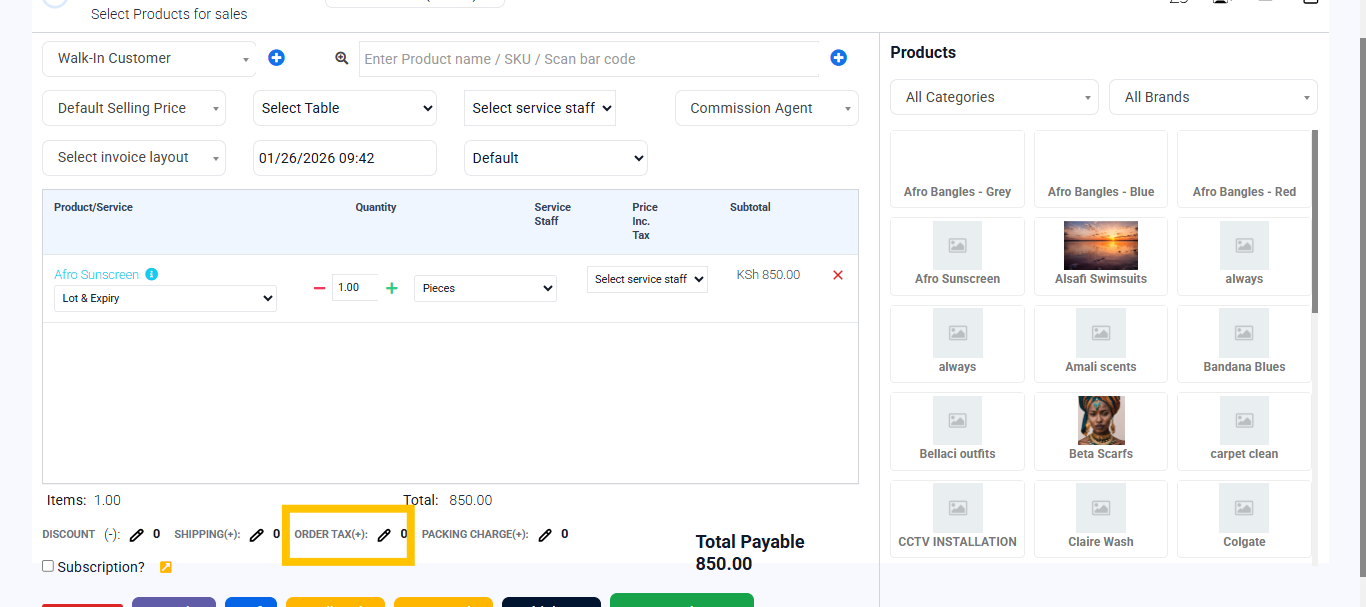
- Select Tax → Combo tax you created
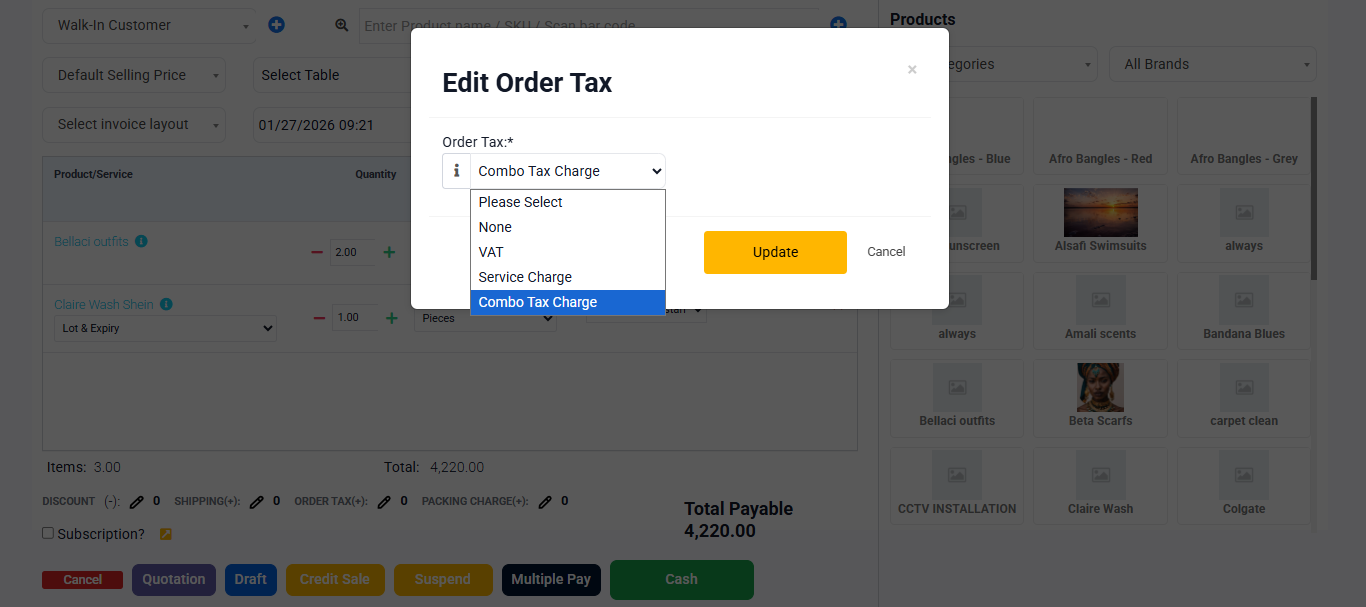
- After you click update, the price total will be recalculated with the combo Tax applied.
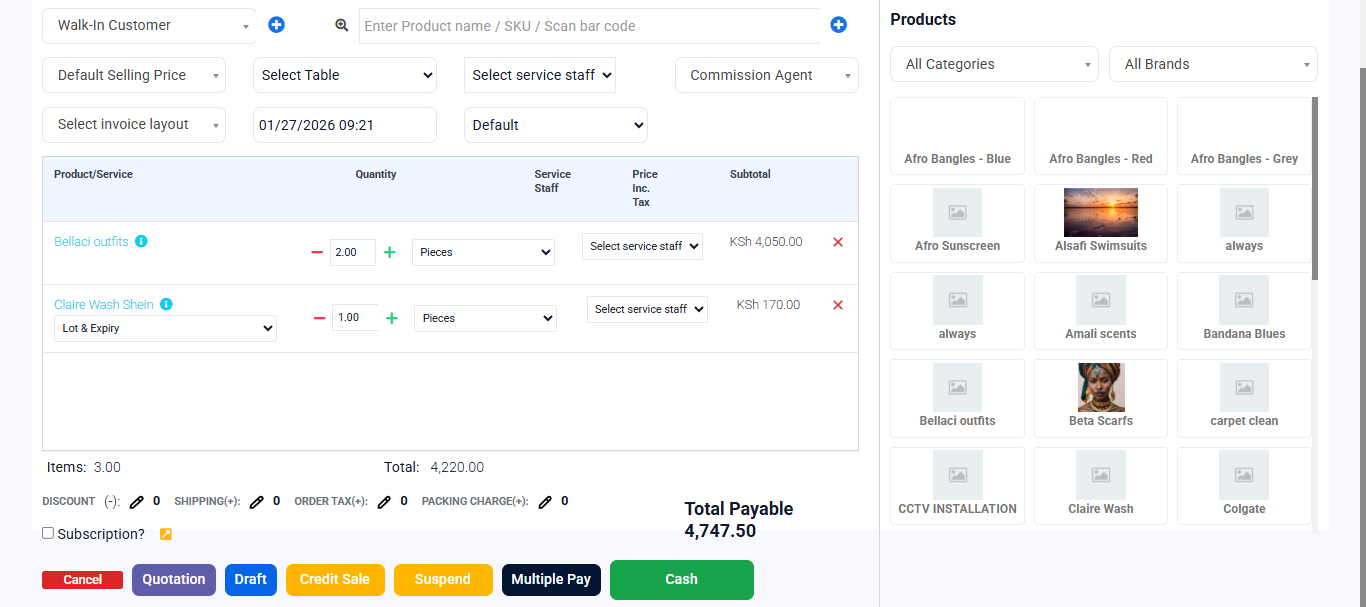
- Complete sale
The combo tax applies to the totals