Purpose
If you have rebranded or updated your business identity, you can update the business name that appears on invoices, receipts, and reports.
Before You Start
- Confirm you have Admin permissions
- Ensure the new name matches official business records.
Steps
- Log in to your Prokip account.
- Click on your Profile Icon in the top-right corner.
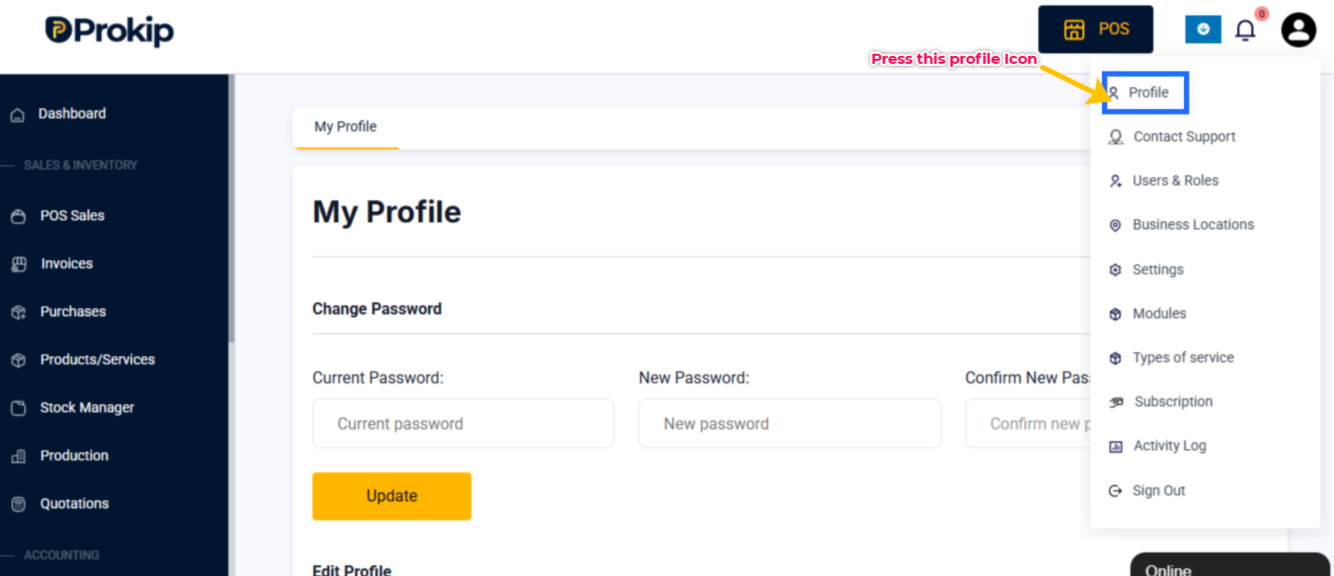
3. From the menu , click on Settings, then click Business.
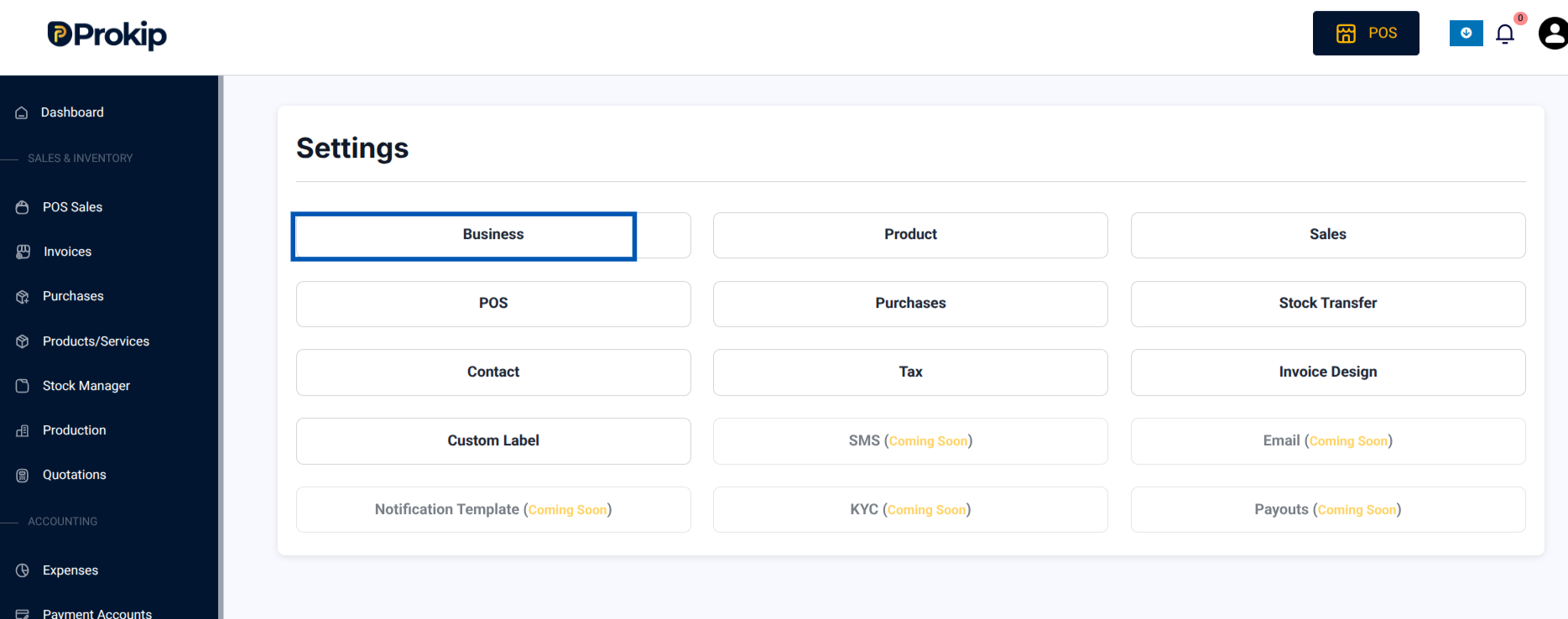
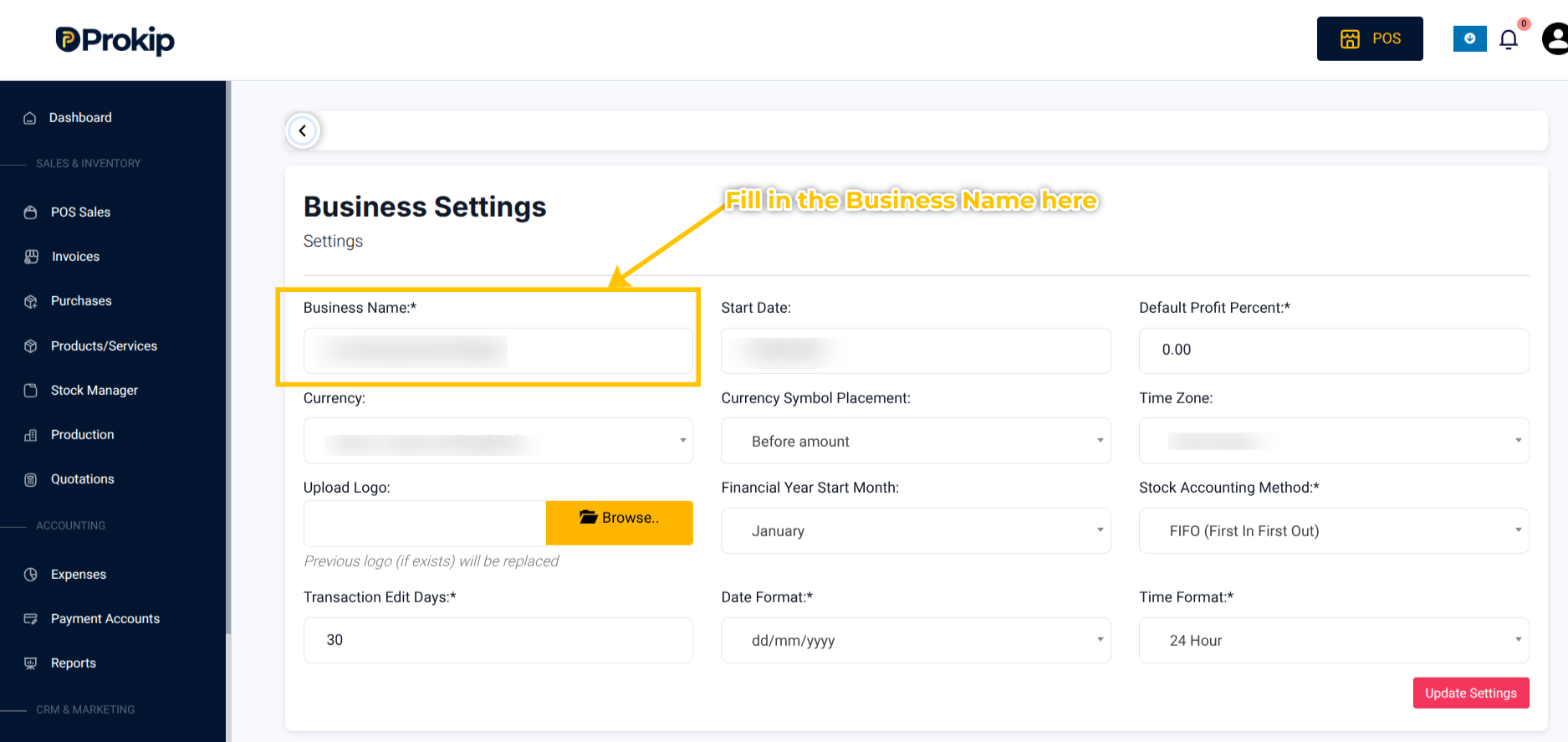
4. In the Business Settings,you will see all the Business Information.
5. Edit the Business Name field with your new business name.
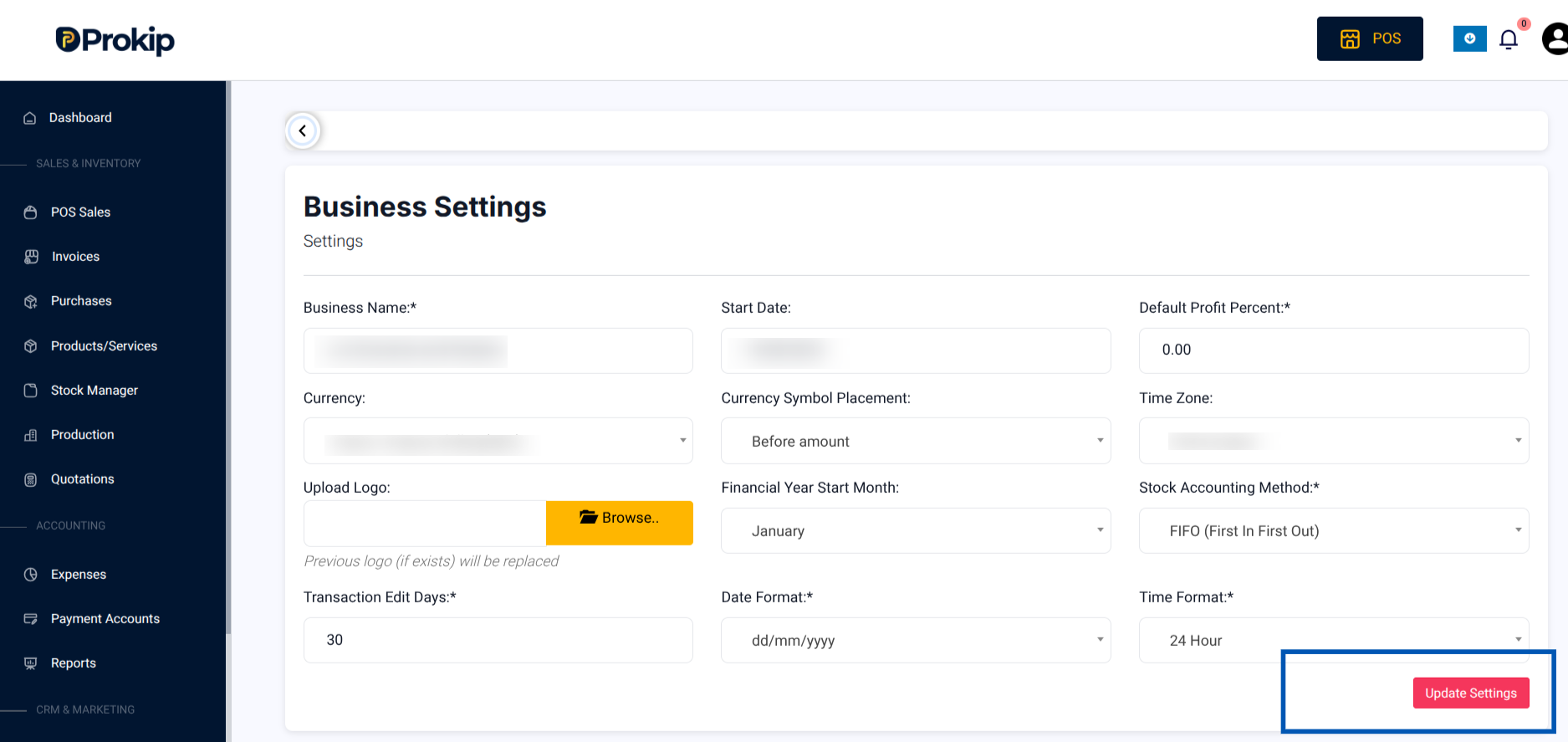
6. Click Update Settings.
What Happens Next
Your updated business name will now appear on all system-generated documents (invoices, POS receipts, reports).
Tips & Troubleshooting
- If staff can’t see the updated name, ask them to log out and log back in.
- Ensure your subscription is active and linked to the correct account before updating details.