This is useful when stock levels or expiry dates change.
Steps:
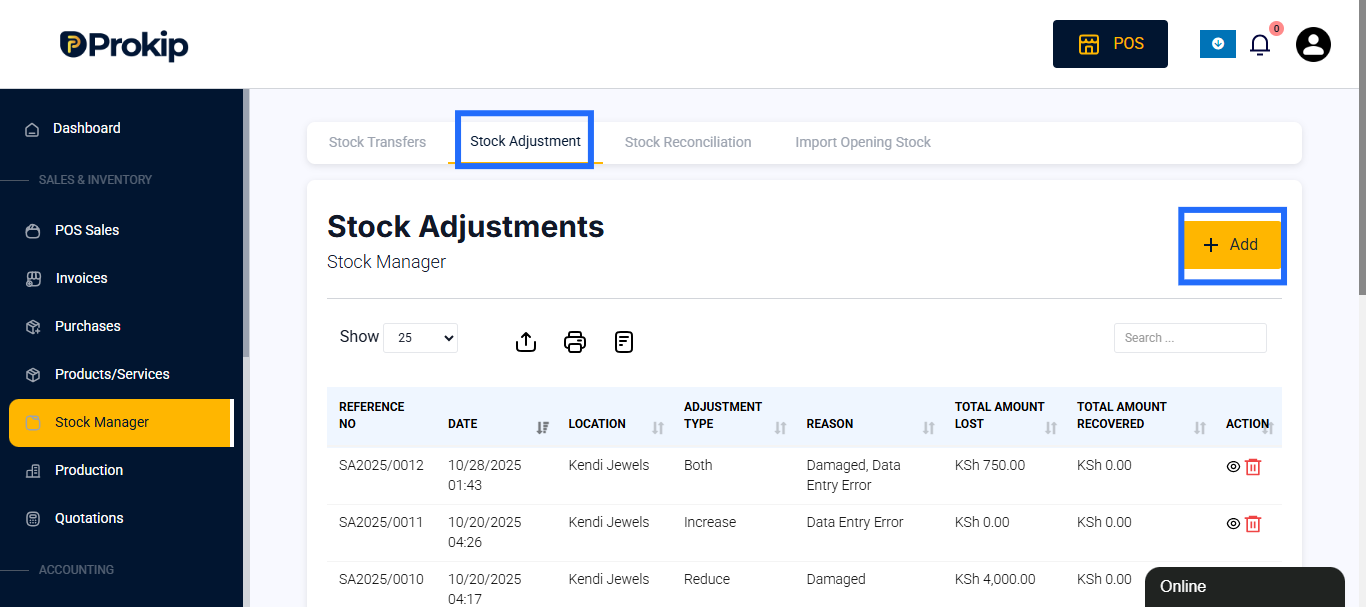
- Go to the Stock Manager & scroll to Stock Adjustment page..
- Choose +Add to to update your stock, either increase or decrease depending on your reason.
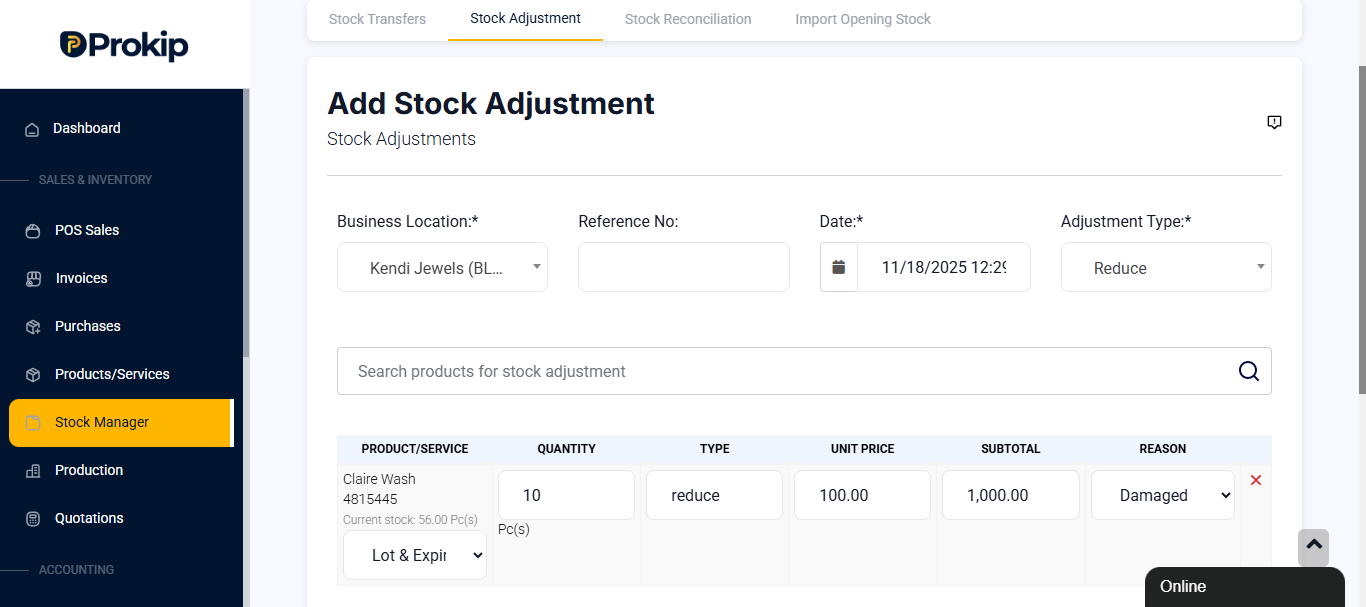
- Enter details:
- Location
- Date – Auto-filled
- Adjustment Type (Increase or Decrease)
- Search Product Name
- Quantity
- Reason for update (e.g., stock discrepancy, data entry etc)
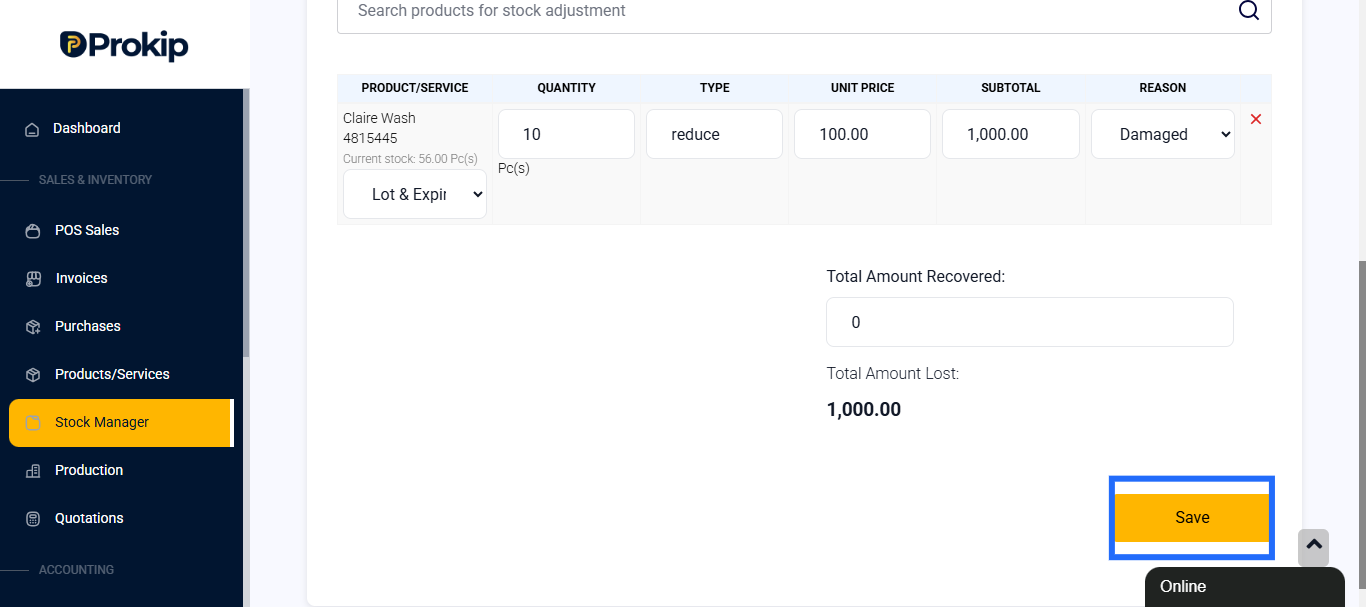
- Click Save.
Best practice:
- Update stock immediately after receiving or removing items.
- Export reports regularly to cross-check with physical stock.