Purpose
Permissions let you control what each user can view, edit, or delete. This improves security and accountability in your business.
Before You Start
- Confirm you have Admin Access
- Confirm you have permission to edit roles
Steps
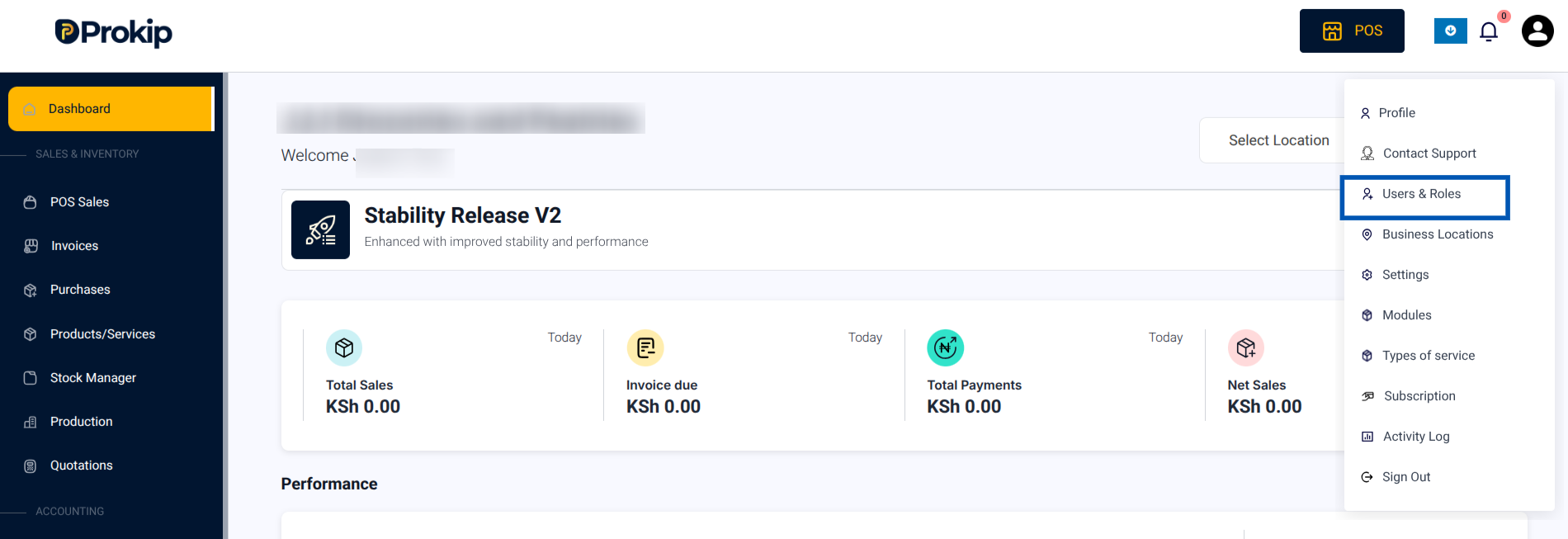
- Click on your Profile Icon in the top-right corner.
- From the menu, select Users & Roles.
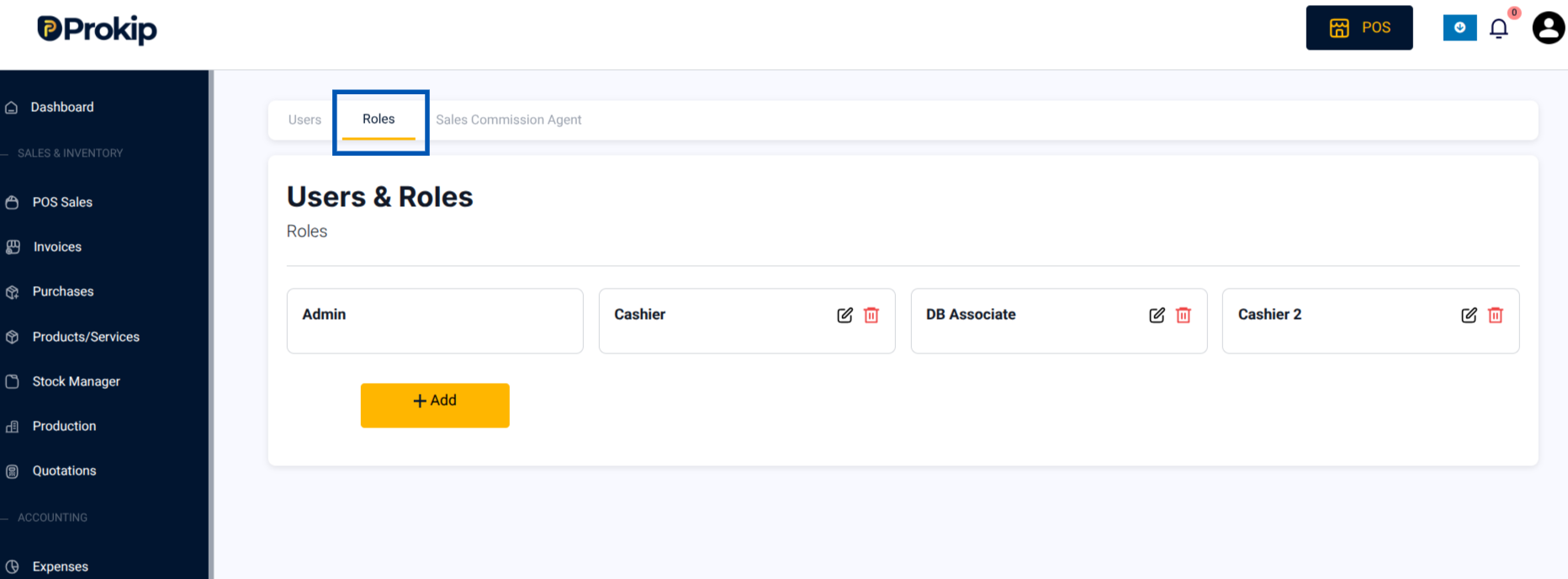
3. Open the Roles tab.
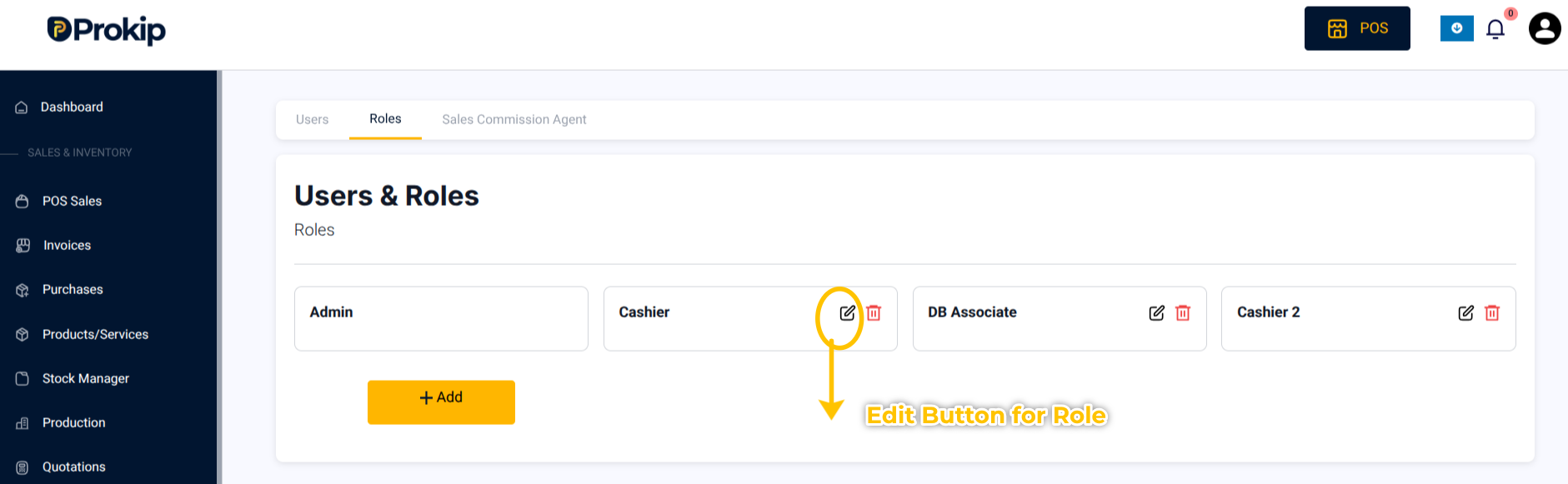
4. Find the role you want to edit, Click on the Edit button on the role in which you want to change Permissions.
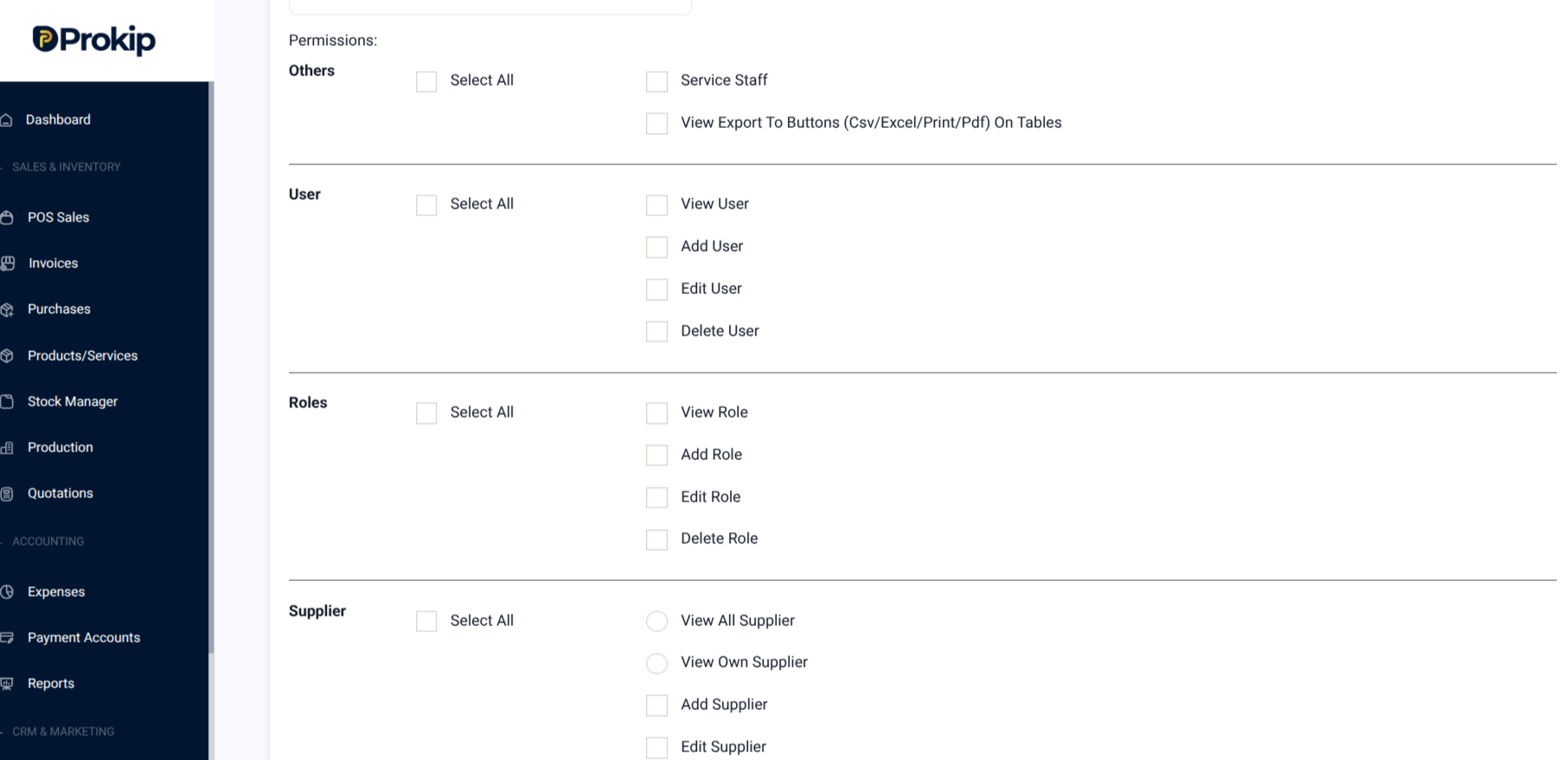
5.Check or uncheck permissions for :
- User
- Roles
- Supplier
- Customer
- Product
- Sales
- Purchases
- Stock Transfer
- POS
- Invoice
- Stock Adjustments
- Price groups
- Reports
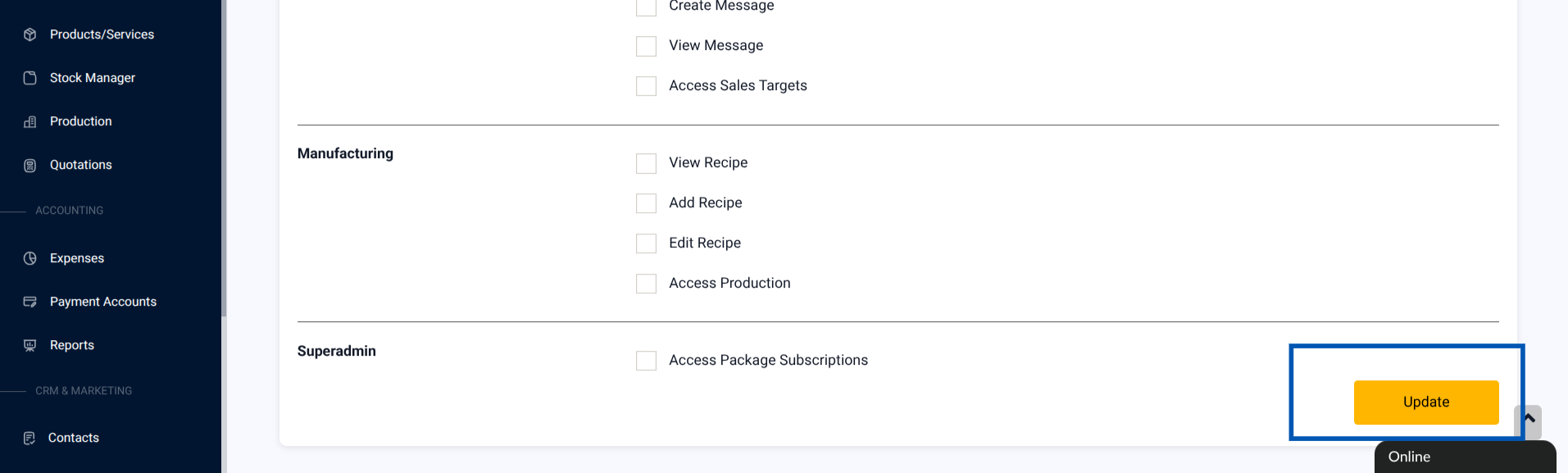
6. Click Update to save the changes.
What Happens Next
Changes apply immediately to all users assigned to that role.
Tips & Troubleshooting
- To stop cashiers from deleting sales, uncheck Sales → Delete.
- To allow sales managers to see reports but not edit them, check only View Reports.
- To restrict a cashier to one location, assign them only to that location and limit payment options.
- To restrict a cashier to cash payments only, assign them to a location and limit payment options to cash payments.
- If a sub-user cannot see Price Groups, enable the feature in Settings → Modules and then assign permission under their role.