A draft sale is used when you start entering a sale but aren’t ready to complete it — for example, waiting for manager approval or customer confirmation.
Steps
- Go to POS and add the products or services to the cart.
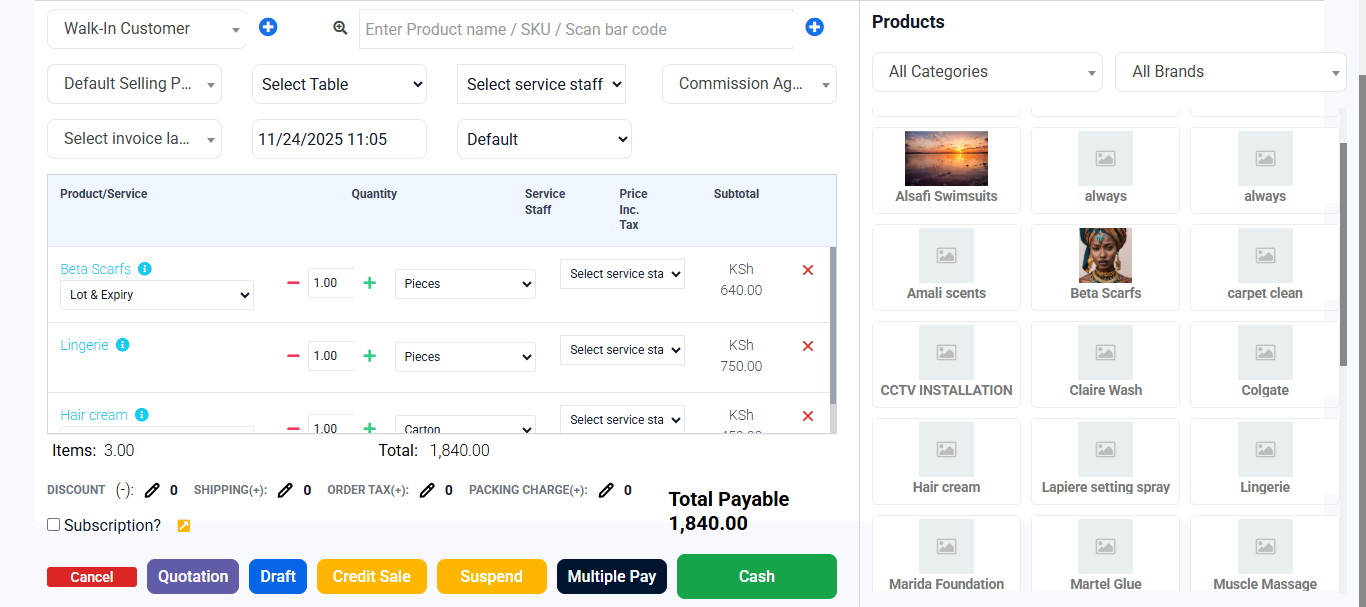
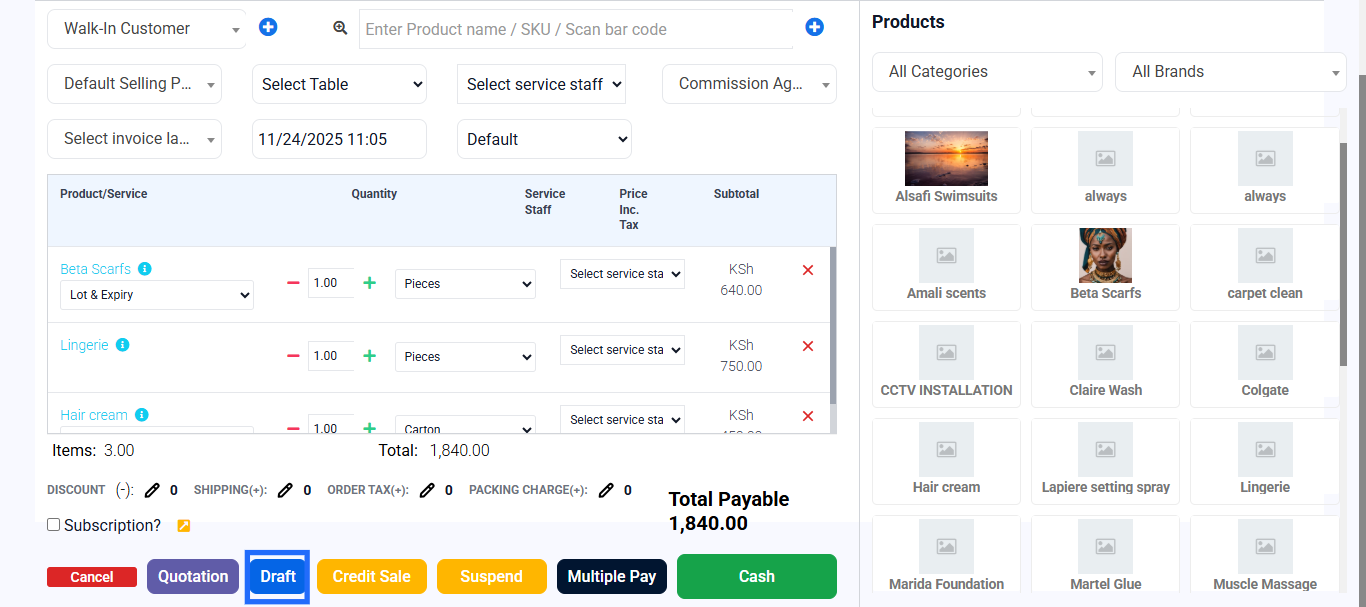
- Click Draft instead of completing the sale.
- To update the Quotation;
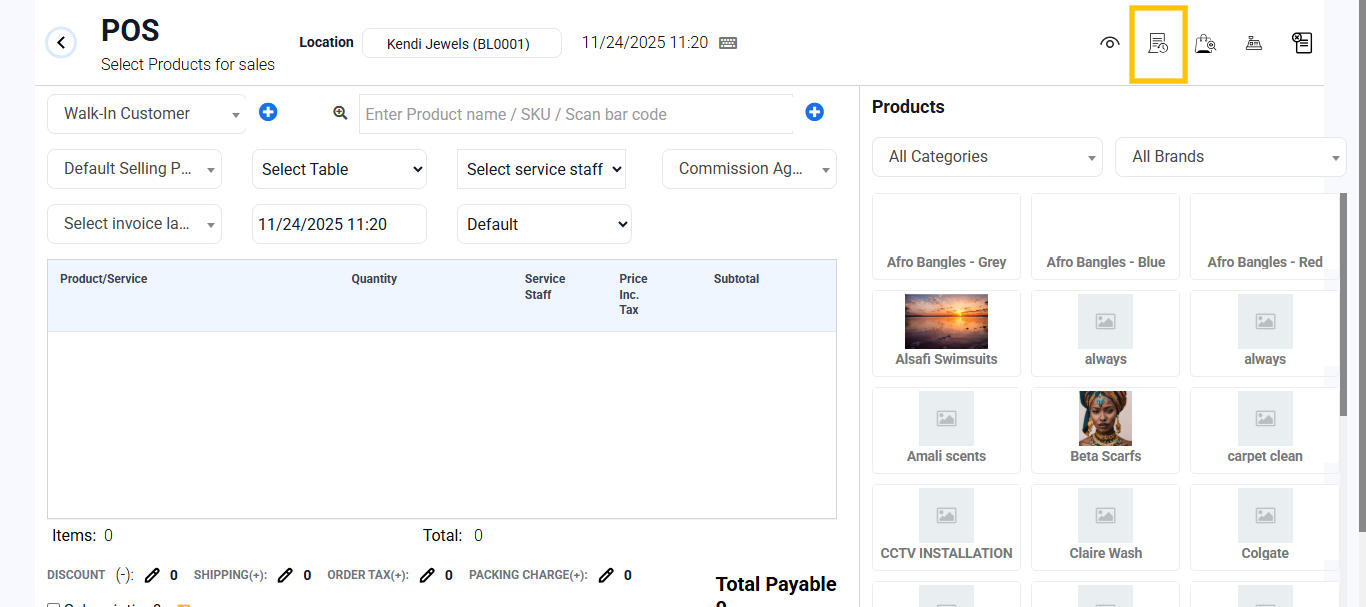
- On the top-right, Open recent transactions and scroll to the Drafts tab.
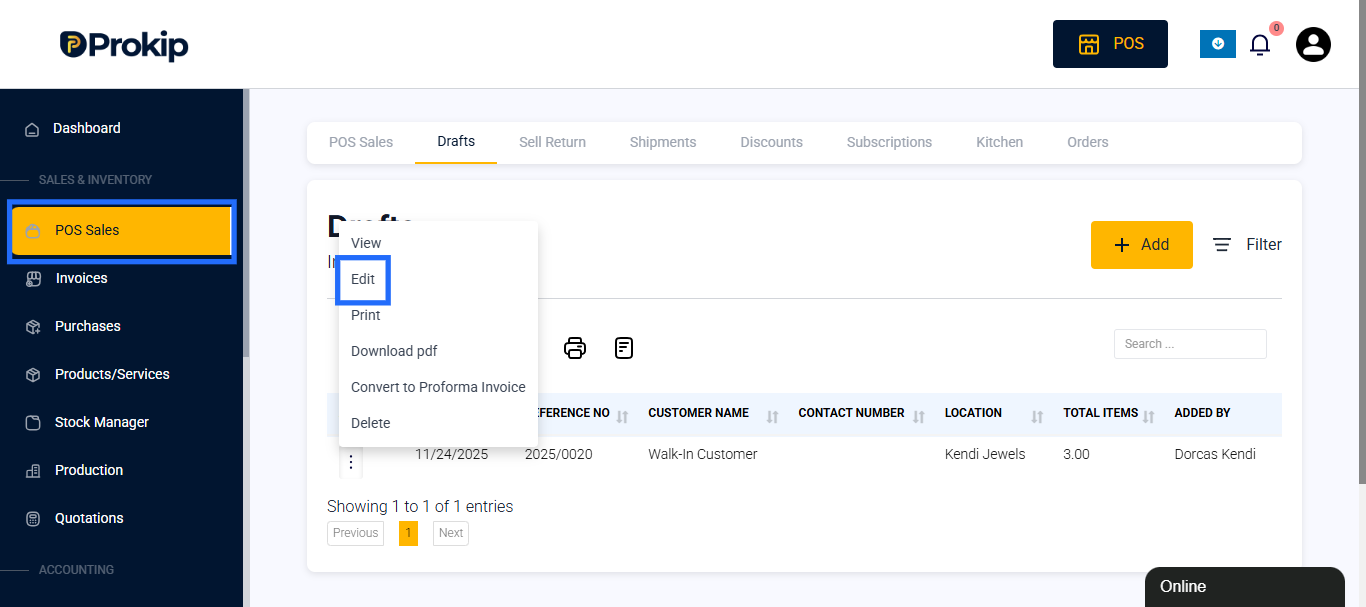
- Locate the Draft you added and click the Edit button to go to POS and finish the sale.
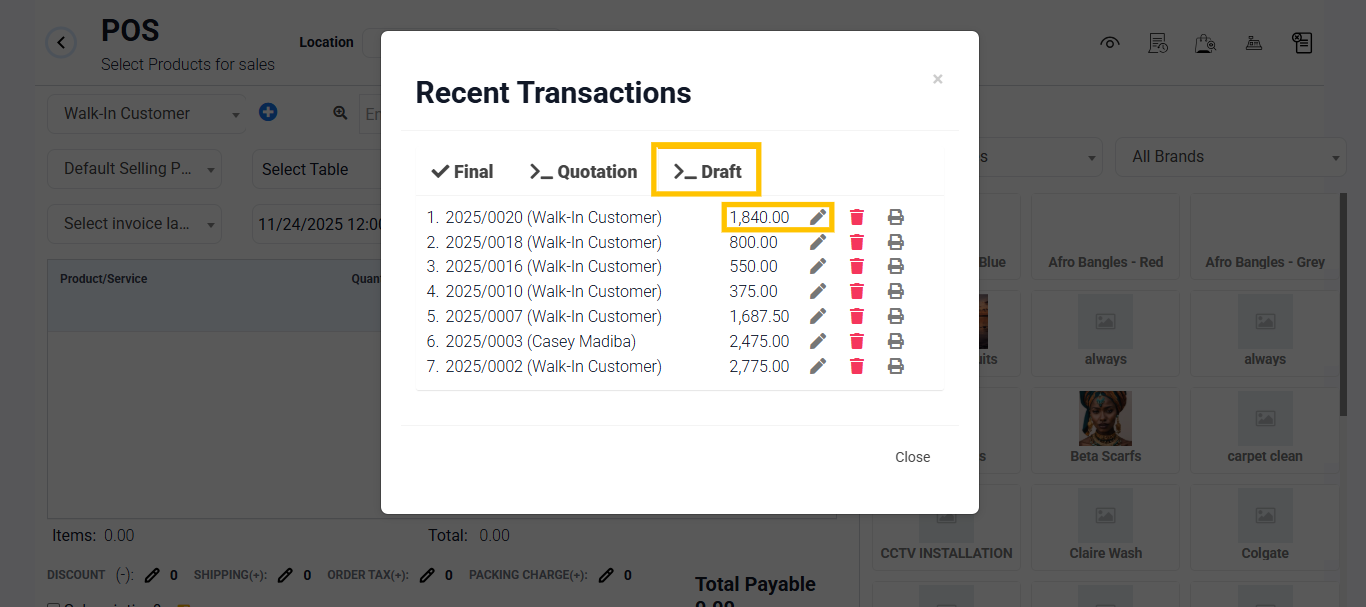
- On the top-right, Open recent transactions and scroll to the Drafts tab.
- Alternatively, you can go to POS Sales → Drafts.
- Click Edit to open the draft.
- Make any needed changes, then finalize the sales to complete the transaction.
Best Practice:
Check your drafts regularly and delete old or unused ones to avoid confusion. Only finalize drafts once all sale details are confirmed.