Purpose
Products & Services helps you manage all items your business sells, whether goods or services. It tracks stock, records sales, and generates accurate reports for better decision making.
Before You Start
- Ensure you have your product/service details ready (name, unit, price, tax).
- Create categories and brands beforehand if you plan to use them.
Steps
- Log in to your Prokip account.
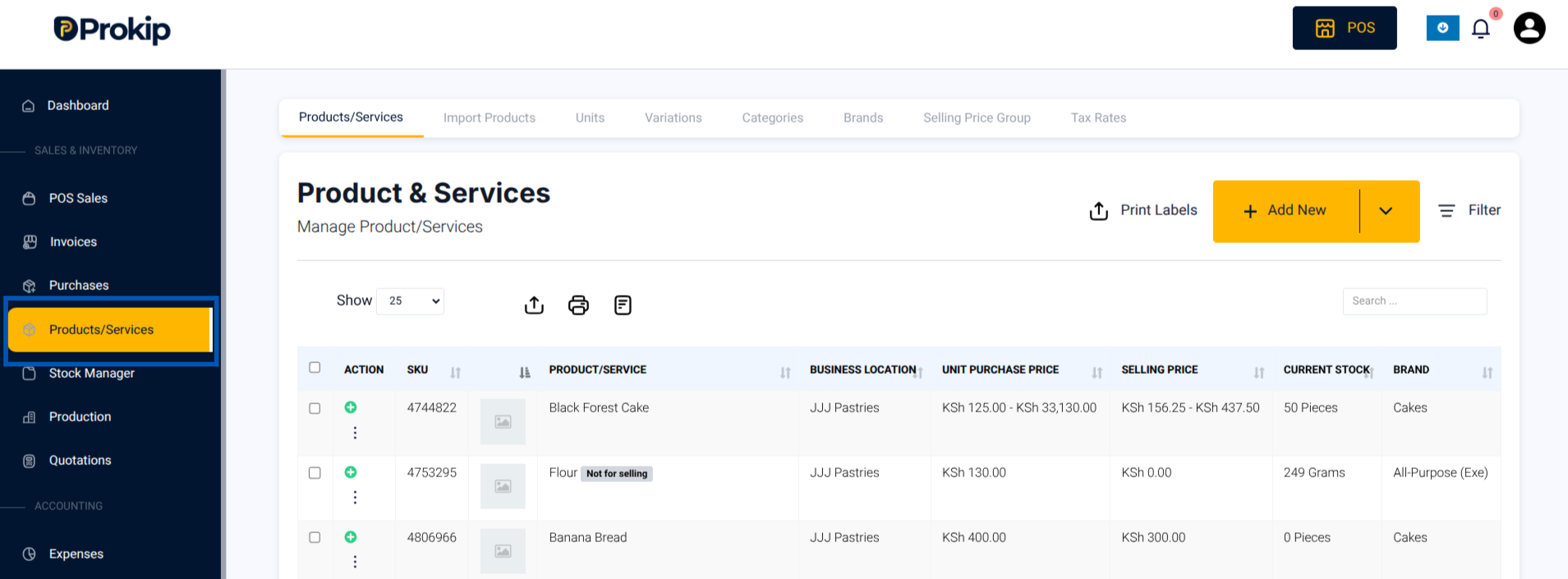
- From the left side- menu, click Products/Services
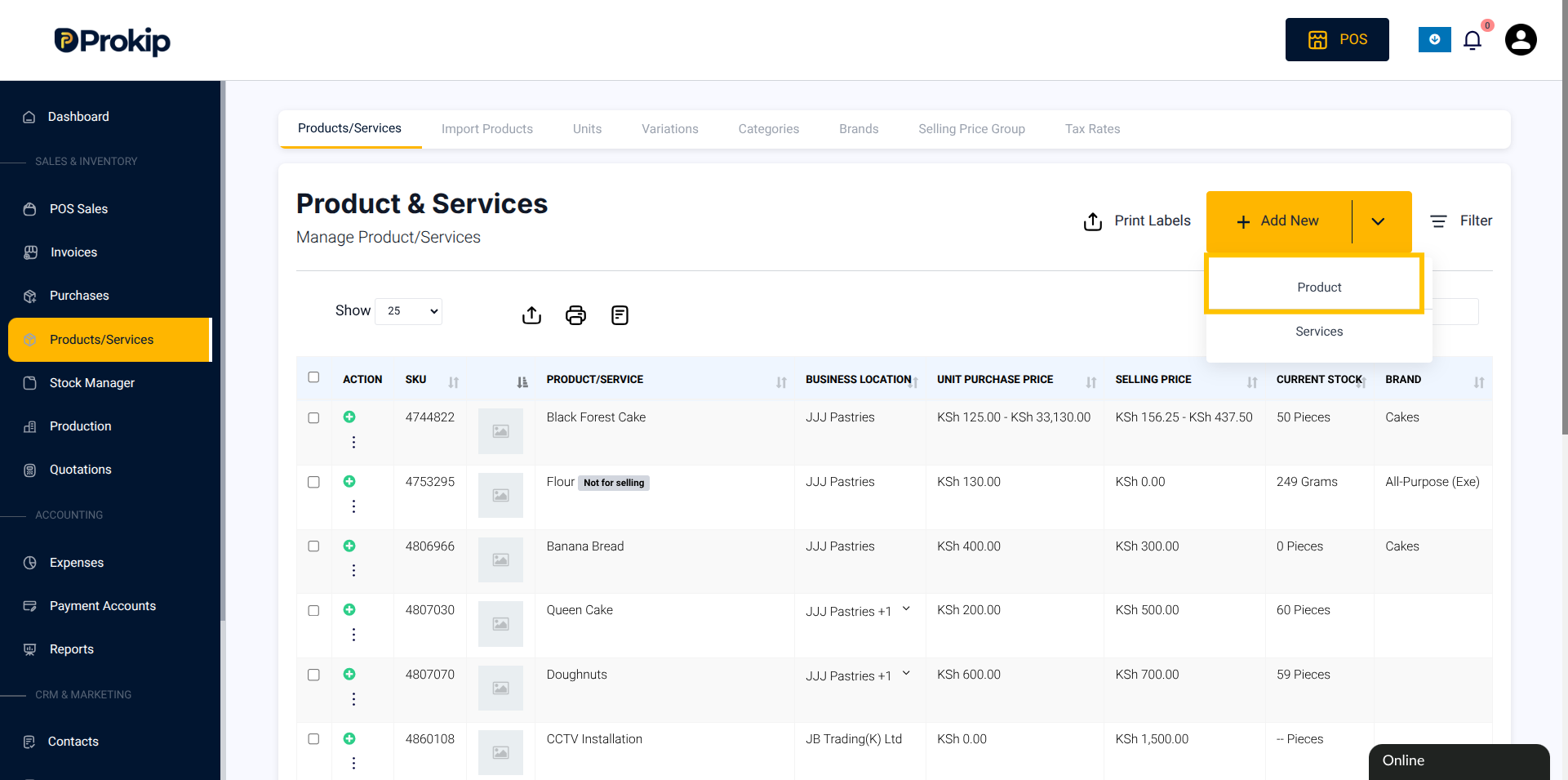
3. Click Add New.
4. Choose the item type , whether a Product or Service.
Select “Product” for this case as it is to sell physical goods.
Note: For Services, please refer to How to Create Services
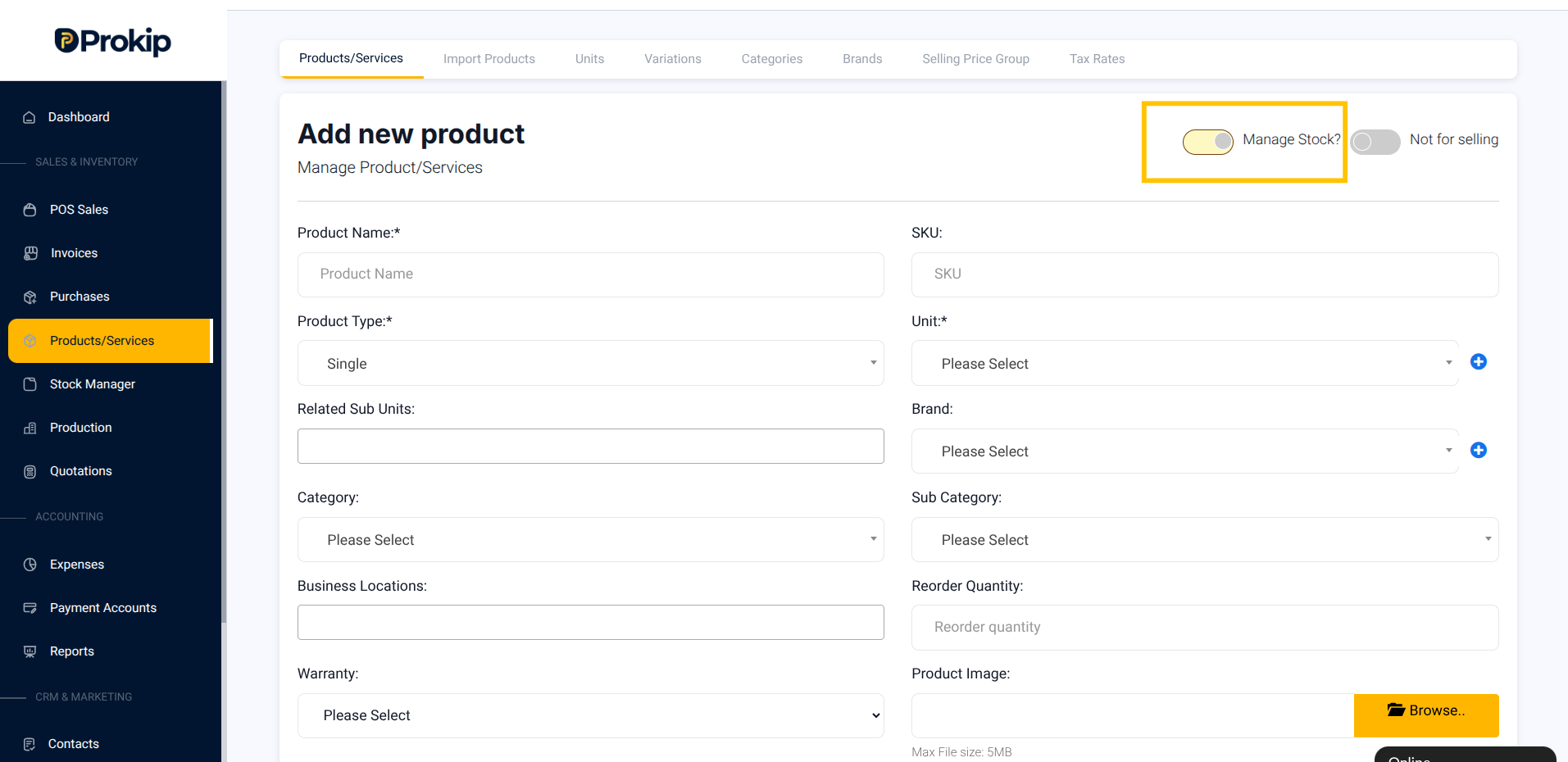
5. Toggle “ON” Manage Stock so as to track stock of the item and get an alert of how many products you have left.
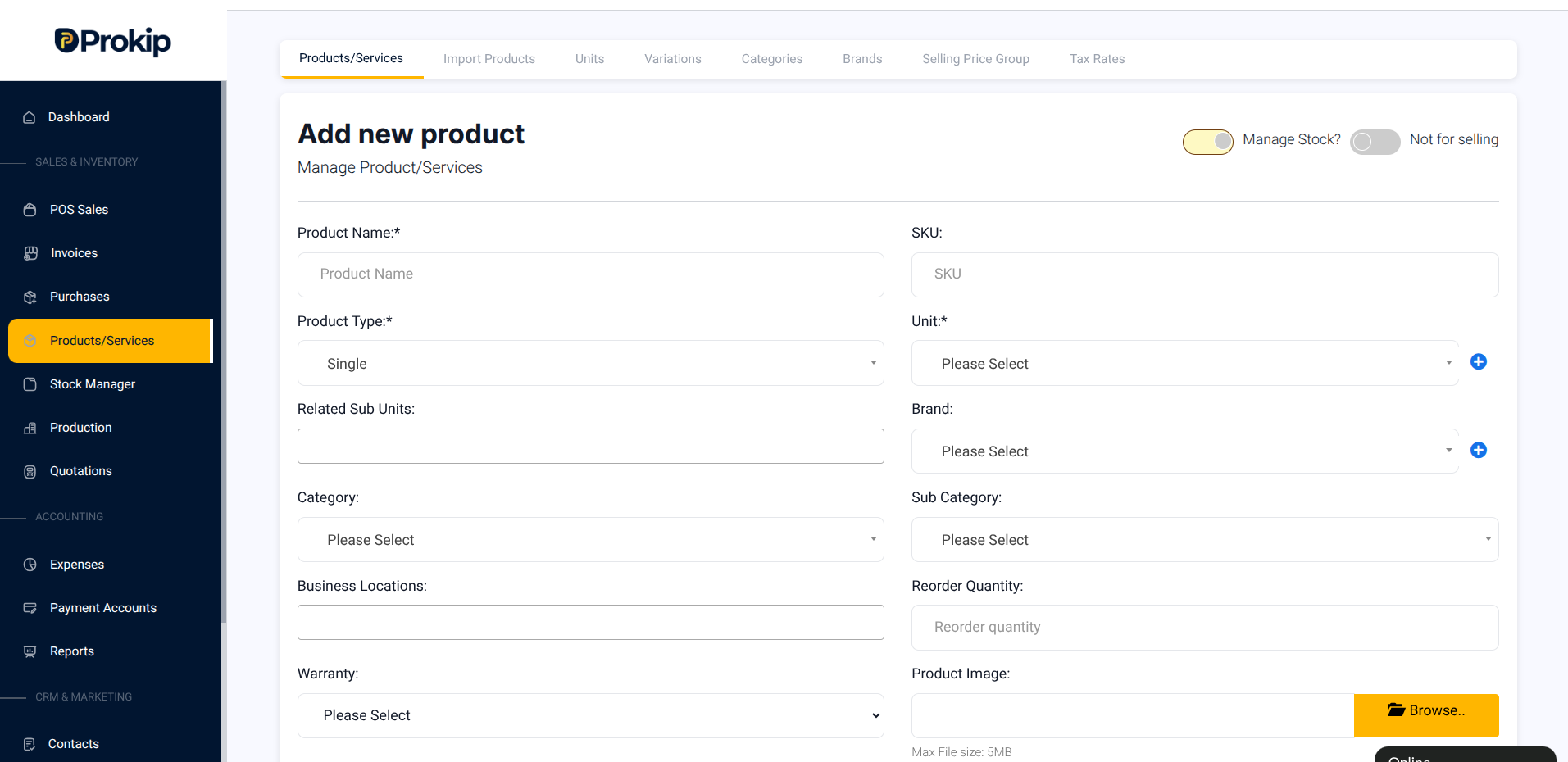
6. Fill in details such as:
-
- Product Name
- SKU or barcode
- Product Type
- Unit for sales
- Brand
- Business Location – where you want your product to be sold
- Reorder quantity – the minimum stock unit to have in your stock so you can reorder
- Purchase Price , Selling Price and Tax rate
7. Click Save and Add Stock
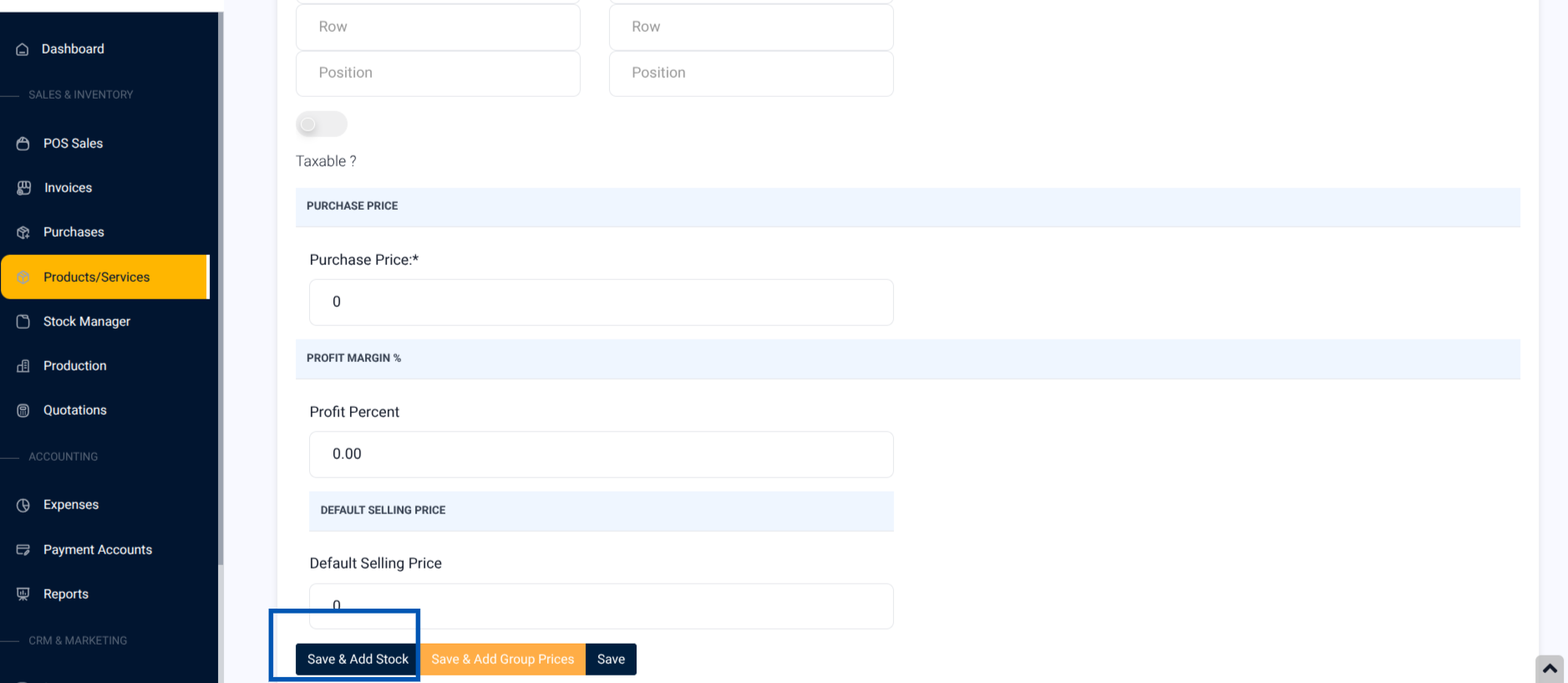
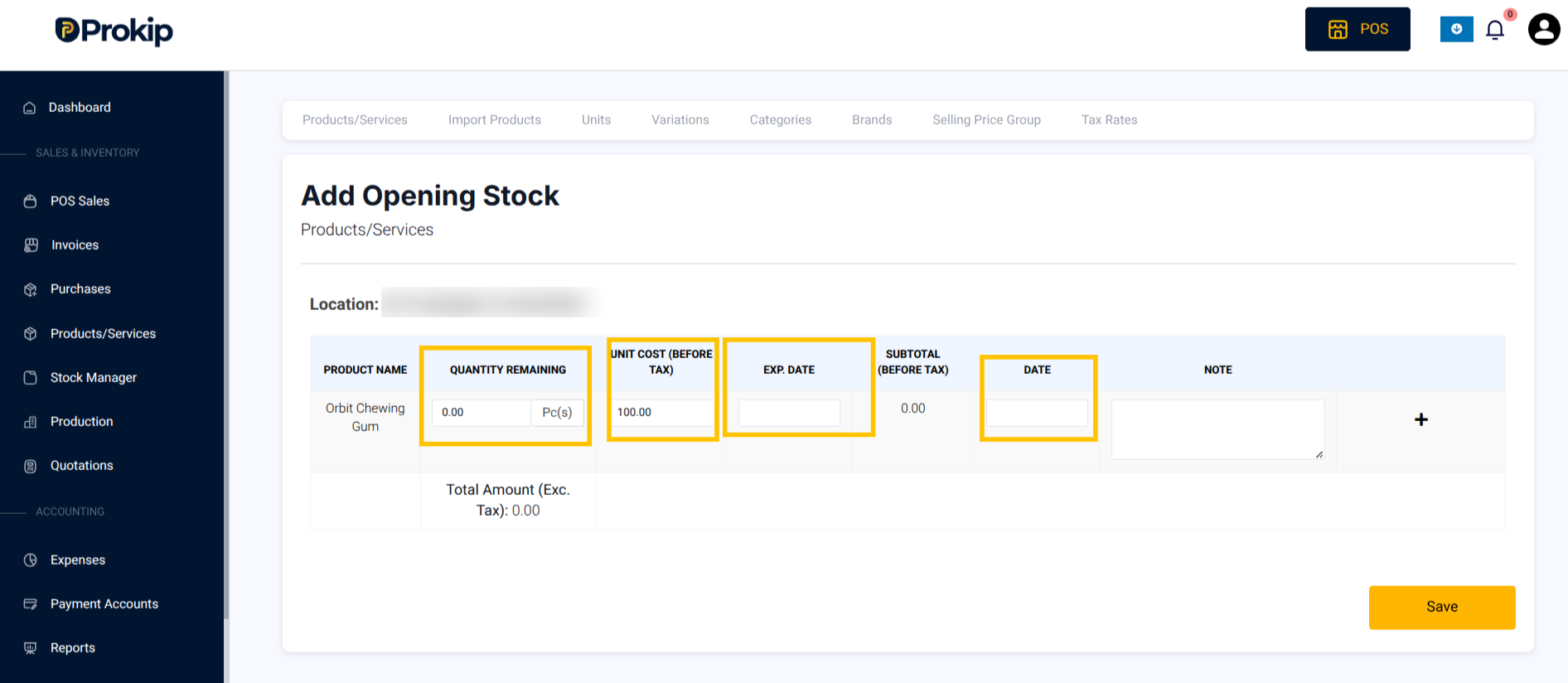
8. Upon clicking, you are redirected to Add Opening Stock page.
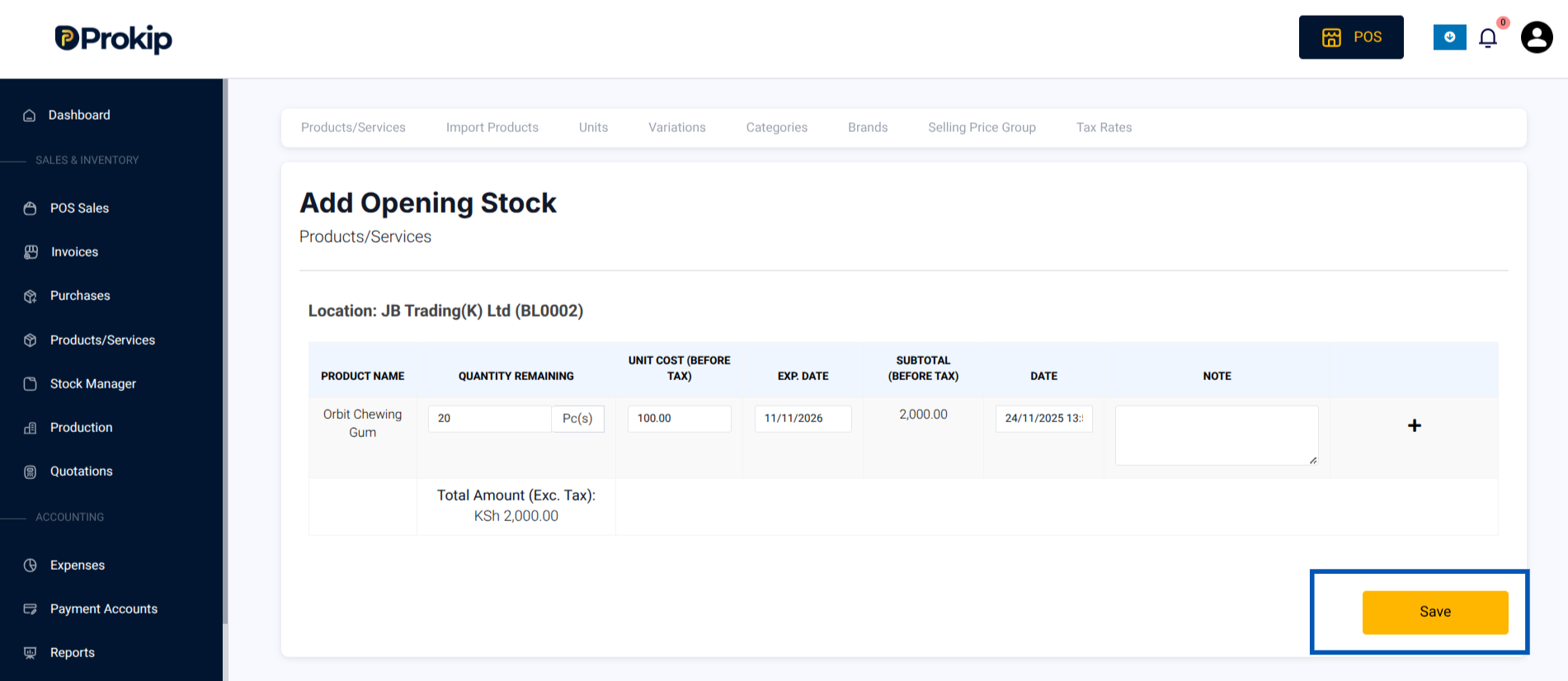
Input the quantity remaining to be sold, unit cost, expiry date(for products with expiry date) and date of input.
9. Click Save.
What Happens Next
- The new product appears automatically in POS, Invoices, Quotations, and Reports.
- The product becomes available for sale and stock tracking at all assigned locations..
Troubleshooting
- Product missing in POS : Check if it’s assigned to the correct location.
- Stock not tracking: Make sure you added it as a Product, not a Service.
- Product duplicates: Always search before adding a new one.