Price groups let you offer different prices for different customers (for example, wholesale vs retail).
Before You Start
Set Up Price Groups – Go to Products/Services → Selling Price Groups tab and create special pricing options (e.g., Retail, Wholesale) or import selling price group by downloading template and filling it.
Steps:
- Go to POS.
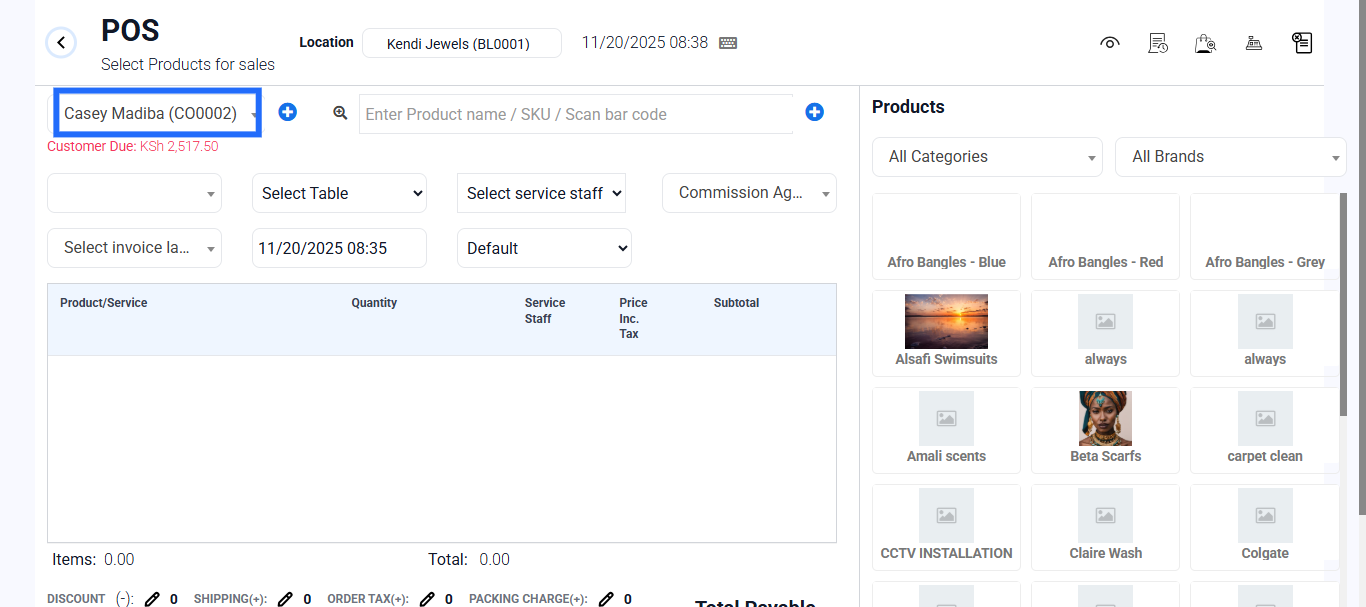
- Select a Customer or walk-in-customer.
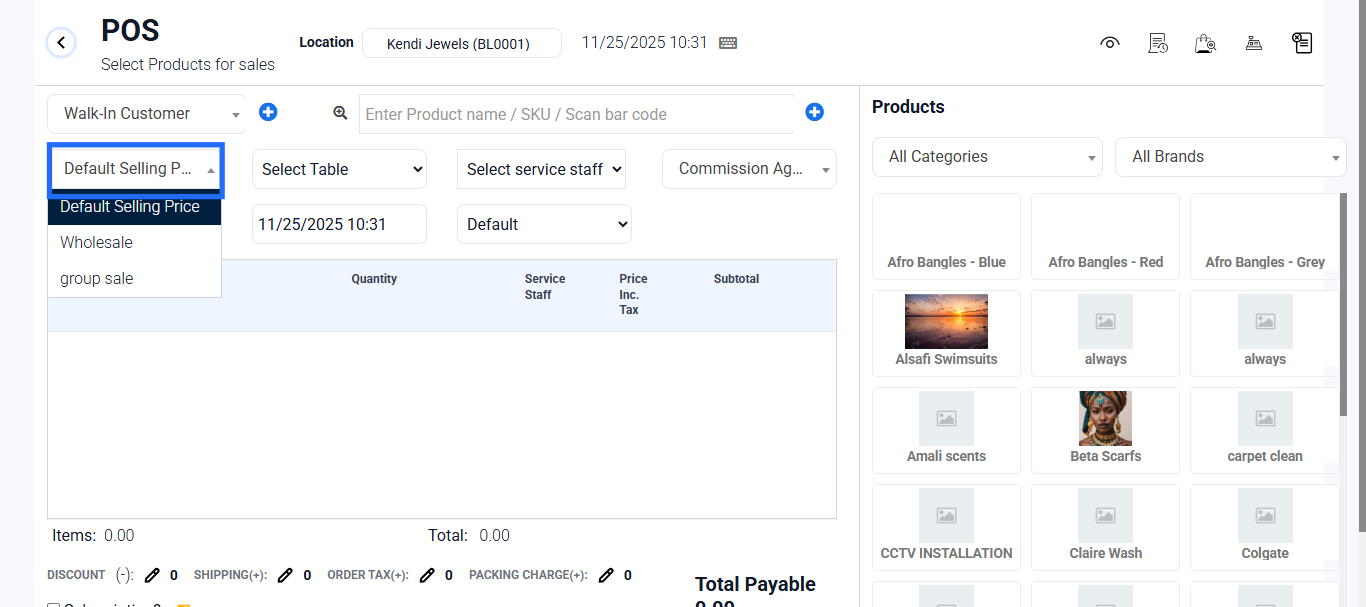
- Choose the Price Group (e.g., Retail or Wholesale).
- Add products — prices will update automatically based on the selected group.
- Review your order, then complete the transaction.
Best Practices
- Always confirm your price groups and units before starting sales.
- Keep consistent naming (e.g., “Carton of 12,” not “12 Pack”).
- Use Wholesale price groups for loyal or bulk customers.
- Review your price list regularly to stay up to date.
Track your sales by price group in reports to see what performs best.