When you record a purchase order in Prokip, you can save it as Received, Pending or Ordered status. Once items have been received, you’ll need to update the status to Received so your inventory reflects the new stock and your records stay accurate.
Before You Start
Before converting a purchase order:
- Make sure the supplier has delivered the products.
- Confirm the order already exists under Purchases list of Orders.
- Check that all products and locations in the order exist in your inventory list.
Two Ways to Convert a Purchase Order
Option 1: Change Status Directly from the Purchase List
- Go to Purchases, on the list of products.
- Locate the order you want to update.
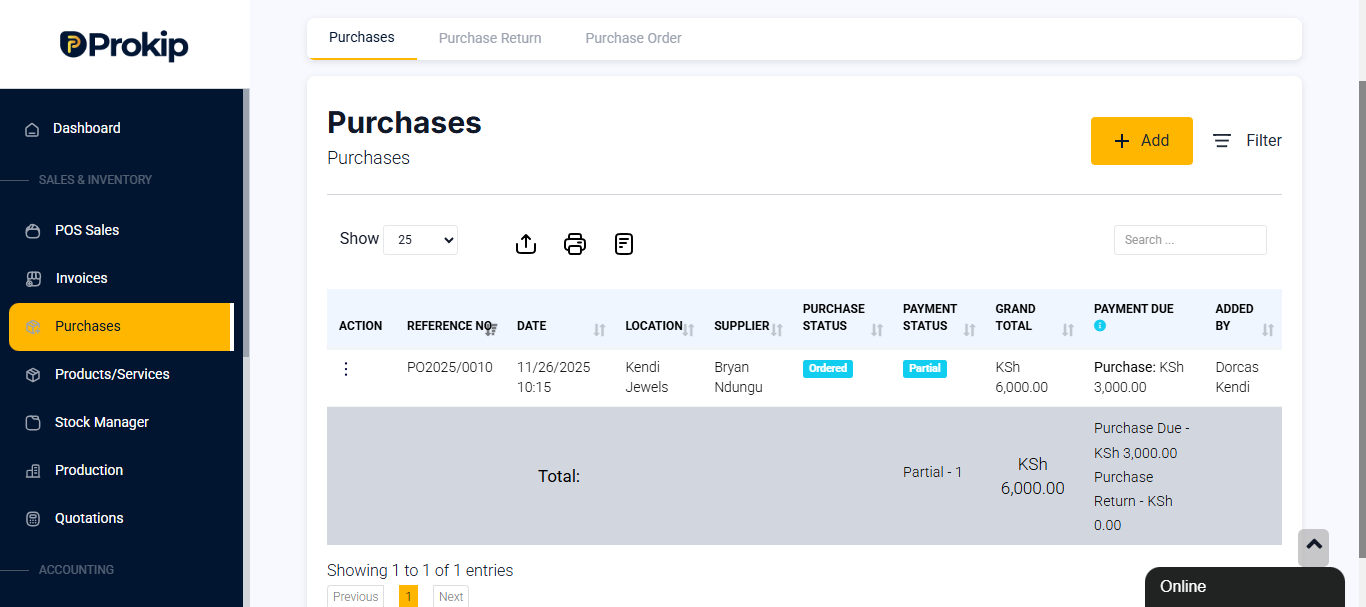
- Under the Purchase Status column, click the current status (e.g., Pending).
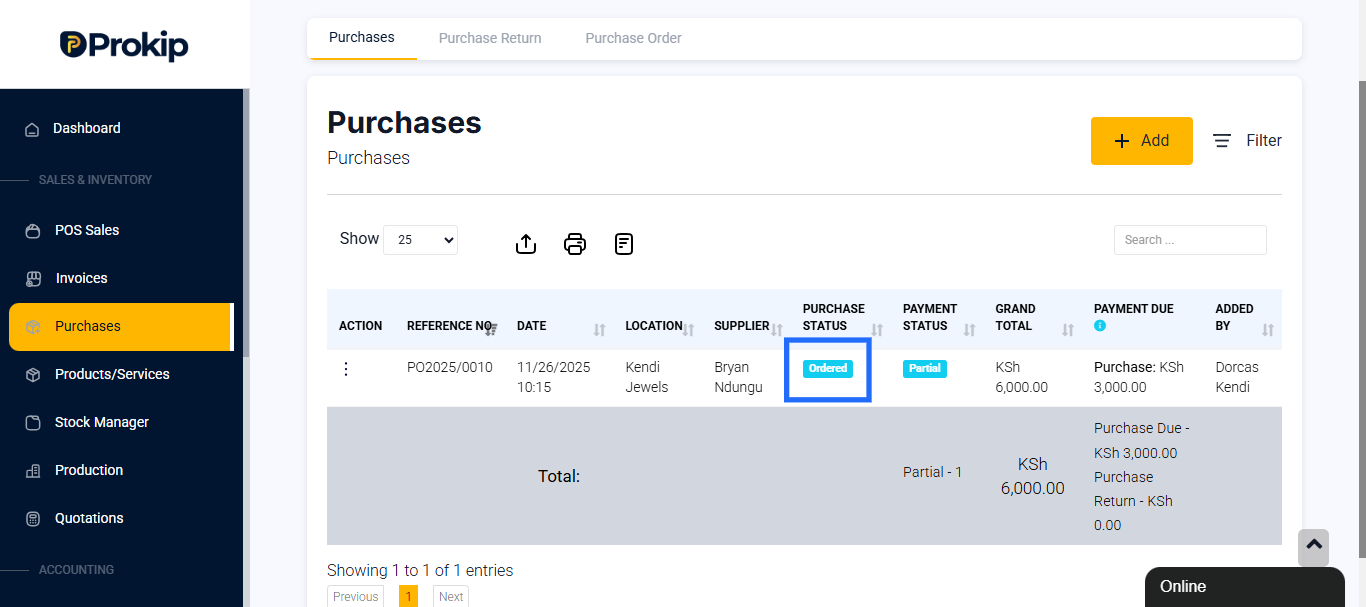
- Choose a new status — Ordered, Received, or Pending — depending on your progress.
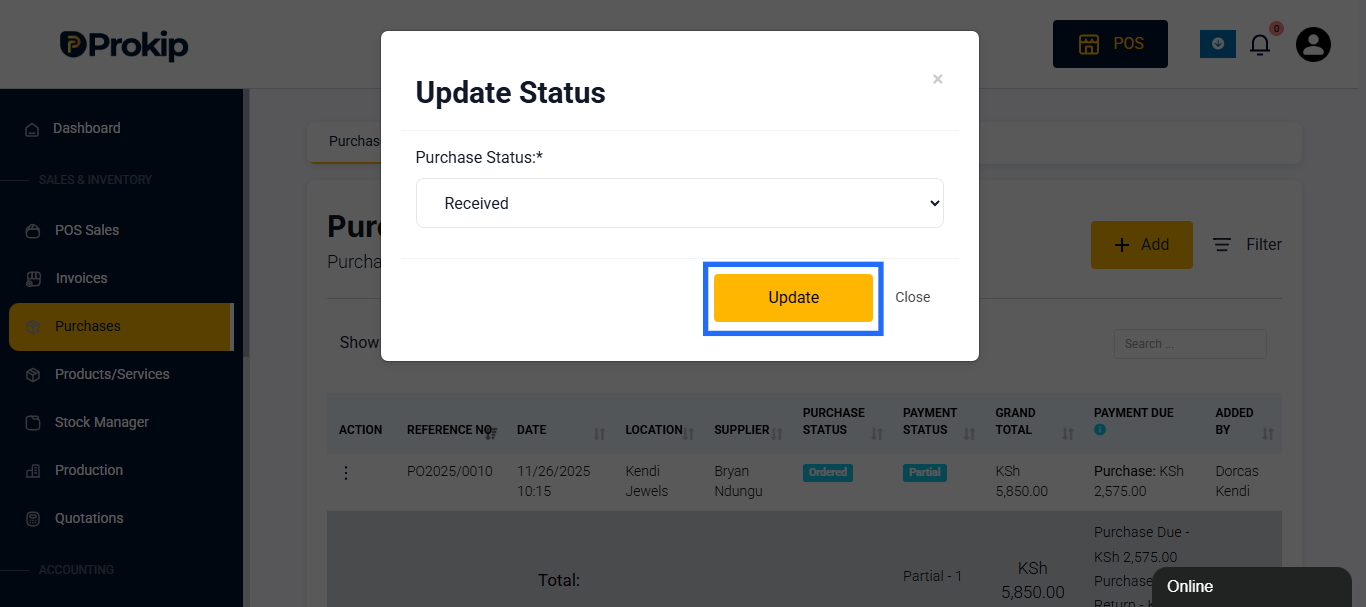
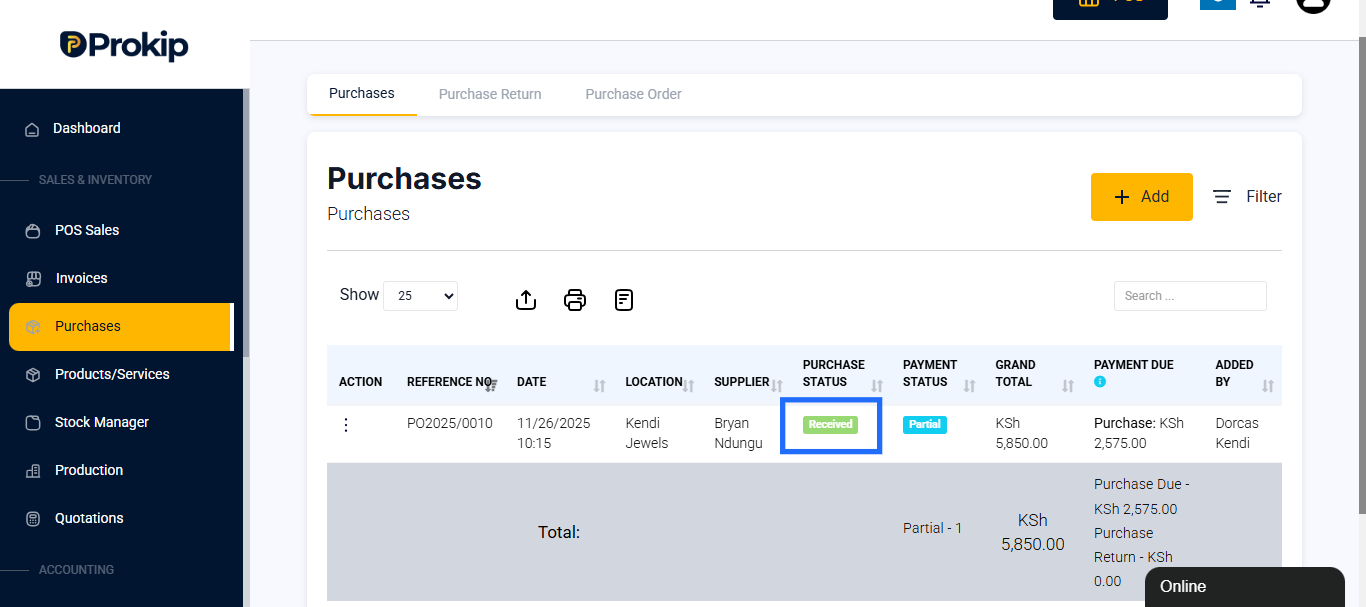
- The system will instantly update the purchase and, if completed, add the items to your stock.
Option 2: Update Status from Inside the Purchase Details
- From Purchases list, click View or Edit on the specific order.
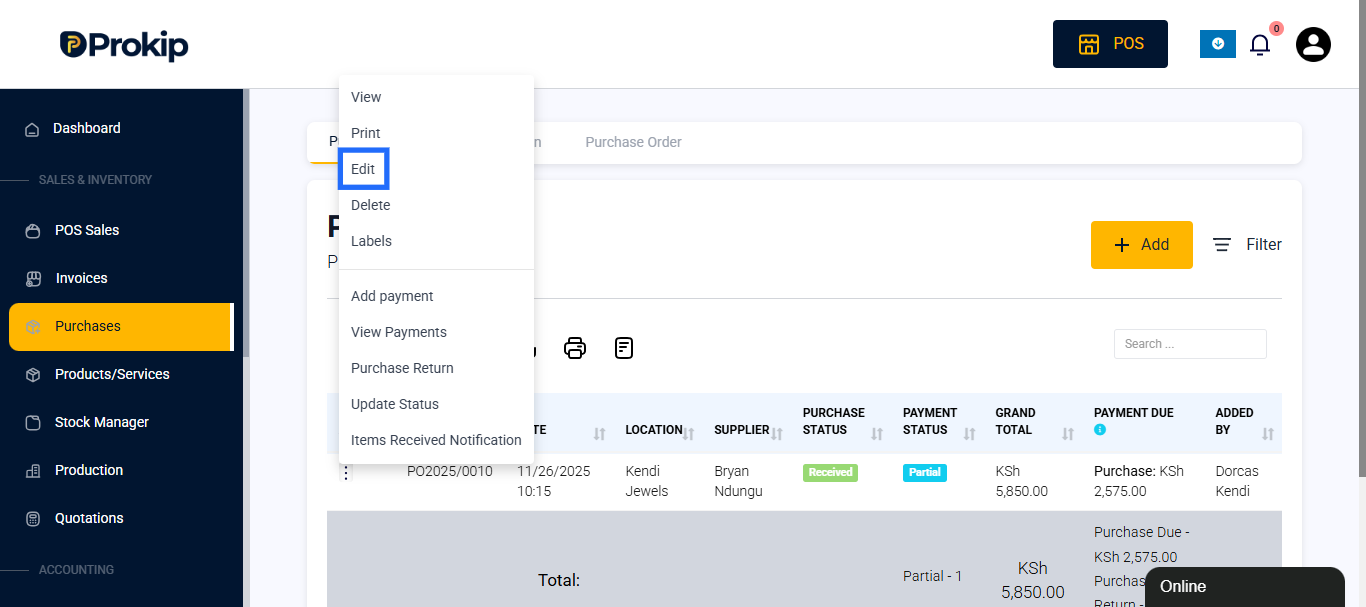
- Review all details — supplier name, products, quantities, and prices.
- Locate the Purchase Status dropdown and select Received.
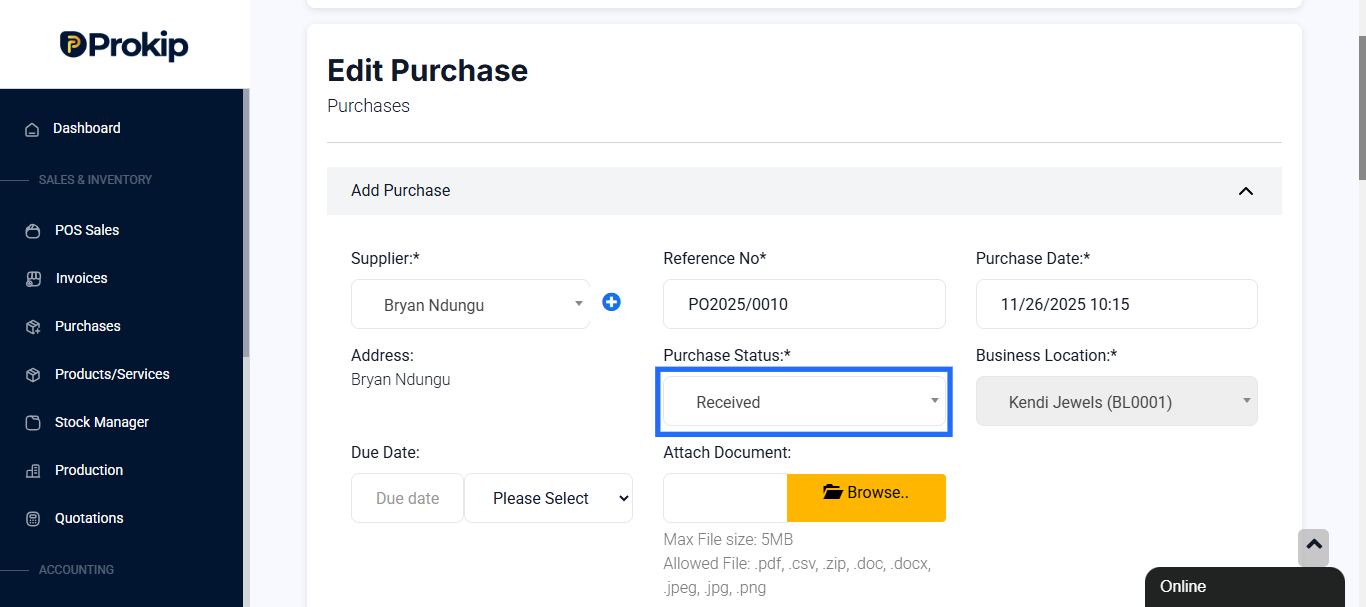
- Add optional notes like delivery references or received dates.
- Click Update to finalize.
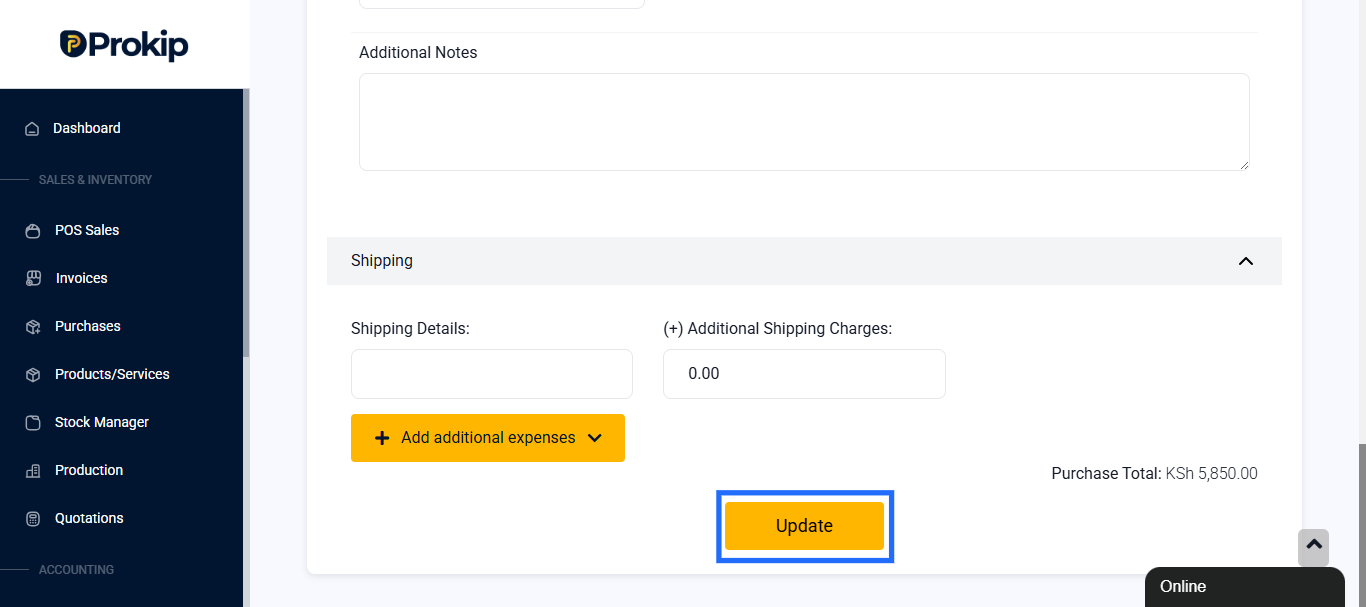
Optional: Add Payment Details
If you’ve already made a full or partial payment:
- Scroll to the Add Payment Section.
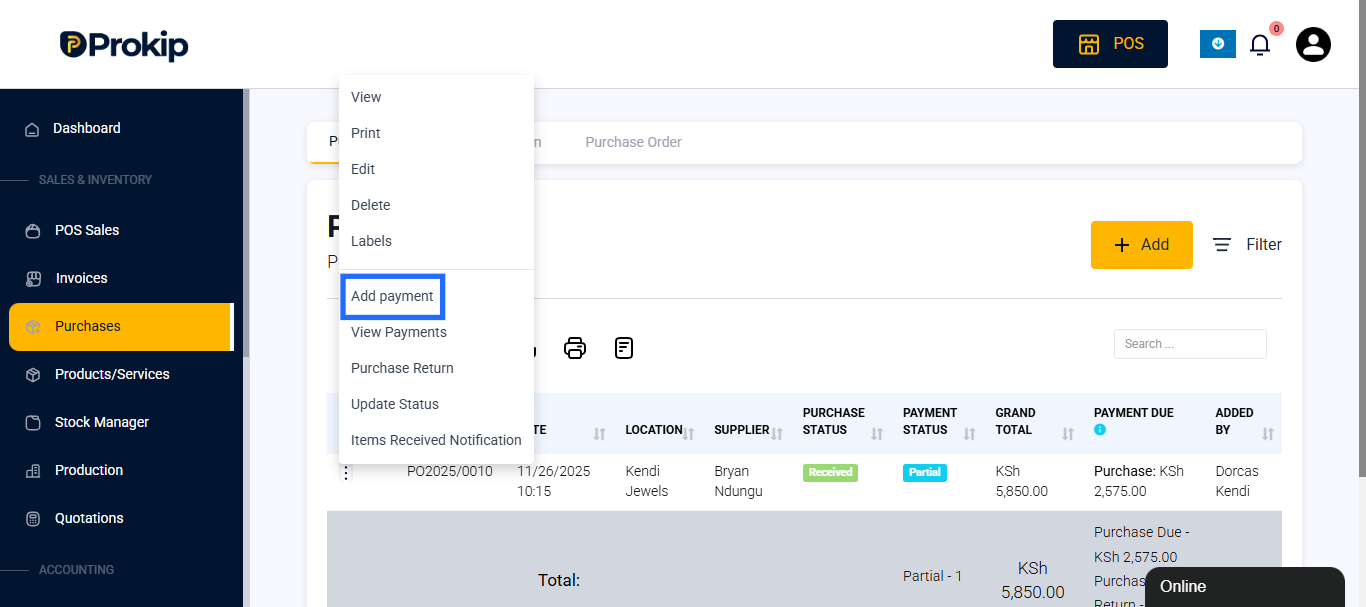
- Enter the amount paid, payment method (Cash, Bank Transfer, POS), and a payment note (e.g., “Paid on delivery”).
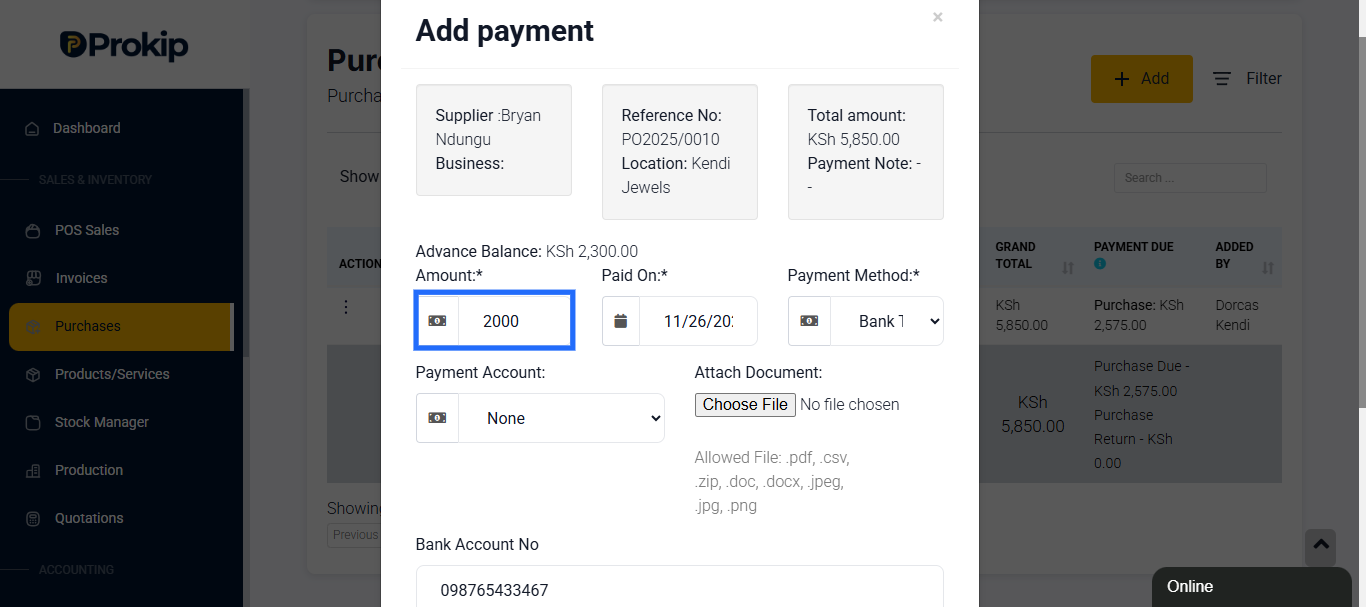
- Click Save
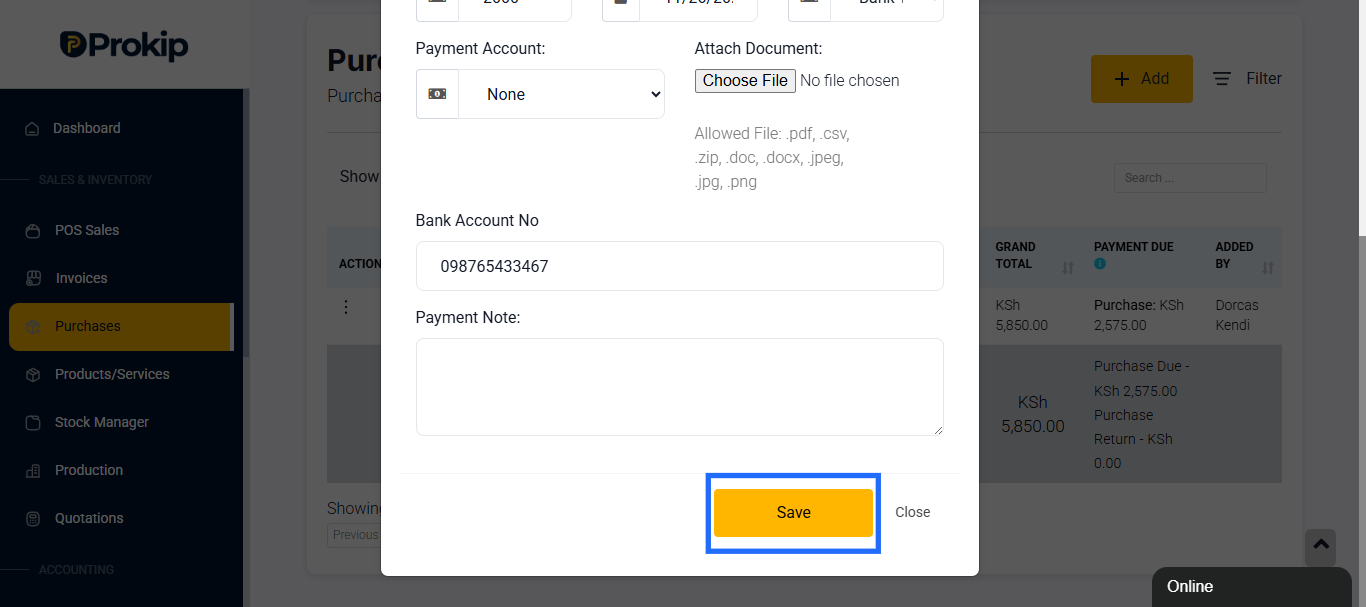
If payment hasn’t been made yet, you can record it later under Supplier Payments.
After Conversion
Once the purchase is marked as Received:
- The inventory updates automatically to include the received items.
- The supplier balance and purchase history reflect the new transaction.
- The order status updates across your dashboard for easy tracking.
Best Practices
- Always double-check the quantities and supplier details before marking a purchase as complete.
- Use the status dropdown in the list view for quick updates.
- Only mark purchases as Completed after confirming that all items were delivered.
For partial deliveries, update quantities received and leave the rest as Pending.