Purpose
Units allow you to set measurement types for your products, ensuring accurate stock tracking.
This is essential for businesses selling items measured in pieces, kilos, liters, cartons, etc.
Steps
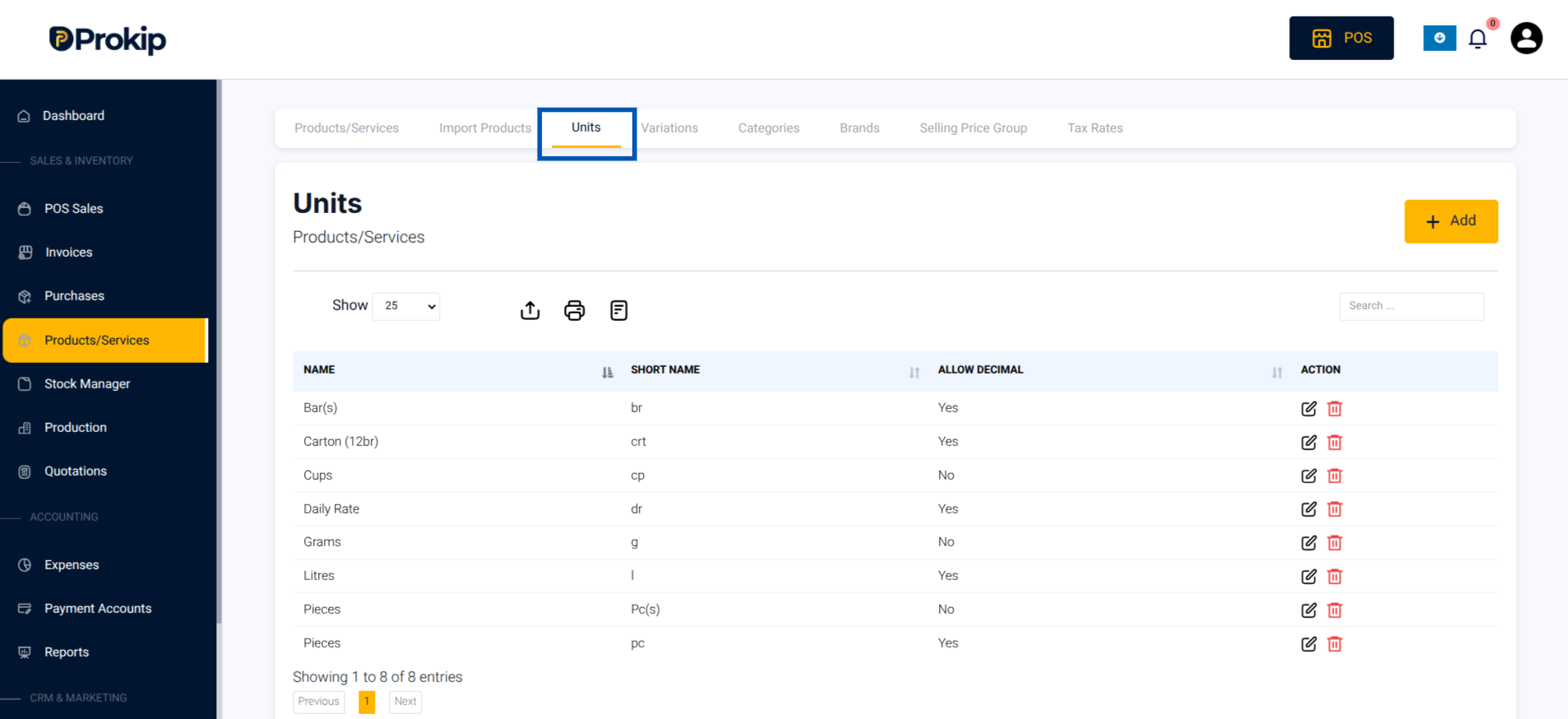
- Click on Units from the Products menu.
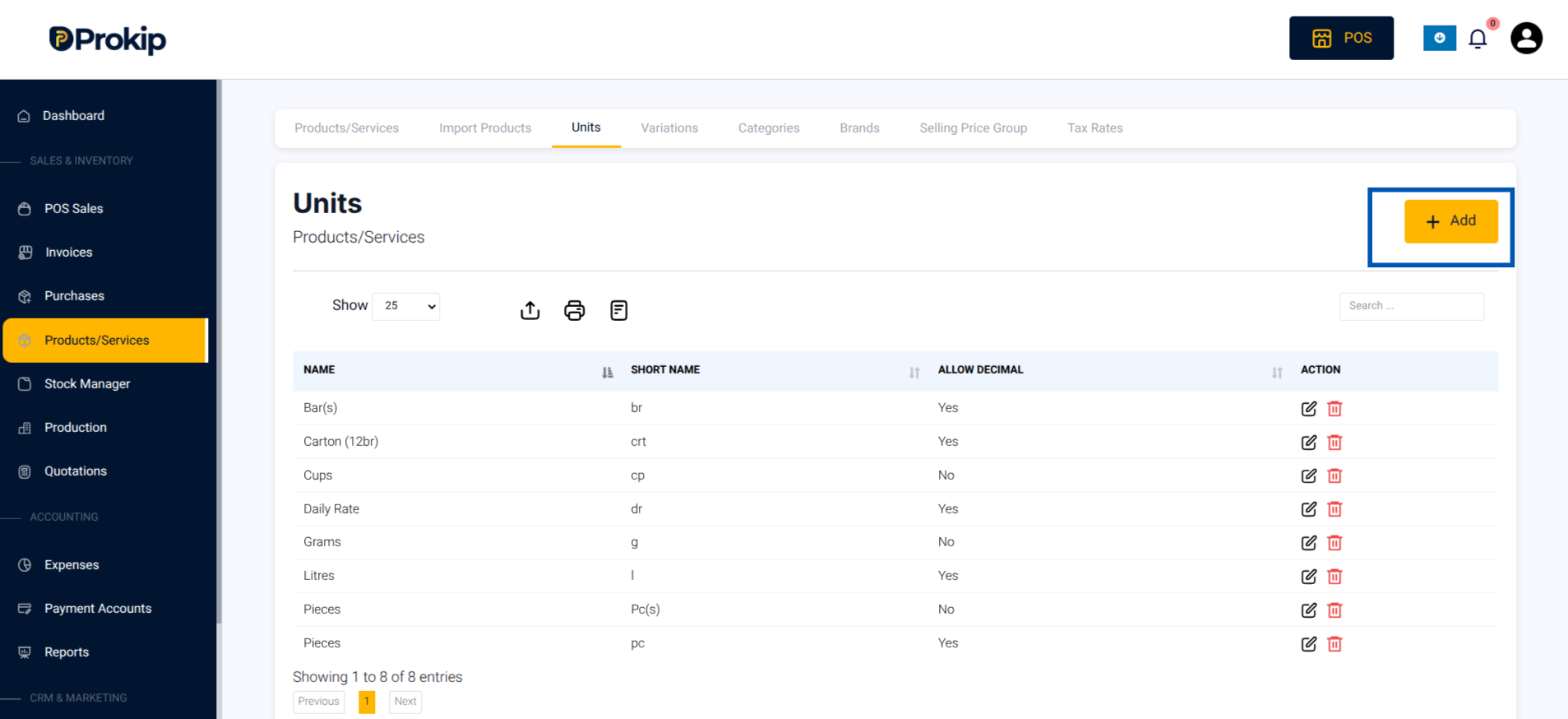
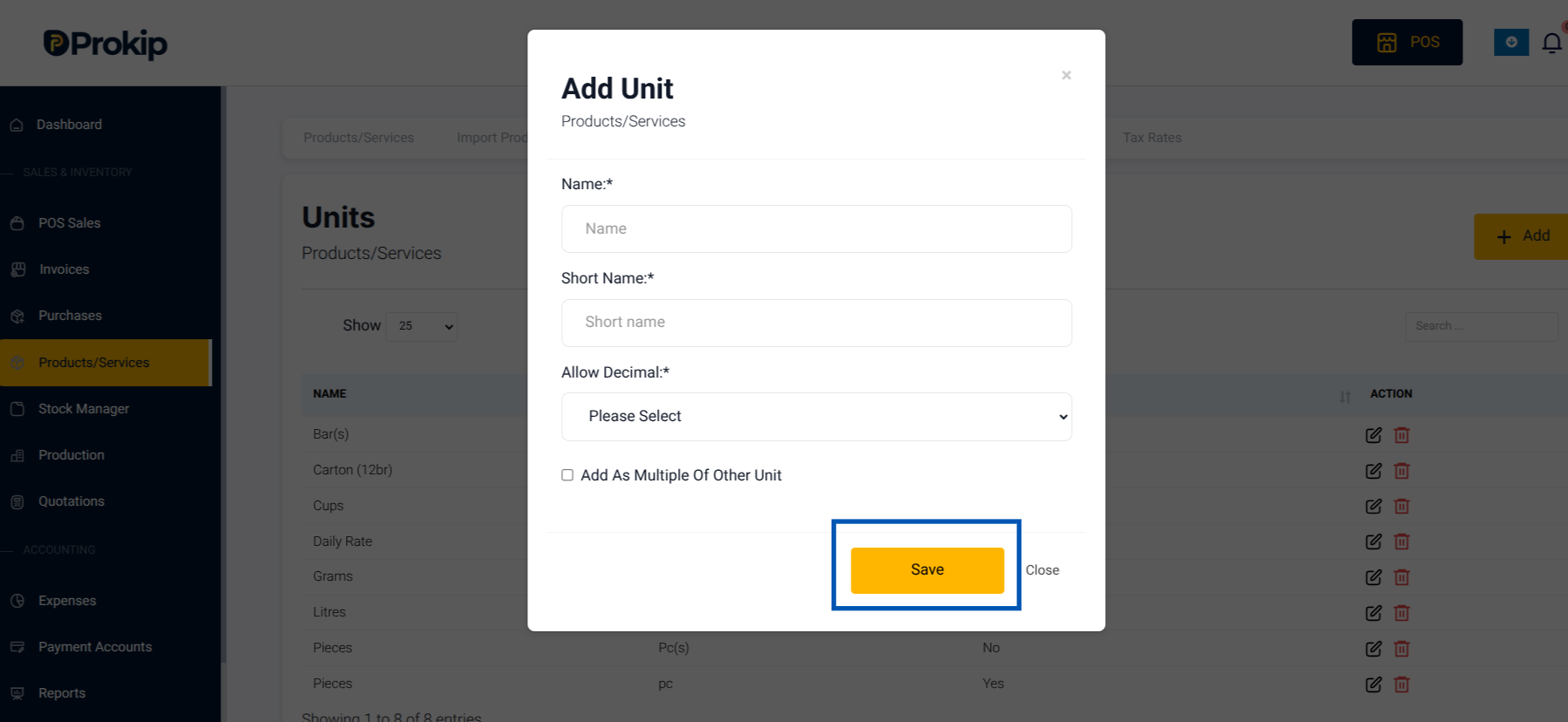
- Click Add.
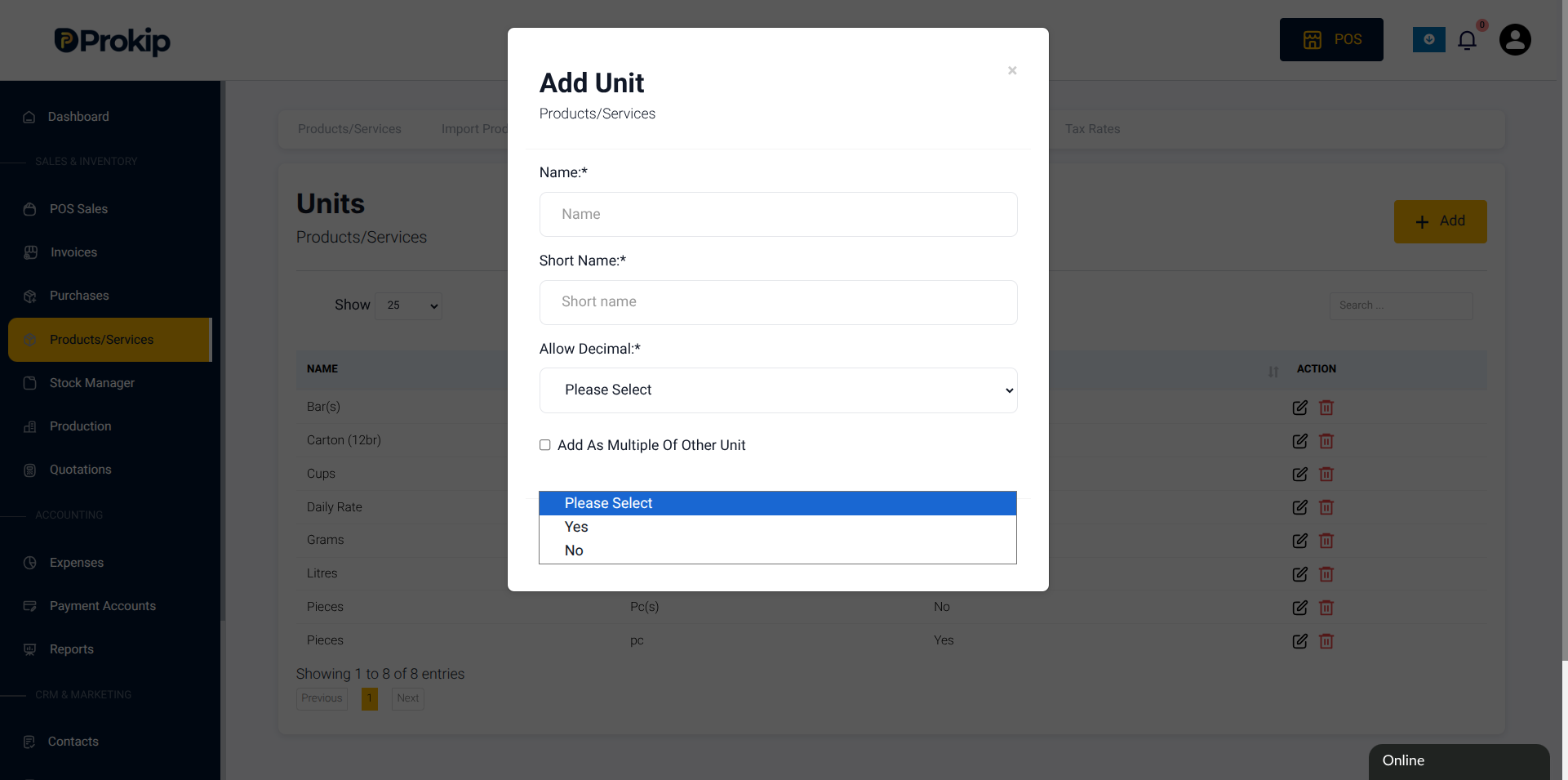
- Enter details:
- Unit name
- Short name
- Allow decimals (yes/no) – If units of the product are measured in decimals for example 0.5, select Yes
5. Select Add as multiple of other unit to
Add related sub-units as multiples of base units.
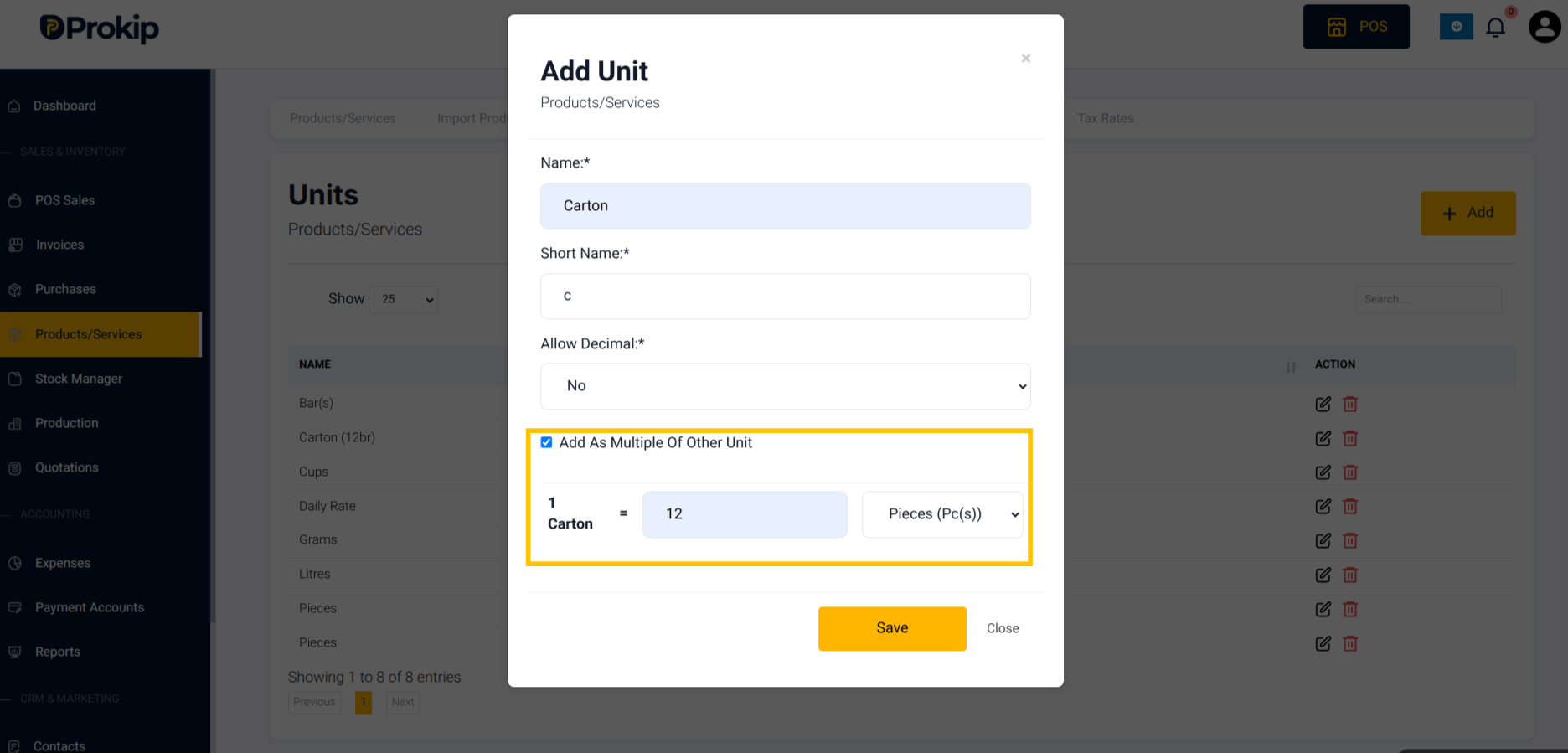
6. Click Save.
How to setup Sub-Units
If you use related measurements, you can enable sub-units (e.g., carton → packet → piece).
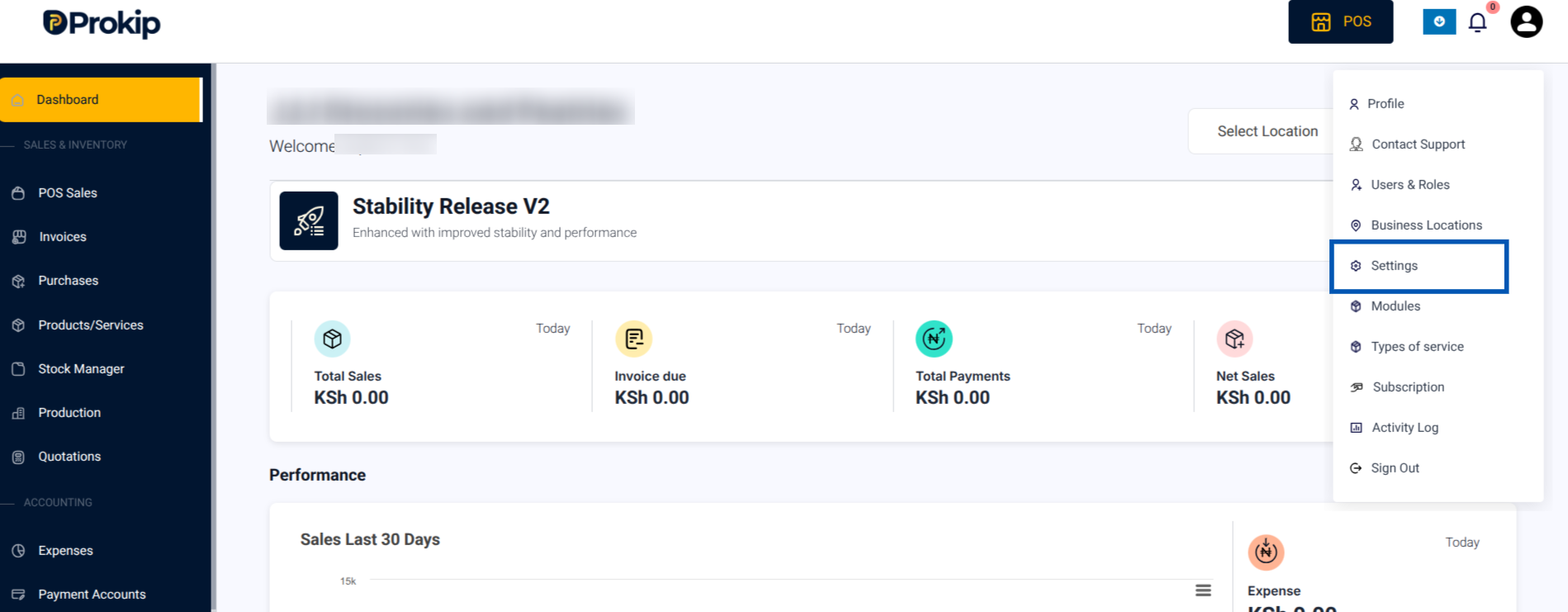
- Click on Profile Icon -> Settings
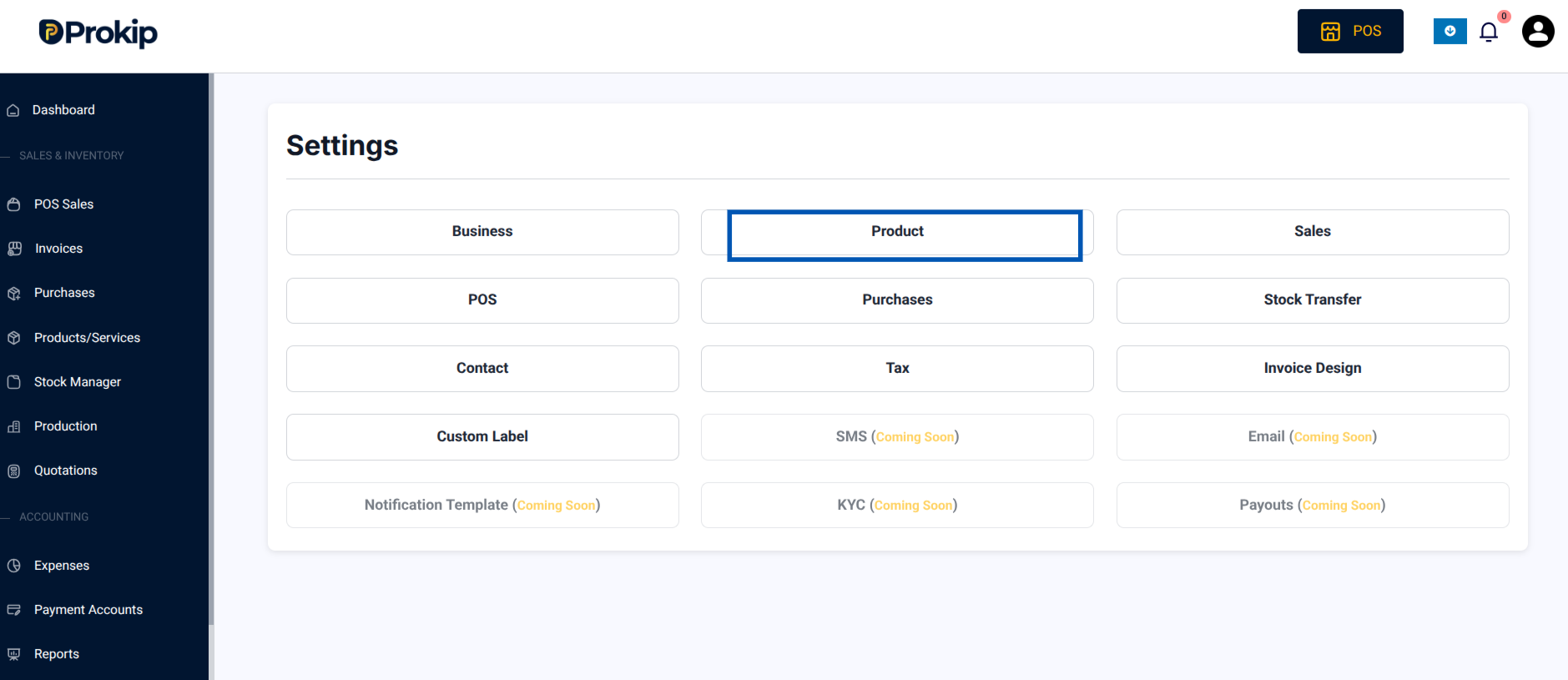
2. Click Product.
3. Toggle Enable Sub-Units ON
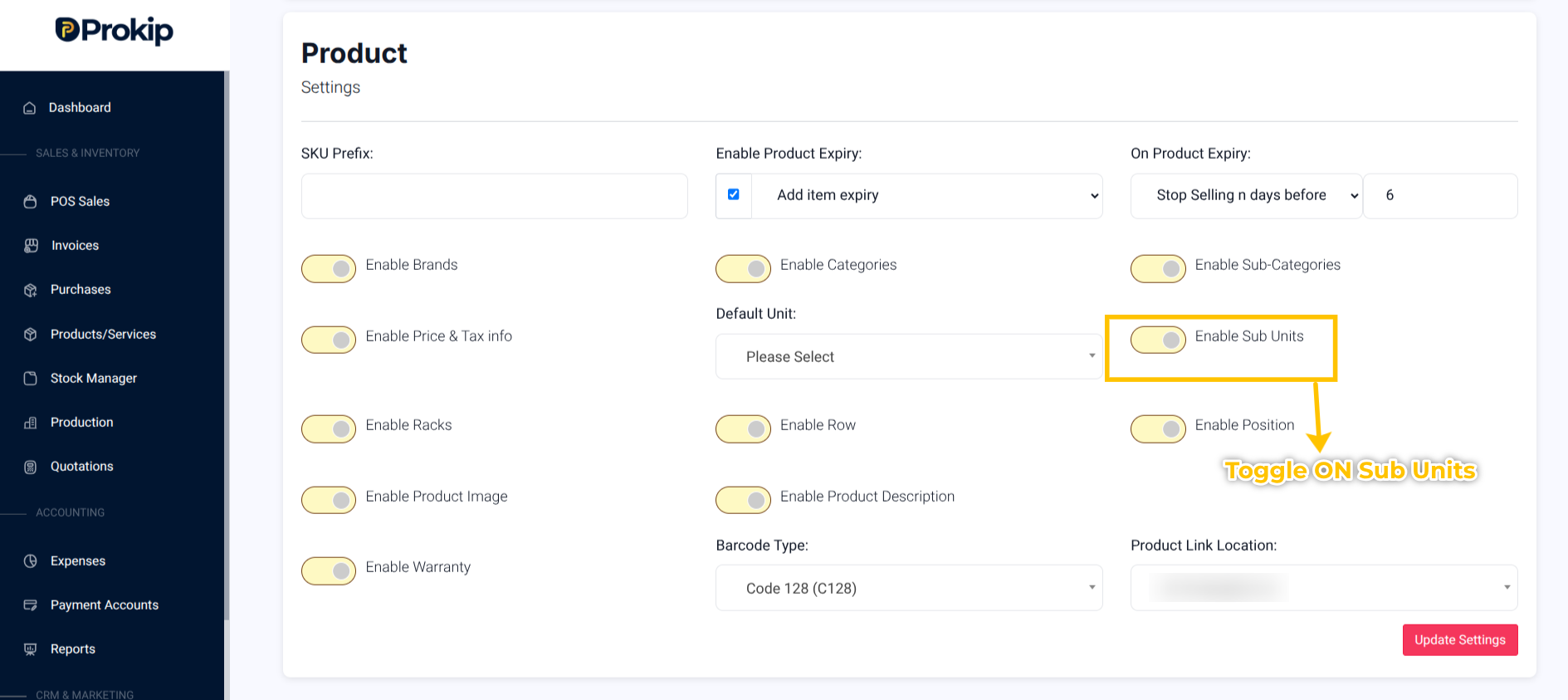
3. Click Update Settings.
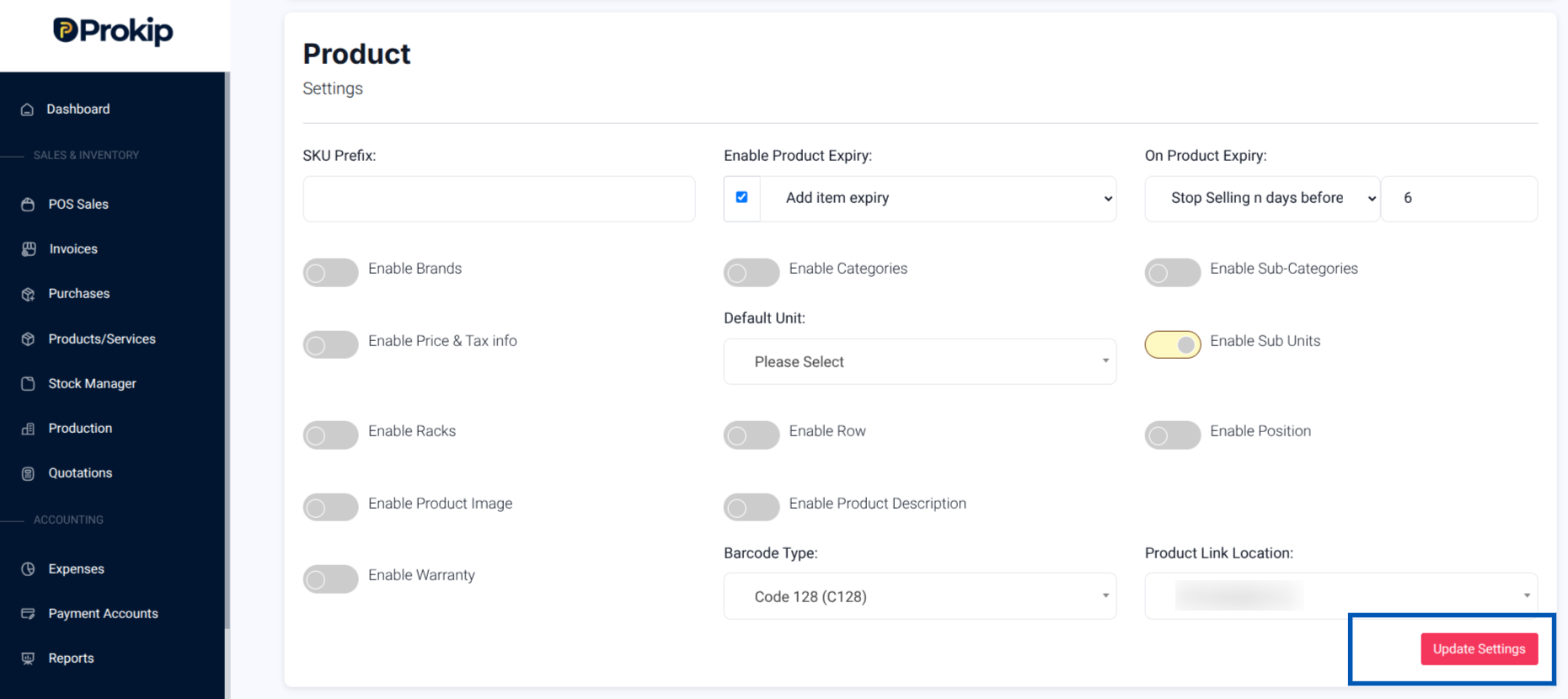
4. Add related sub-units as multiples of base units in How to Create Units Process.
(Example: 1 carton = 10 packets, 1 packet = 20 pieces).
Troubleshooting
- If units don’t apply to products, confirm that “Enable Sub-Units” is ON in settings.
- If you have wrong conversions, Edit sub-unit multipliers in Settings → Product Units.