A Purchase Return is when you return stock to a supplier — maybe because the goods are damaged, not needed, or incorrect. Prokip lets you record these returns so your inventory and financial records stay correct.
Before You Start
- Make sure the purchase order or purchase record exists (you must have recorded buying the items in the “Purchases” section).
- Make sure you know which items and quantities are to be returned.
- Check the supplier is already added under Contacts → Suppliers.
- Confirm your user role has permission to perform returns.
How to Record a Purchase Return
Here are the steps to return items to a supplier in Prokip:
- Go to Purchases in the sidebar menu.
- Find the specific purchase record you want to return from (by supplier, date, etc.).
- Click Actions (⋮) next to that purchase.
- Select Purchase Return from the dropdown.
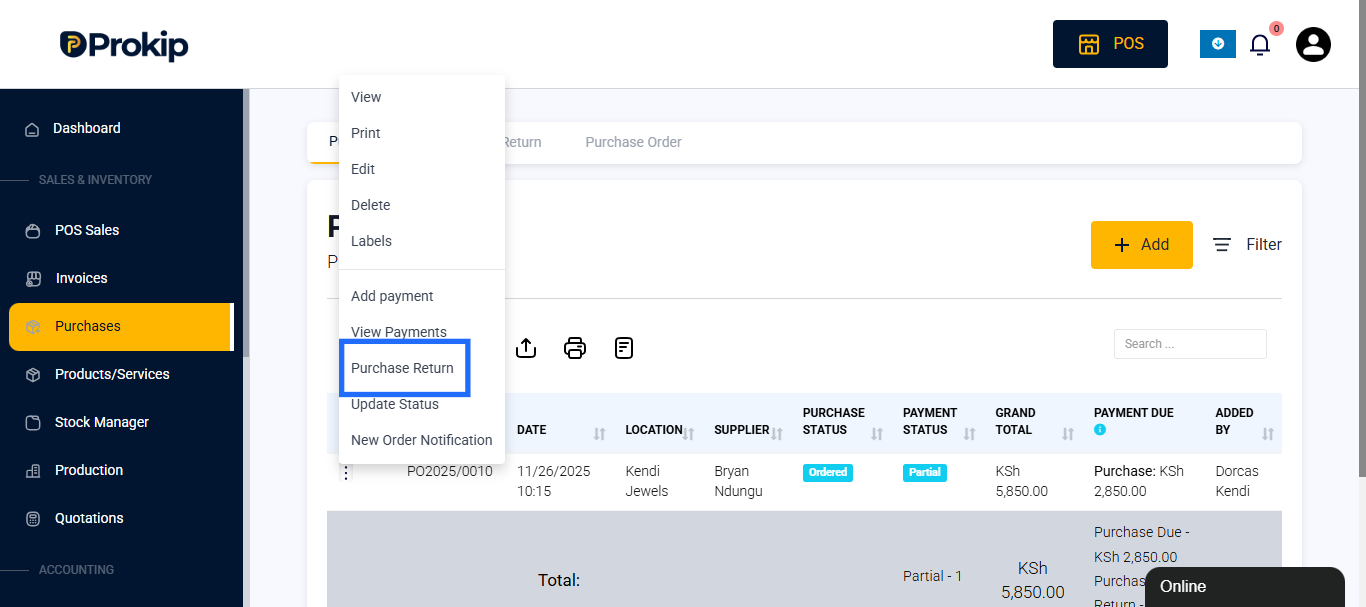
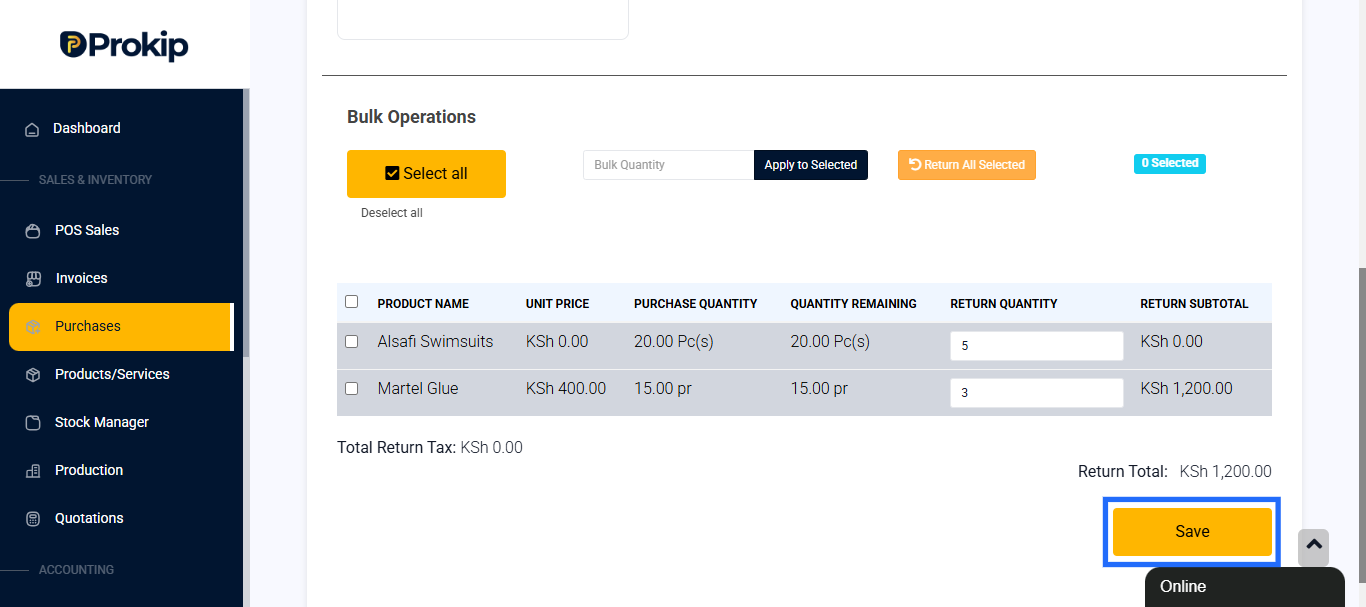
- Enter the Return Quantity for each product you are returning (for example, 2 crates of soda).
- Click Save. Prokip will update your inventory to reduce the stock for returned items.
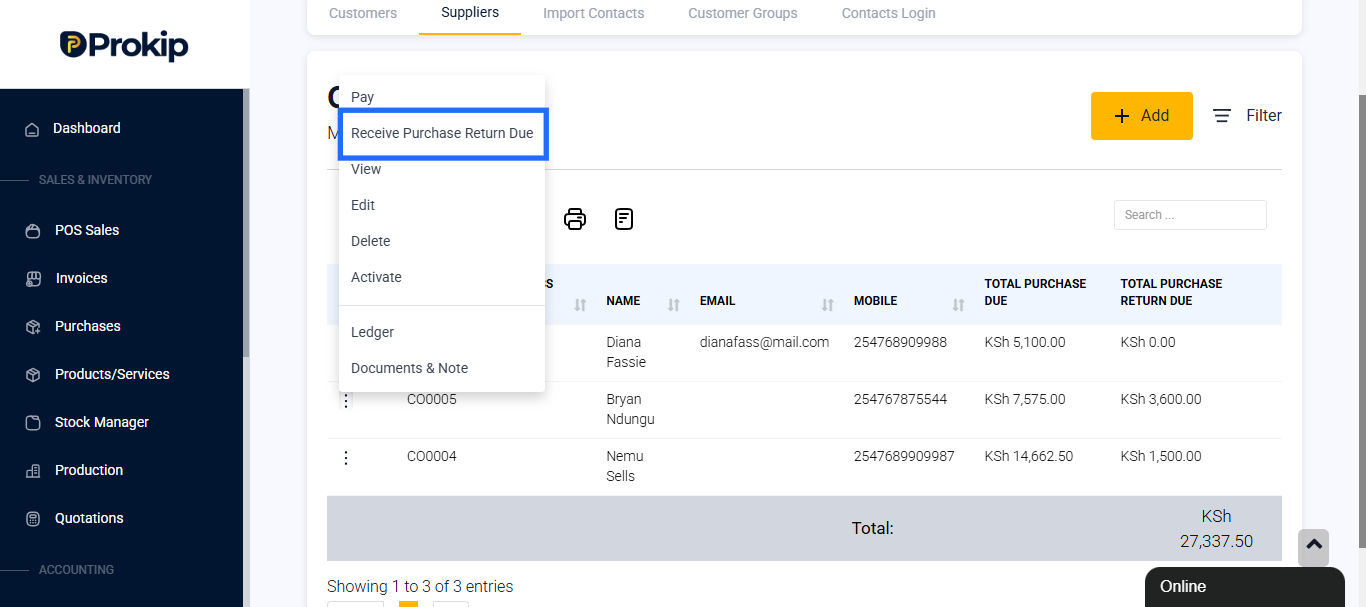
- If there was money already paid for those items, you may add or adjust payments to reflect the return in Contacts → Suppliers → Receive Purchase Return Due.
What Happens in Inventory & Reports
- The returned items are removed from your stock levels so your inventory shows correct amounts.
- The financial records reflect the return — showing if you need to get credit or refund from the supplier.
Best Practices
- Always double-check the items and quantities before submitting the return.
- Note why the return is being done (damaged, defect, wrong item), for accountability.
- Keep supplier invoices and return documents in case of disputes.
- Update payment status if you had paid — get or record credit/refund.
- Monitor returns in reports periodically to find suppliers or products with frequent returns (could mean quality issues).