Purpose
Adding Single Tax in Prokip allows businesses to accurately calculate and apply taxes on sales transactions.
Step 1:How to add single tax
Steps
- Click on product/services
- Click on tax rates
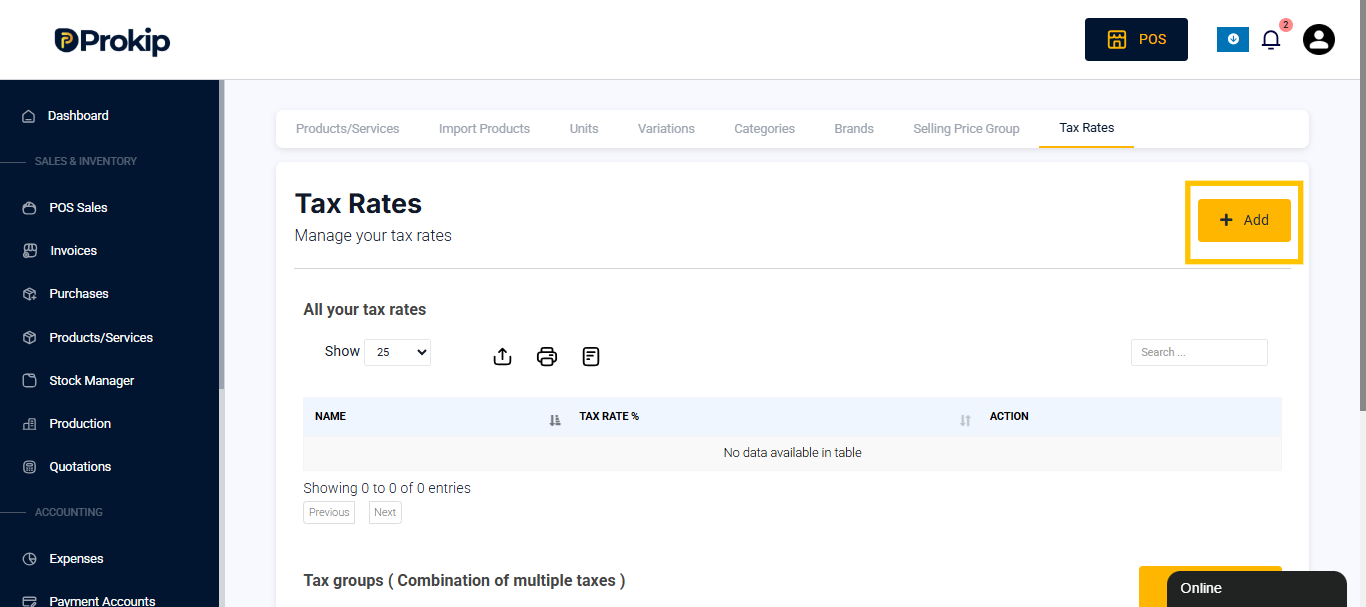
- Click on add button
- A modal will appear then enter tax name and tax rate by percent(%) for example VAT and 7.5%
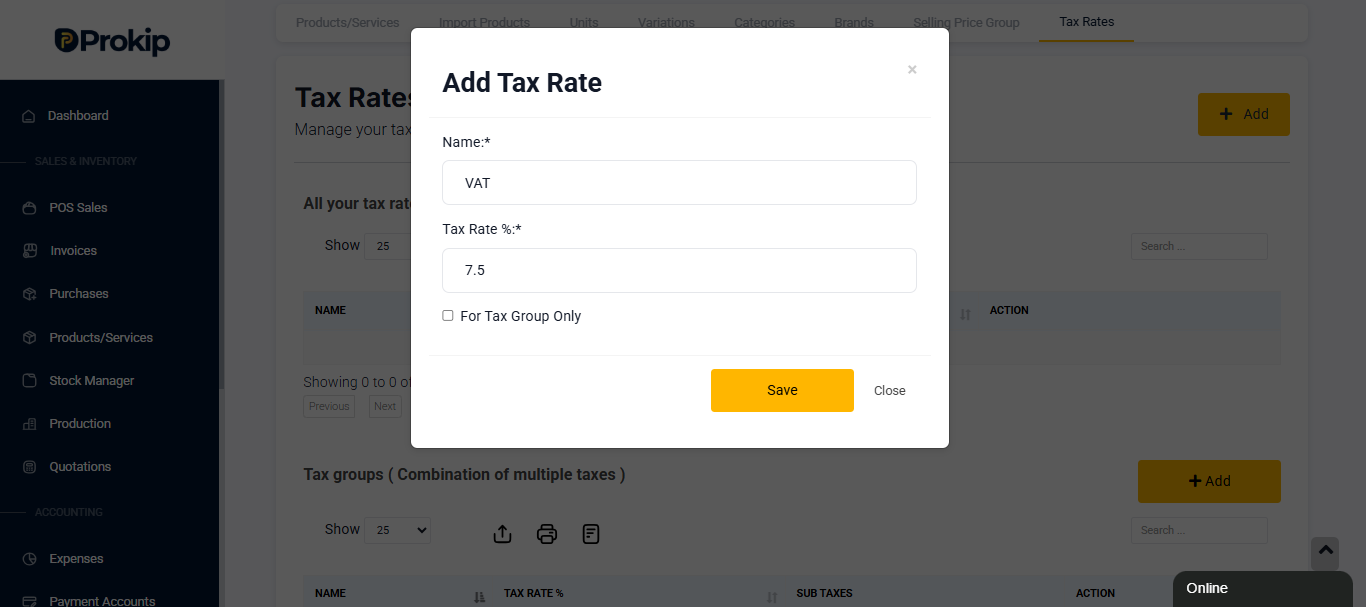
- Click on save
Step 2: Apply TAX Automatically to All Sales (Invoice & POS)
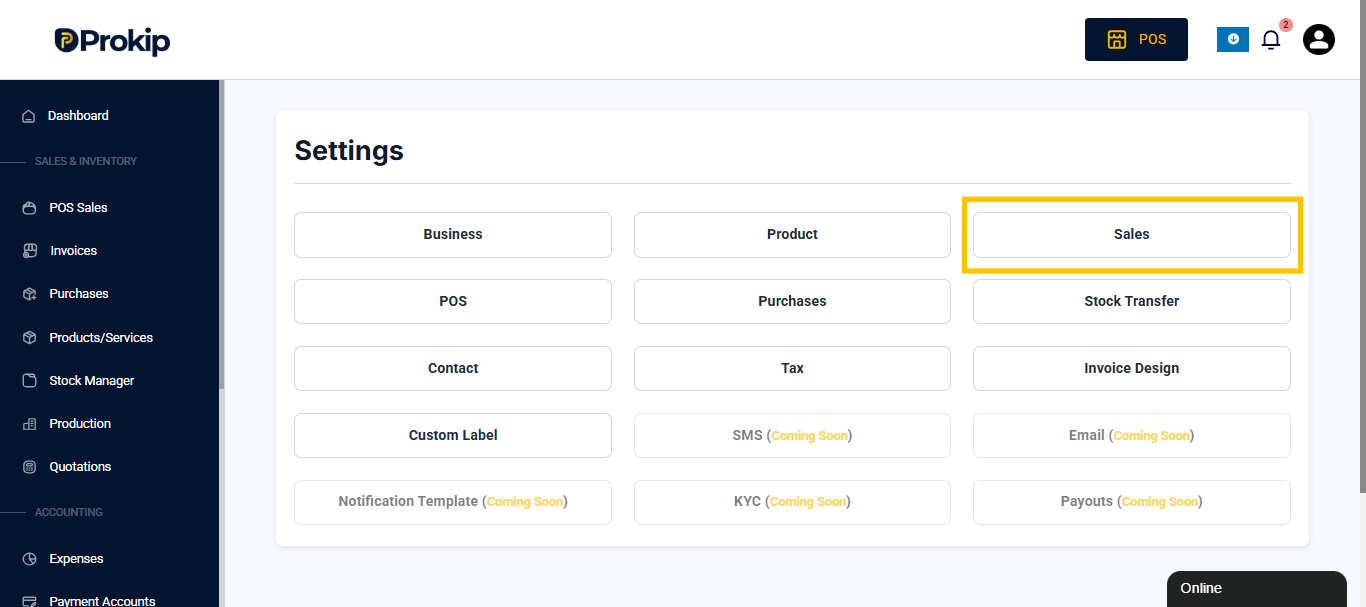
Click your Profile Icon → Settings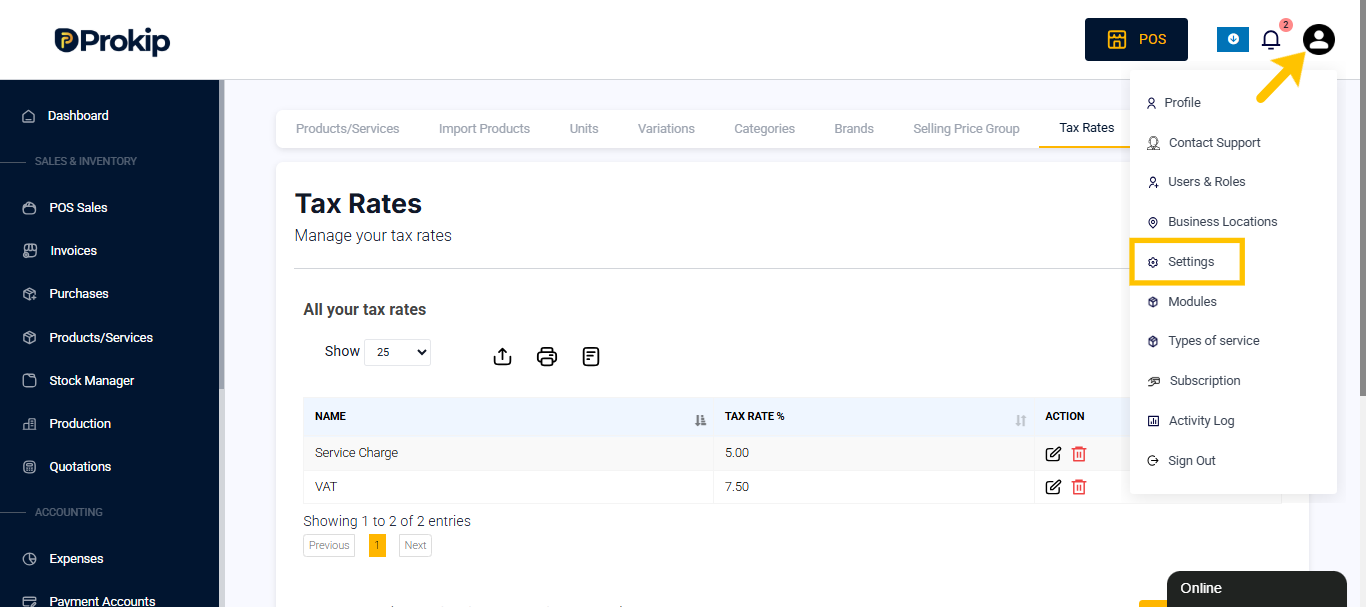
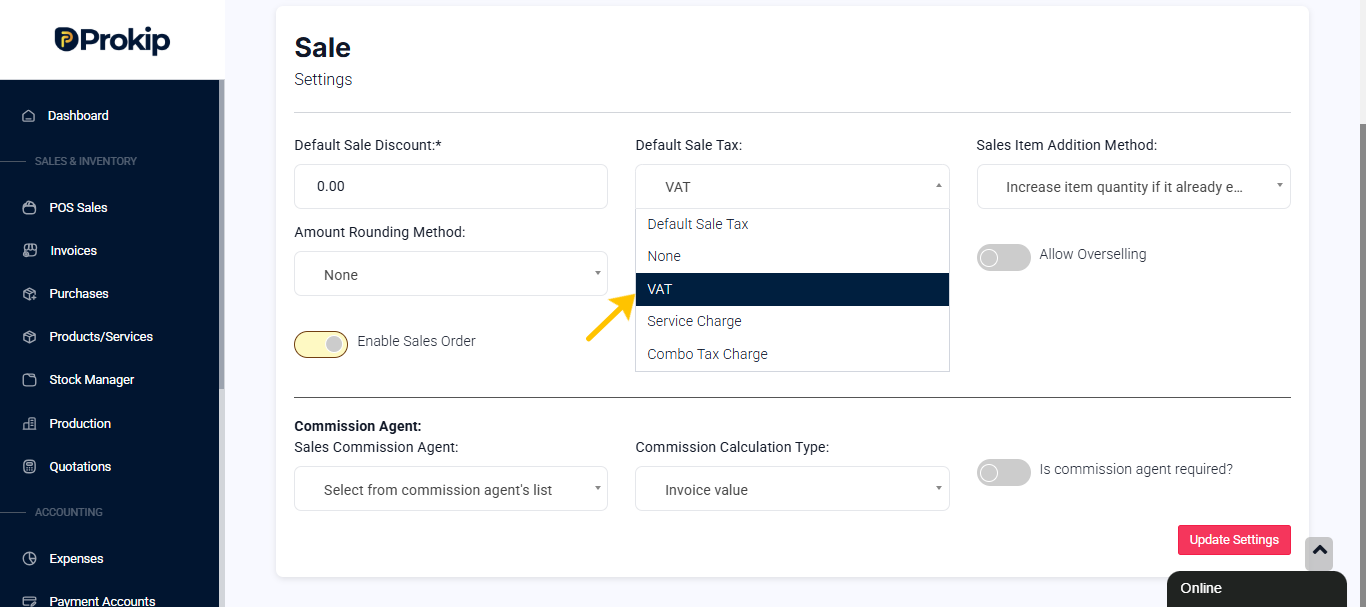
- Under Default Sales Tax, select VAT
VAT will now apply to total sales automatically on invoices and POS.
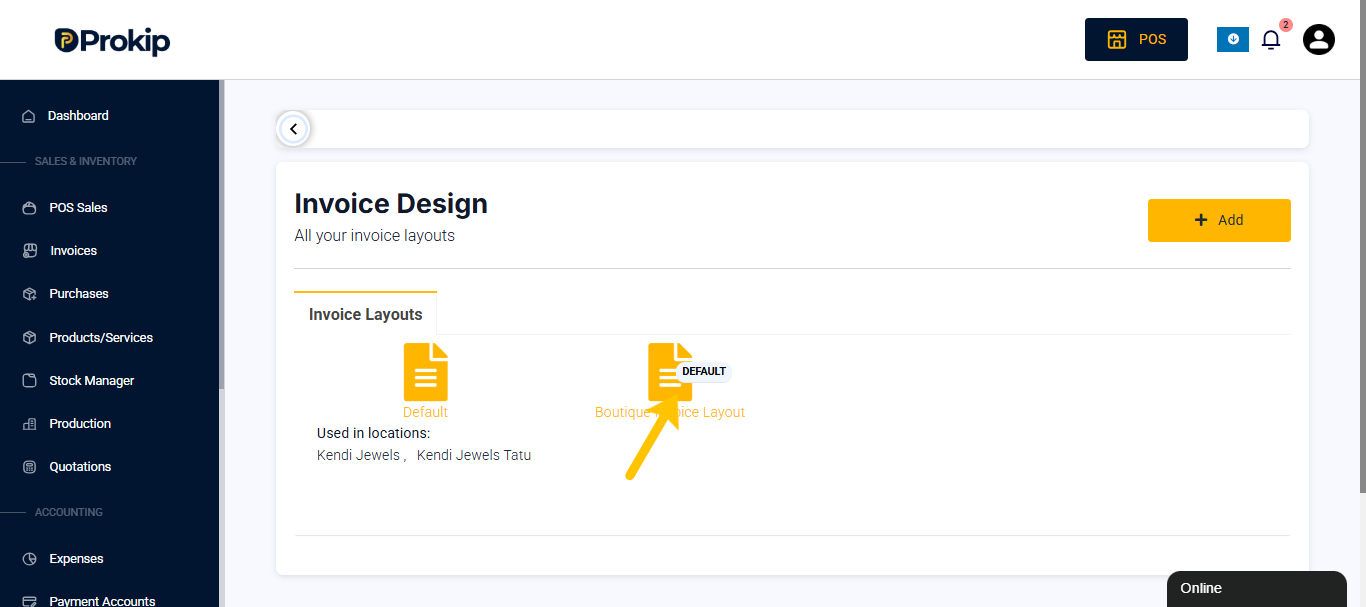
Step 3: Show VAT Separately on Invoices
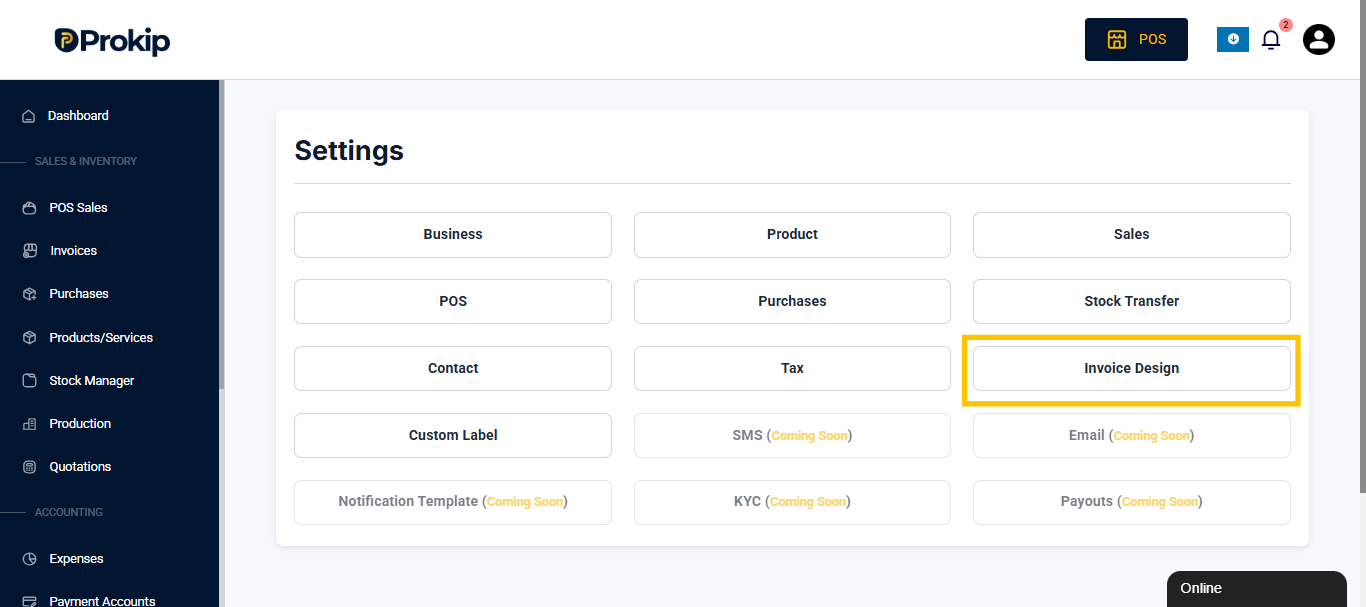
- Go to Settings → Invoice Design
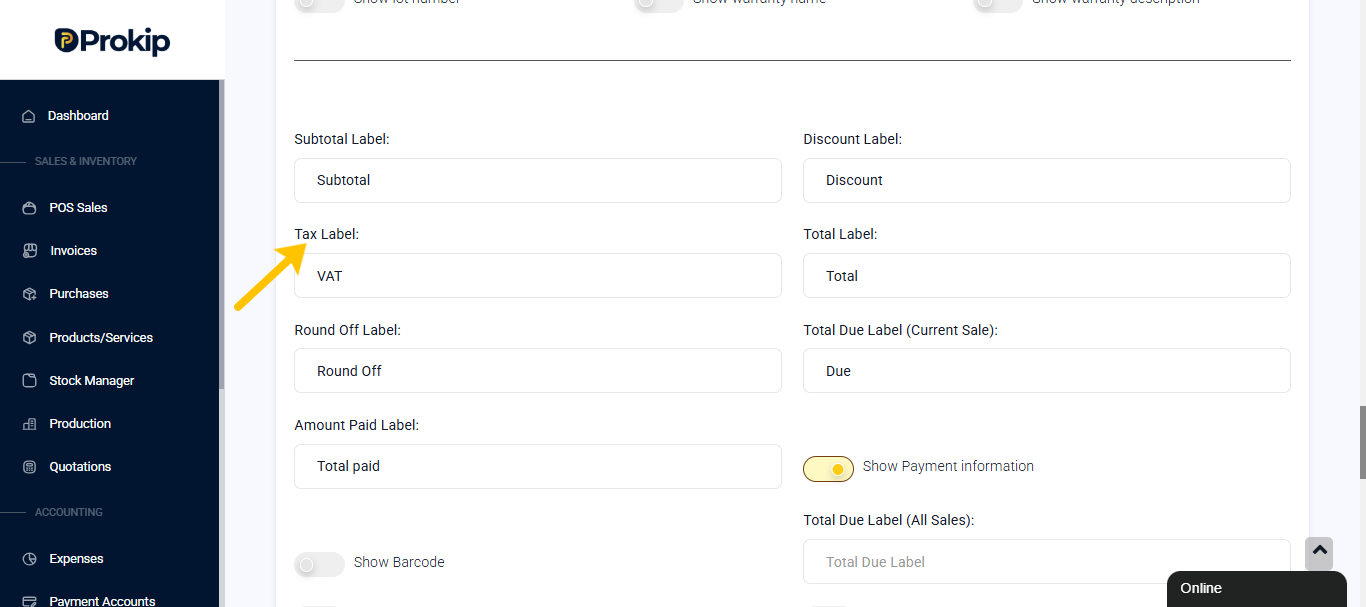
- Locate Tax Label, enter VAT
VAT will now appear separately on invoices instead of being hidden inside totals.
Step 4: Apply VAT Only to Selected Products
If not all products attract VAT:
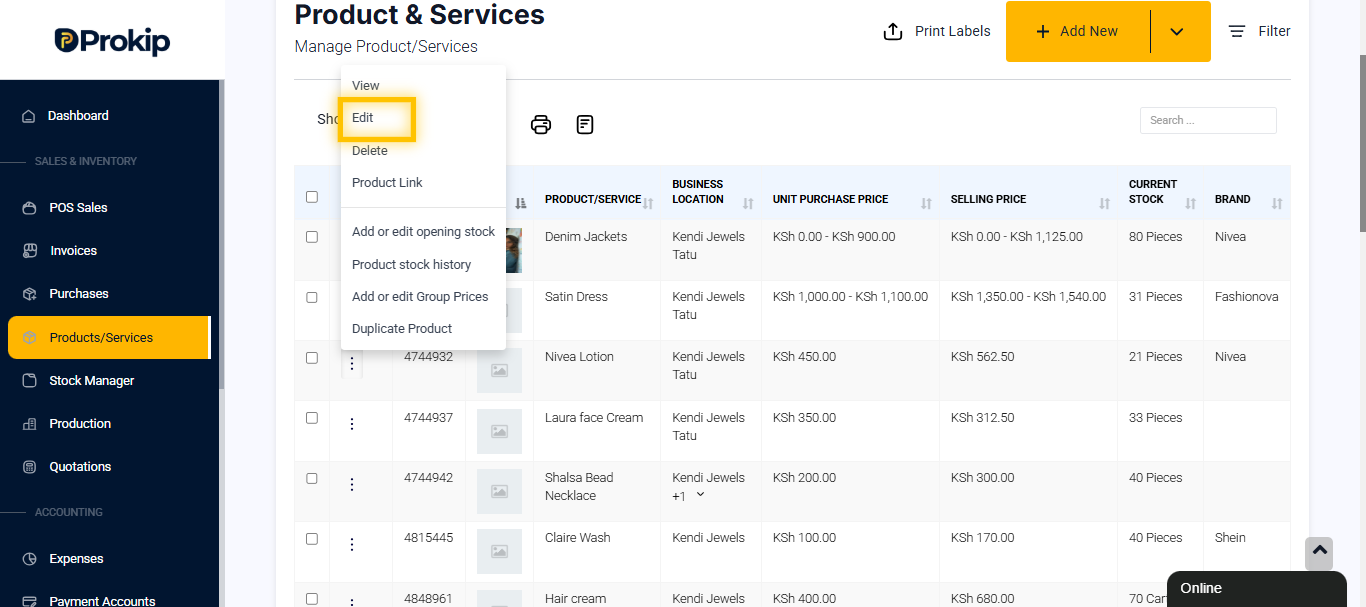
- Go to Products/Services
- Click Action → Edit on the product
- Toggle Taxable ON, if it’s not on already.
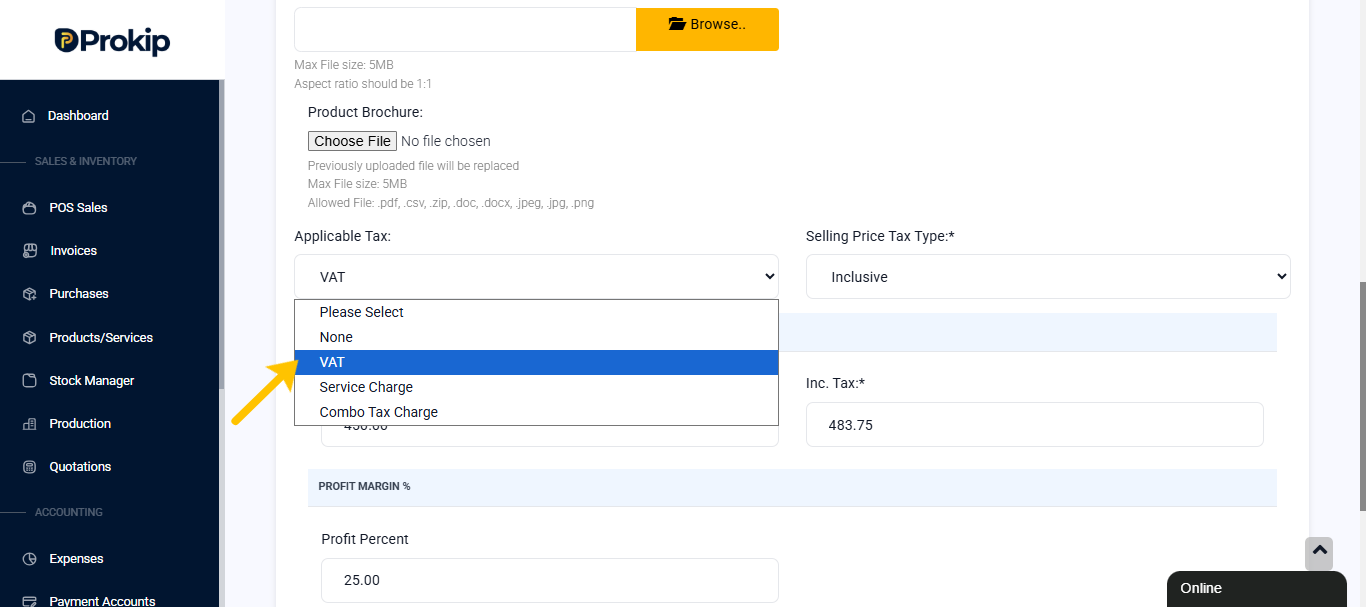
- Select VAT as Applicable Tax and Selling Price Tax Type as Inclusive
Only those products will attract VAT.
Step 5: Apply VAT at POS (Optional)
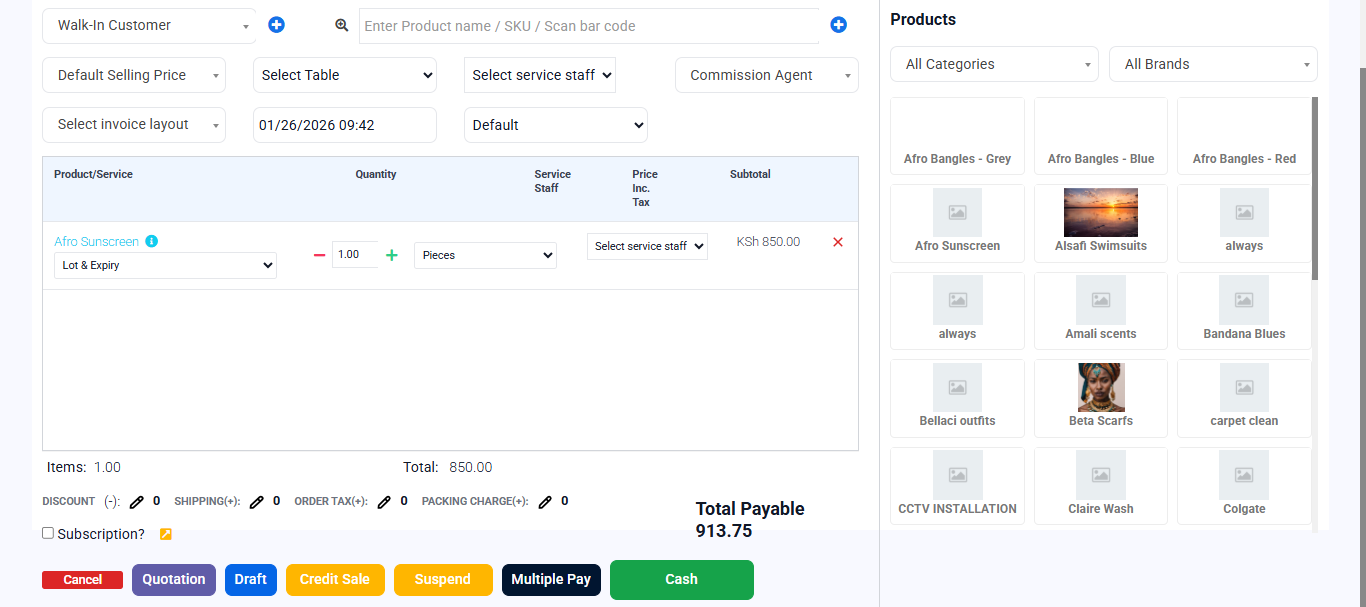
- Go to POS
- Add the item
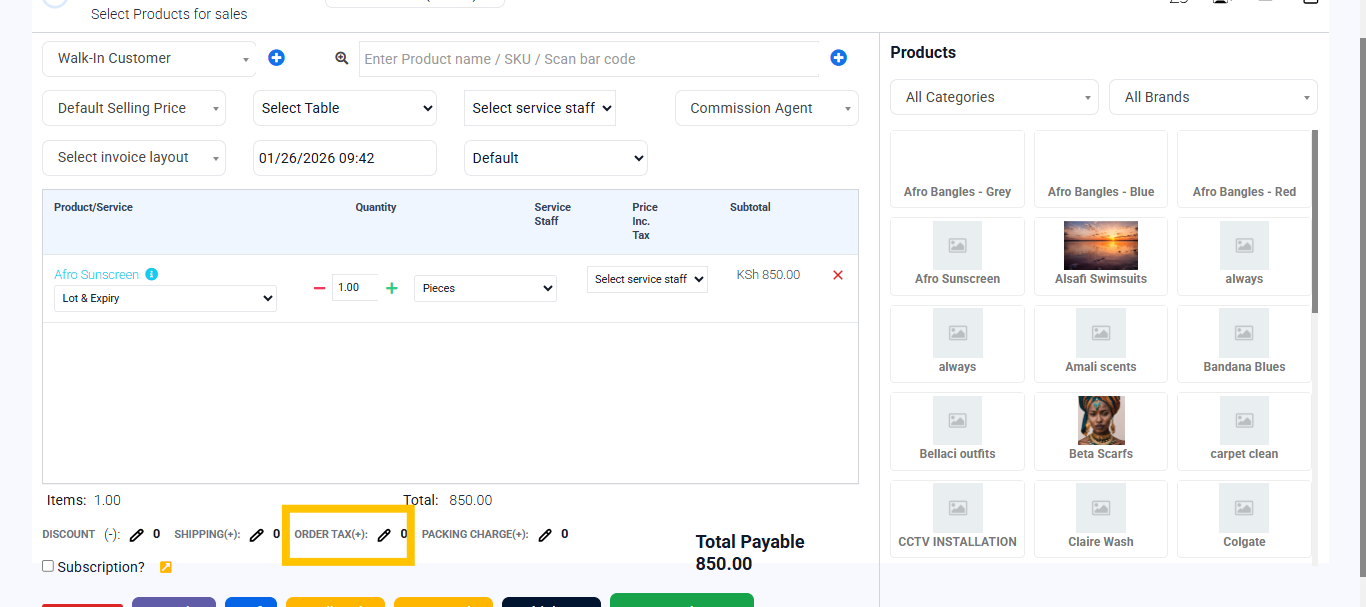
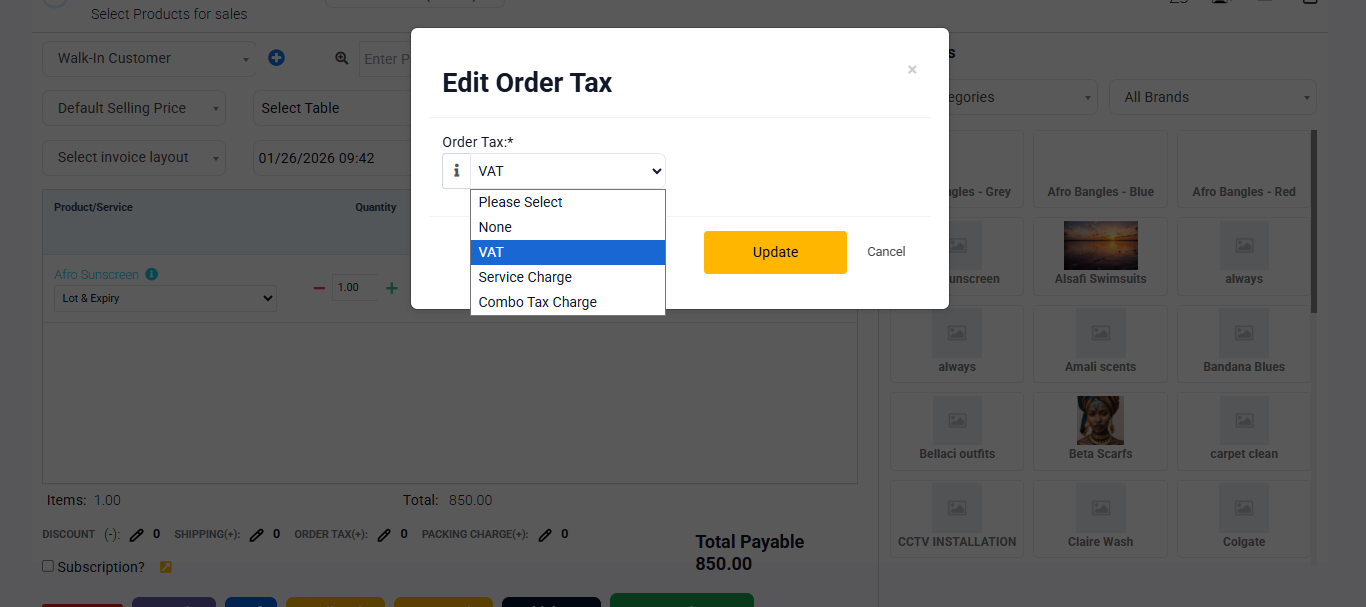
- Click on Order Tax below
- After you click update, the price total will be recalculated with the VAT applied.