Purpose
If you have sold goods on credit and your customer is now paying, this guide will show you how to record that payment in Prokip.
What is a “credit sale” payment?
When you sell now and receive payment later, the sale is on credit. Recording payments correctly ensures your accounts remain accurate, customer balances update, and reports reflect the true financial position of your business.
Before You Start
- Confirm that the sale was originally recorded as Credit (not Cash).
- Ensure that the customer exists in your Prokip customer list.
- Confirm that the payment method(Cash, Bank, Mobile Money,.etc.) is already set up in Payment Accounts.
Steps
1.Log in to your Prokip account.
2.From your dashboard, click POS Sales.
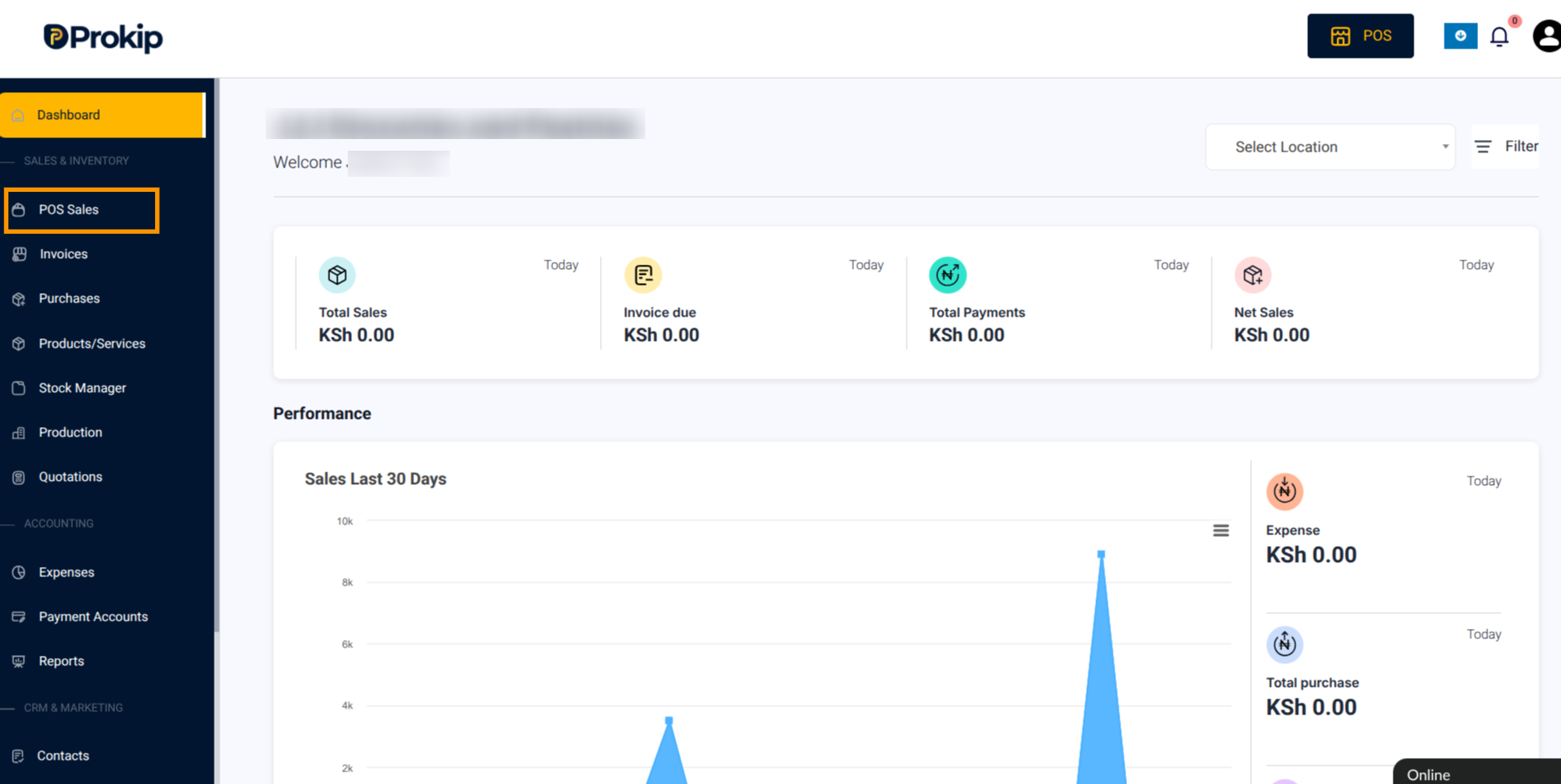
3.Click Filter to find the sale you want to record payment for.
4.Under Payment Status, Select Due from the drop down
Adjust Date Range to narrow results by clicking on Date Range to select.
Under Customer, select the customer’s name.
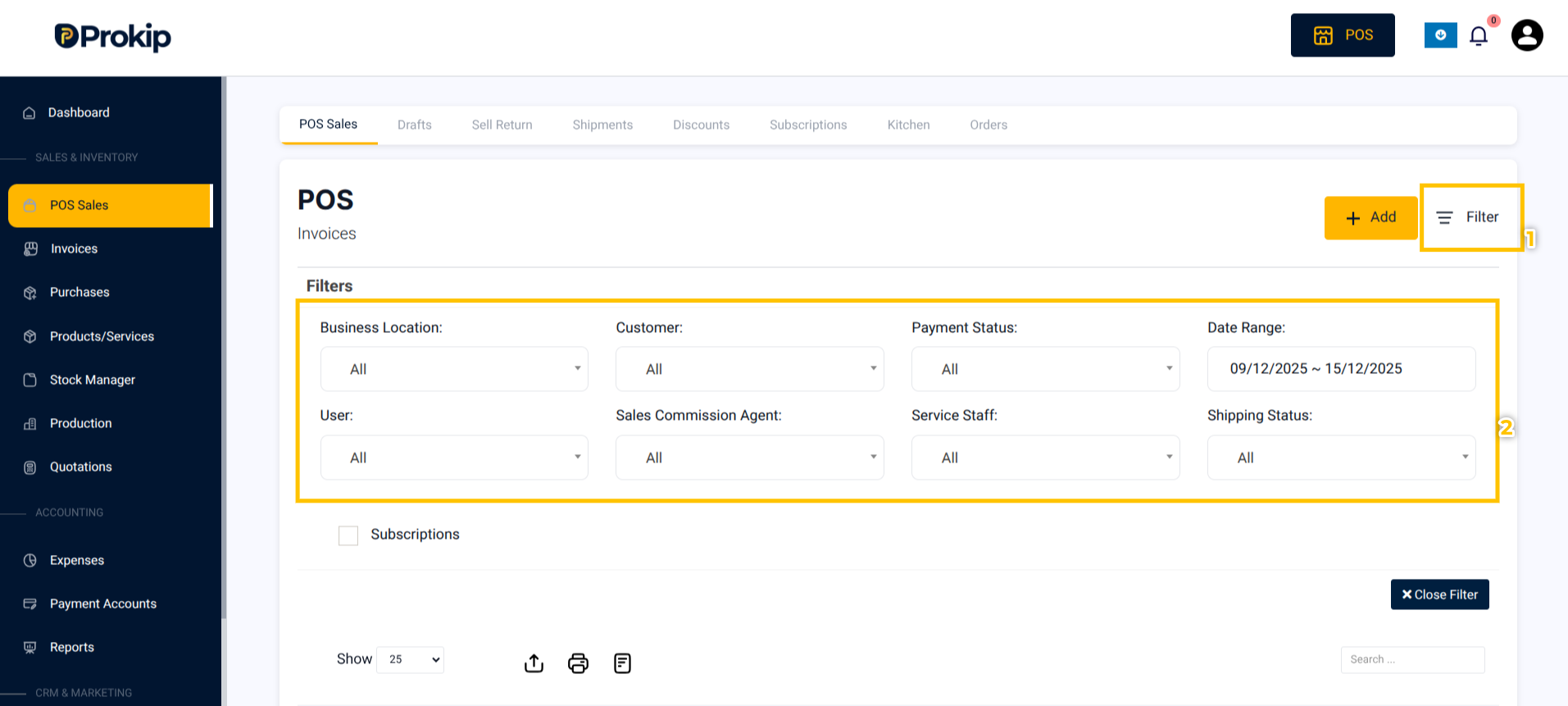
5. Locate the Sales Invoice of the specific customer. Click on the “Action button” (3 dots)
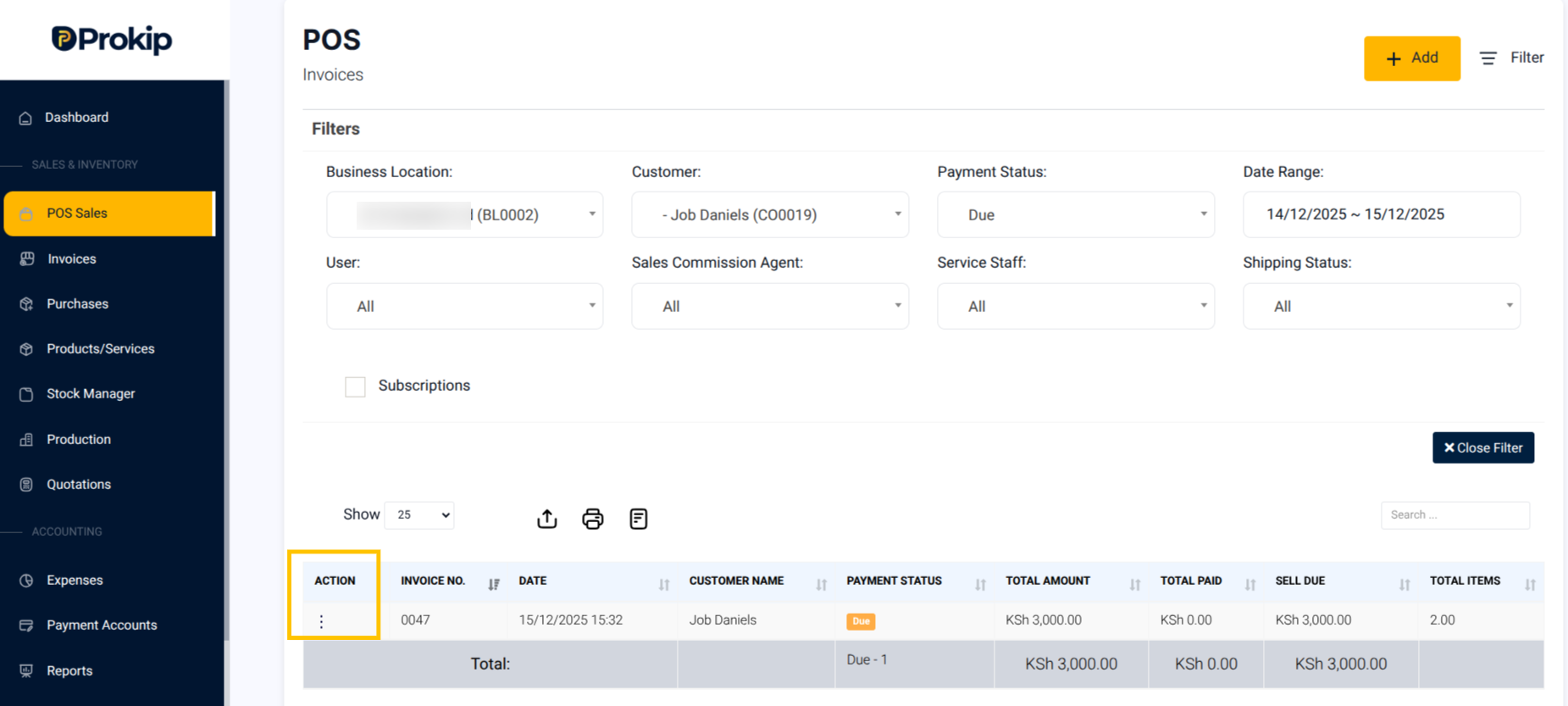
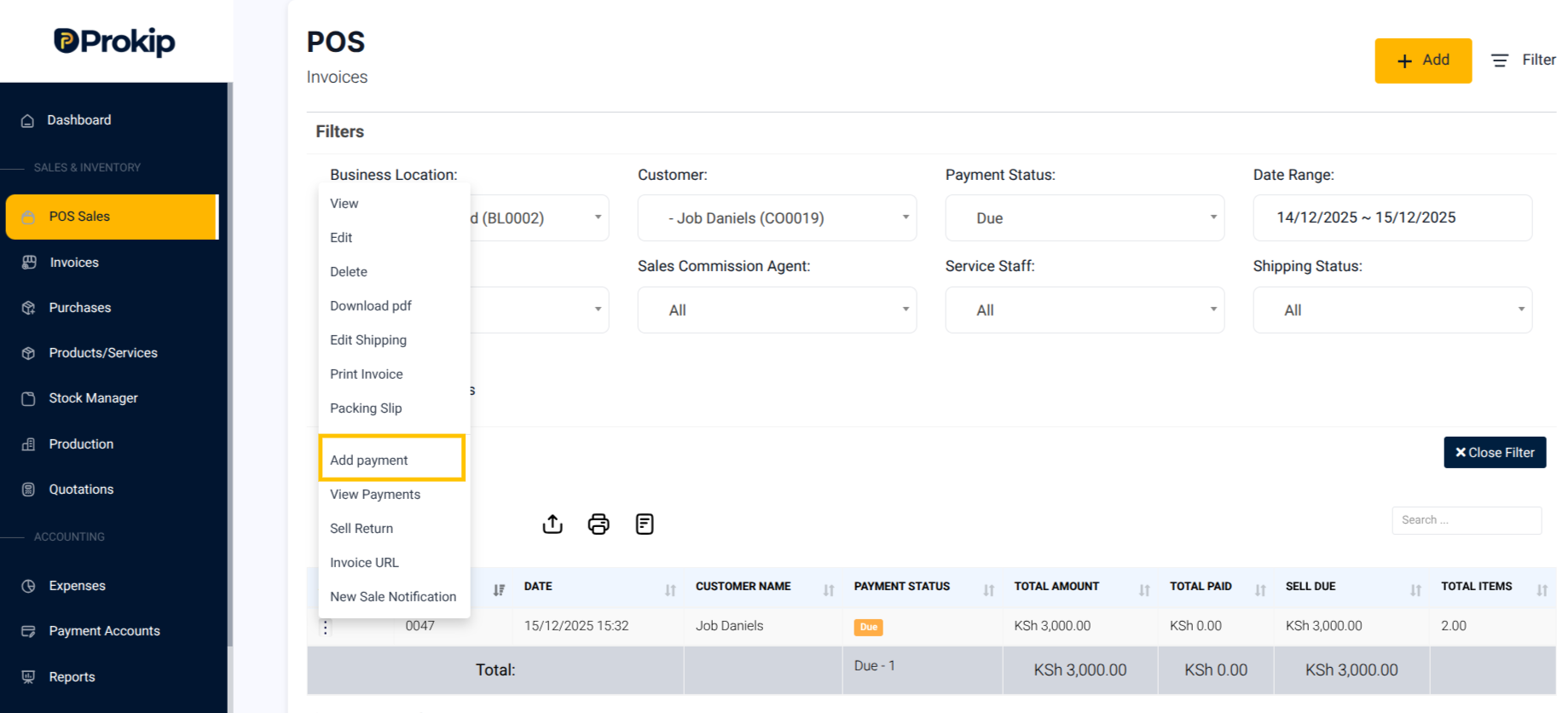
6. From the dropdown, select Add Payment.
7. Click on the Payment Method to choose the Payment Method the customer used (for example Cash, Bank Transfer or Mobile Money).
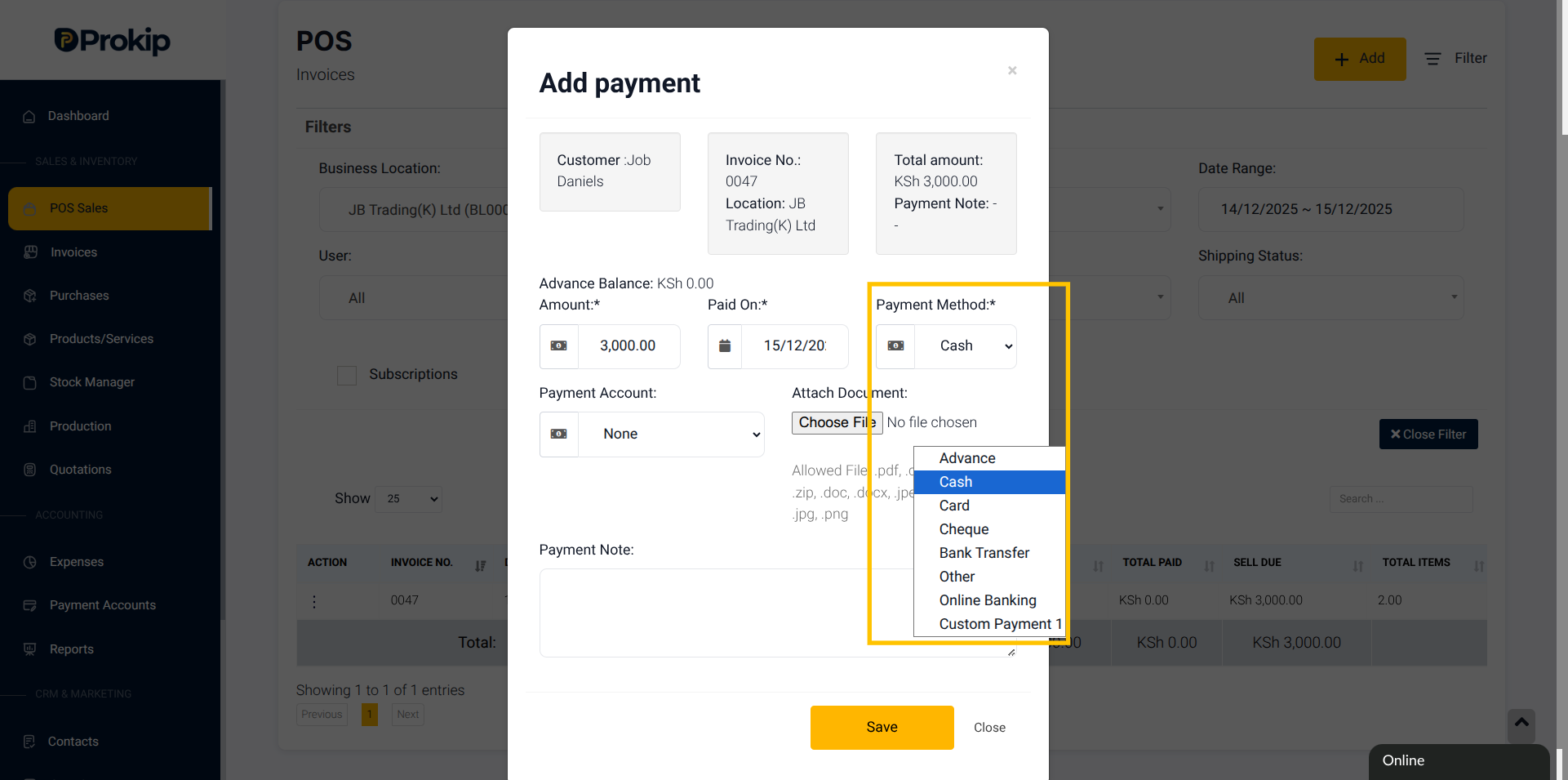
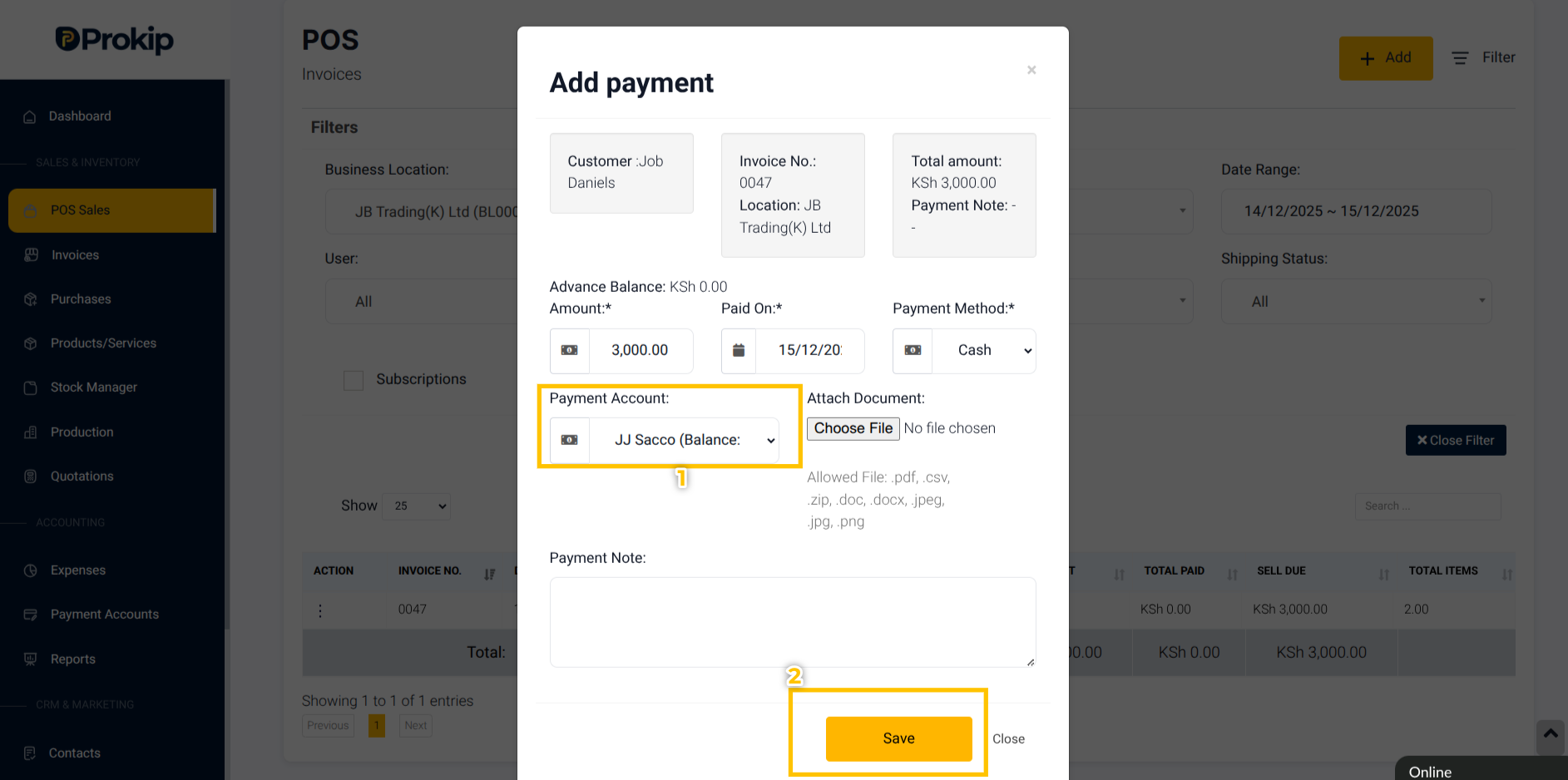
8. Enter the Amount Paid and Select Payment Account.
9. Click Save.
What Happens Next
- The system reduces the customer’s outstanding balance.
- The corresponding Payment Account increases (Cash, Bank, Mobile Money).
- The invoice status changes to Partially Paid or Paid in Full, depending on the amount received.
Tips and Troubleshooting
- Customer still shows due? Check if you entered the correct amount or if only partial payment was made.
- Payment account didn’t increase? Ensure you selected the right payment method.
- Invoice not showing? Confirm that you applied the correct filters (Date Range, Payment Status, Customer).
Frequently Asked Questions
Q: Can I record a partial payment?
Yes. Enter only the amount paid. The remaining balance stays “Due.”
Q: Will the system update old invoices automatically when I change my business name?
No. Old invoices retain the original business name for audit purposes.
Q: Can I edit the payment date after saving?
Yes. Go to the recorded payment, click Edit, update the date, and save.
Q: Can multiple payments be recorded for the same invoice?
Absolutely. Each new payment will reduce the balance until the invoice is cleared.
Q: If I delete a payment, what happens?
Deleting a payment restores the original outstanding balance on that invoice.