For Admins and Sub-Users
- Go to Stock Manager → Stock Reconciliation → +ADD
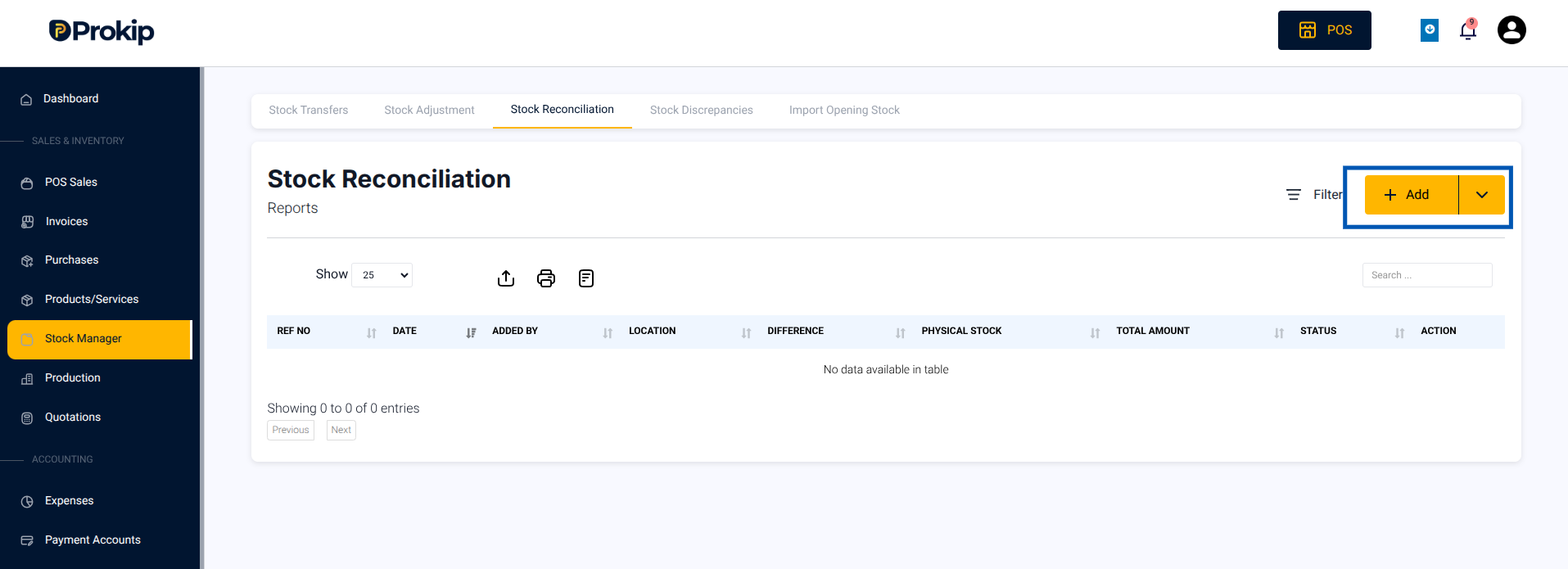
- If it’s a single reconciliation, choose Reconciliation.
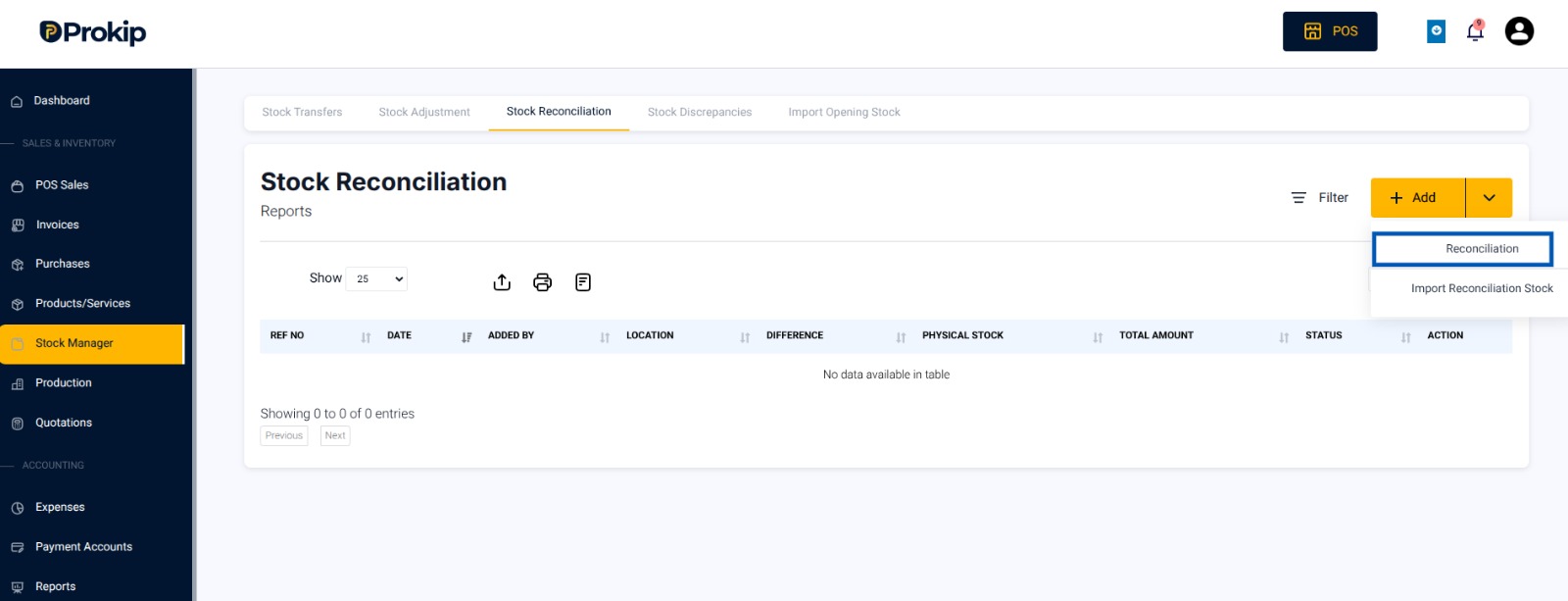
Note: For multiple stocks, select Import Reconciliation Stock and use the Bulk Upload process
- Select a Business Location for the stock being updated.
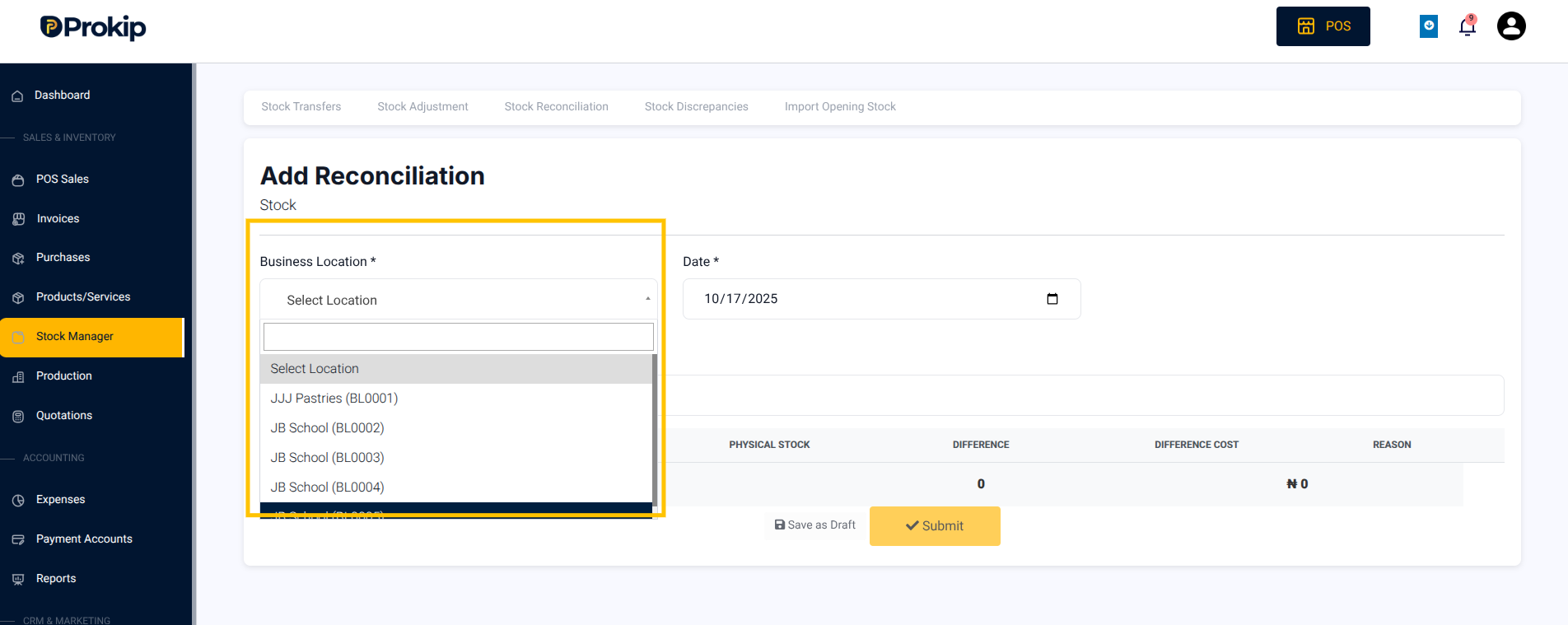
- Select the Date
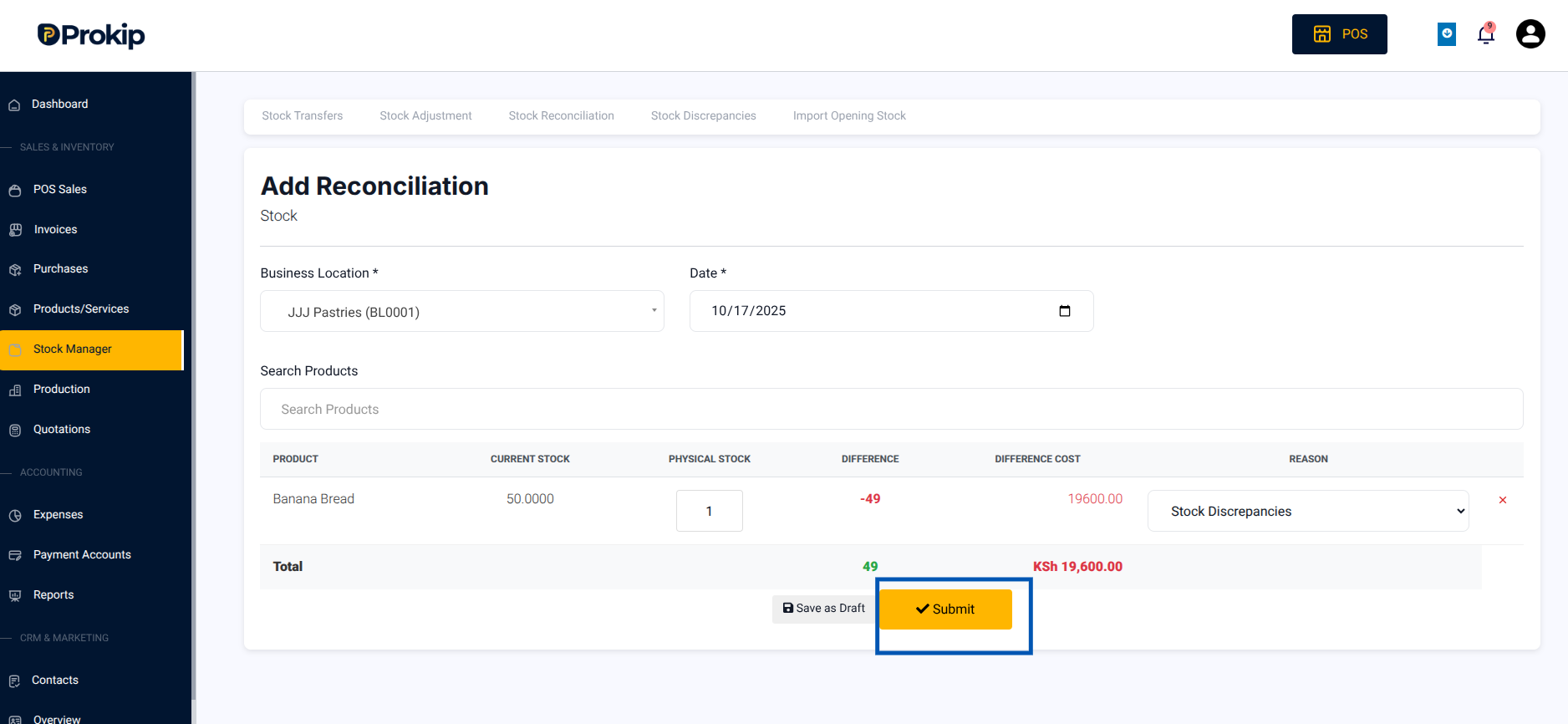
- Search Products to begin entering items
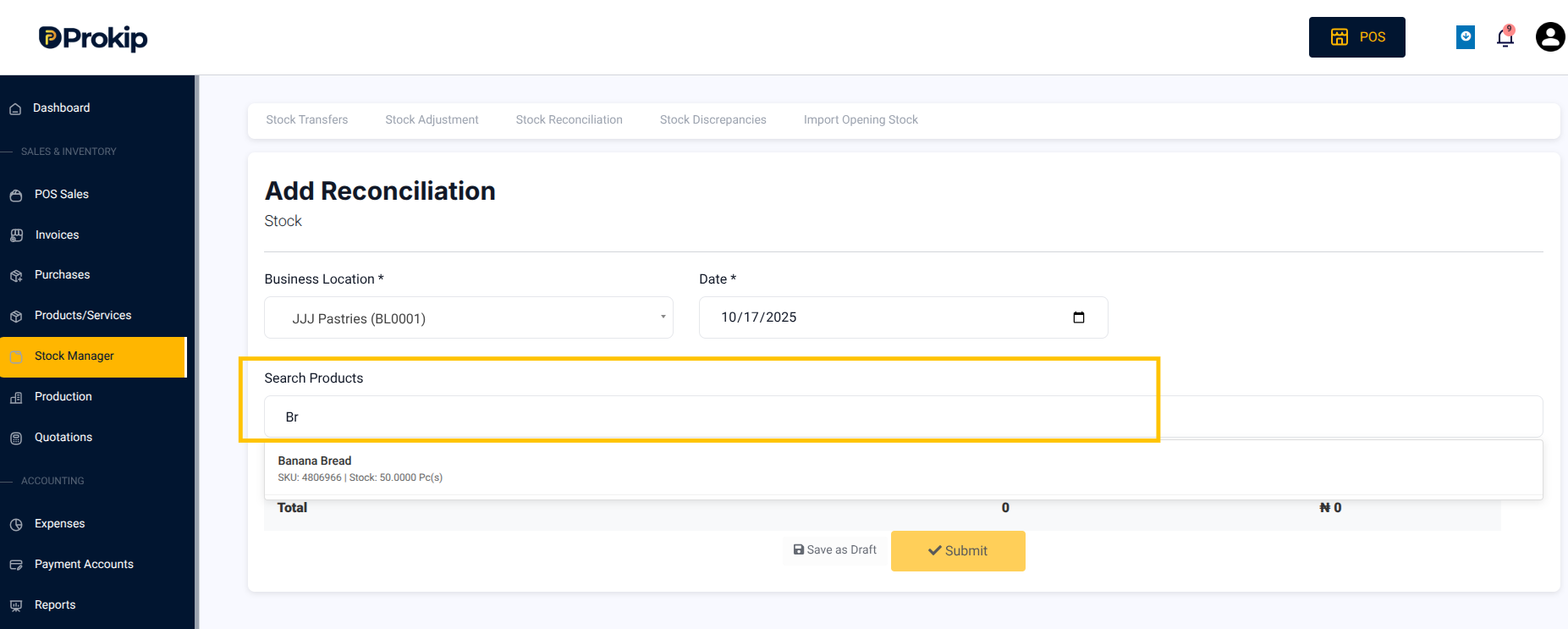
- For each item, it shows:
- Current Stock Level
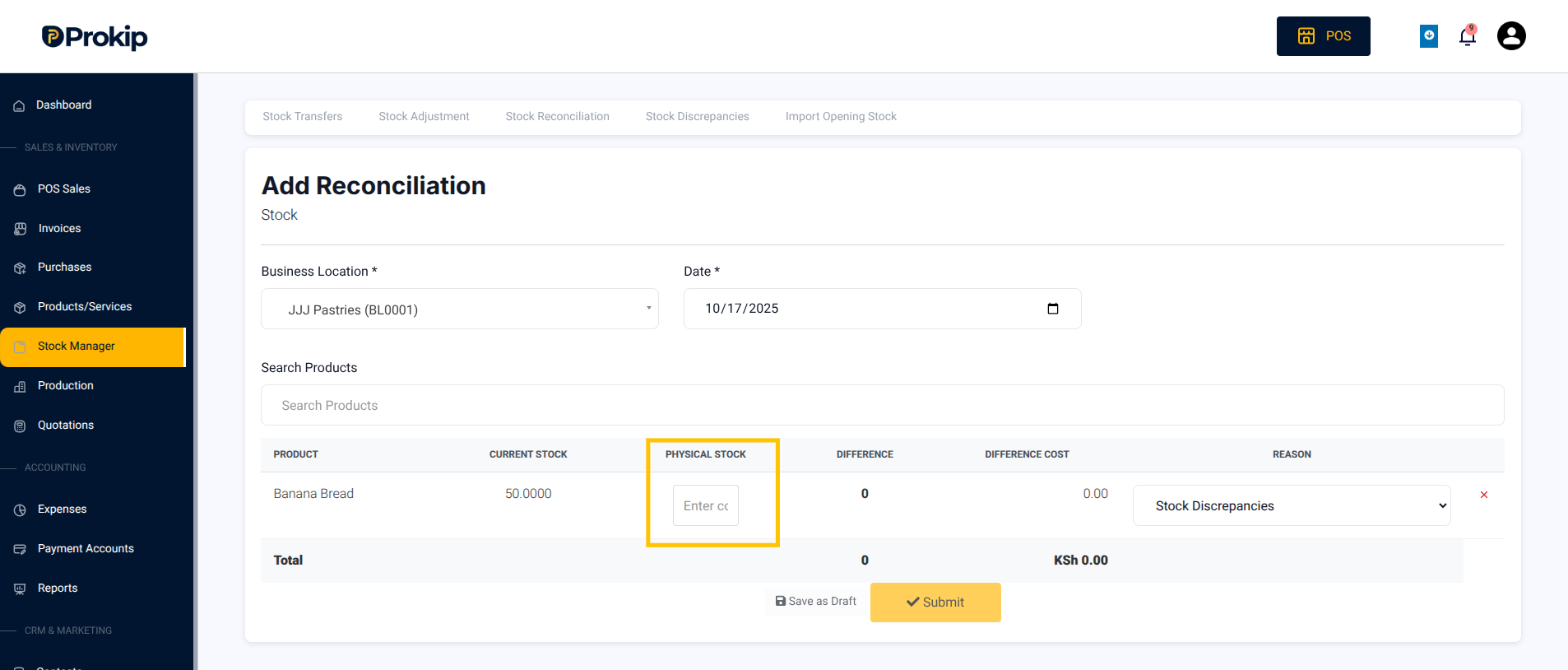
- Physical Stock: this is where you can enter the stock level of the product in your shop.
- Current Stock Level
Difference & Difference Cost fields: this auto-populates based on your current records
- Enter the physical stock
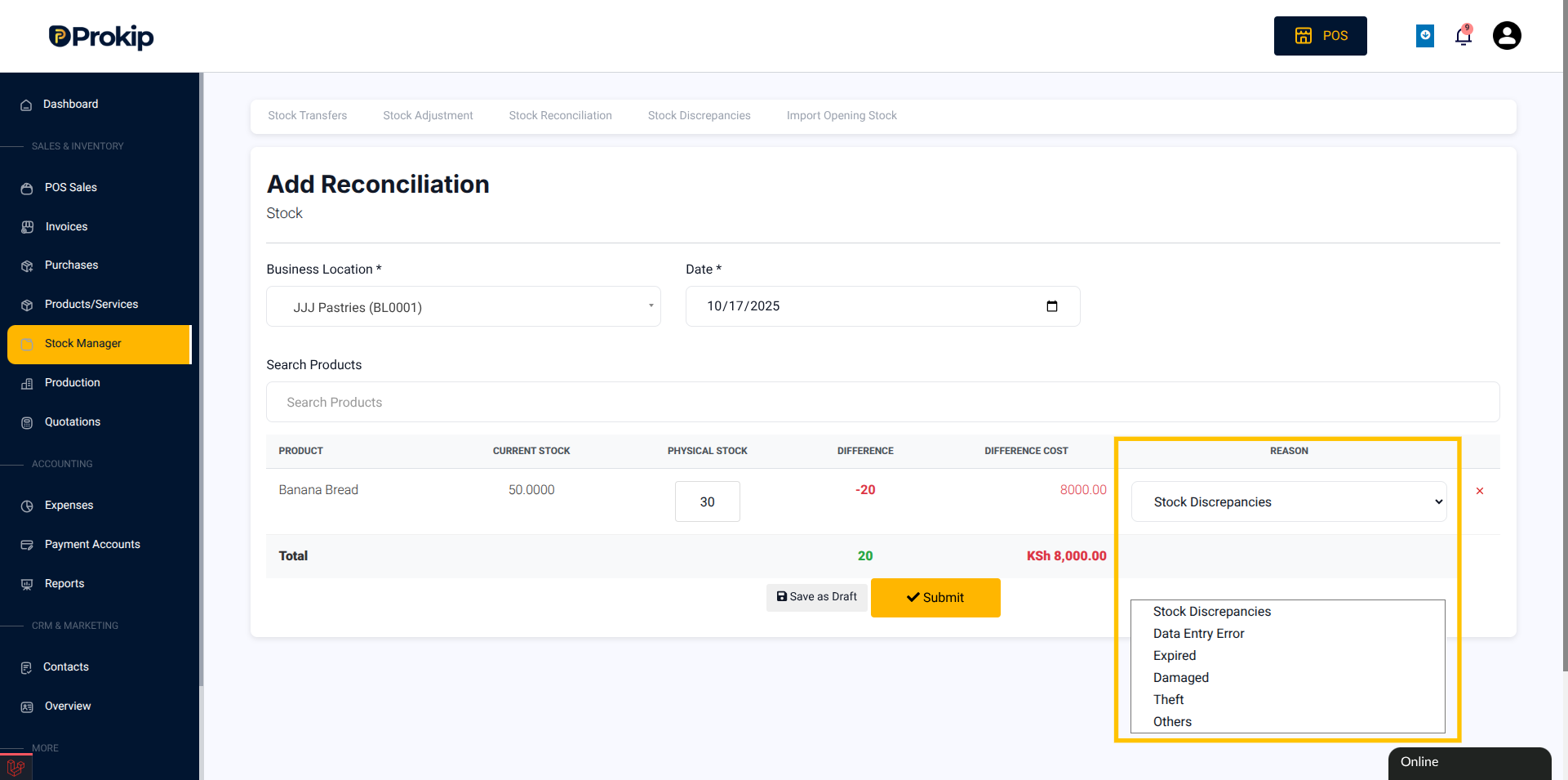
- Select the Reason for the reconciliation from the dropdown.
- Click Save as Draft if you’re not ready to submit yet, if ready go to Step 10.
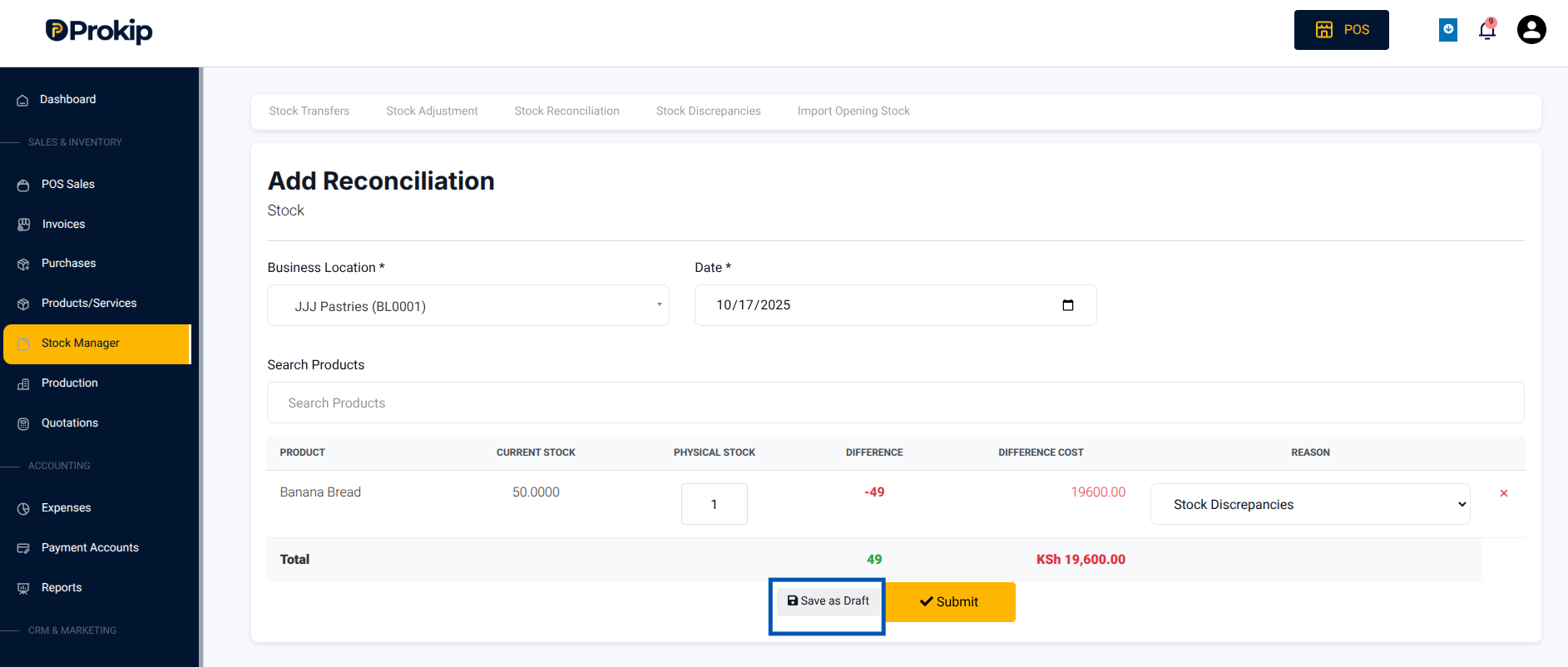
- Click Submit if done