Overview
Prokip allows you to export your product list in different file formats for reporting, analysis, sharing, or bulk editing. Exporting your product data makes it easier to review pricing, stock levels, and product information outside the system.
You can also export the product list in Excel format if you plan to edit the file and import it back into Prokip.
When to Export a Product List
You may need to export your product list when:
-
Reviewing or updating selling prices
-
Performing stock analysis
-
Preparing management reports
-
Sharing product data with suppliers
-
Performing bulk updates
-
Backing up product information
-
Preparing a file for re-import into Prokip
Before You Begin
Ensure that:
-
You have permission to view and export products.
-
You are logged into Prokip with the appropriate access level.
-
You understand which products you want to export (you can use filters).
Steps to Export a Product List
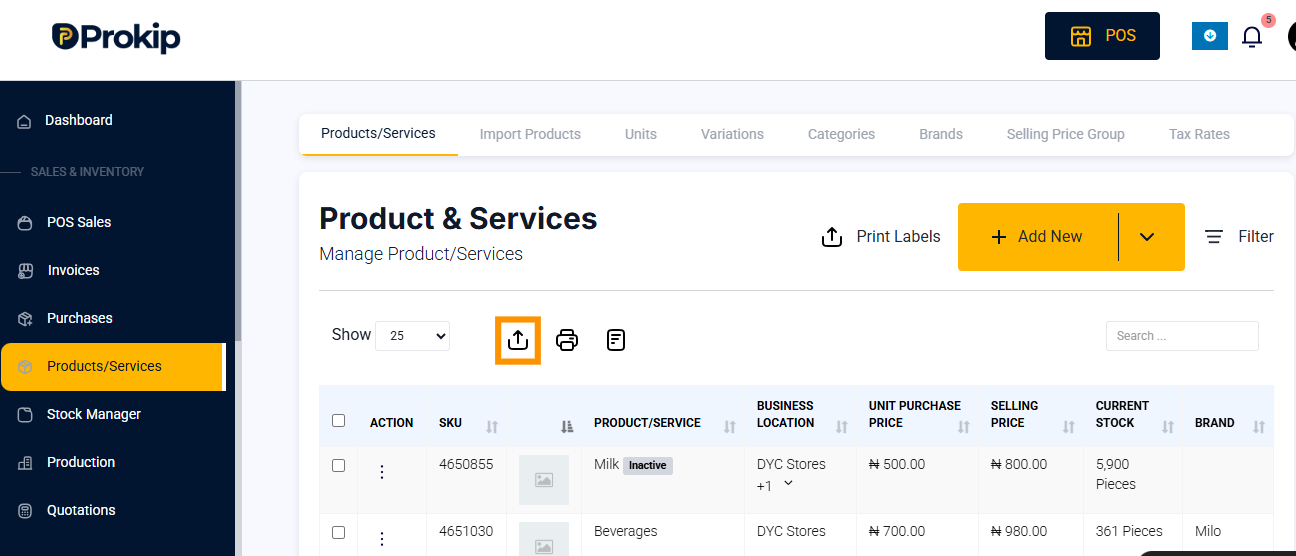
Step 1: Navigate to Products
-
Log in to Prokip.
-
Go to the Products section and open the Product List.
Step 2: Apply Filters (Optional)
Before exporting, you can filter the list to export specific products only:
-
By category
-
By supplier
-
By location
-
By stock status
-
By selling price group
-
By active/inactive status
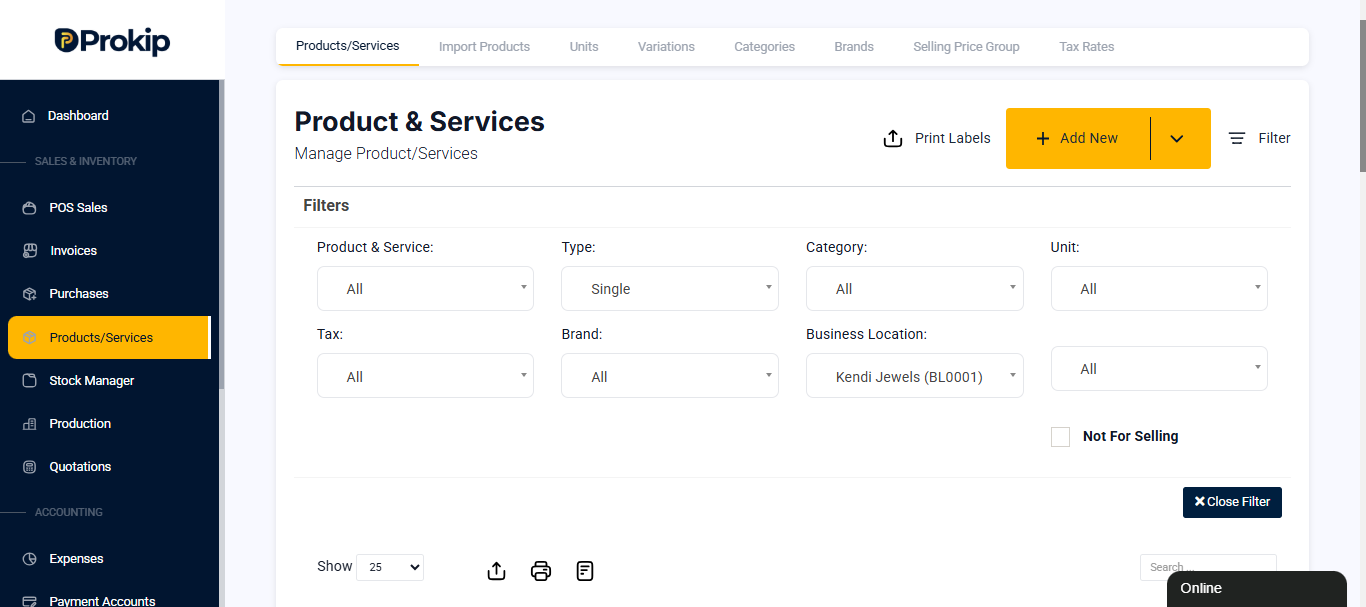
Only the filtered results displayed on the screen will be exported.
Step 3: Choose Export Format
-
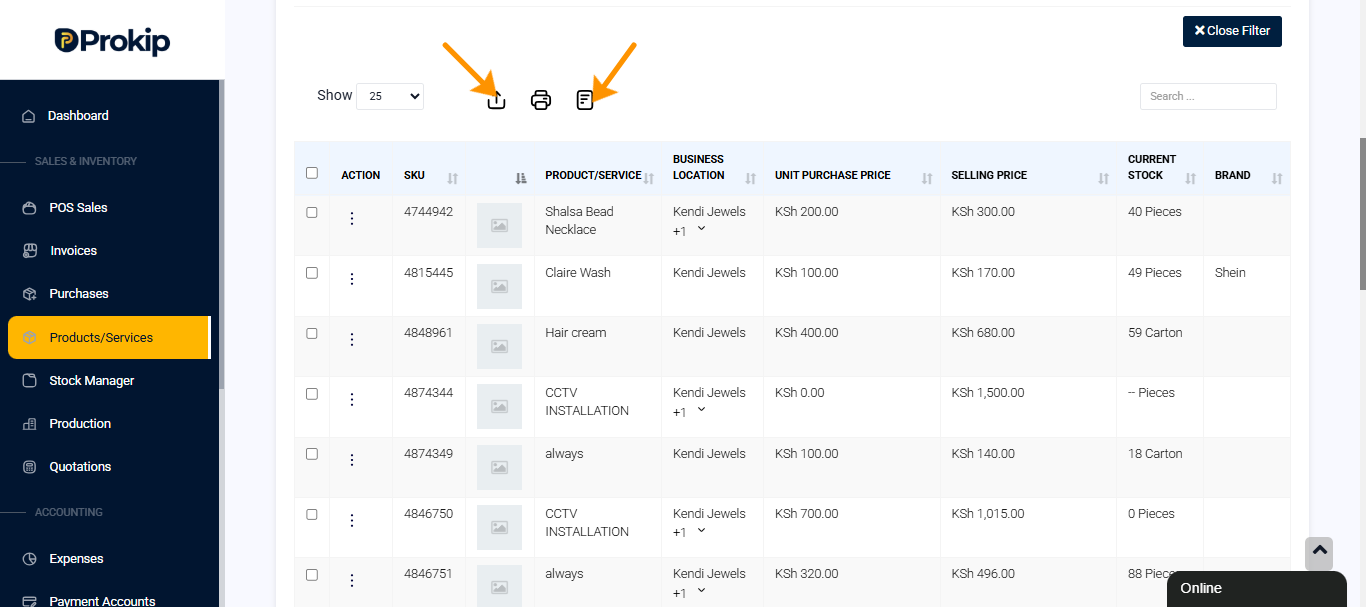
Click the Export button.
-
Select your preferred file format.
Available formats may include:
-
Excel (.xlsx) or CSV (.csv) – Recommended if you plan to edit the file and re-import it into Prokip.
- PDF – Suitable for reports or read-only sharing.
-
Confirm the export.
-
The file will download to your device.
Using Excel for Editing and Re-Importing
If you need to make bulk updates:
-
Export the product list in Excel (.xlsx) format.
-
Open the file and make the necessary changes (e.g., prices, descriptions, categories).
-
Save the file without changing the column structure.
-
Use the Product Import feature in Prokip to upload the updated file.
Important When Editing for Re-Import
-
Do not rename column headers.
-
Do not delete required columns.
-
Follow Prokip’s import template structure.
-
Ensure data formatting (e.g., numbers, dates) remains correct.
Incorrect formatting may cause the import to fail.
What Information Is Included?
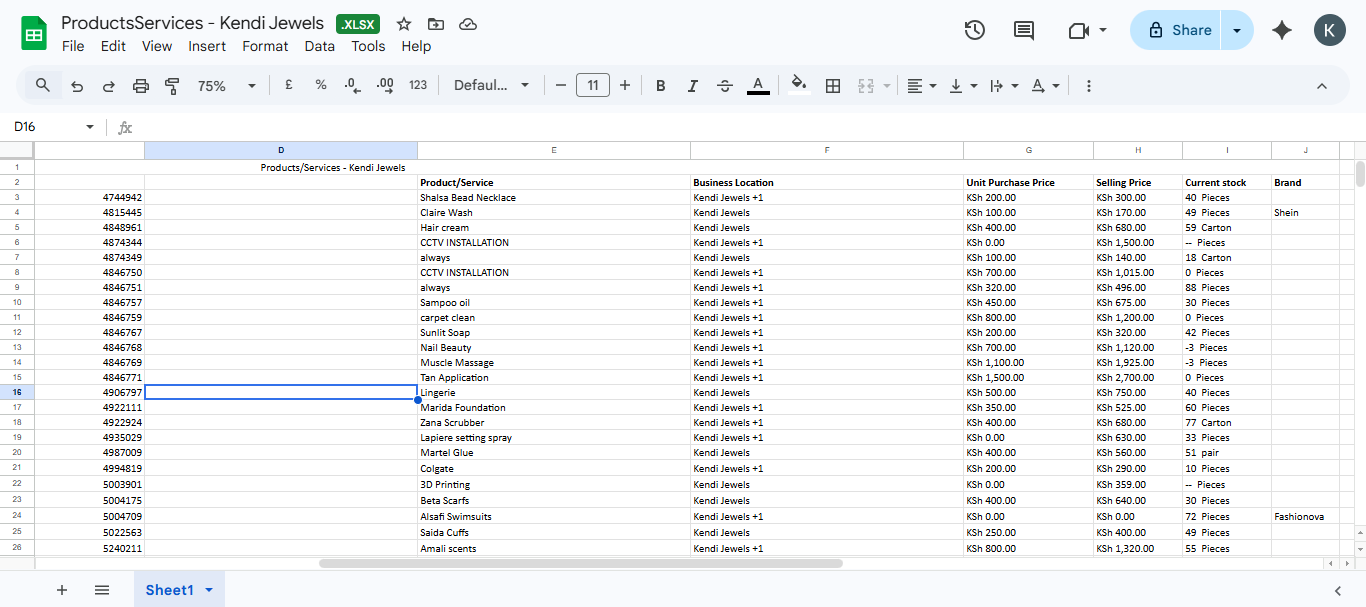
Depending on your Filter configuration, the exported file may include:
-
Product Name
-
SKU / Product Code
-
Category
-
Cost Price
-
Selling Price
-
Stock Quantity
-
Location
-
Selling Price Group
Important Notes
-
The exported file reflects the data currently displayed on your screen.
-
Large product lists may take a few moments to generate.
-
Always keep a backup copy before making bulk edits.
-
Changes made in Excel do not update Prokip until the file is re-imported.
Troubleshooting
Export button not visible
-
Confirm you have the correct user permissions.
-
Contact your system administrator.
Import fails after editing
-
Check that the file format is correct.
-
Confirm column headers were not modified.
-
Ensure required fields are completed properly.