In Prokip, you can quickly import multiple suppliers, customers, or both using a CSV (Excel) file instead of adding them one by one. This saves time and ensures all your business contacts are correctly listed for sales and purchases.
Before You Start
Before importing contacts, make sure you have:
- A properly formatted CSV file ready with your contact information.
- The CSV file includes the required columns:
- Contact type (Customer, Supplier, or Both)
- Contact name
- Business name (if contact is supplier)
- Due Date(if contact is supplier)
- Email (Optional)
- Phone number
- Address
- Opening balance (if any)
- You can download a sample CSV template from Prokip to guide you.
Steps to Import Contacts
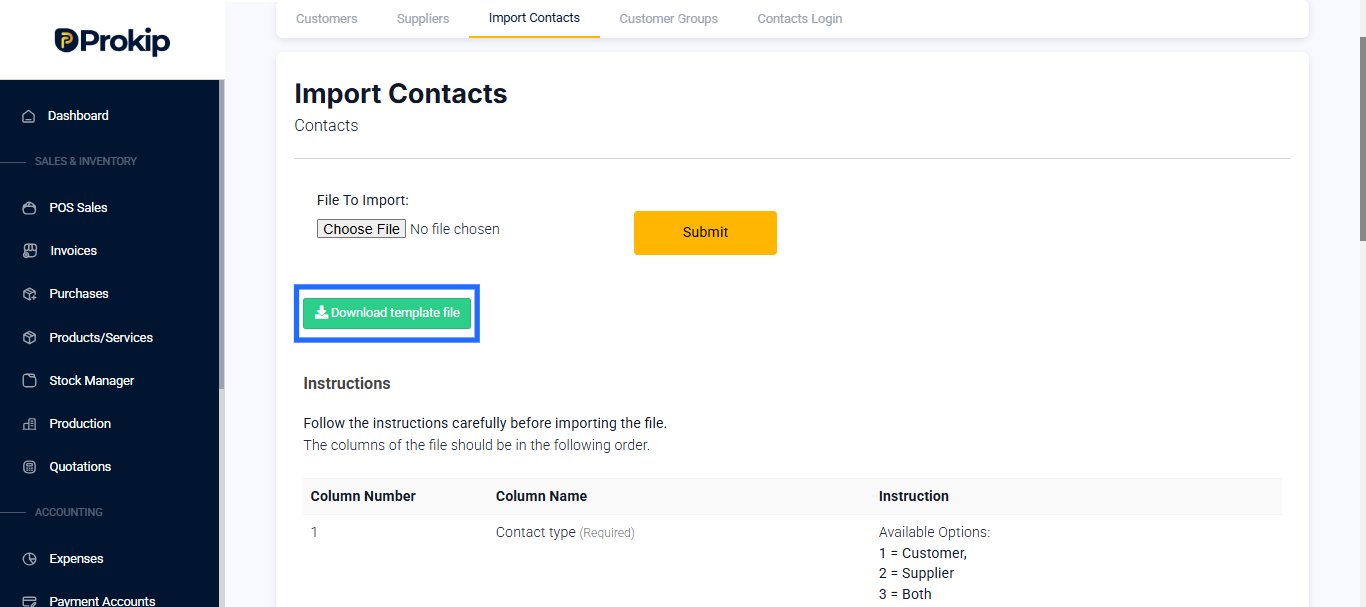
Step 1: Go to the Contacts Section – Go to the Import Contacts tab from the top bar on the Contacts Dashboard.
Step 2: Download the Sample File
- On the Import Contacts page, click Download template File.
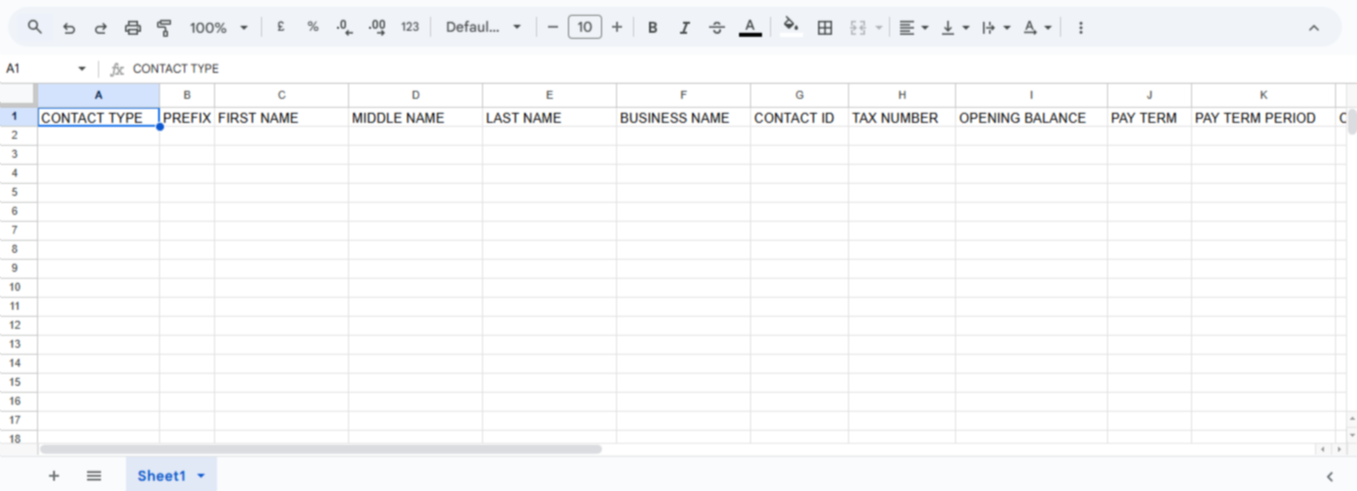
- Open it on your computer (usually opens in Excel or Google Sheets).
- Review the sample column structure — do not rename or remove columns.
Step 3: Fill In Your Contact Details
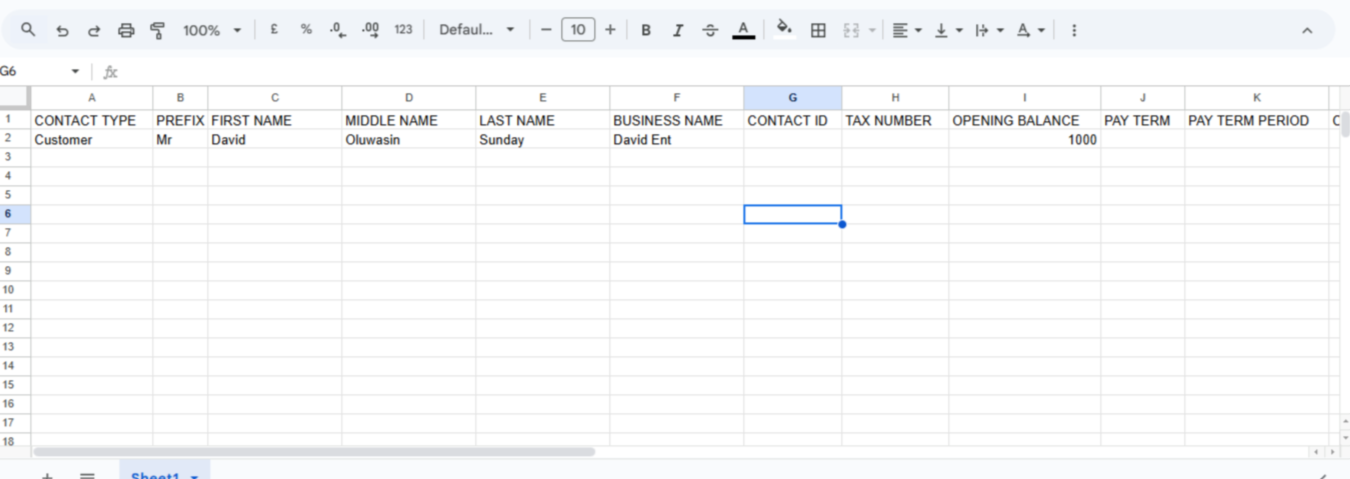
- Replace the sample rows with your actual contact details.
- Example:
- Contact Type: Supplier
- Contact Name: John Kamau
- Business Name: JK Suppliers Ltd
- Email: [email protected]
- Phone: 0722 123456
- Address: Nairobi, Kenya
- Opening Balance: 0
- Example:
- Save your file as a .CSV (Comma Separated Values) format.
Step 4: Upload the File into Prokip
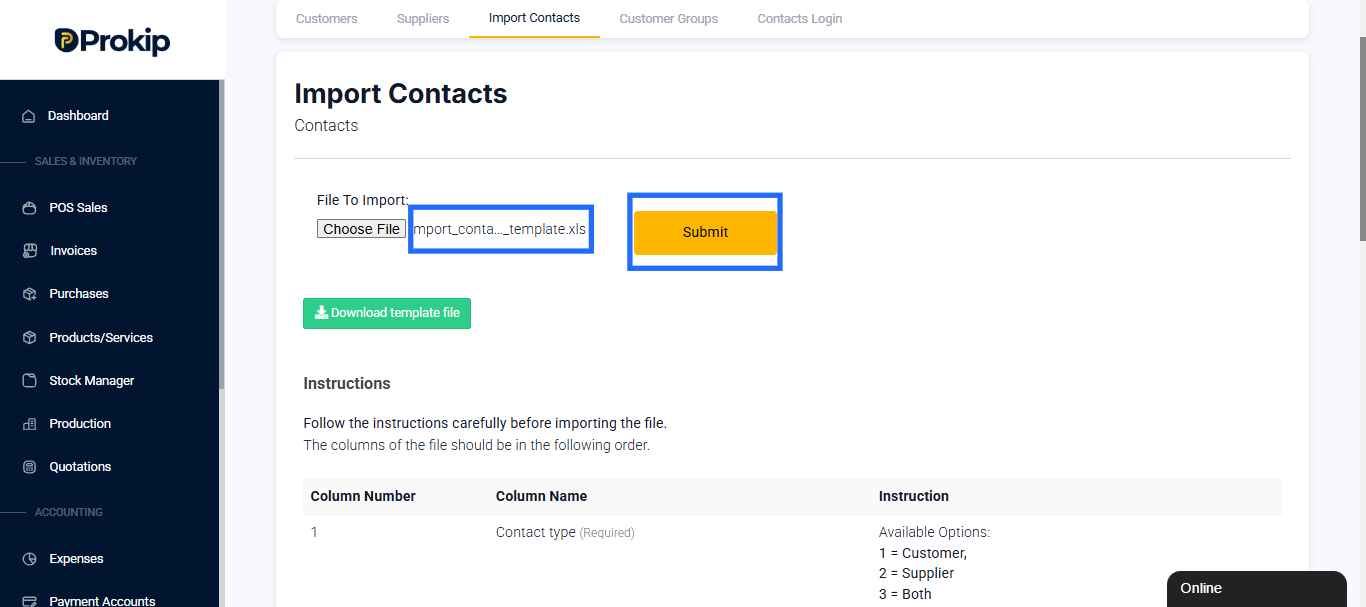
- Go back to Prokip’s Import Contacts page.
- Click Choose File and select your saved CSV file.
- Confirm your selection.
- Click Submit to upload the file.
Step 5: Review Imported Contacts
- After import, Prokip will show a confirmation message.
- If any contact wasn’t imported, the system will show an error log explaining what went wrong (for example, missing email or wrong contact type).
- You can correct those errors in your CSV and re-upload the file.
Viewing Imported Contacts
- Go to Contacts.
- You’ll see the newly imported names listed under their categories:
- Customers tab
- Suppliers tab
- Both (if a contact serves as both)
- You can click any contact to view or edit their details.
Best Practices
- Always use the Prokip sample CSV to ensure the correct column format.
- Avoid blank rows or missing contact types.
- Double-check email and phone number accuracy before importing.
- If a contact is both a supplier and customer, select Both in the Contact Type column.