Purpose
To allow you to link transactions that were previously completed without having an account associated with them.
Steps
- Log in to Prokip.
- Go to menu bar and click on payments account.
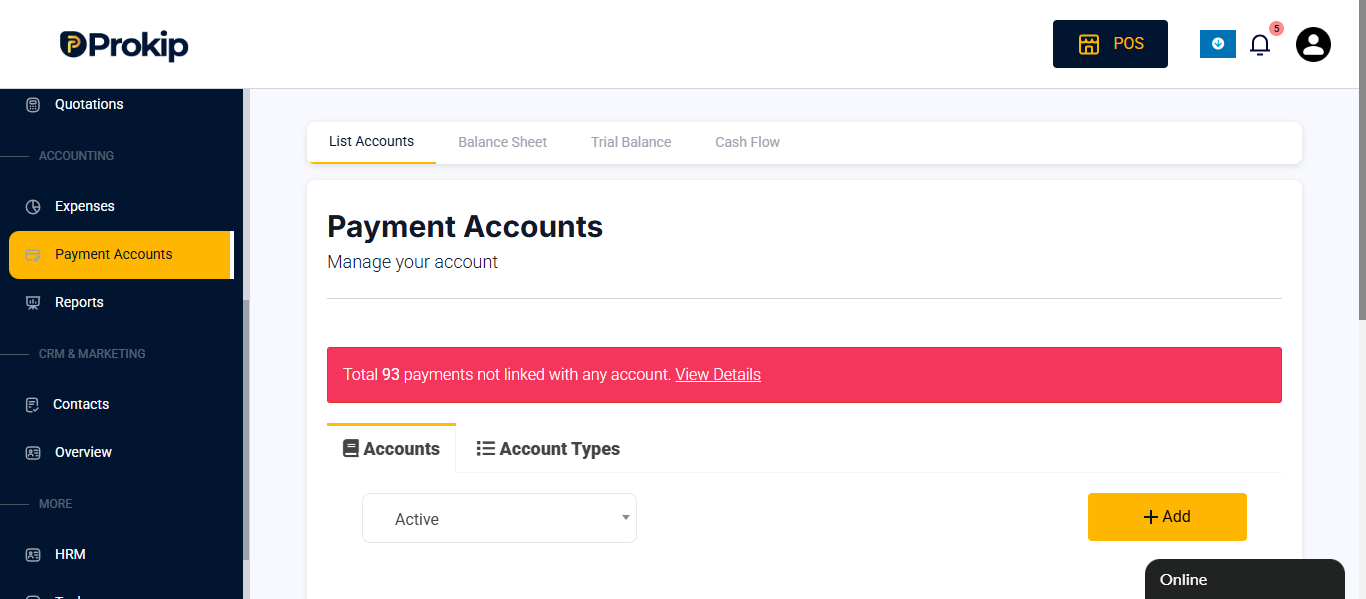
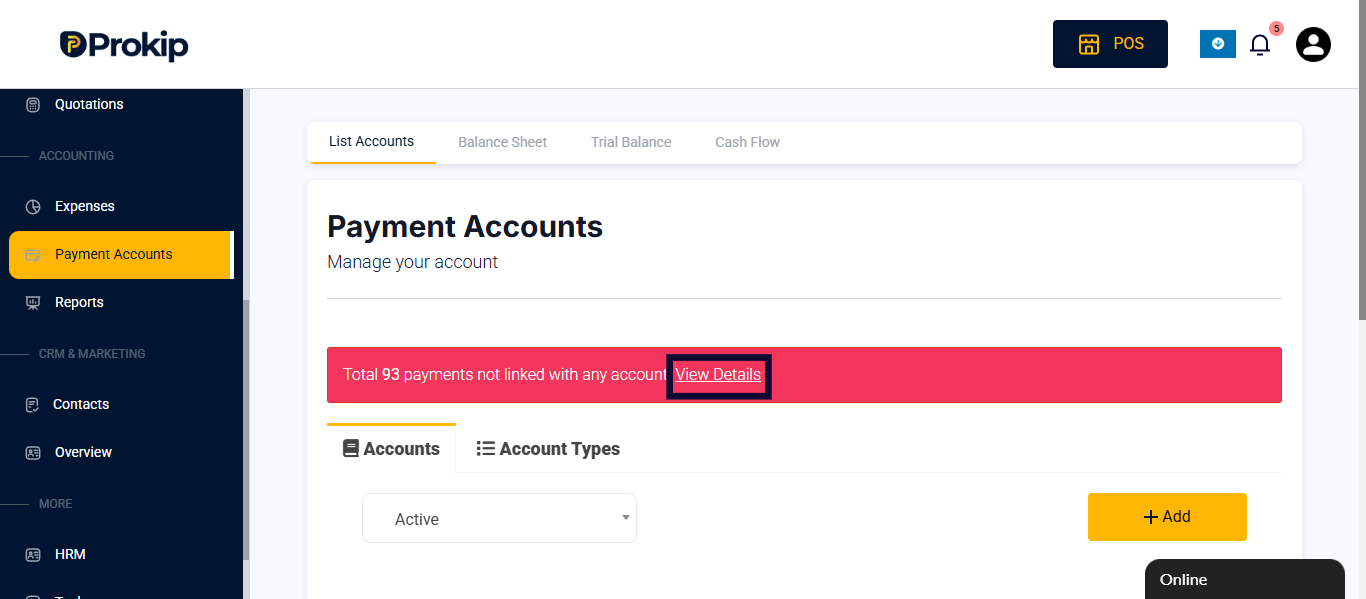
- Click on view details.
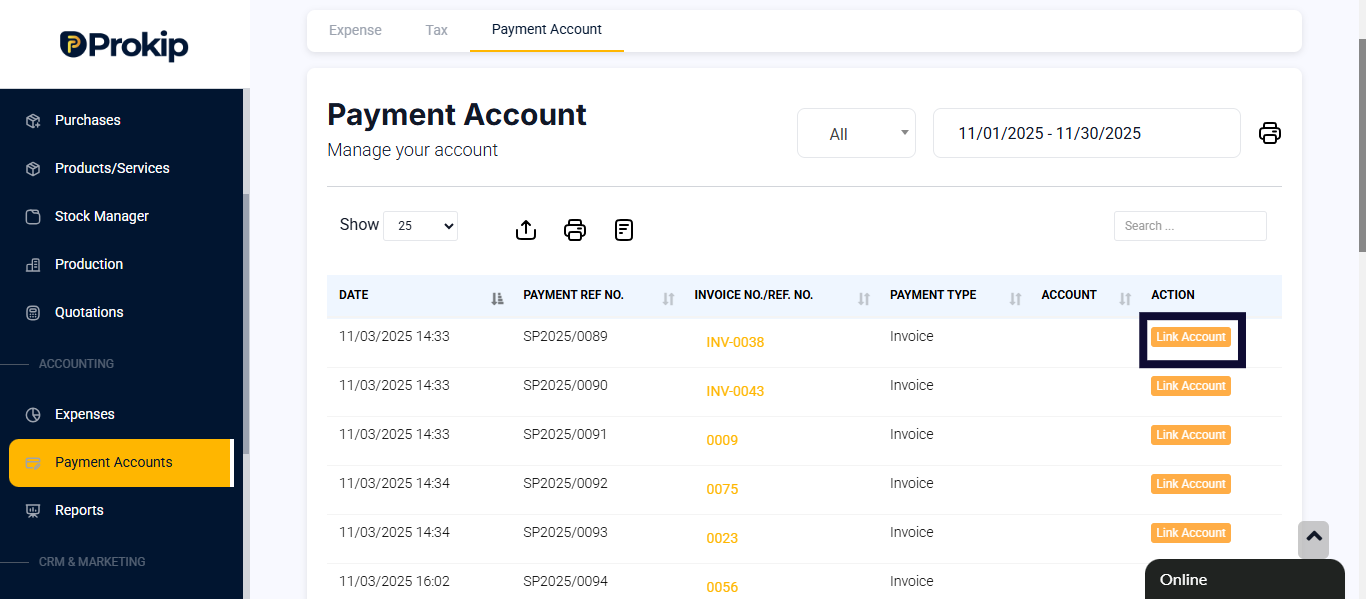
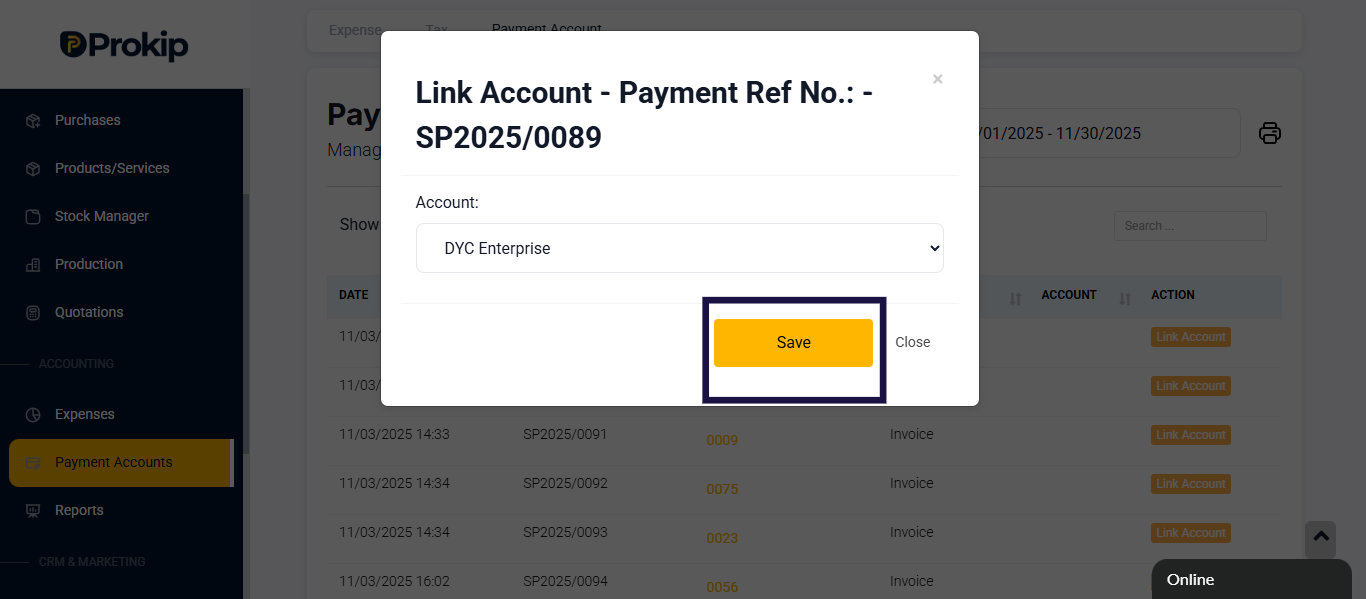
- Click on link account a modal appears.
- Click on account to select the account you are linking to.
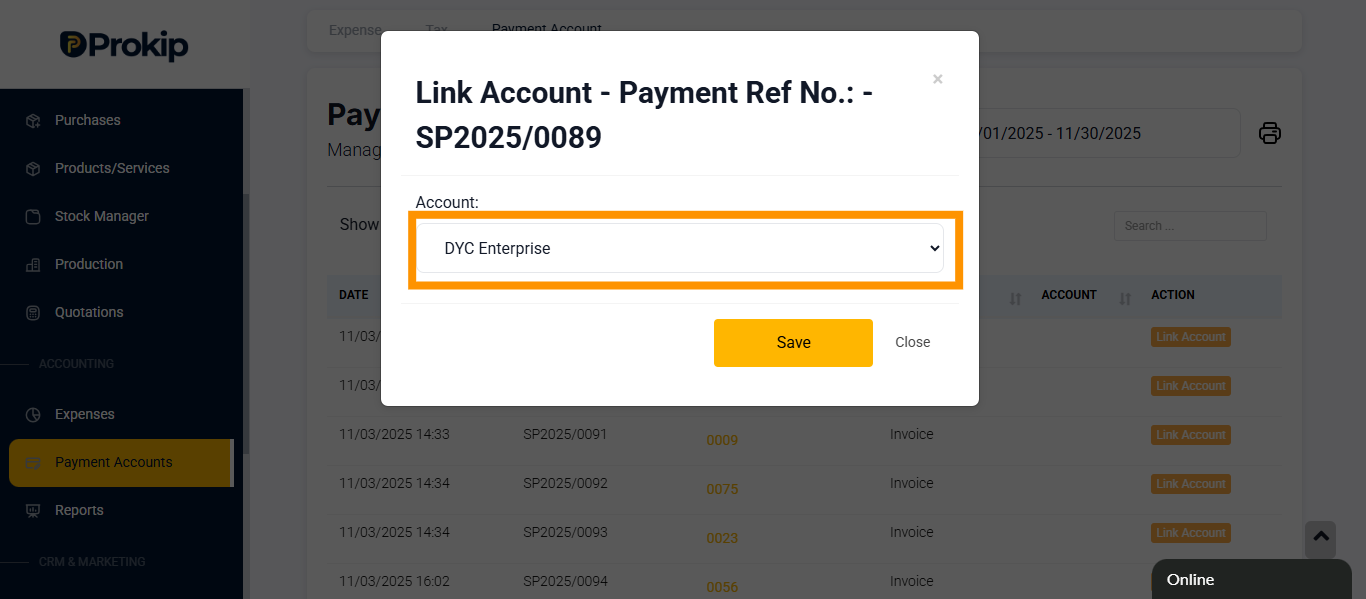
- Click on save.
FAQ
Q1: Why do I need to auto-link a transaction?
A: Auto-linking helps you correct earlier entries so that all transactions are properly assigned to the right payment account.
Q2: Will linking a transaction update my reports?
A: Yes, once a transaction is linked, your reports and account balances will automatically reflect the updated information.