Purpose
Selling Price Groups let you create different pricing tiers (e.g., wholesale, retail, VIP) for the same product.
Before You Start
- Decide your pricing structure (e.g., wholesale = 10% off, retail = full price)
Steps
- Log in to your Prokip account.
- Click on Products/Services on the left side bar.
- From the Products menu, click Selling Price Groups.
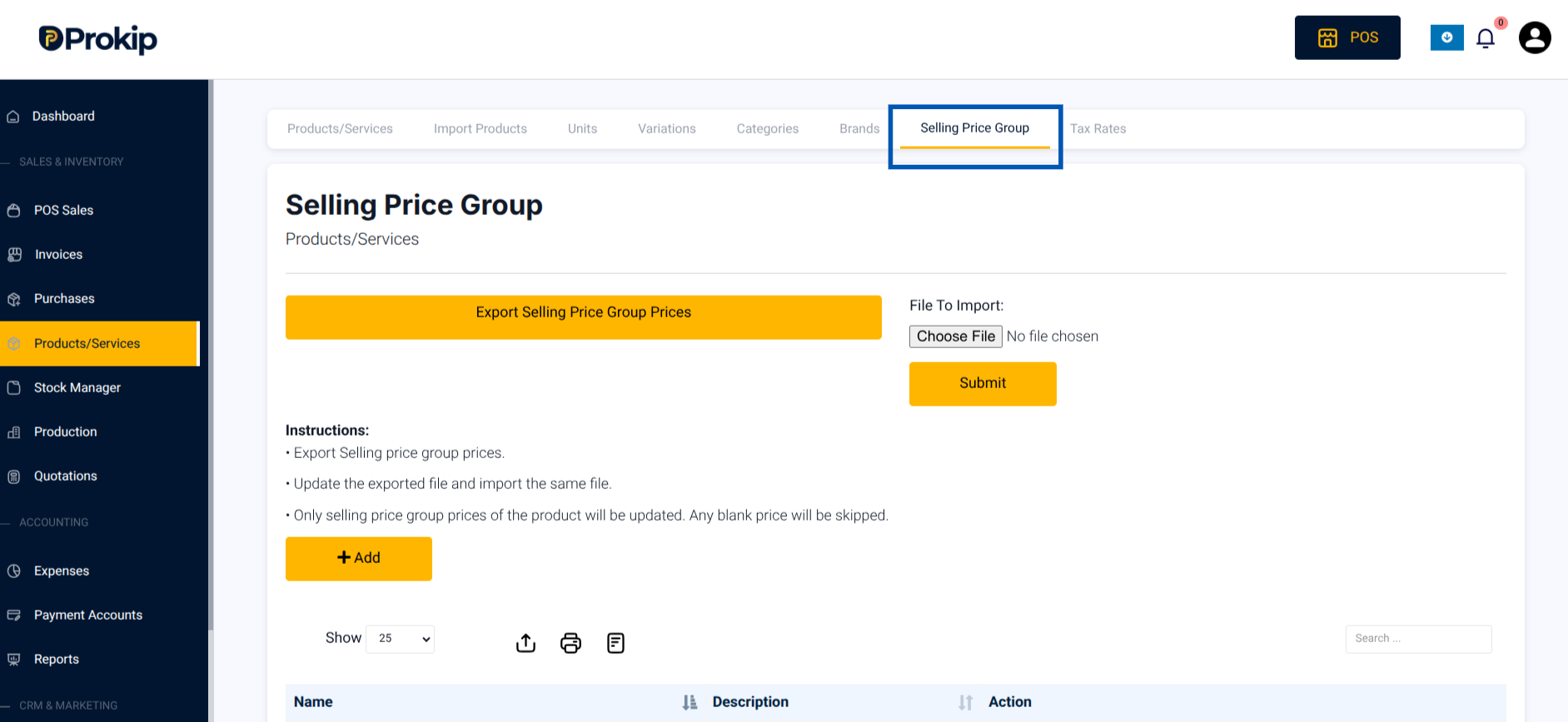
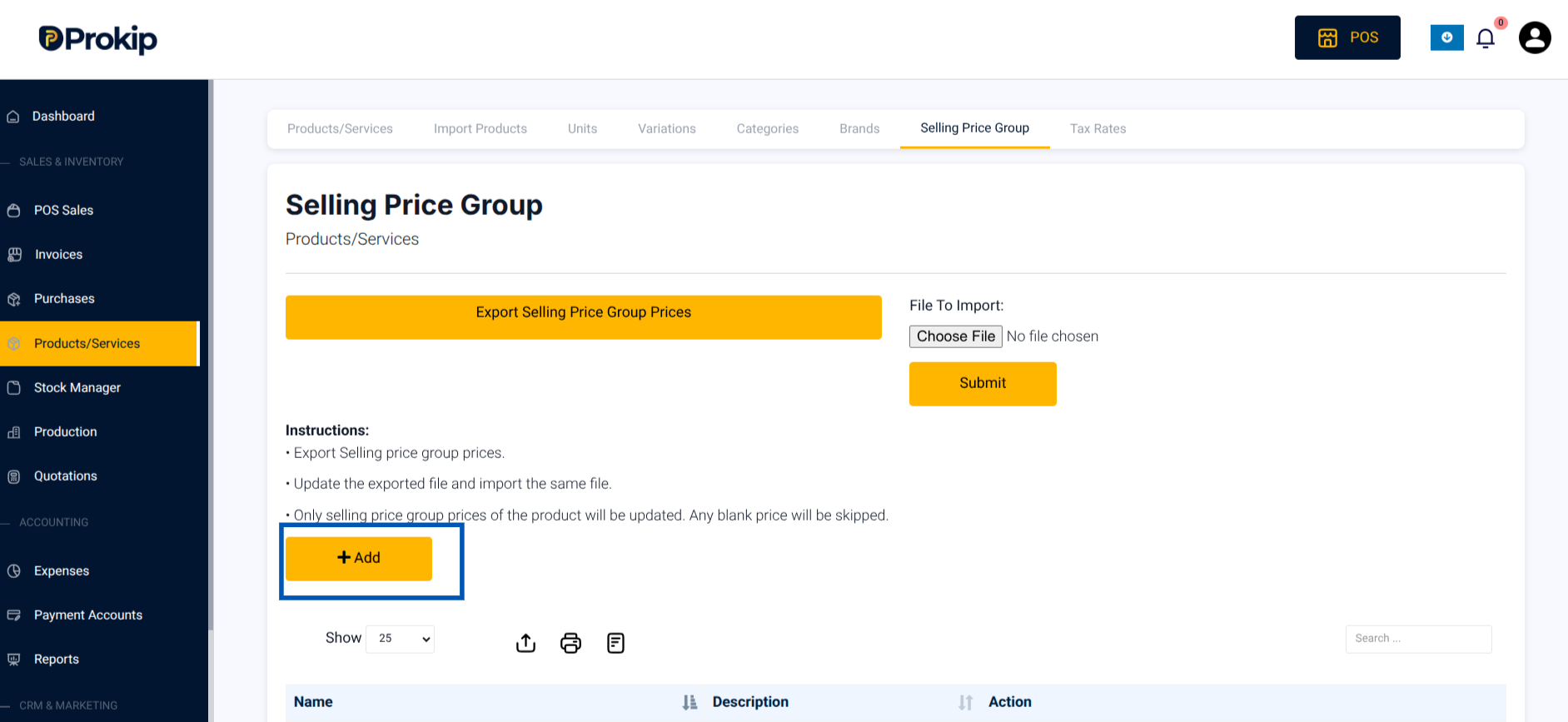
- Click Add to add an individual Selling Price Group.
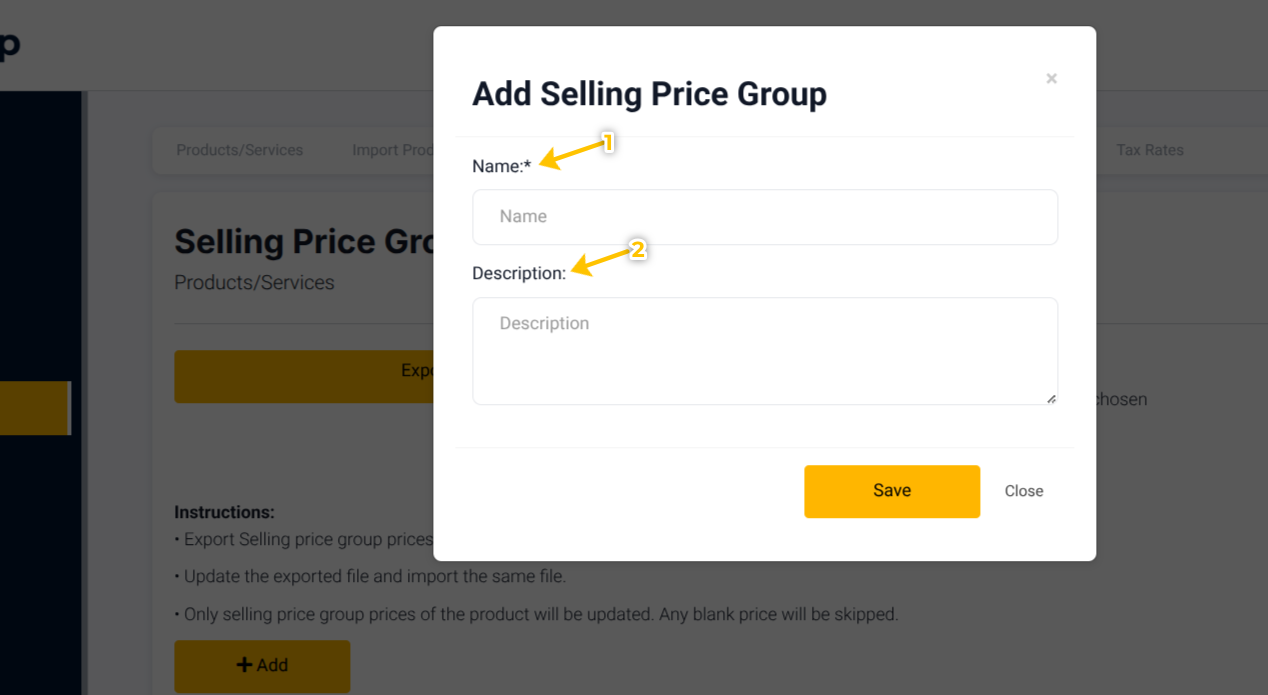
- Enter the group details:
- Group name (e.g., “Wholesale”)
- Description
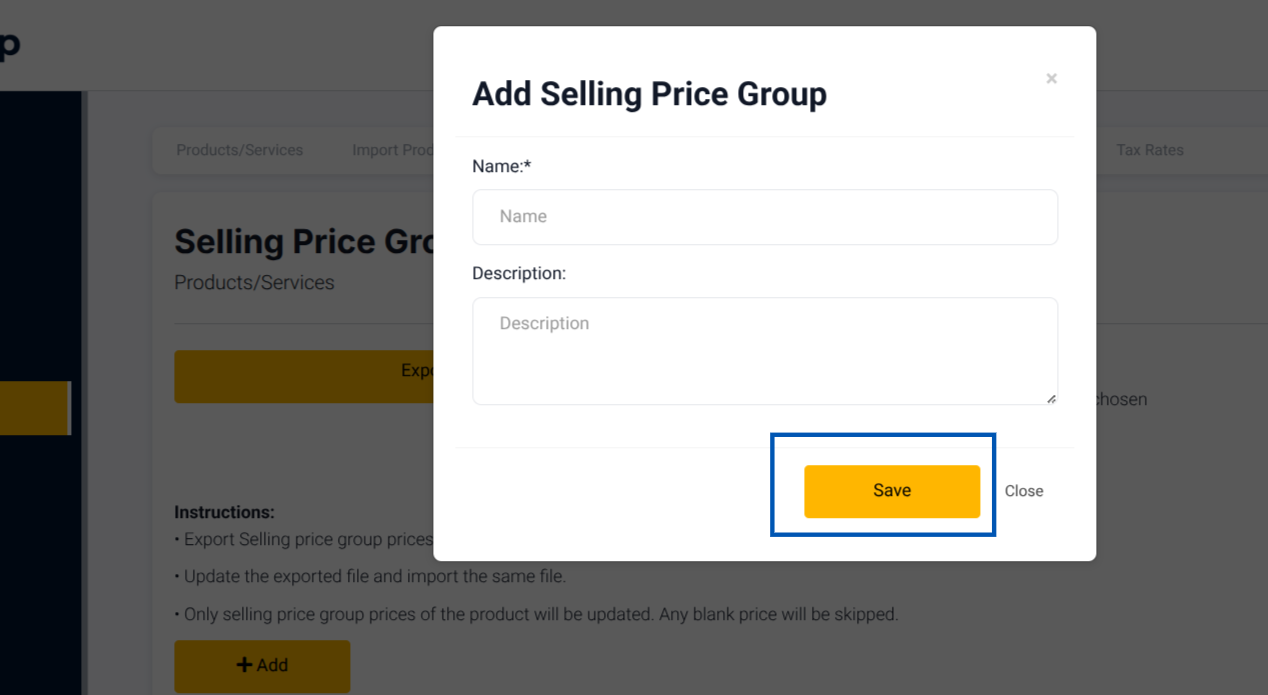
- Click Save.
- Apply the group to products:
- For new products: assign the price groups during product creation.
- For existing products: use the bulk edit option or update individually.
What Happens Next
- You can assign customers to specific price groups.
- Customers assigned to a price group will automatically see the correct pricing in POS.
Troubleshooting
- If a group price is not applying, confirm the customer is assigned to that group.
- If products does not show group pricing, check that group prices were set at the product level.
- If bulk updates fail, confirm the import file matches Prokip’s template.
Frequently Asked Questions
Q: Can a customer belong to multiple price groups?
A: No, a customer can only be assigned to one price group.
Q: Can I bulk update price groups?
A: Yes, through the product import/export function.
Q: Can price groups be temporary (e.g., seasonal)?
A: Yes, groups can be created or deactivated at any time.