Overview
The Tax Report in Prokip provides a summary of all tax activity within a selected date range. It helps businesses track:
- Taxes collected
- Input Tax from purchases
- Output Tax from sales
- Expense Tax accrued from business expenses
- Overall tax position
This report is essential for tax filing, reconciliation, and financial review.
Where to Access the Tax Report
Navigate to:
Reports → Expense & Accounts → Tax Reports
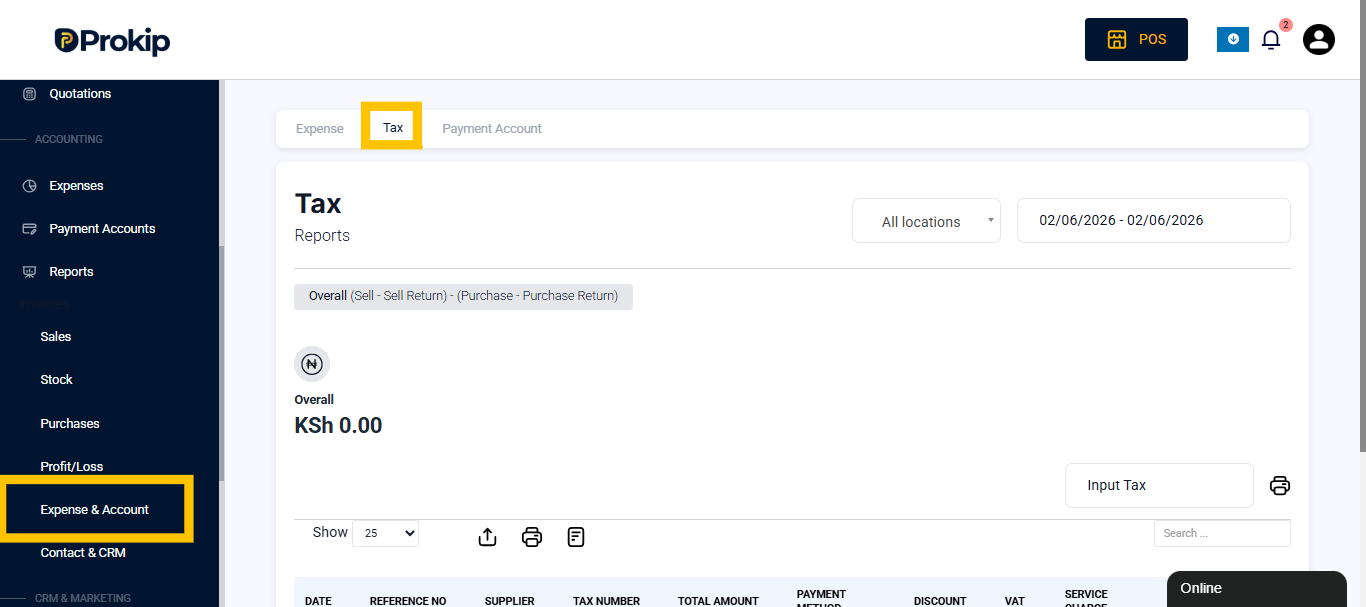
Date Range Selection – At the top of the report, select your preferred date range:
Example: 01/01/2025 – 12/31/2025
Overall Calculation Formula
The system calculates:
This shows your net tax position.
Report Sections Explained
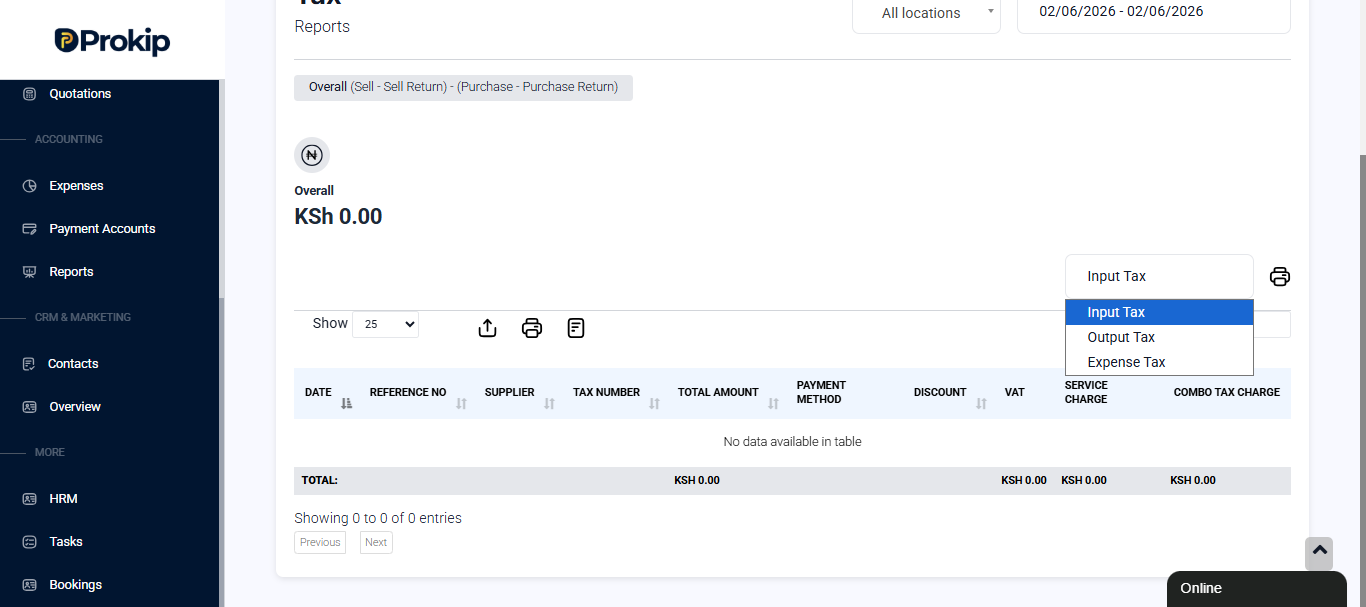
Within the Tax Report, there is a dropdown that allows you to switch between:
Input Tax – Displays taxes paid on purchases from suppliers.
Output Tax – Displays taxes collected from sales to customers.
Expense Tax – Displays taxes applied to business expenses.
Each option filters the table to show only transactions related to that tax type.
Report Table Explanation
Depending on the dropdown selection (Input, Output, or Expense Tax), the table displays transaction details.
Table Columns
| Column | Description |
|---|---|
| Date | Transaction date |
| Reference No | Transaction reference number |
| Supplier / Customer | Related party |
| Tax Number | Registered tax number |
| Total Amount | Transaction amount |
| Payment Method | Method used |
| Discount | Any discount applied |
| Tax (Name of tax added) | Tax amount calculated |
| Tax Group (if applicable) | Combined tax amount |
Note:
The tax columns reflect the actual tax names you created under Products/Services → Tax Rates.
For example:
- If you created “VAT”, it will appear as VAT.
- If you created a tax group like “Combo Tax Charge”, it will appear with that name.
- If you added a custom tax, that name will appear instead.
The table dynamically adjusts based on the taxes configured in your system.
Output Tax (From Sales)
The overall calculation includes:
- Tax collected from sales
- Tax adjustments from sell returns
This contributes to the Overall calculation.
Totals Section
At the bottom of the report, Prokip displays totals per tax type:
- Tax 1 Total
- Tax 2 Total
This breakdown helps you see how much was collected per tax type.
Search & Filter Features
The report includes:
-
Search bar – Quickly find specific transactions
-
Show entries dropdown (25 default) – Control number of rows displayed
How to Interpret the Tax Report
If Overall is Positive: You collected more tax from sales than you paid on purchases.
If Overall is Negative: You paid more tax on purchases than you collected from sales.
When to Use the Tax Report
Use this report for:
- Monthly or yearly tax reconciliation
- VAT filing
- Tracking other types of taxes
- Auditing supplier tax payments
Note:
- The report reflects only transactions within the selected date range.
- Sell Returns and Purchase Returns affect totals.