Use this option when a customer wants to pause a sale temporarily — for example, if they step out or need to add more items later.
Steps
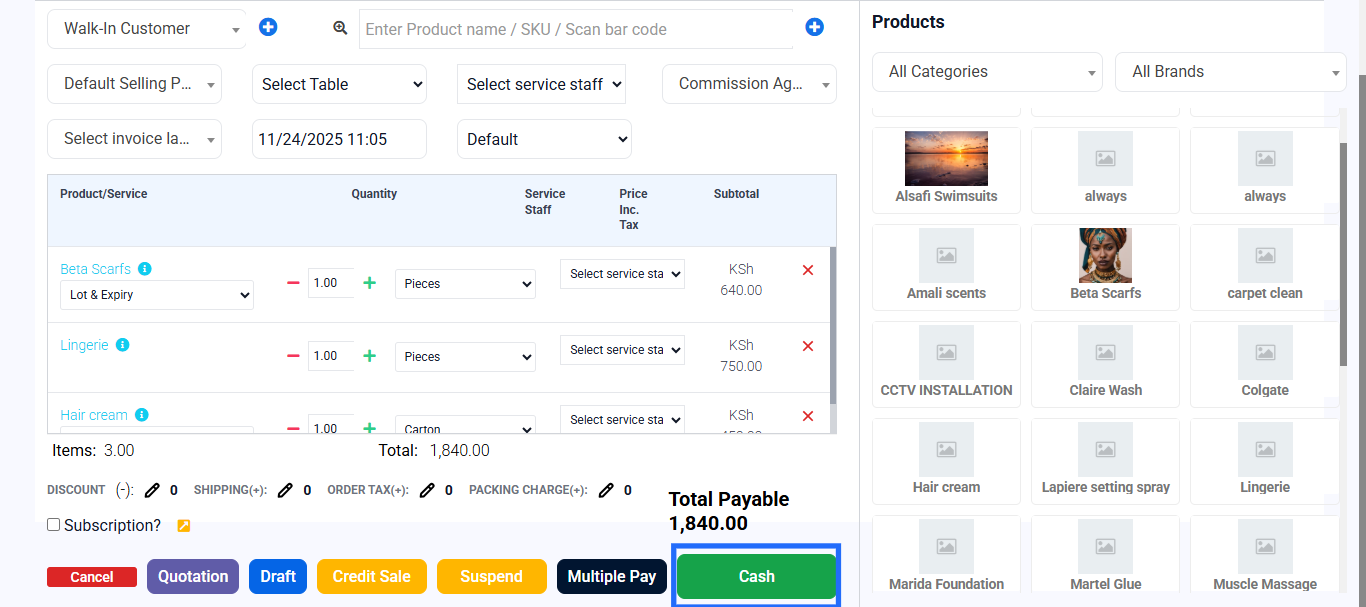
- Go to POS and add the items to the cart.
- Instead of completing the sale, click Suspend Sale at the bottom of the POS screen.
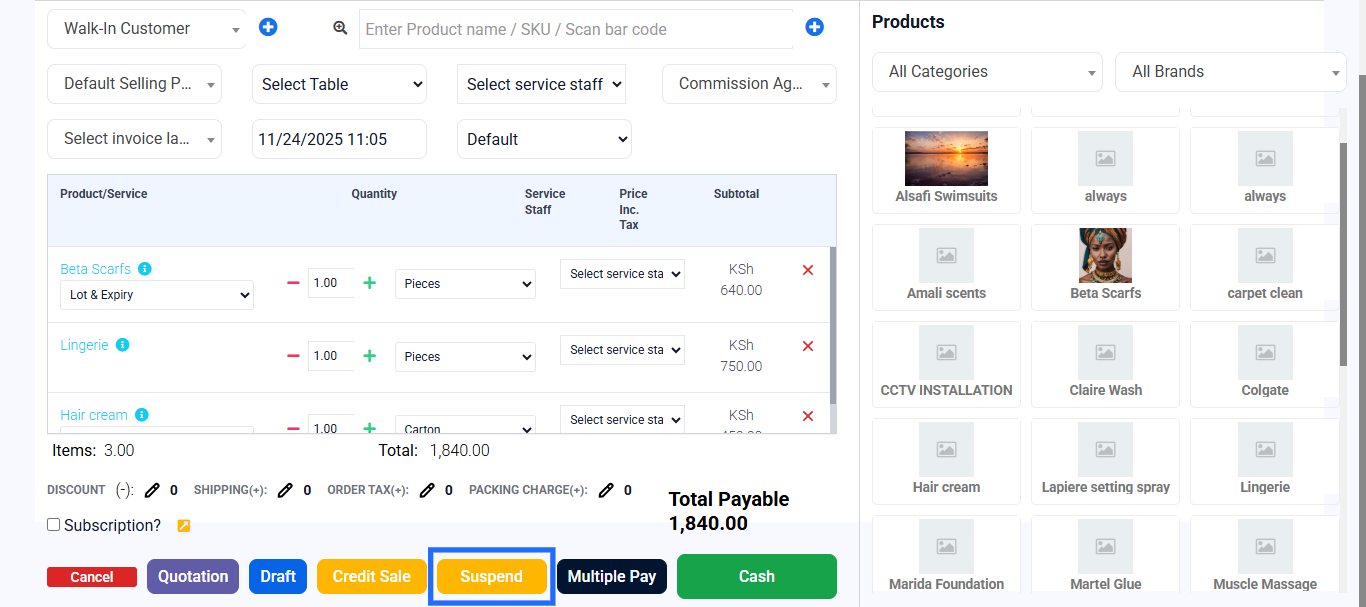
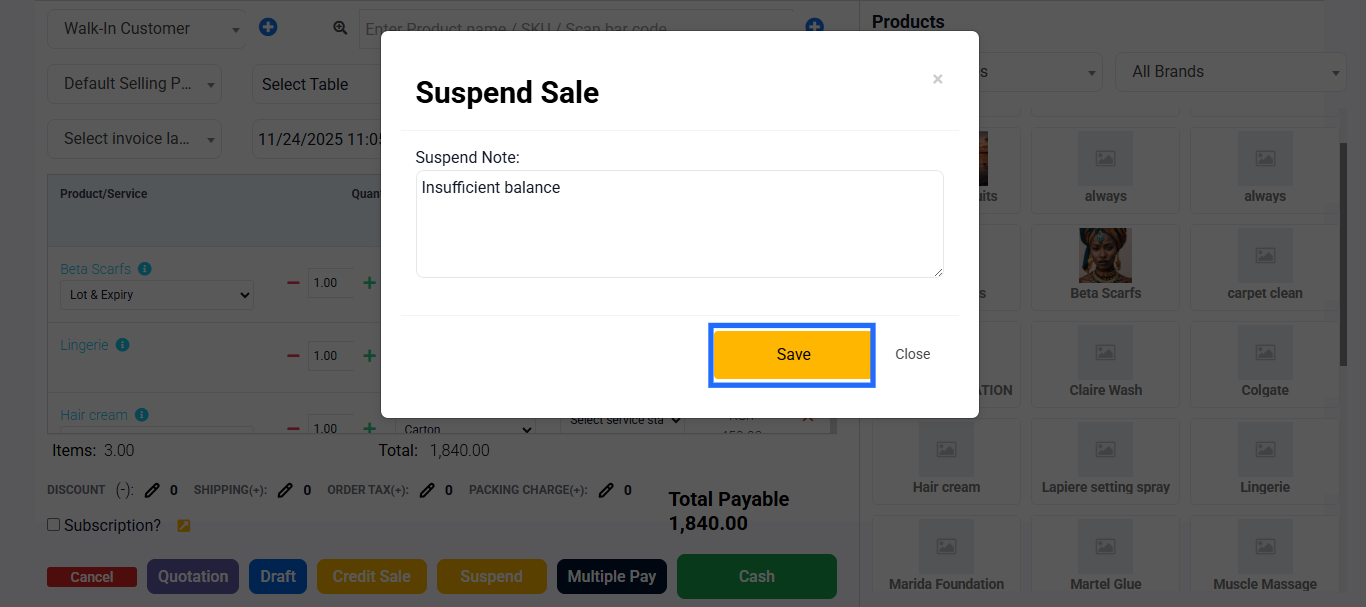
- Add a short note, such as “Customer stepped out” or “Waiting for transfer.”
- Click Save to store the sale under Suspended Sales.
- To continue the sale later:
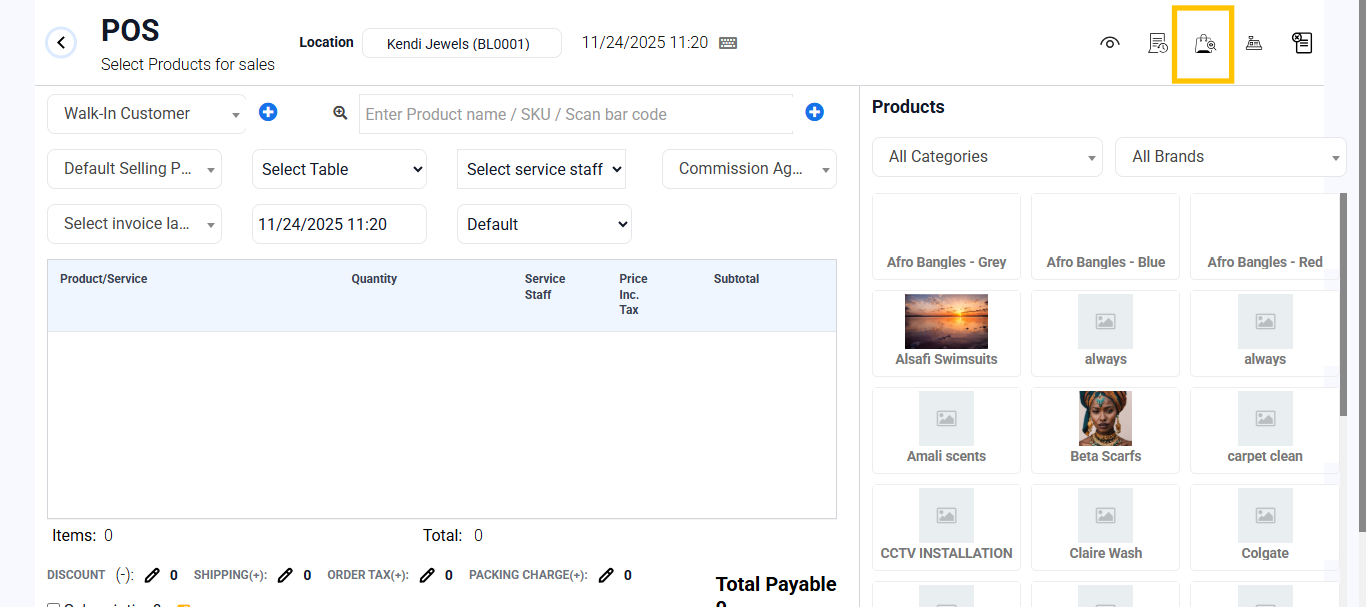
- Go to POS on the top-right corner → View Suspended Sales from the items above.
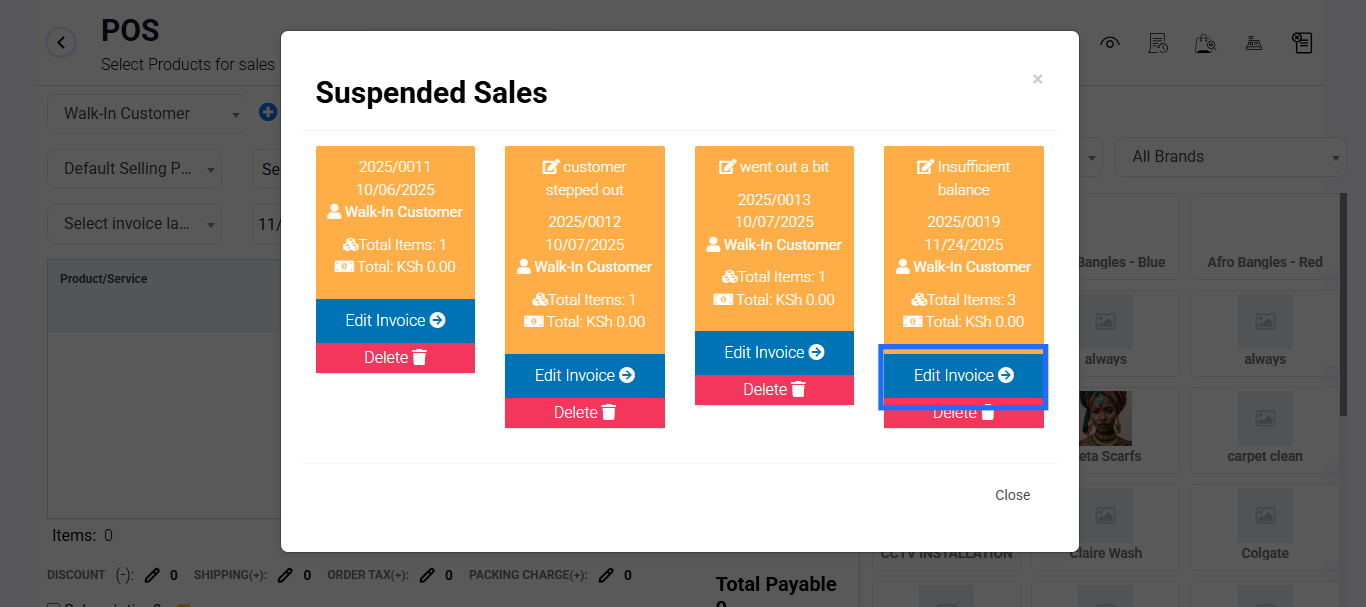
- Click Edit Invoice from the suspended sale window to reopen the sale in POS.
- Add or edit items as needed, then complete the payment.
- Go to POS on the top-right corner → View Suspended Sales from the items above.
Best Practice:
Use short, clear notes to identify suspended sales easily. Resume and finalize them as soon as possible to keep sales records accurate.