The register in POS helps you track daily cash movements — when you start your shift (opening) and when you end it (closing). This keeps your sales, expenses, and cash flow accurate.
Before You Start
- Make sure you’re logged into Prokip with the correct user account.
- Confirm that you have permission to manage POS registers (admins can assign this).
- Have your opening cash amount ready (the money you start the day with in the till).
Opening the Register
- Go to POS from the dashboard.
- If no register is open, “Open Register.”
- Enter the Opening Cash Amount (the physical money you have at the start of the shift).
- Example: If you start the day with ₦20,000 cash in the drawer, type that in.
- Add Business Location (For Multiple business locations).
- Click Open Register.
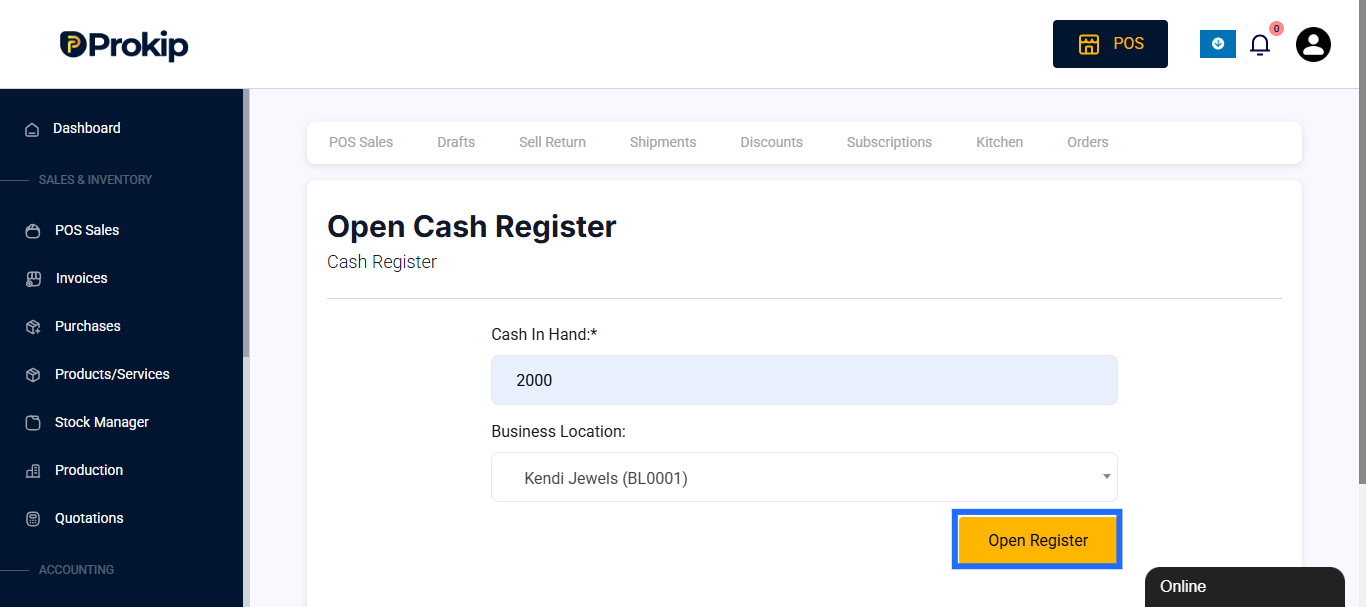
Now you can start recording sales, expenses, and payments.
Closing the Register
At the end of your shift or business day:
- Go to POS.
- Click on Close Register.
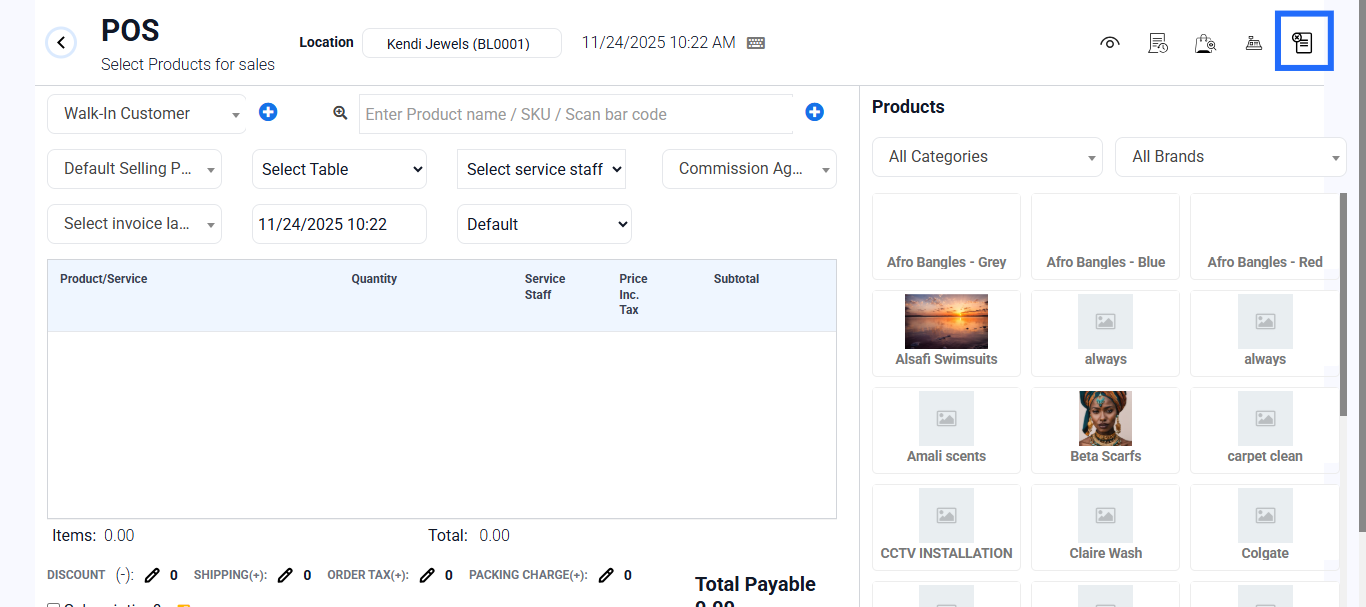
- The system will show a summary of transactions for the shift:
- Sales total
- Payments received (Cash, Card, Bank Transfer, etc.)
- Expected closing balance(Cash in hand).
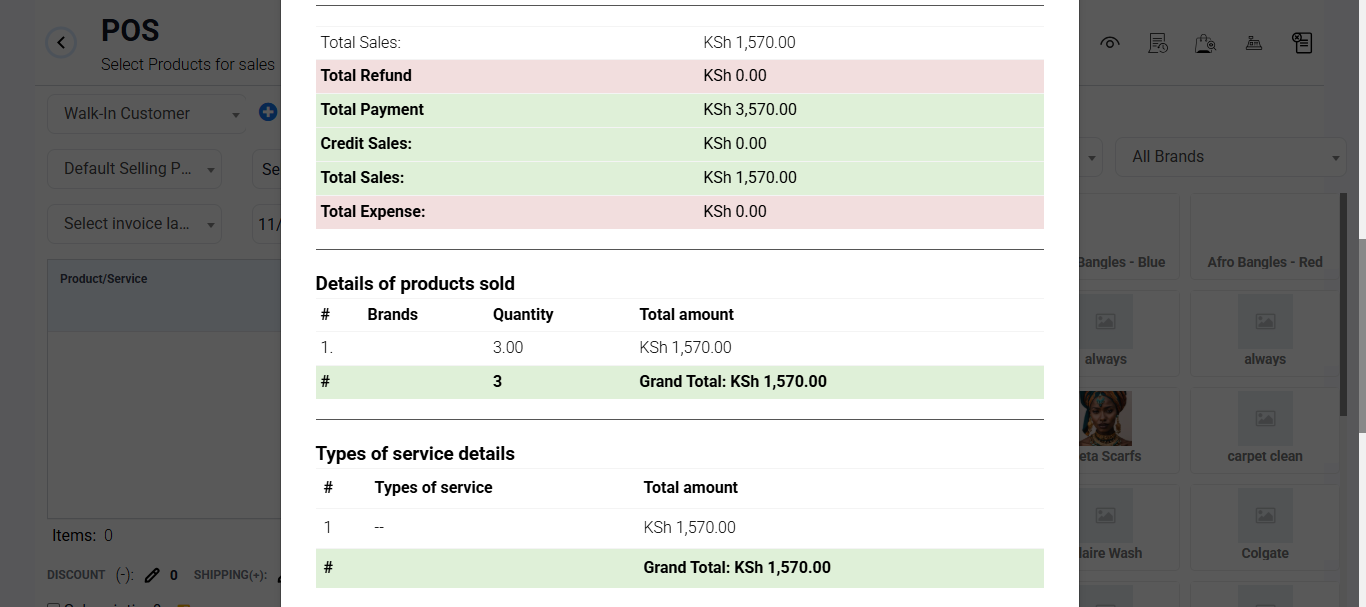
- Add Notes if needed, e.g. “Closing after evening shift.”
- Click Close Register.
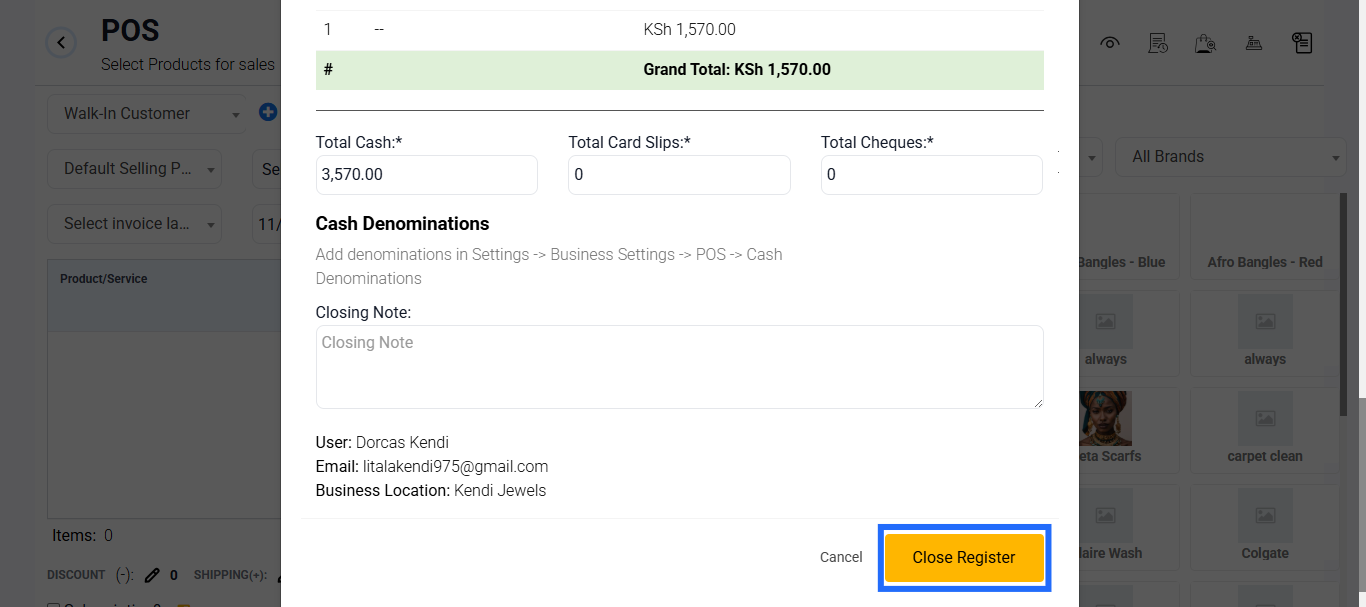
After Closing
- A register report is saved, showing the Sales during the shift.
- Managers or admins can review this under Reports → Sales → Register.
Best Practices
- Always open and close the register at the start and end of each shift/day.
- Count cash physically and match it with the system balance before closing.
- Use clear notes (e.g. “Evening shift, handled by Mary”) to make reports easier to track.
- If multiple staff use POS, assign separate registers for accountability.