Partial payments allow a customer to pay part of the total bill now, and complete the payment later. This is useful for installments, deposits, or reservations.
Before You Start
- Make sure the customer is added in Contacts (so you can track their balance later).
- Products/services must already be added to your catalog.
- Confirm you have set up the right payment methods (Cash, Bank Transfer, etc.).
Steps to Record a Partial Payment
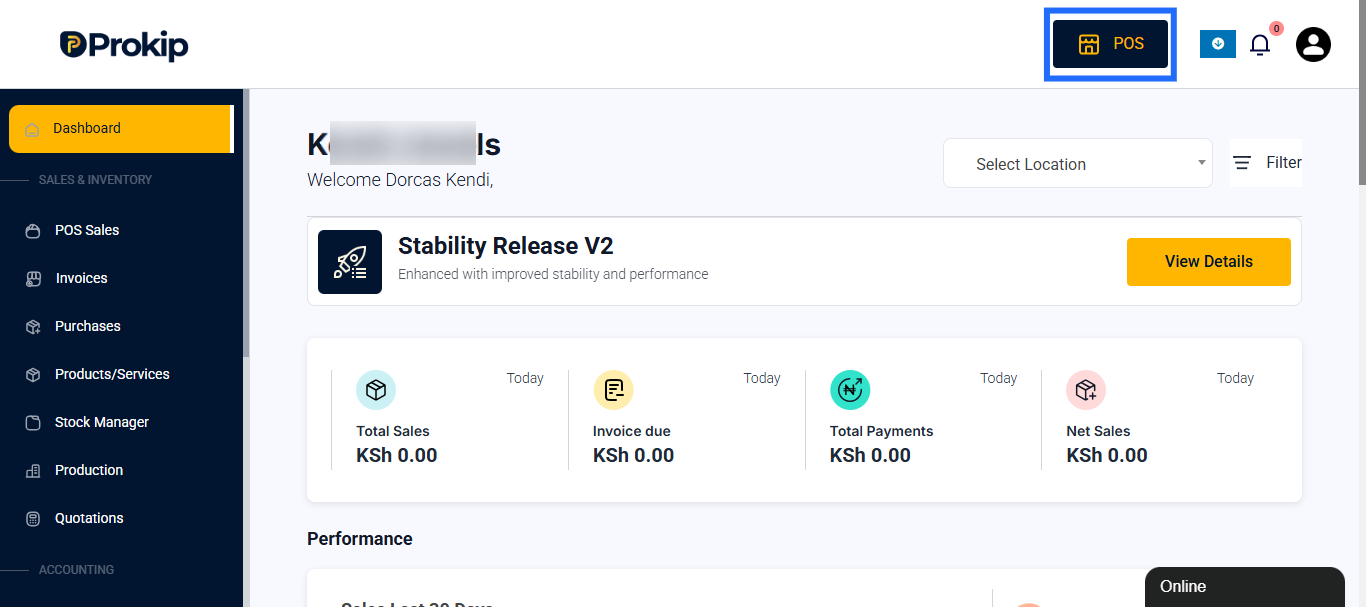
- Open POS – From the dashboard or any tab, click POS.
- Select Customer – Search and select the customer making the partial payment.
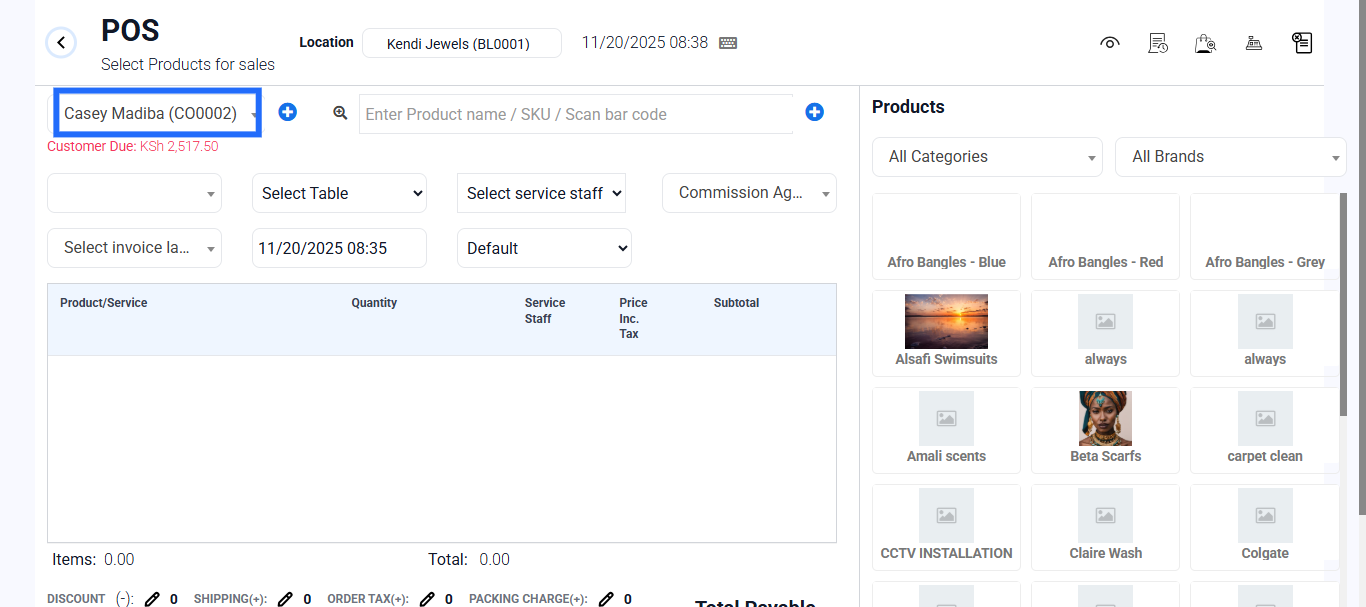
Tip: Always use a registered customer account — this helps track outstanding balances.
- Add Products/Services – Search or browse for the items. Add them to the POS cart.
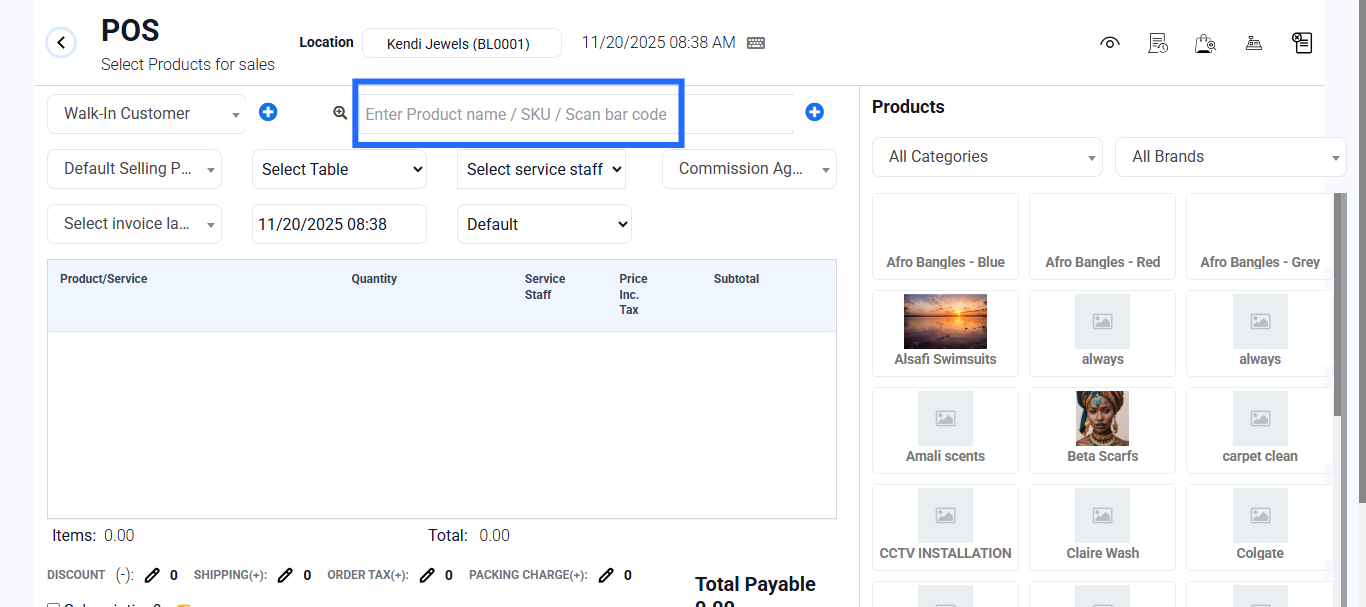
- Review Cart – Confirm product, quantity, and total price.
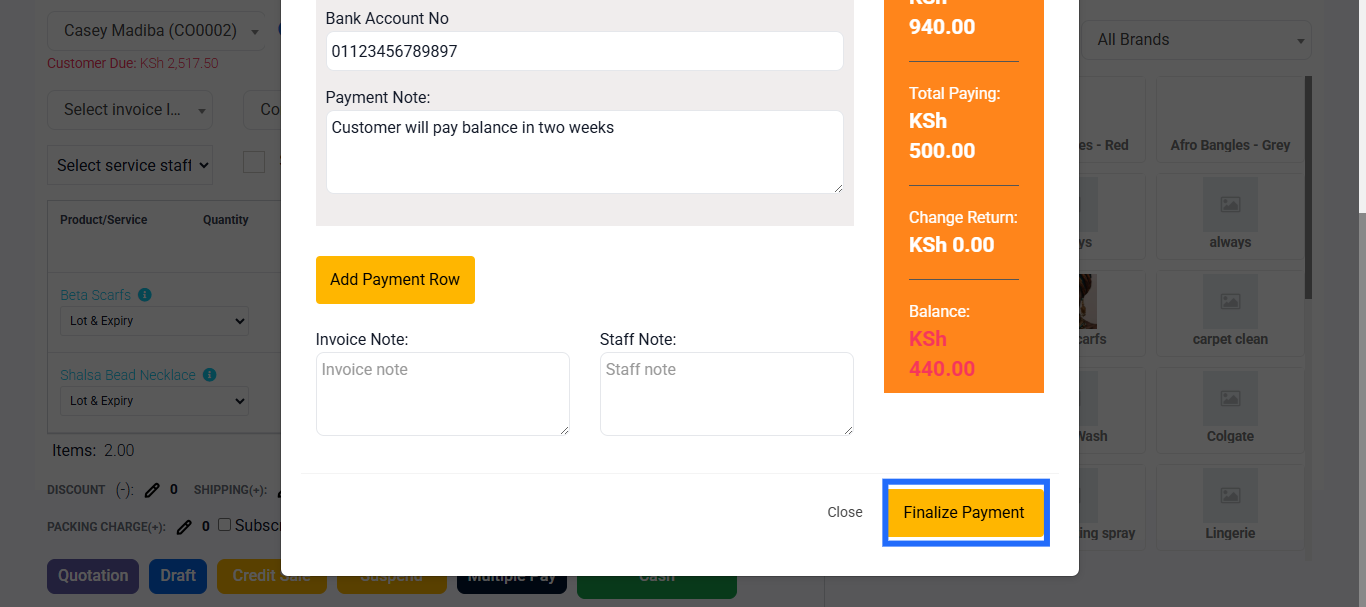
- Apply Partial Payment – Click Multiple Pay.
Enter the amount the customer is paying now.
Choose the payment method (Cash, Bank, Mobile, etc.).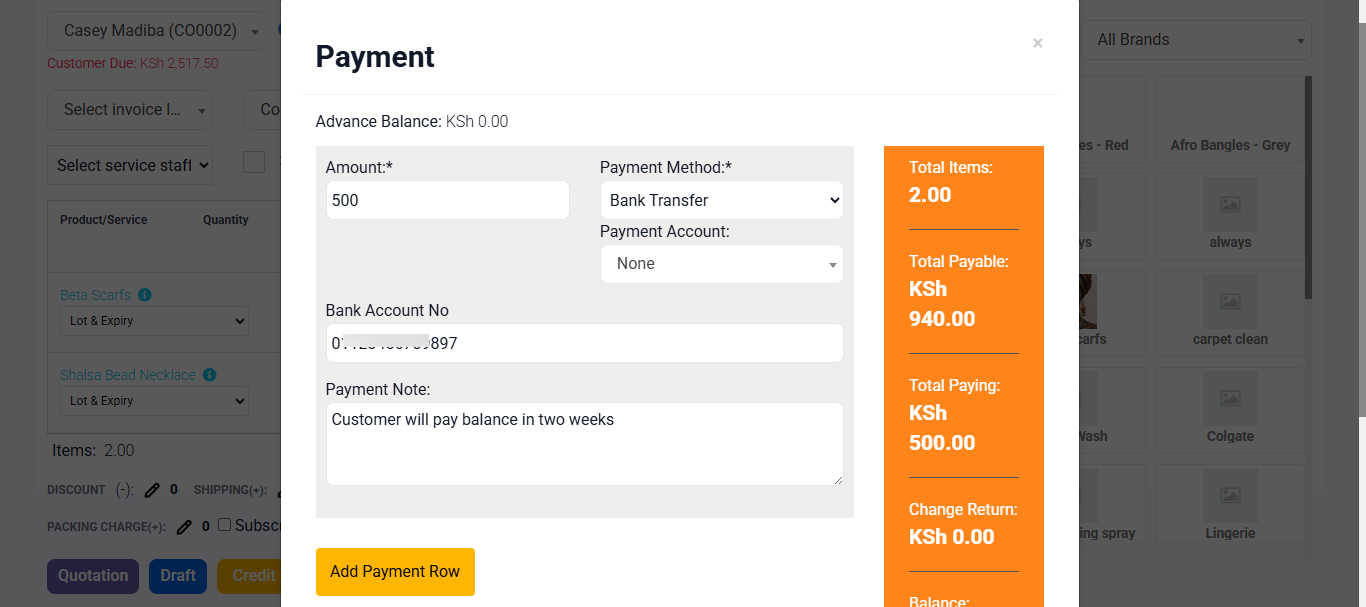
- Finalize Transaction – Click Finalize.
The system will automatically record the unpaid balance as “due.”
The customer gets a receipt showing: Amount paid, Balance due
Tracking Outstanding Balance
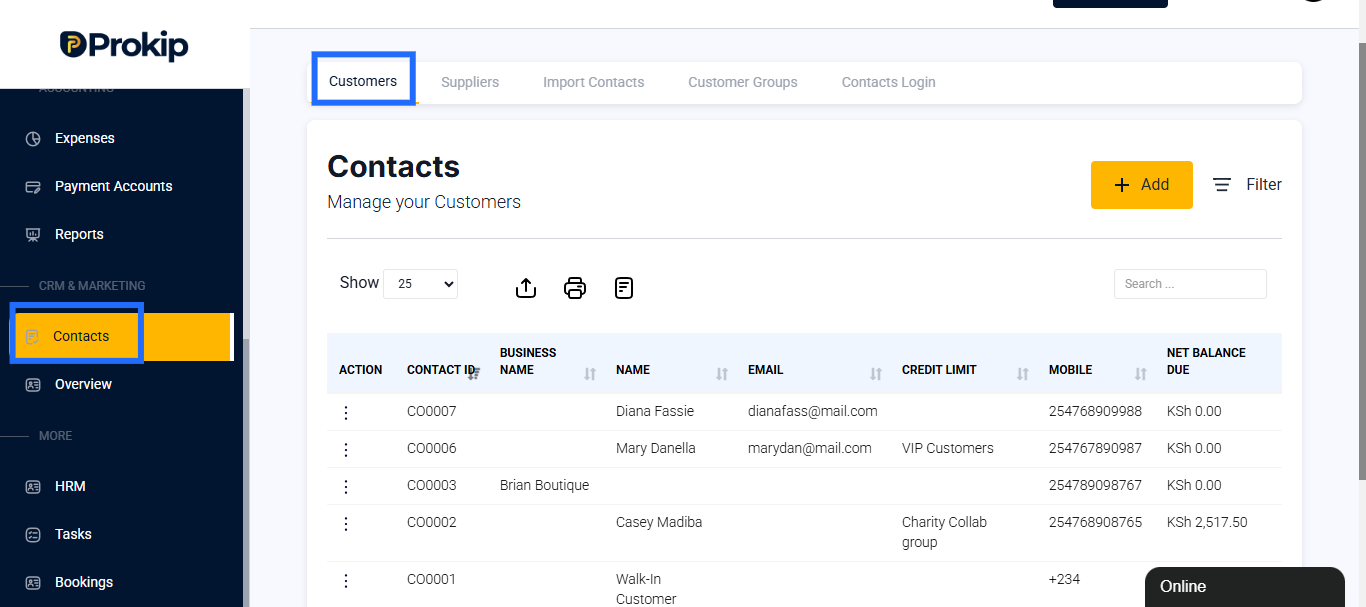
- Go to Contacts → Customer’s Account.
- You’ll see the unpaid amount recorded under their ledger.
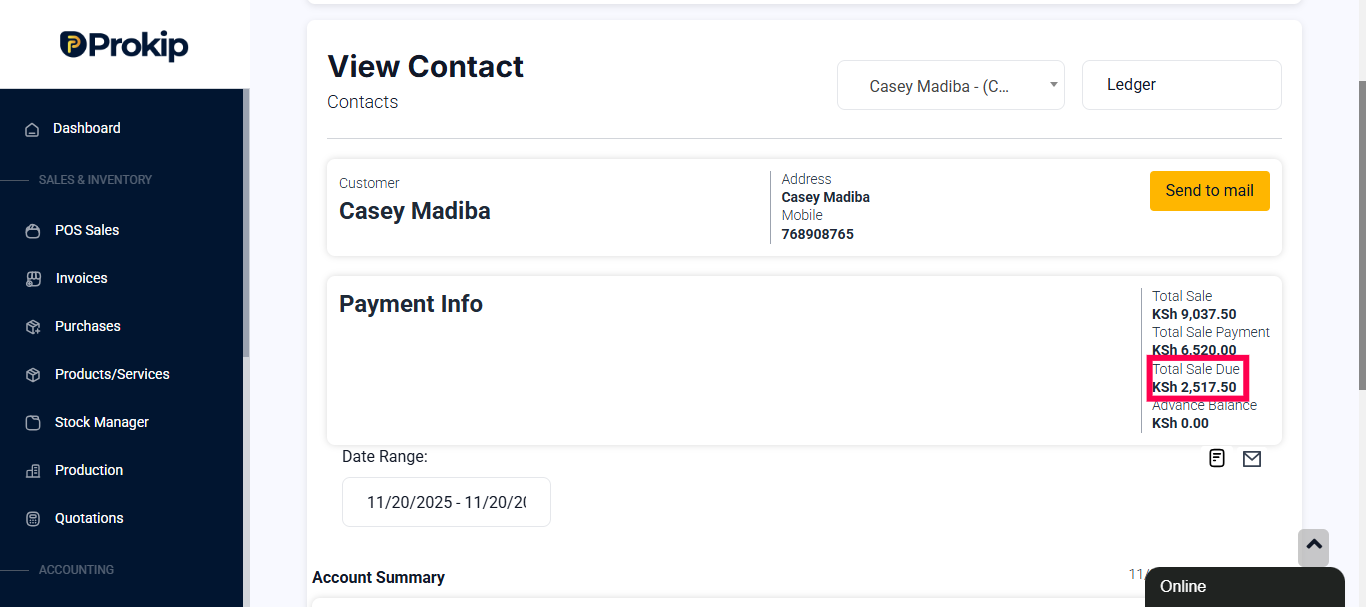
- When the customer comes back, you can add another payment to clear the balance.
Best Practices
- Always link partial payments to the right customer account (not walk-in).
- Make sure the receipt clearly shows balance due so the customer understands.
- Use consistent payment methods to keep reports accurate.
- If the customer pays in installments, always update the payments under the same invoice/transaction.