The Register Report in Prokip helps you review all money received during a register session — including cash, card slips, bank transfers, and custom payment methods. It shows when the register was opened, when it closed, who handled it, and the total collected. This report is useful for end-of-day balancing and monitoring user activity.
How to Open Register Report
- Log in to your Prokip account.
- Go to the Reports module and click Sales.
- Click the Register tab from the list of tabs.
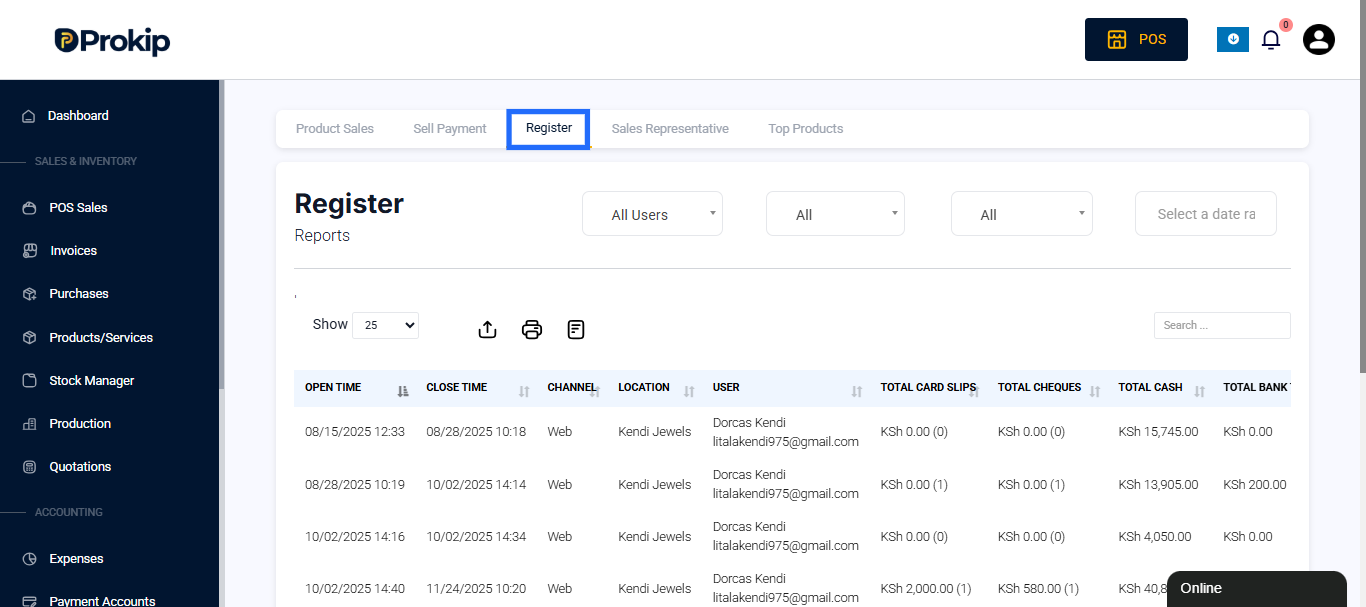
Filter
At the top of the page, select a Date Range to choose:
- A single day
- Weekly reports
- Monthly reports
- Any custom period
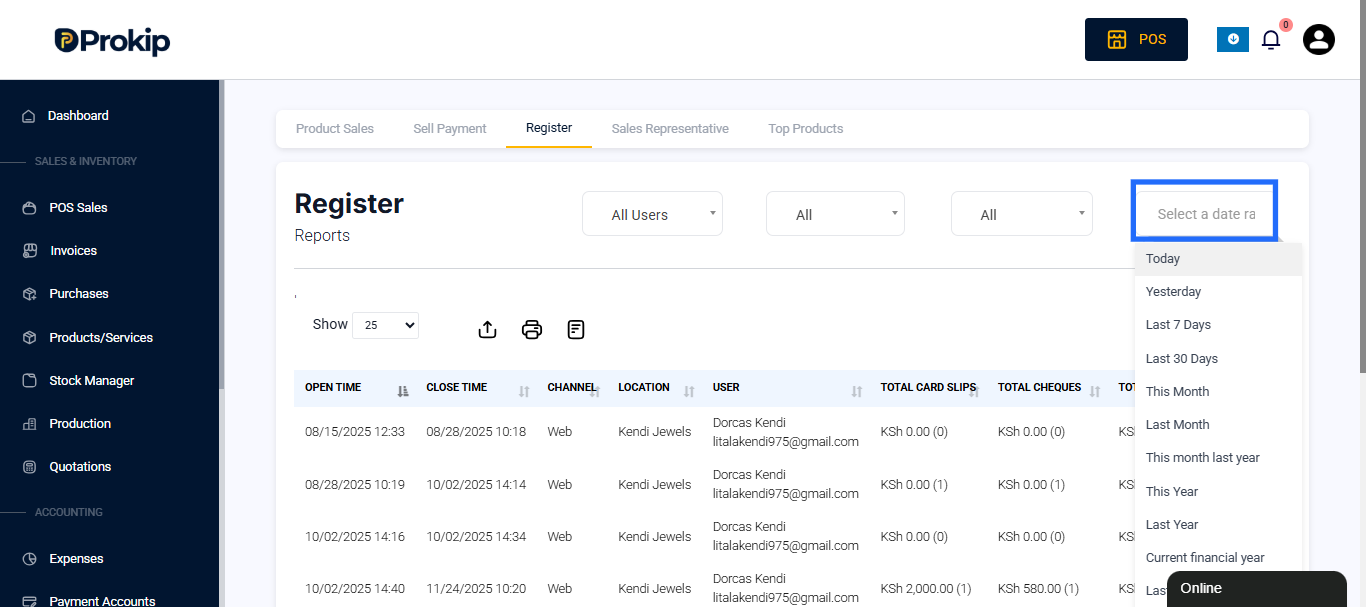
This helps track register sessions over time.
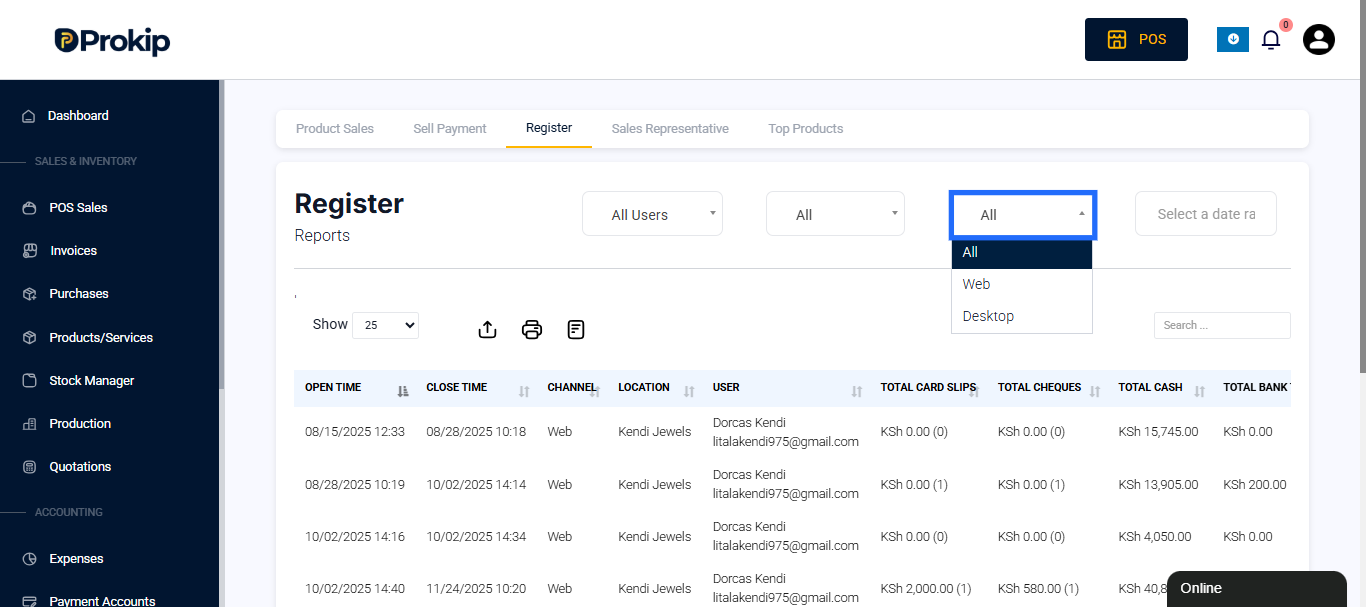
You can also Filter the sales from Web and Desktop using the filter
What the Register Report Shows
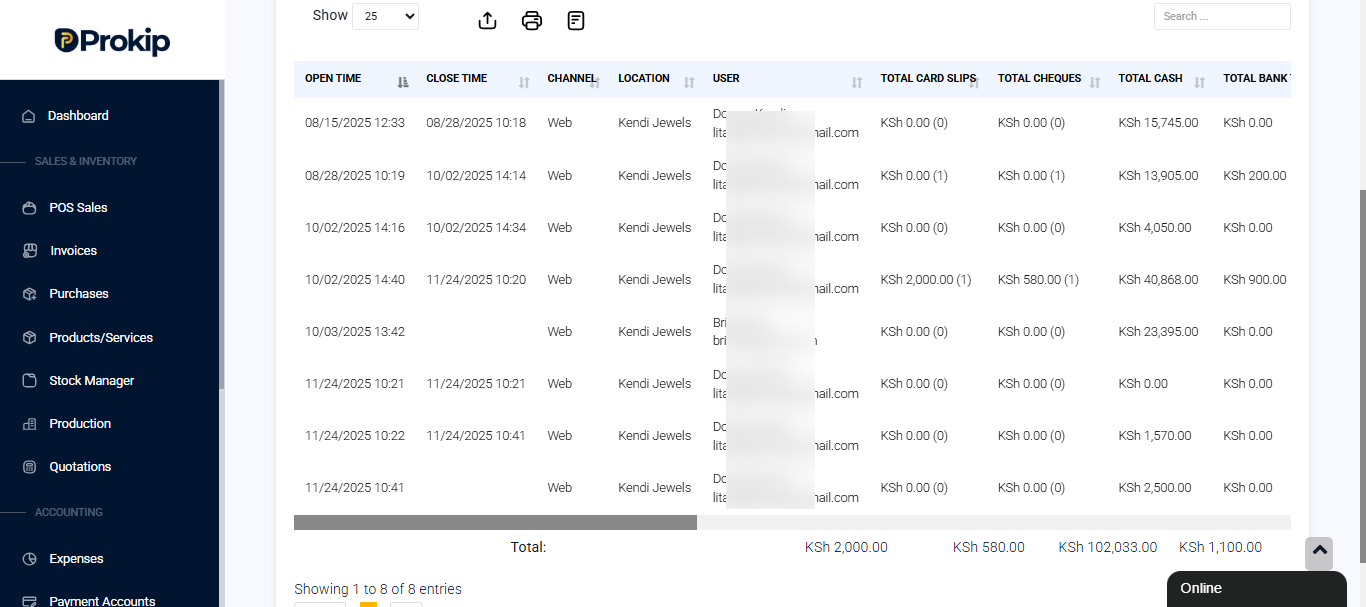
Each row represents one register session with these details:
- Open Time – When the register was opened.
- Close Time – When the register was closed. (Blank means still open.)
- Channel – Usually “Web” if using the web POS.
- Location – The business branch where the sales were made.
- User – The staff who handled the session.
Payment Breakdown
For each register session, you will see totals for:
- Card Slips — card sales processed through the POS.
- Cheques — any cheque payments.
- Cash — total cash collected.
- Bank Transfer — money paid directly into bank accounts.
- Promotions / Vouchers — if applied.
- Advance Payments — deposits received from customers.
- M-Pesa — if enabled.
- Custom Payment Methods — optional methods you created.
This helps you understand how customers are paying.
Total – At the far right, you will see the Total collected from all payment methods in that register session.
Action Button
In the Action column, you can:
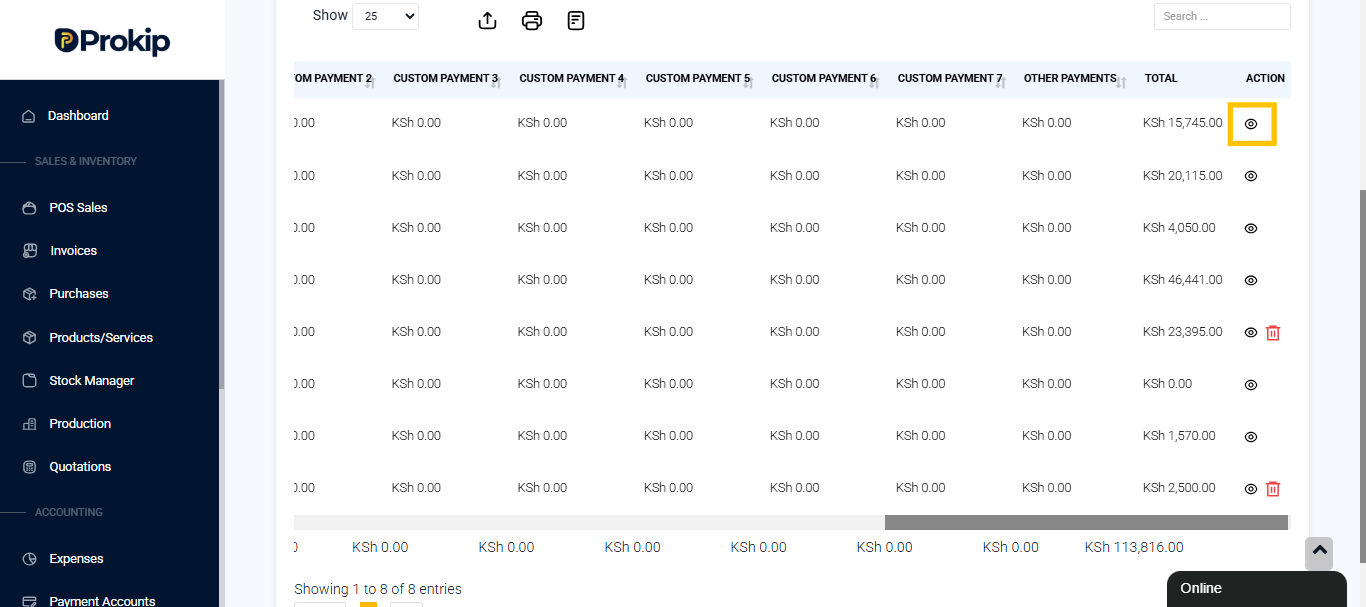
- View payment details
- Review user activity
- Check payment method counts
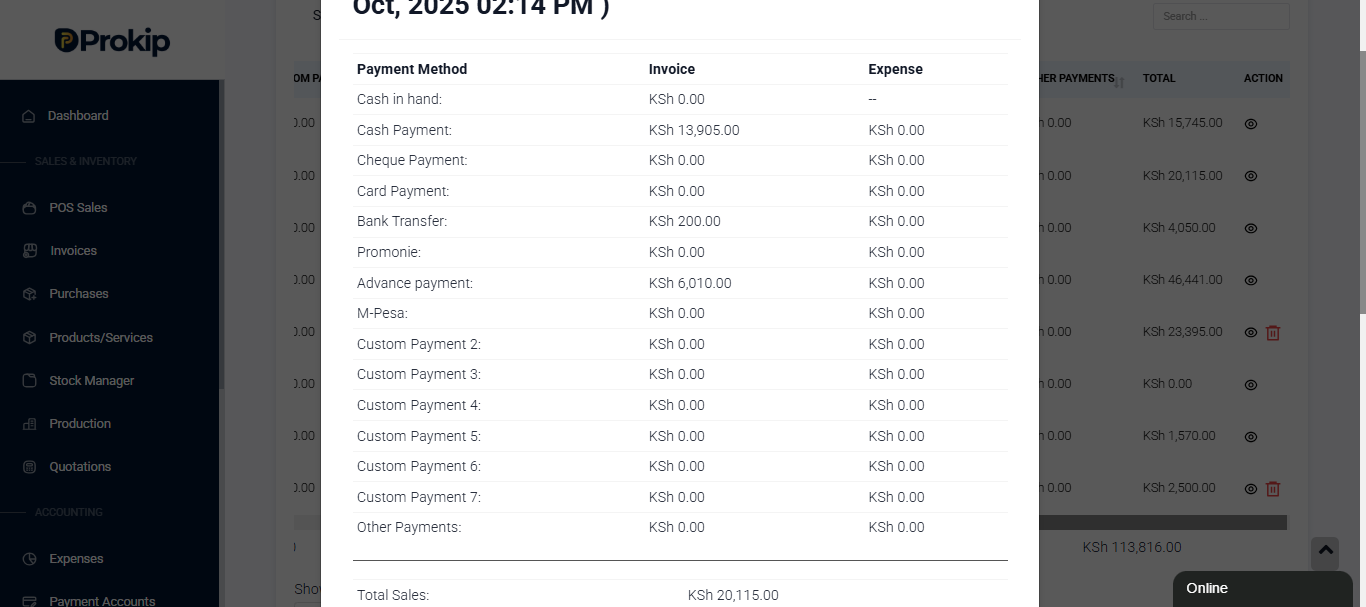
This is useful for auditing staff performance.
Why the Register Report Is Useful
You can use this report to:
- Balance the cash drawer at closing
- Confirm POS machine card slips
- Compare branch performance
- Detect missing payments
- Monitor staff handling money
It is also important for finance reviews.
How It Helps With Branch Management
If you have multiple locations, this report helps you:
- Find out which branch is most active
- Spot payment differences
- Check each user’s totals
Each location’s totals will be listed separately.
Common Checks
When reviewing the report, always check:
- Cash received matches physical cash
- Card slips match the POS terminal
- Advance payments match customer balances
- No register is left open accidentally
These checks prevent errors.