This guide will help you understand how to apply discounts and shipping charges when recording a sale in Prokip. These settings help ensure the correct total price appears on the customer’s receipt and reports.
Before you start
- Make sure products/services are in Prokip.
- Open the POS register.
- Know the discount (amount or percent) and shipping fee you will apply.
Steps
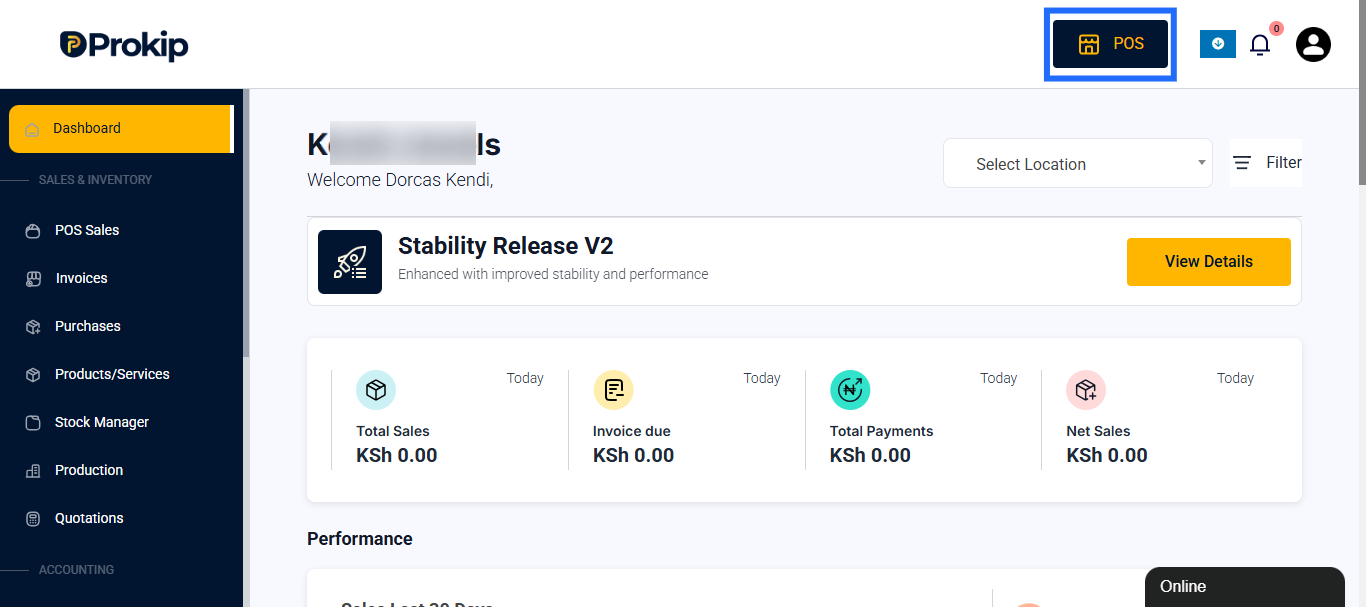
- Open POS – From the dashboard click POS.
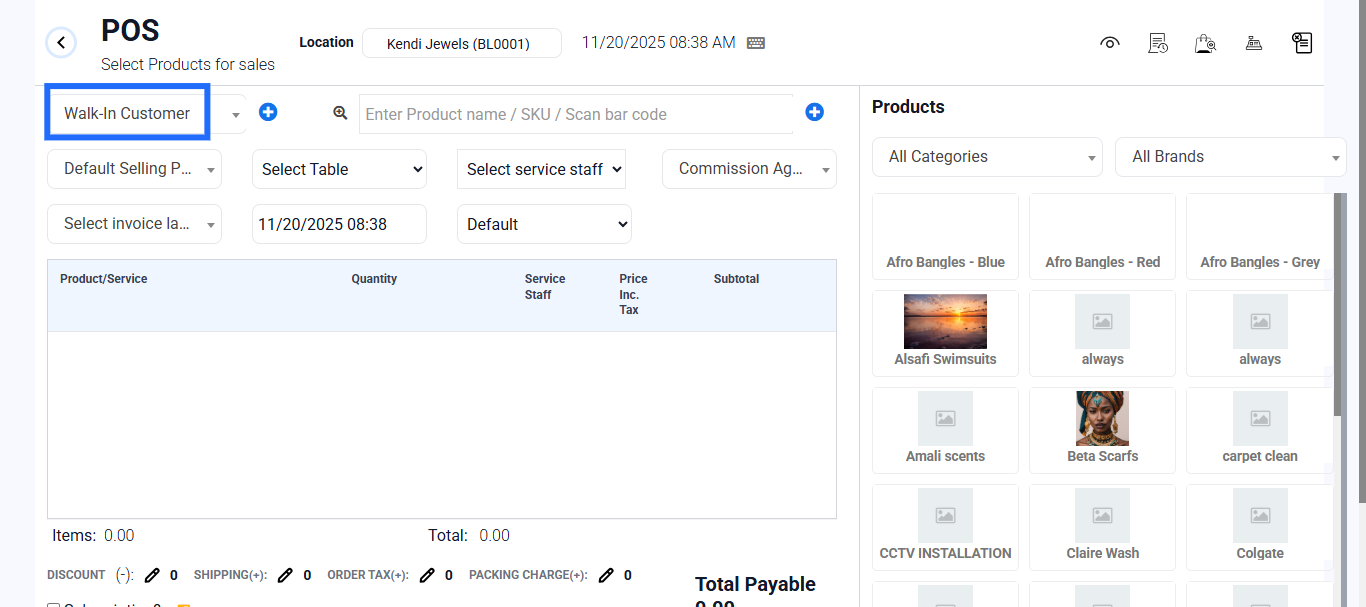
- Select customer (optional) – Search and pick a saved customer, or use Walk-in Customer.
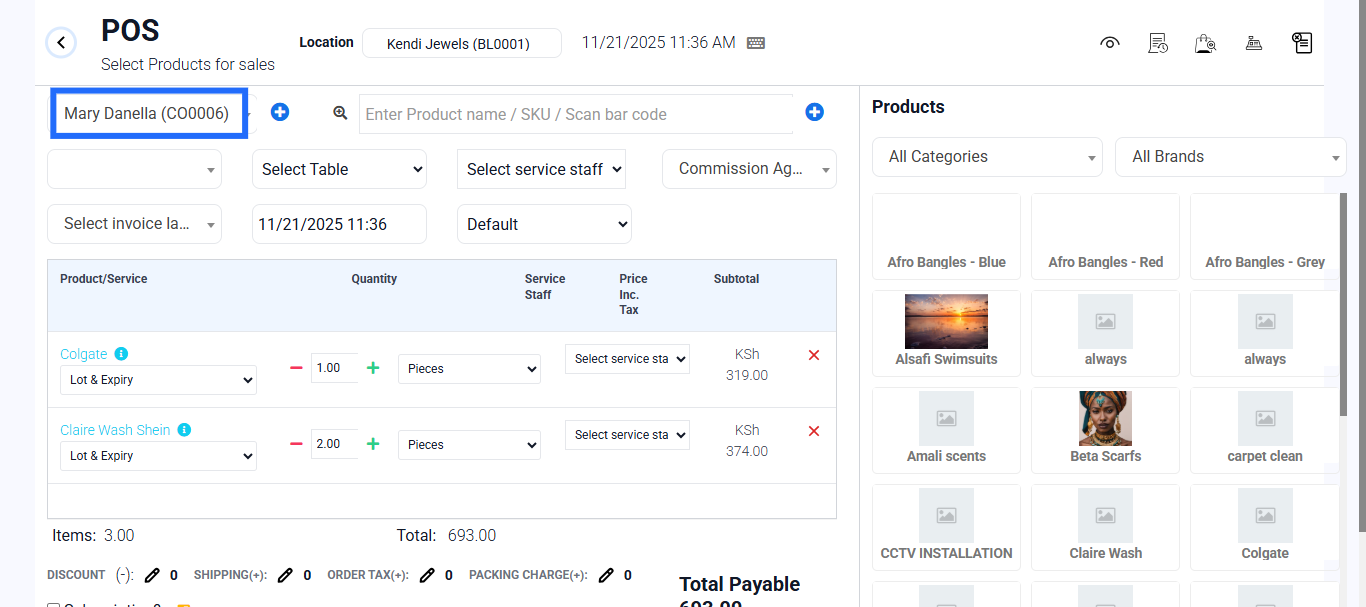
- Add products/services to the cart – Search or tap items to add them. Adjust quantities if needed.
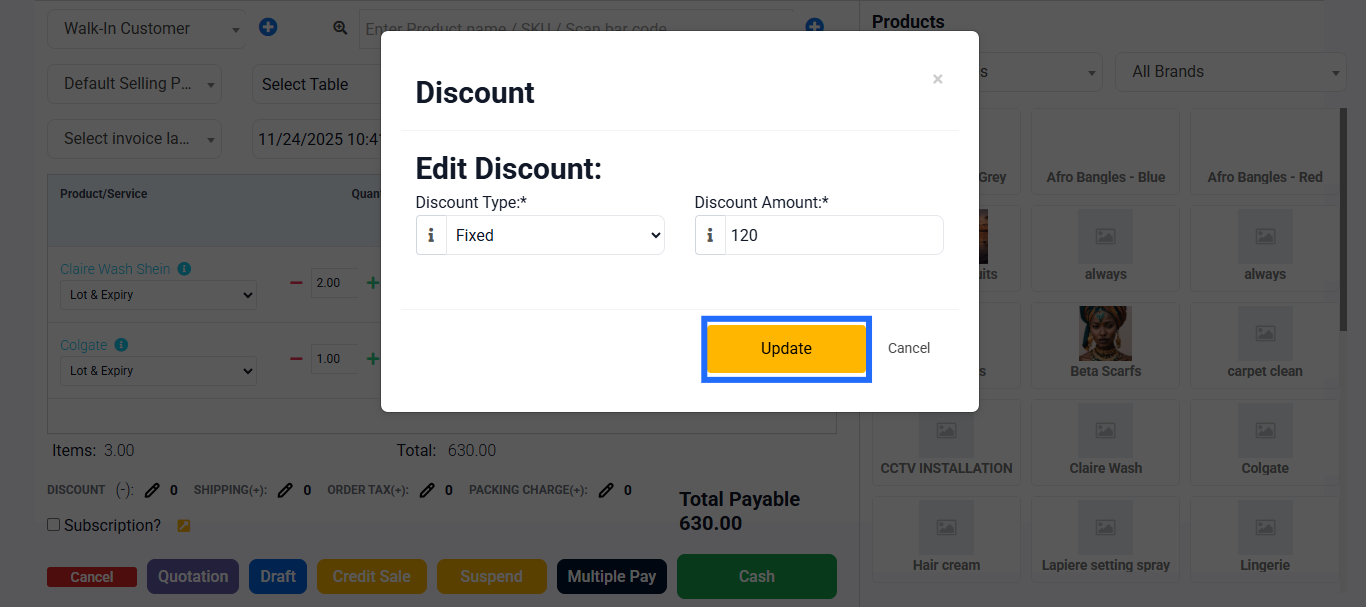
- Apply a discount – Find the Discount field on the sale screen.
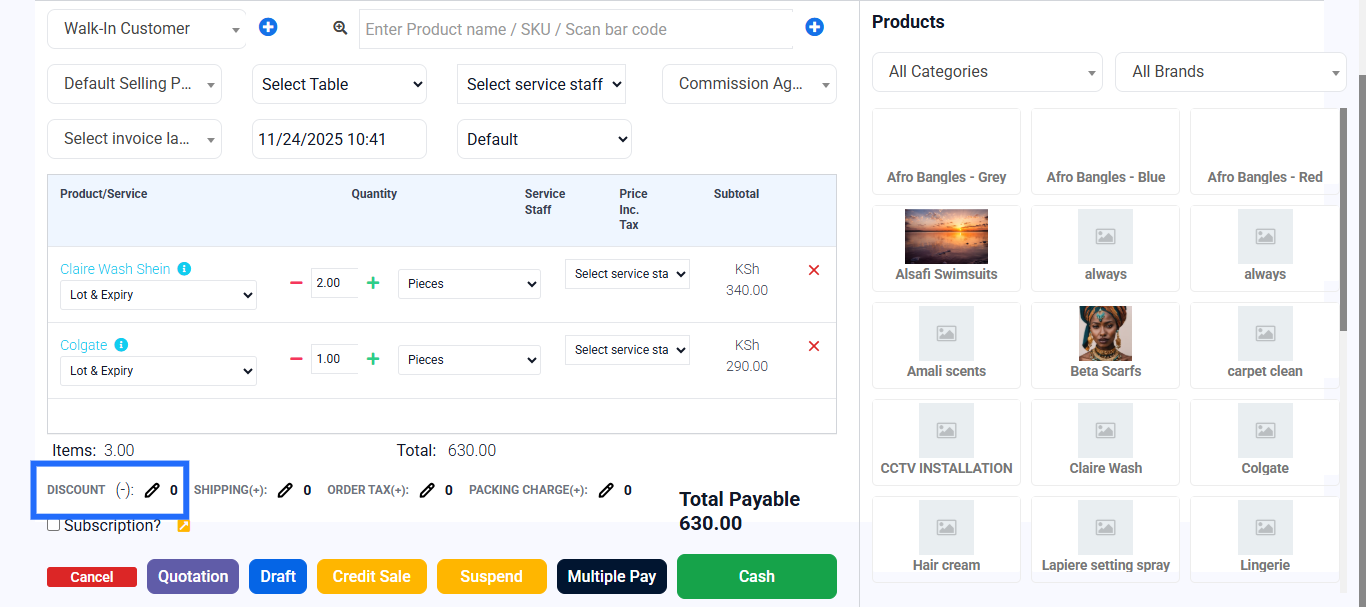
Enter either: a fixed amount (e.g., ₦500) OR a percentage (e.g., 10%).The total updates automatically.
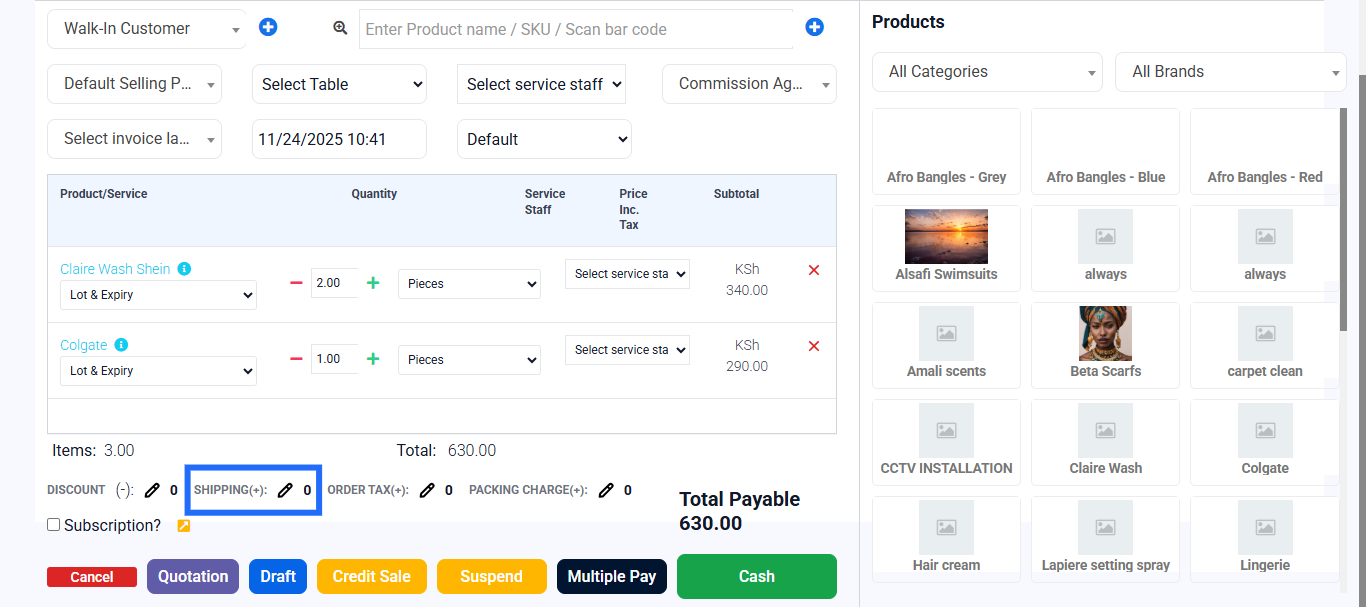
- Add shipping charges – Find the Shipping field on the sale screen.
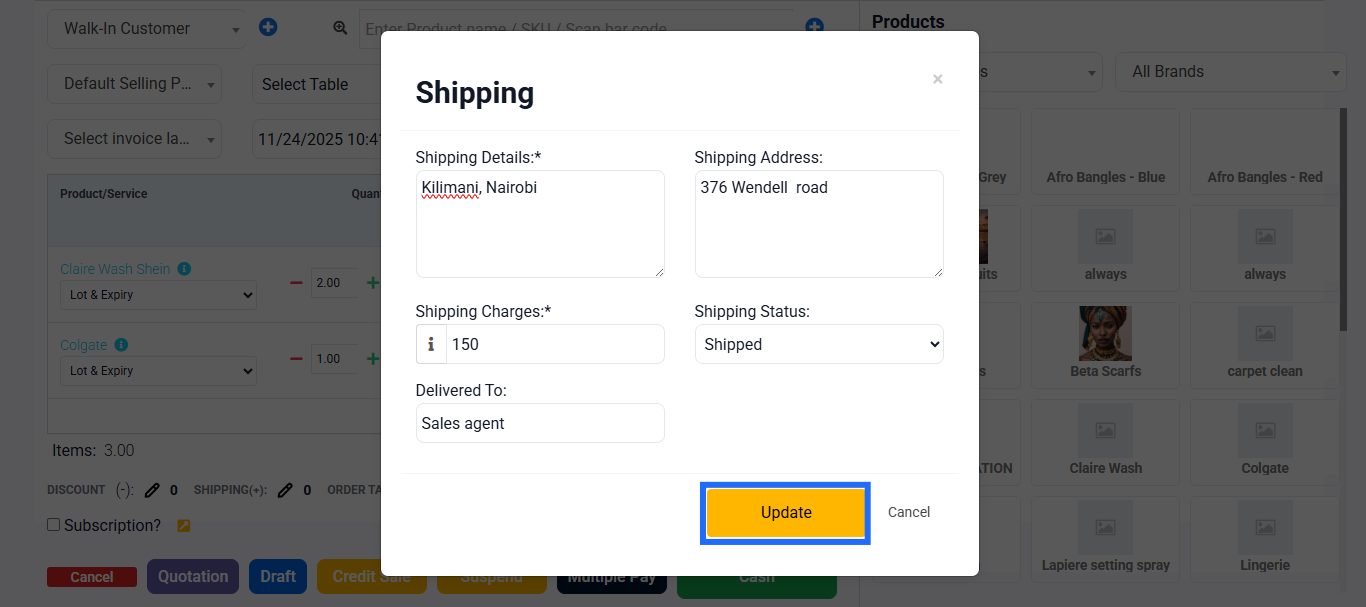
Enter the shipping fee amount (e.g., ₦2,000). Optionally add a note like “Lagos delivery.”The shipping fee adds to the order total.
- Review totals – Check subtotal, discount applied, shipping added, and final total.
- Finalize payment – Click one of the payment option or Multiple Pay if splitting payment. Print, download, or email the receipt.
What the customer sees on the receipt
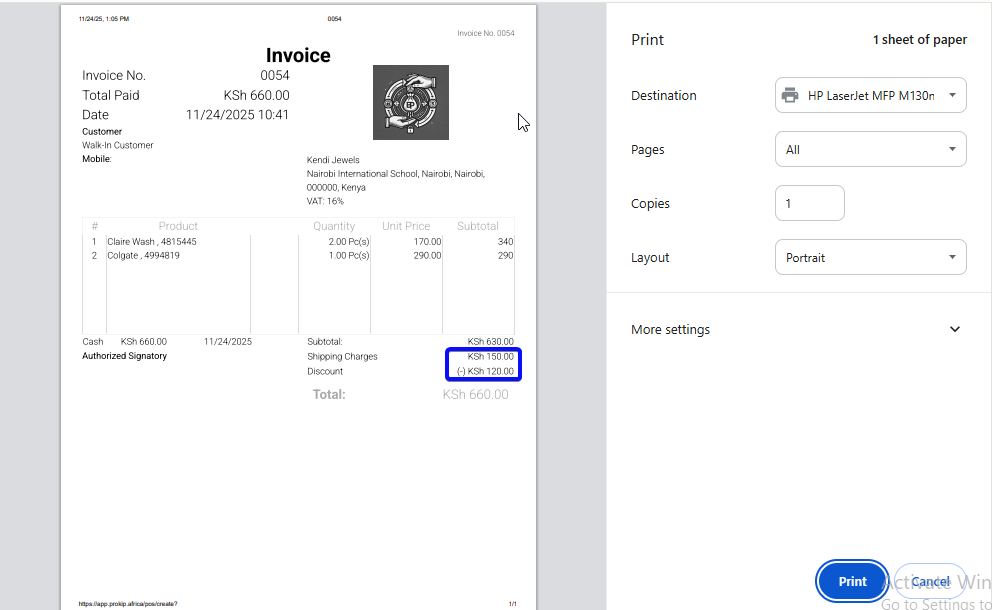
- Line items for products/services.
- Discount shown as a line (amount or %).
- Shipping fee shown as a separate line.
- Final amount paid and payment method.
Best practices
- Use percentage discounts for broad promotions; fixed amounts for specific deals.
- Add a short shipping note (route or courier) for clarity.
- Double-check totals before finalizing to avoid refund work later.
- Train staff to always show the receipt to the customer so discounts and shipping are clear.