Reports
The Sales Report in Prokip allows you to view, filter, and analyze all sales transactions recorded within your business. It provides insights into product performance, customer spending, staff activity, branch sales, and helps with daily reconciliation.
How to View Sales Reports
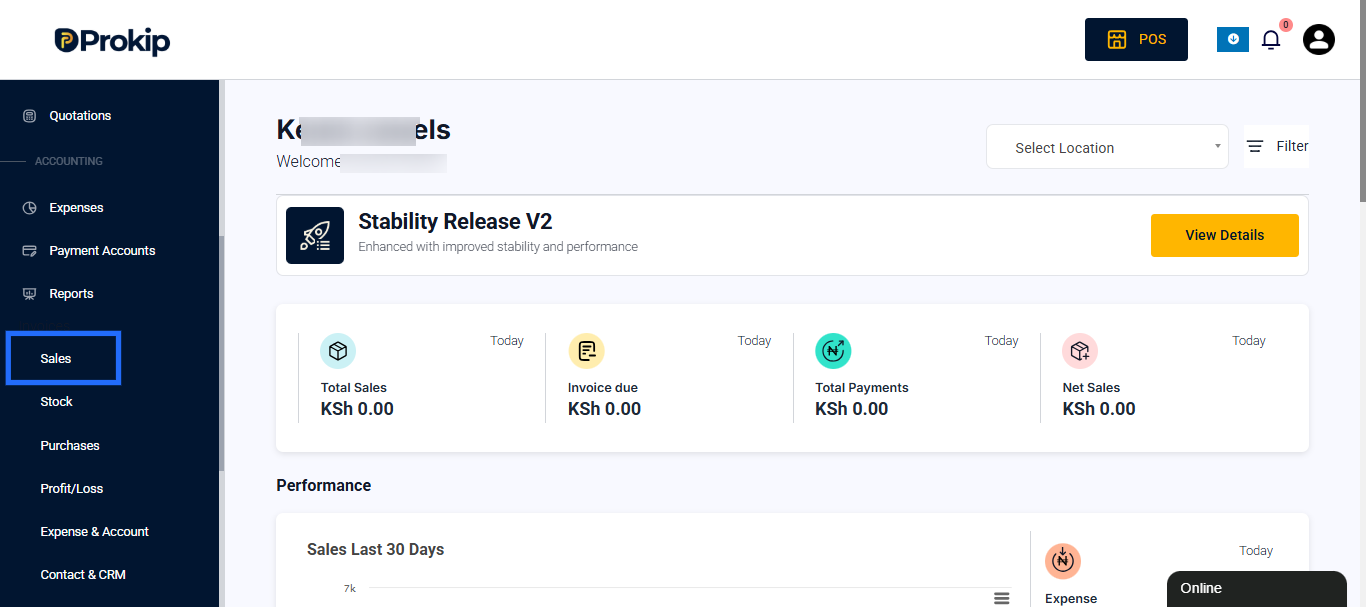
- Log in to Prokip and open the Reports module from the left-hand side.
- Select Sales from the list of available reports to be redirected to the Product Sales Report .
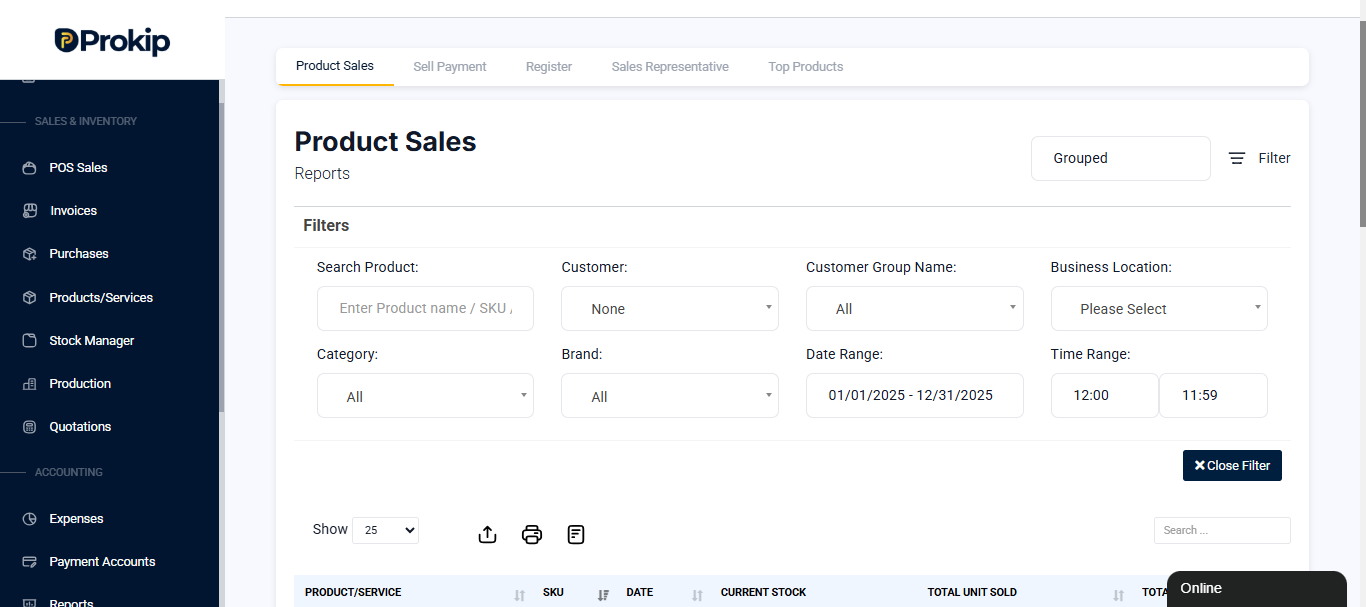
- Choose a Date Range such as Today, Last 7 Days, Last 30 Days, or apply a Custom period.
- Apply additional filters such as:
- Business Location
- Customer
- Customer Group Name
- Product
- Category
- Brand
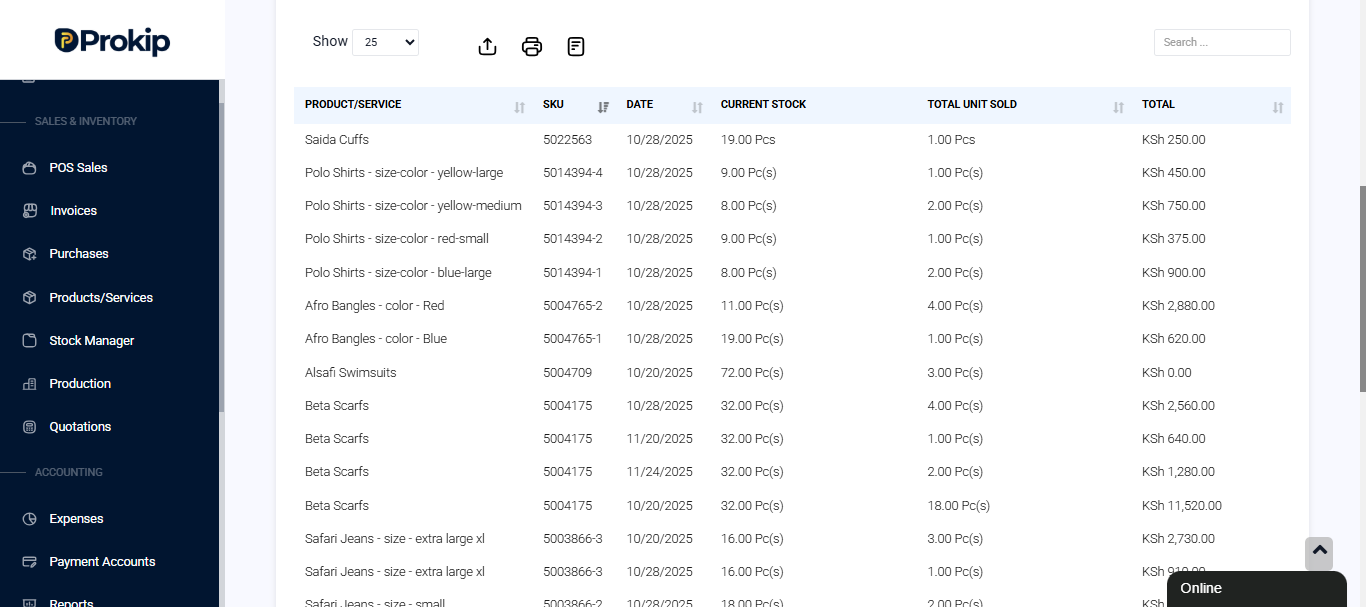
- Review the product sales summary, charts, and detailed transaction list.
- The product transaction row shows invoice details such as current stock of the product, the SKU & Total Unit Sold.
- Each result contains useful information that helps track and reconcile sales by Date / Time of transaction, Customer Name, Location, Items Sold, Total Amount etc.
Exporting Sales Reports
To download your report:
- Apply your date range and filters.
- Click the download button to Export to Excel and save the report.
- Export will download your data for use in Excel or other tools.
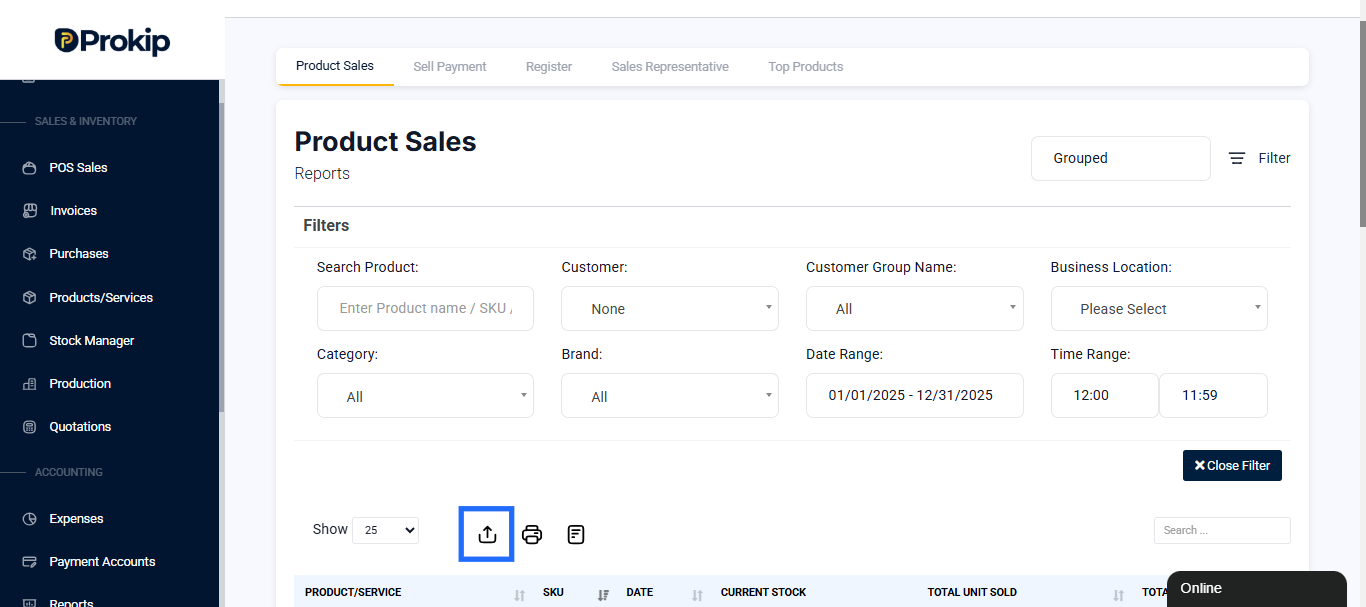
Sales reports can be exported for accounting checks or management review.
Using Sales Reports
Sales Reports are useful for:
- Daily reconciliation with cash registers
- Tracking branch performance
- Understanding customer purchase behavior
- Comparing staff sales activity
- Reviewing inventory movement
- Planning stock replenishment
Sales information also updates inventory levels in real time.