The Sell Payment Report in Prokip shows a list of all payments received from sales. It helps you track who paid, how they paid, when they paid, and which invoice each payment belongs to. This report is useful for daily closing, reconciliation, and checking outstanding balances.
How to Open Sell Payment Report
- Log in to your Prokip account.
- Go to the Reports module and select Sales.
- Select Sell Payment tab.
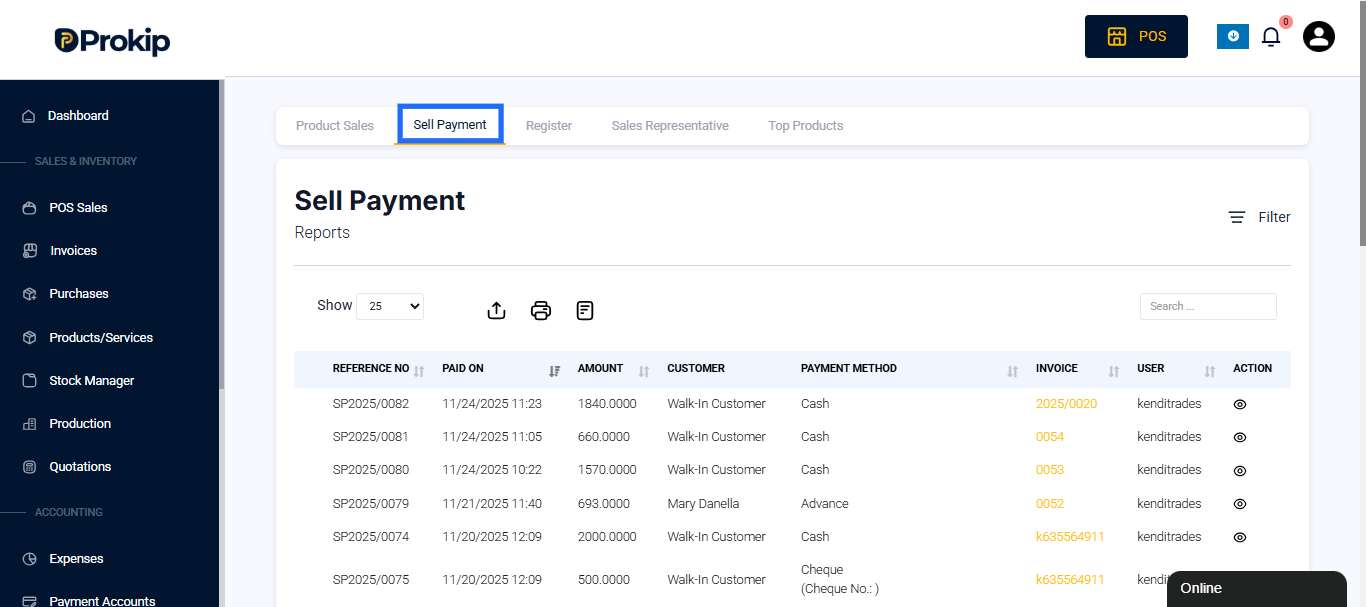
This opens a full list of recorded sale payments.
Filters You Can Use
You can narrow down the report using:
- Customer — view payments made by a specific customer.
- Business Location — helpful if you have many branches.
- Payment Method — filter by Advance, Cash, Card, Cheque, Bank Transfer, etc.
- Customer Group — useful for wholesale or membership pricing.
- Users / Staff — see payments collected by each user.
- Date Range — focus on specific days, weeks, or months.
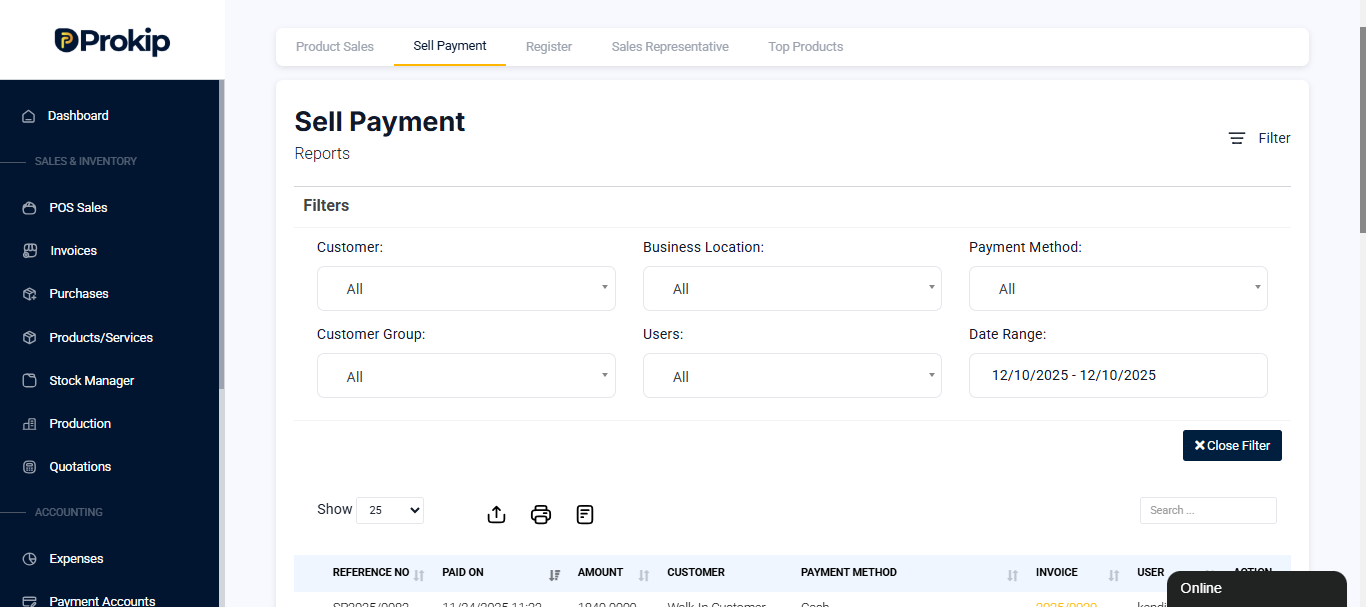
Using filters helps check missing payments, compare branches, or review staff activity.
What You Will See in the Report
Each payment includes:
- Reference Number — unique ID for each payment.
- Paid On — the exact date and time the payment was recorded.
- Amount — the value of the payment received.
- Customer Name — who made the payment.
- Payment Method — cash, bank, Card, cheque, etc.
- Invoice Number — the sale linked to the payment.
- User — the staff who recorded it.
These details make it easy to track payments and solve discrepancies.
Clicking on a Payment
When you select a payment by clicking the eye icon on the action bar, you can:
- View Customer details like name
- The payment method
- Confirm amounts
- Verify payment note, if any
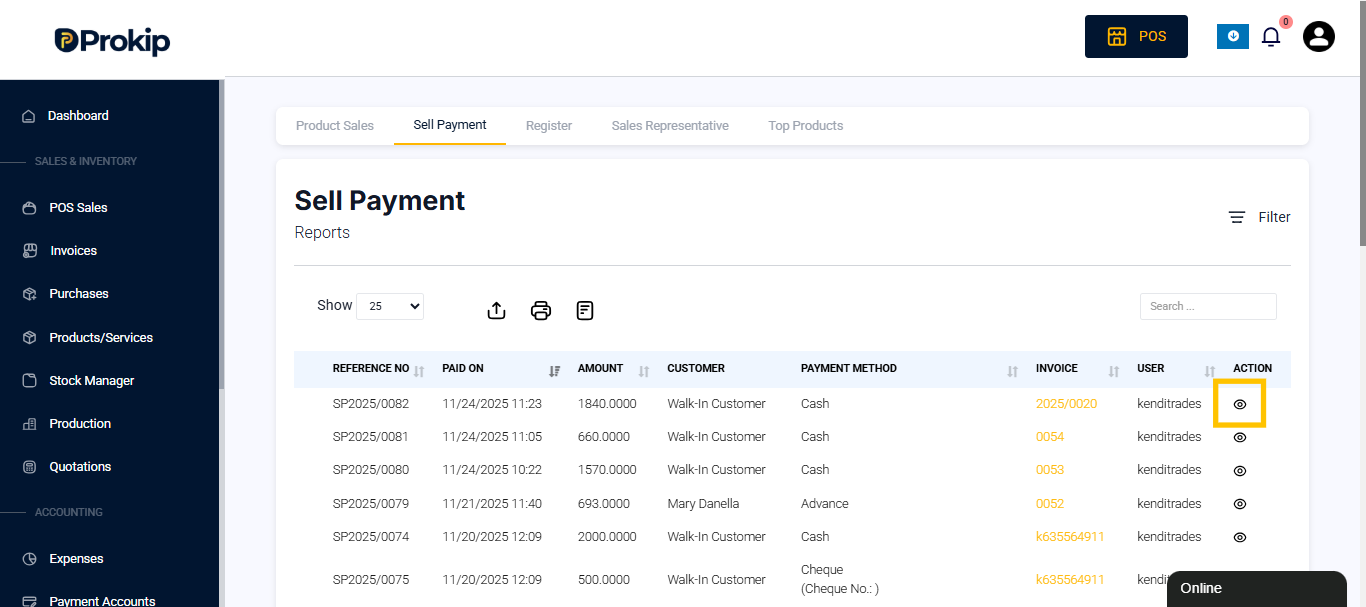
This helps you confirm that payments match sales records.
Use Cases
This report is helpful for:
- Daily cash reconciliation
- Checking payments from walk-in customers
- Matching POS machine deposits
- Verifying who collected money
- Tracking late payments
- Auditing staff activity
It is also useful for spotting unpaid invoices or missing entries.
Exporting Sell Payment Report
You can export your Sell Payment Report for:
- Financial audits
- Cash office review
- Sharing with management
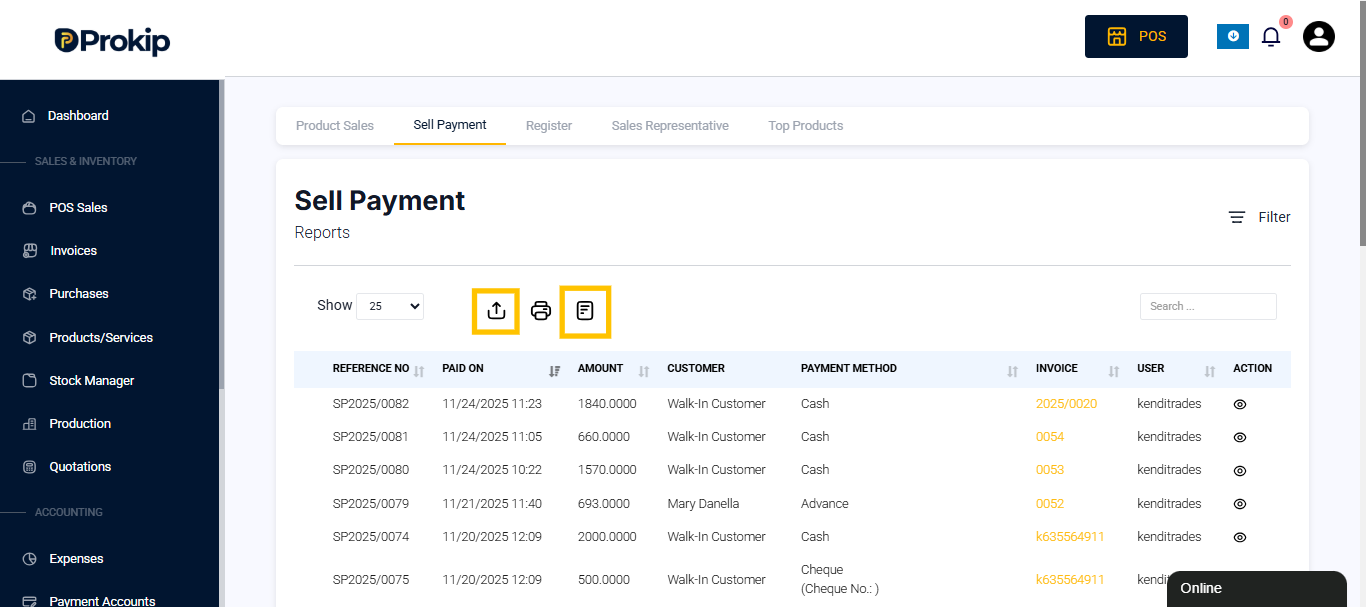
Exports help store records outside the system.
Tips
- Always filter by Date Range when closing daily sales.
- Compare Amount totals with your cash drawer or bank POS slips.
- Check user activity to detect mistakes early