The Stock Report in Prokip helps you monitor and understand the total value, quantity, and profitability of all the products you currently have in stock. It provides a full overview of your inventory, showing how much stock you own, where it is located, and how much potential profit can be made from selling it. This report gives you a clear summary of your stock levels across all locations and helps you make better restocking and pricing decisions.
How to View the Stock Report
- Go to the main menu on your Prokip dashboard.
- Click on Reports and select Stock.
- Under the Stock section, Stock Report is the first tab.
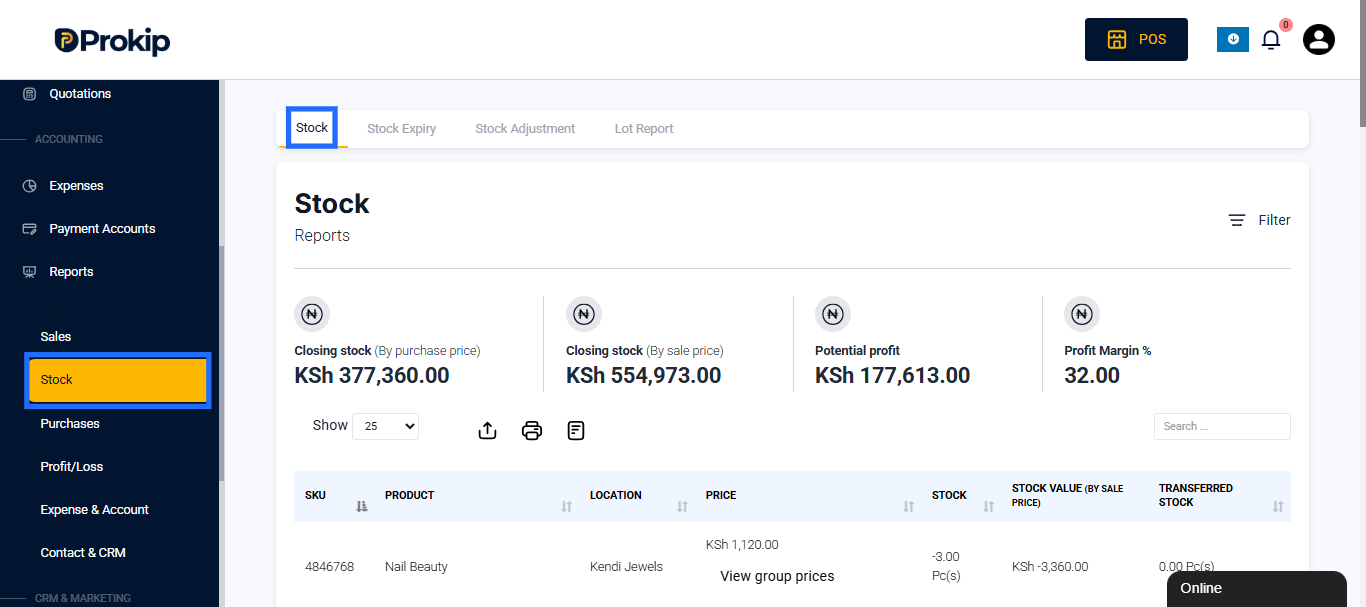
This will open the main Stock Report page showing overall stock totals, profit values, and a list of individual products with their stock details.
Report Summary
At the top of the Stock Report, you will see a summary showing key figures for your inventory. These include:
- Closing Stock (By Purchase Price): This shows the total value of all your stock based on how much you bought the items for.
- Closing Stock (By Sale Price): This shows the total stock value if everything is sold at the selling price.
- Potential Profit: The difference between the sale price value and the purchase price value. This tells you how much profit you could earn if all items are sold.
- Profit Margin (%): This shows the profit percentage based on your stock values.
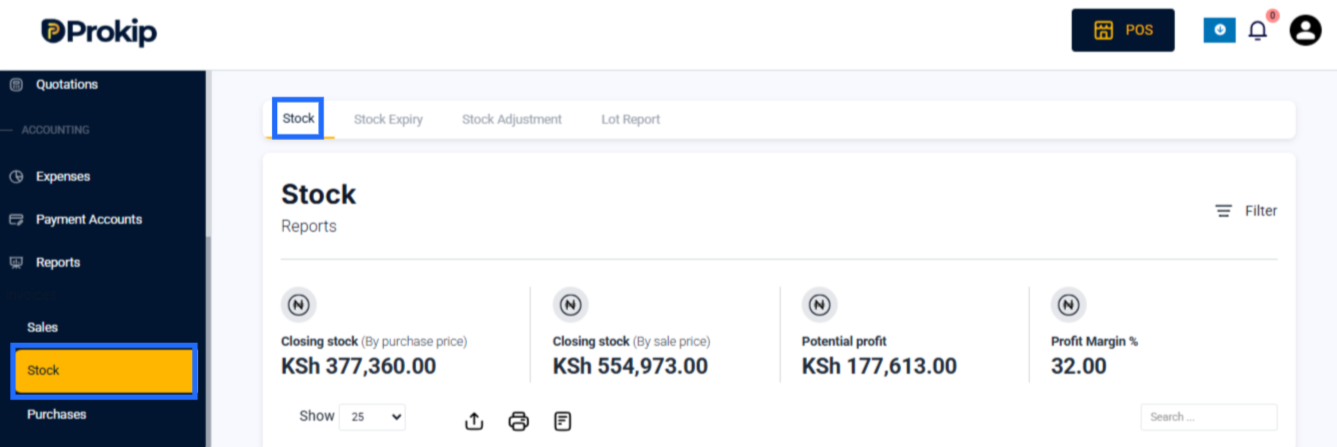
These figures give you an instant understanding of the worth and profitability of your inventory.
Using Filters
You can use filters to view specific stock information. The filters include:
- Business Location – Choose a specific branch or store.
- Category – Filter to see products in a certain category.
- Subcategory – Narrow down results further within a main category.
- Brand – View items under a specific brand name.
- Unit – Choose the unit type, such as pieces, kilograms, or cartons.
- Only Manufactured Products – Turn this on if you want to view only products you manufacture yourself.
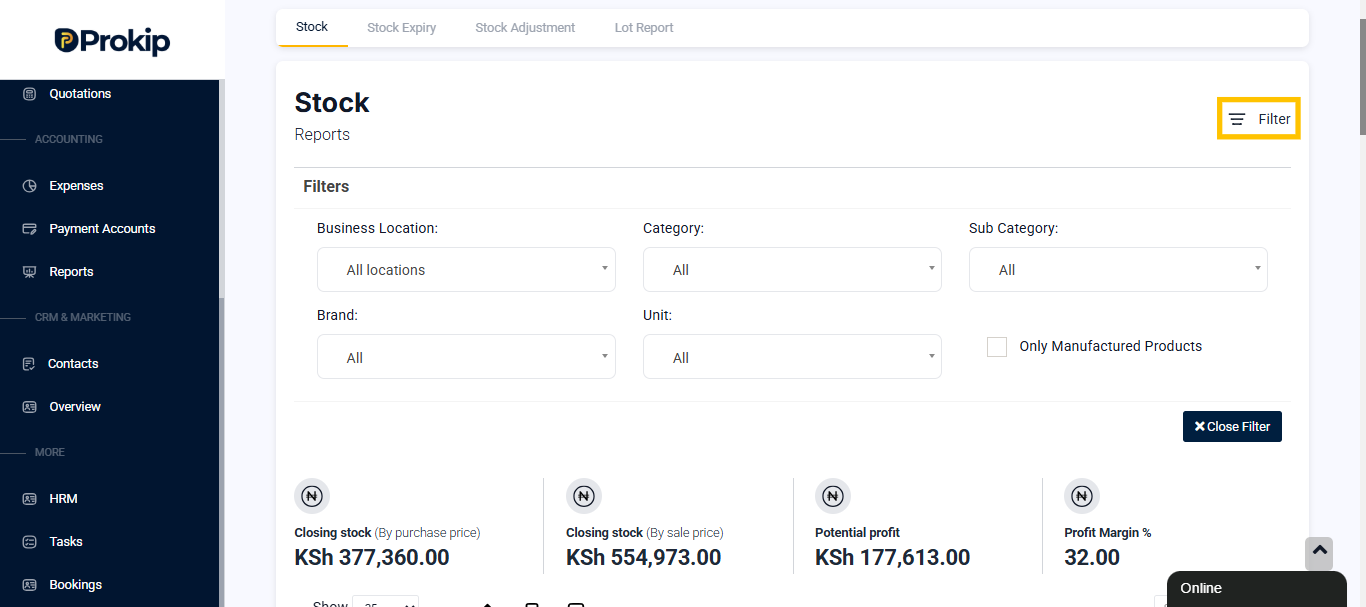
These filters make it easier to find and analyze the exact stock information you need.
Details in the Stock Report
After applying filters, the report shows a list of all your products and their stock details. Each line in the report shows:
- The SKU or product code.
- The product name.
- The location where it is stored.
- The selling price of each unit.
- The quantity available in stock.
- The total stock value based on the selling price.
- The transferred stock, if any stock has been moved between locations.
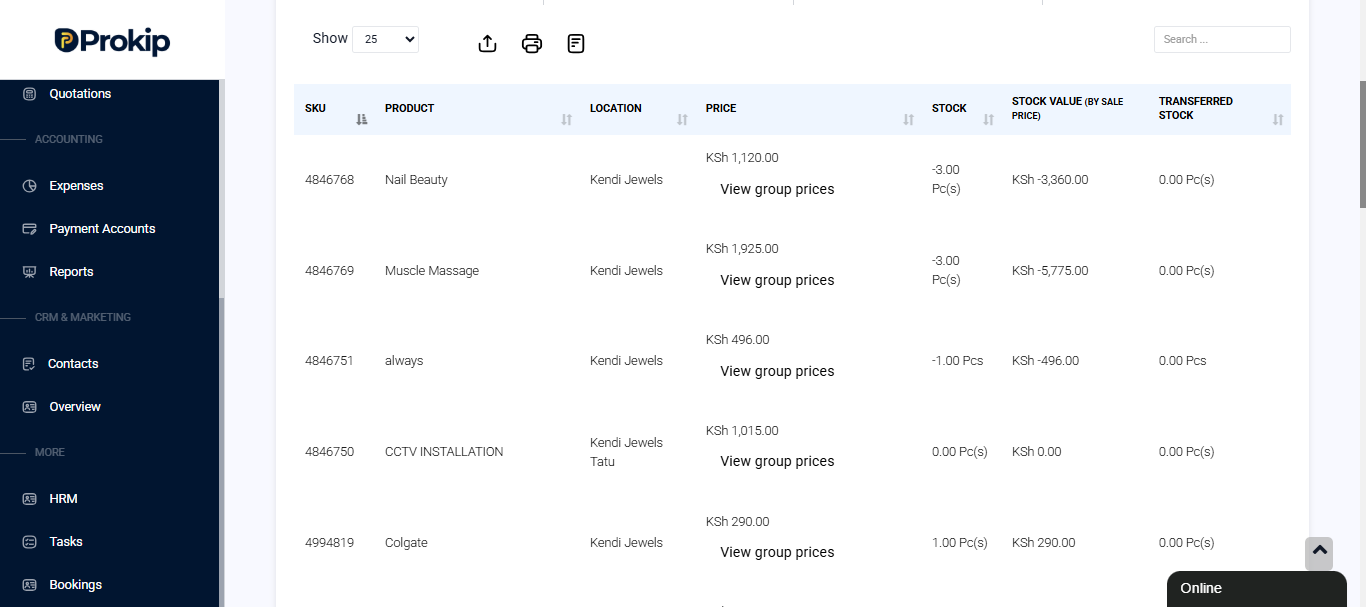
At the bottom, the report shows total figures for stock quantity, stock value, and transferred stock, giving you a complete summary of your inventory.
How to Read and Use the Report
- The stock column helps you track how many items you currently have in each location.
- The stock value shows how much those items are worth if sold at the selling price.
- The transferred stock helps you see which items were moved between branches.
- The summary values at the top help you understand the total worth and profit potential of your business inventory.
Why the Stock Report Is Important
The Stock Report is useful for keeping control of your business inventory. It helps you:
- Track stock levels in real time.
- Understand your profit margins.
- Monitor stock across different locations.
- Plan for restocking and avoid shortages.
- Compare purchase and selling values for pricing accuracy.
- Support accounting, financial analysis, and business reporting.
Best Practices
- Check your Stock Report regularly to stay updated on your inventory levels.
- Use filters to review stock performance for specific brands, categories, or locations.
- Compare purchase and selling values often to ensure your prices are profitable.
- Export or print the report for reviews, audits, or management meetings.
- Use the information to make restocking and pricing decisions based on accurate data.
Related Reports
You can also explore other stock-related reports under the same section:
- Stock Expiry Report – Shows products nearing their expiry dates.
- Stock Adjustment Report – Displays manual changes made to your stock.
- Lot Report – Shows product batches and tracking details.