Purpose
This article helps you troubleshoot situations where Product Sales Reports do not display expected data in Prokip.
Before You Start
Confirm that:
-
You have recorded at least one sale for the product
-
The sale was finalized, not saved as draft
-
You have permission to view reports
Common Reasons Product Sales Reports May Be Empty
-
Incorrect date range selected
-
Wrong business location filter applied
-
Product has no completed sales
-
Sale was recorded as credit but not yet paid
-
User role lacks report access
Step-by-Step: How to Fix It
Step 1: Log in your Prokip account
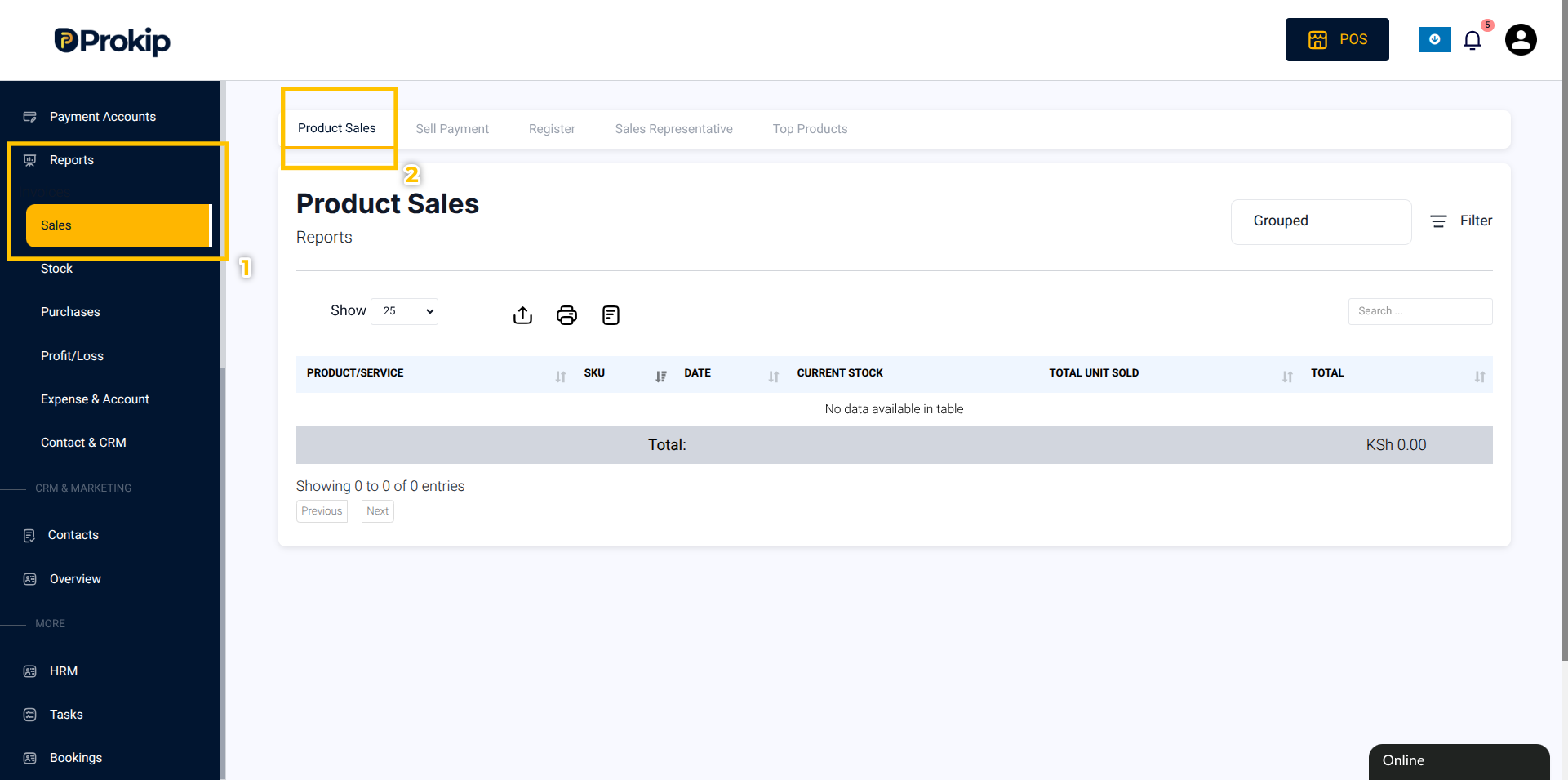
Click on Reports,and select Sales Report.
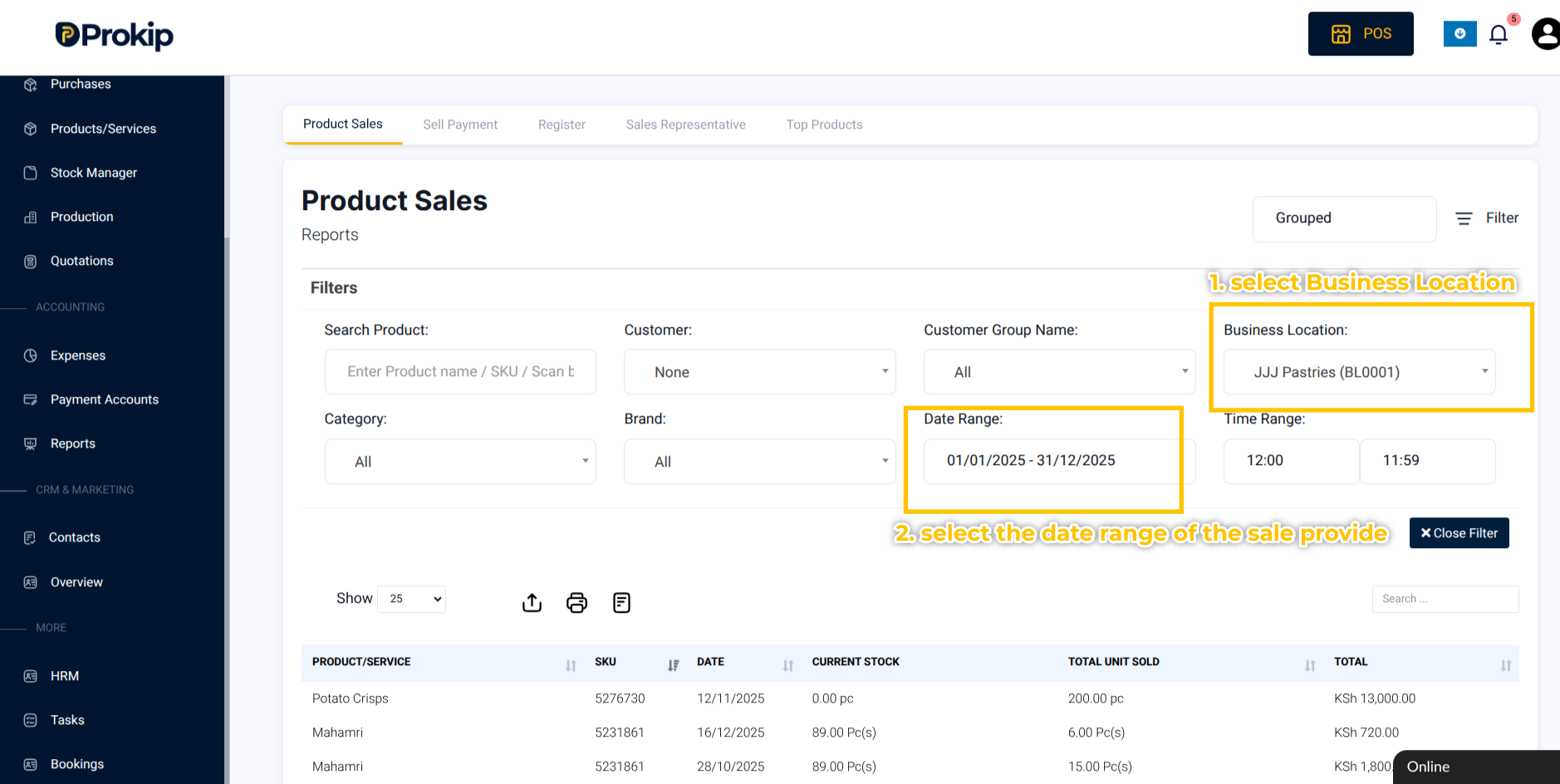
Step 2: Select the correct Business Location.
Step 3: Click on the Filter Button and Confirm the Date Range includes the sales period.
Step 4: Use the Product Filter to select the product if you want to view a specific product
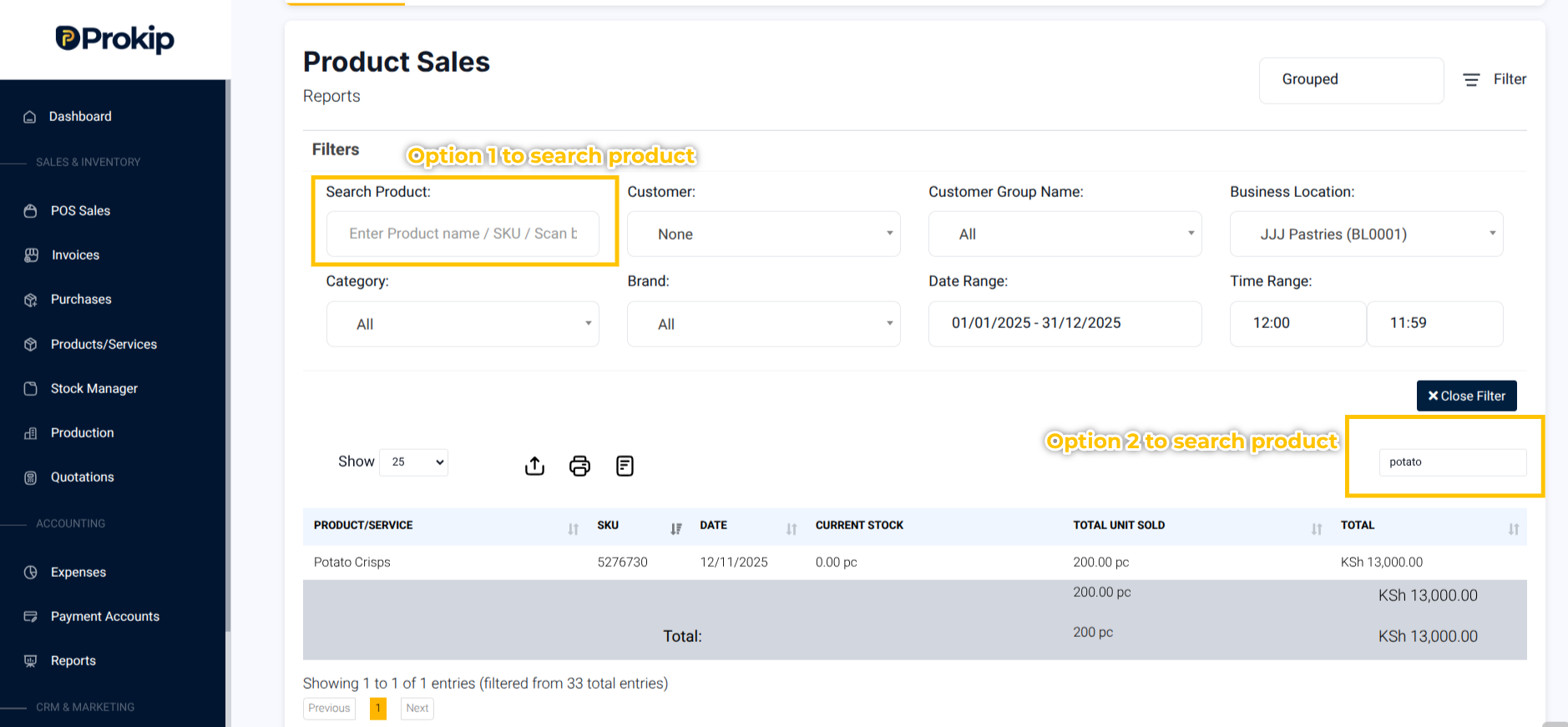
Step 5: Click to Apply Filters.
What Happens Next
-
The report displays product quantity sold, revenue, and profit
-
Totals update automatically based on selected filters