Overview
In Prokip, a Selling Price Group allows you to control pricing rules for specific locations. This is useful when different branches, warehouses, or stores operate with different pricing structures.
By assigning a Selling Price Group to a location, all transactions processed at that location will follow the pricing rules defined in that group.
Why Assign a Selling Price Group?
You may need to assign a Selling Price Group when:
-
Different branches sell products at different prices
-
You run regional promotions
-
You apply wholesale pricing at certain locations
-
You separate retail and bulk pricing by warehouse
-
You want better pricing control per operational site
Before You Begin
Make sure:
-
The Selling Price Group has already been created.
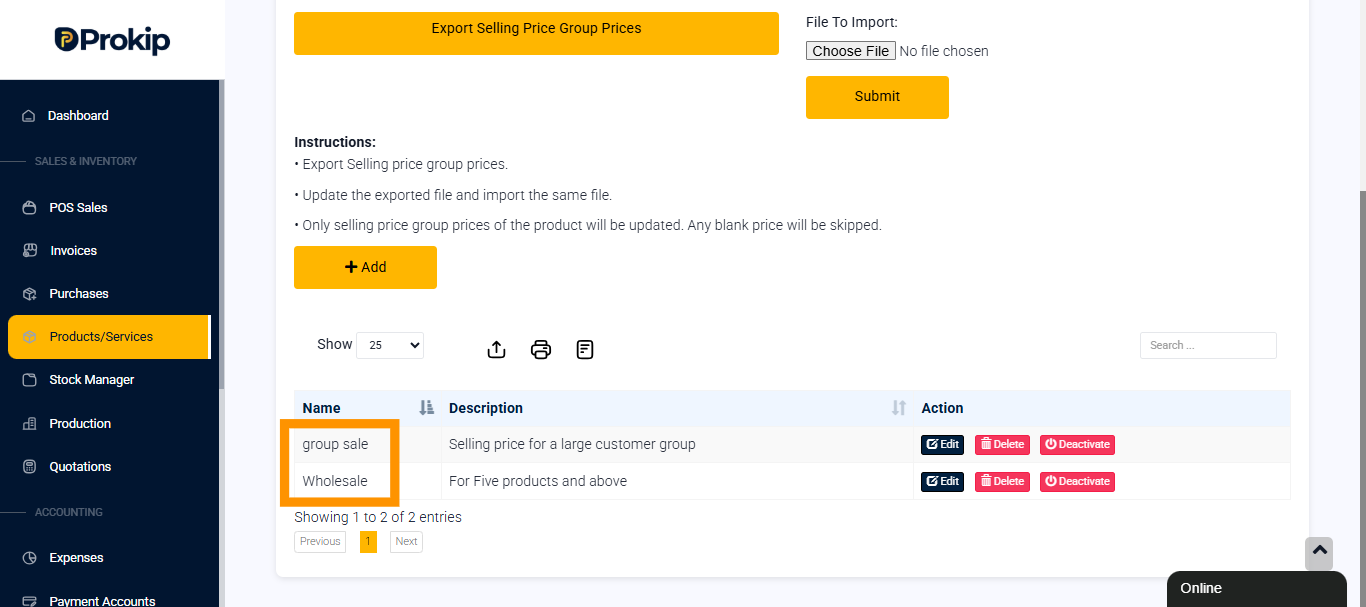
Follow this link to set up selling price groups; https://cms.prokip.africa/knowledge_base/how-to-set-up-selling-price-group/
- The Location has been set up in Prokip.
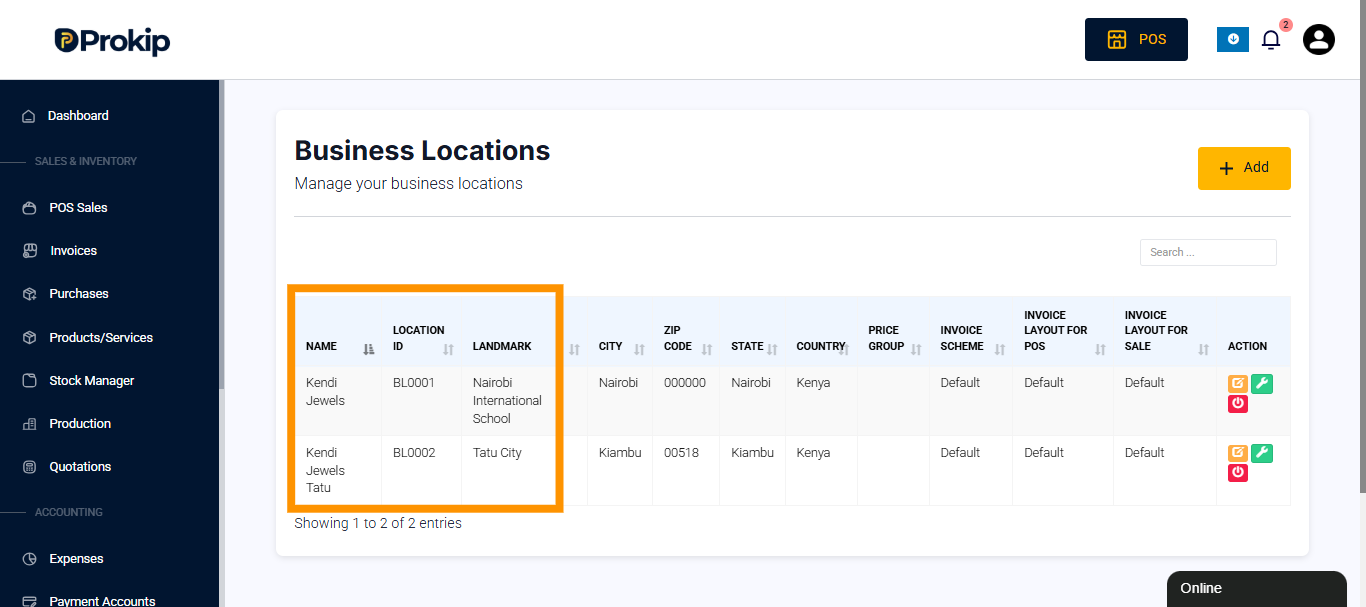
Follow this link to set up business location; https://cms.prokip.africa/knowledge_base/how-to-add-business-locations/
-
You have the necessary user permissions to edit locations.
Steps to Assign a Selling Price Group to a Location
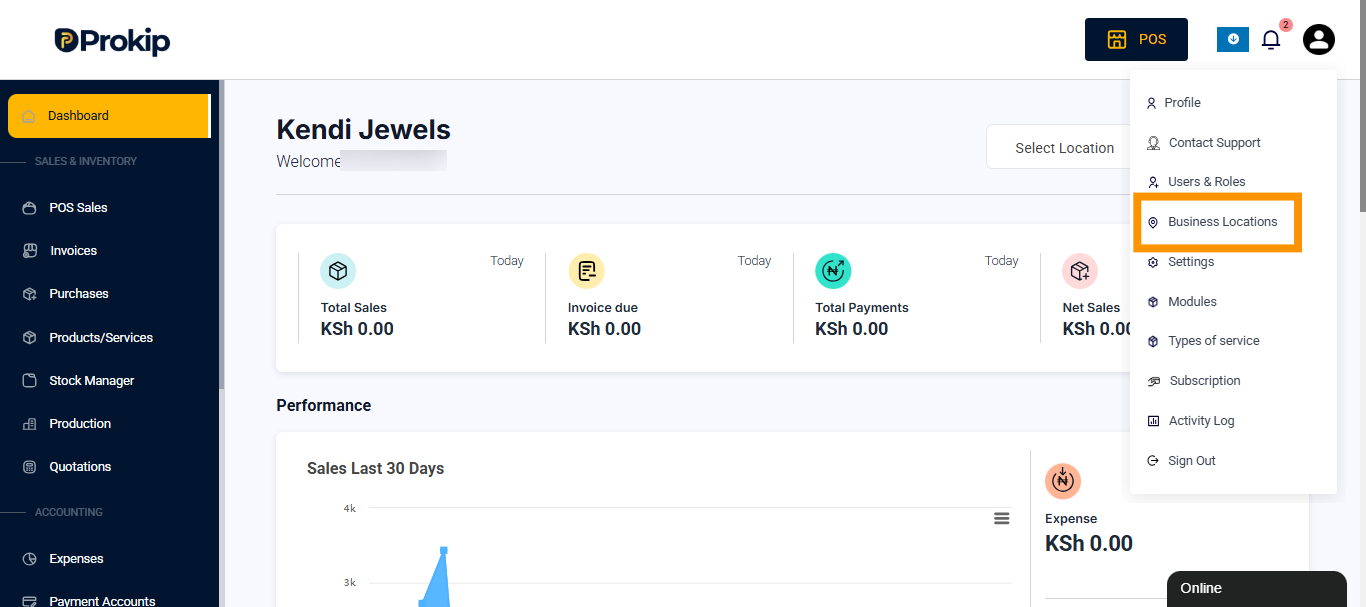
Step 1: Navigate to Locations
-
Log in to Prokip.
-
Go to Settings.
-
Select Business Locations.
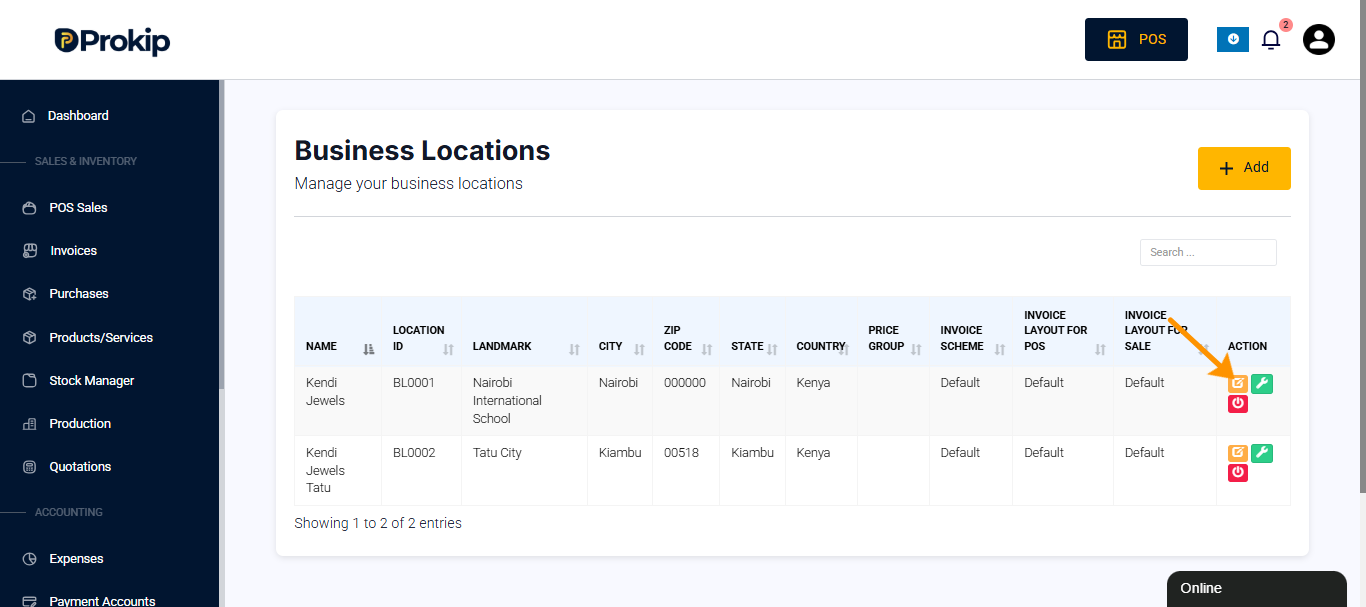
Step 2: Open the Location
-
Find the location you want to update.
-
Click Edit (or open the location details).
Step 3: Assign the Selling Price Group
-
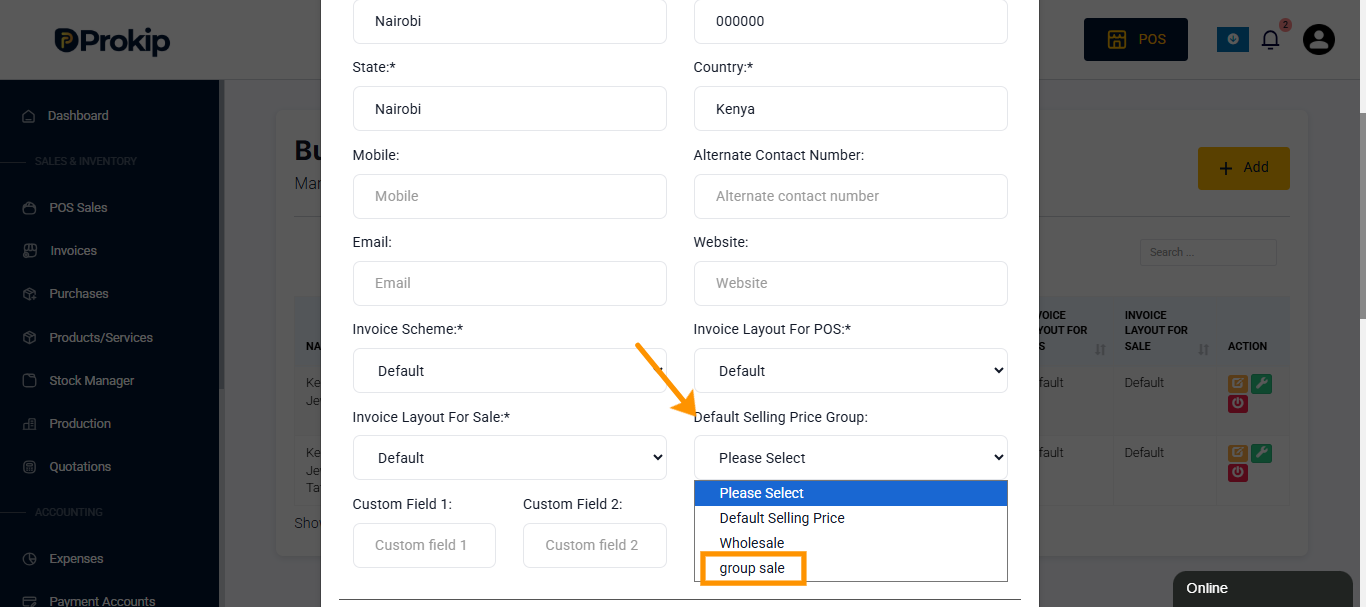
Locate the Selling Price Group field.
-
Select the appropriate group from the dropdown list.
-
Confirm your selection and Save.
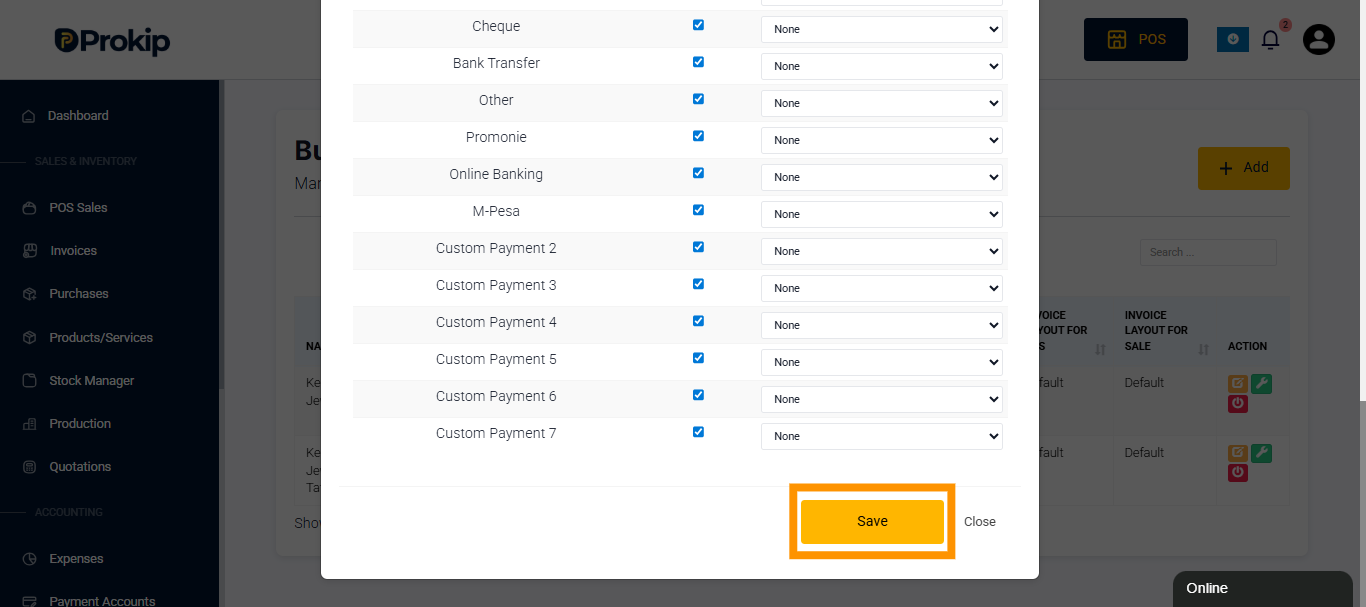
- The location will now use the selected Selling Price Group for all sales transactions.
What Happens After Assignment?
Once assigned:
-
All new sales transactions at that location will use the pricing rules defined in the selected Selling Price Group.
-
If a product has multiple price entries, Prokip will apply the one linked to the assigned group.
-
Existing completed transactions will not be affected.
Important Notes
-
If no Selling Price Group is assigned, Prokip may use the default pricing setup.
-
Ensure that all products required at that location have prices configured within the assigned group.
-
Changing the Selling Price Group may immediately affect ongoing sales operations.
Troubleshooting
Prices are not changing at the location
-
Confirm the correct Selling Price Group is assigned.
-
Verify that products have pricing set under that group.
-
Refresh the POS or sales screen if necessary.