The Sales Representative Report in Prokip helps you track all sales made by individual sales reps within a selected date range. It shows invoices, payments, and performance summaries — helping business owners evaluate productivity, commissions, and revenue handled by each staff member.
How to Open the Sales Representative Report
- Log in to your Prokip Dashboard.
- Go to the Reports section from the main menu.
- Select Sales under the Reports list & Scroll to the Sales Representative tab.
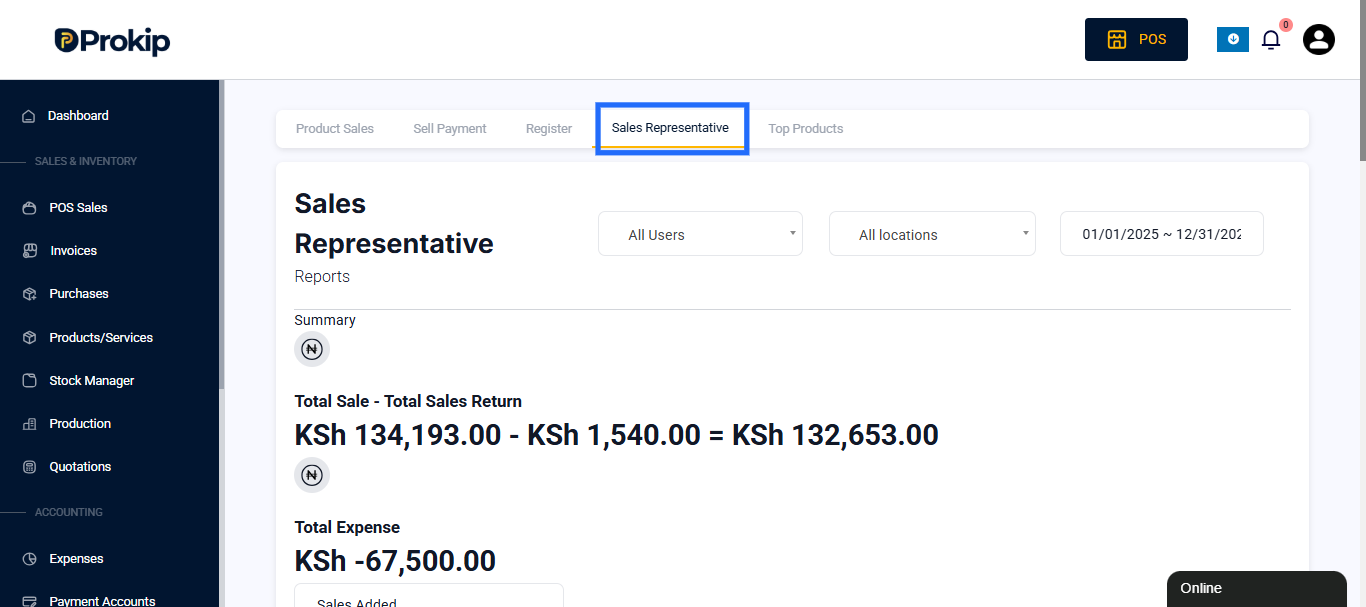
Filter
At the top of the report, choose a Date Range to view transactions for:
- A specific day, week, or month
- A custom time period
This helps track how each representative is performing within a given timeframe.
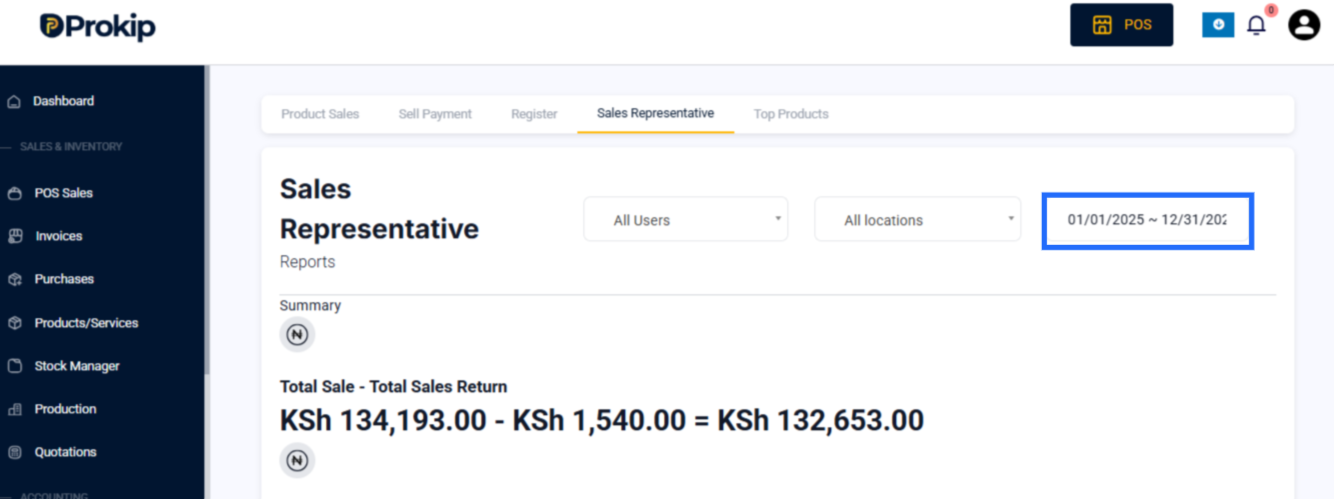
You can also filter by Location or User – This includes sales made with purchase agents
Report Summary
The top of the report displays an overview of performance metrics:
- Total Sale – Total Sales Return:
Example: KSh 22,370.00 – KSh 1,540.00 = KSh 20,830.00
This shows net revenue after returns. - Total Expense:
Displays any recorded expenses under that sales rep.
Sales Added Section
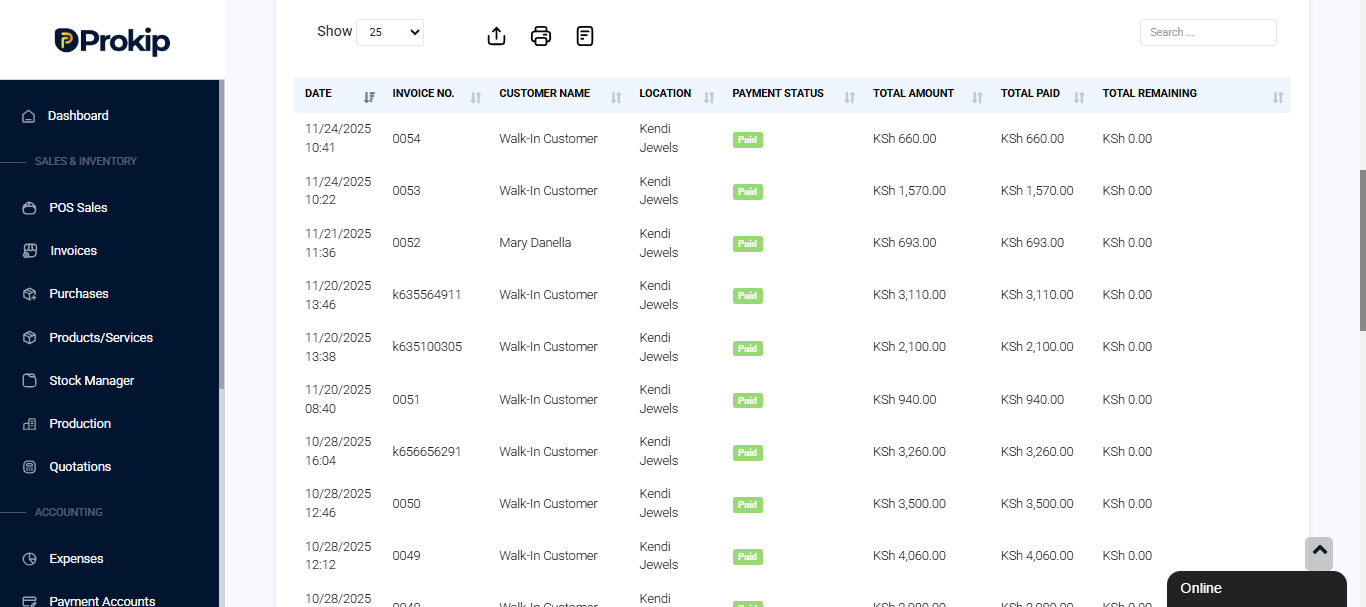
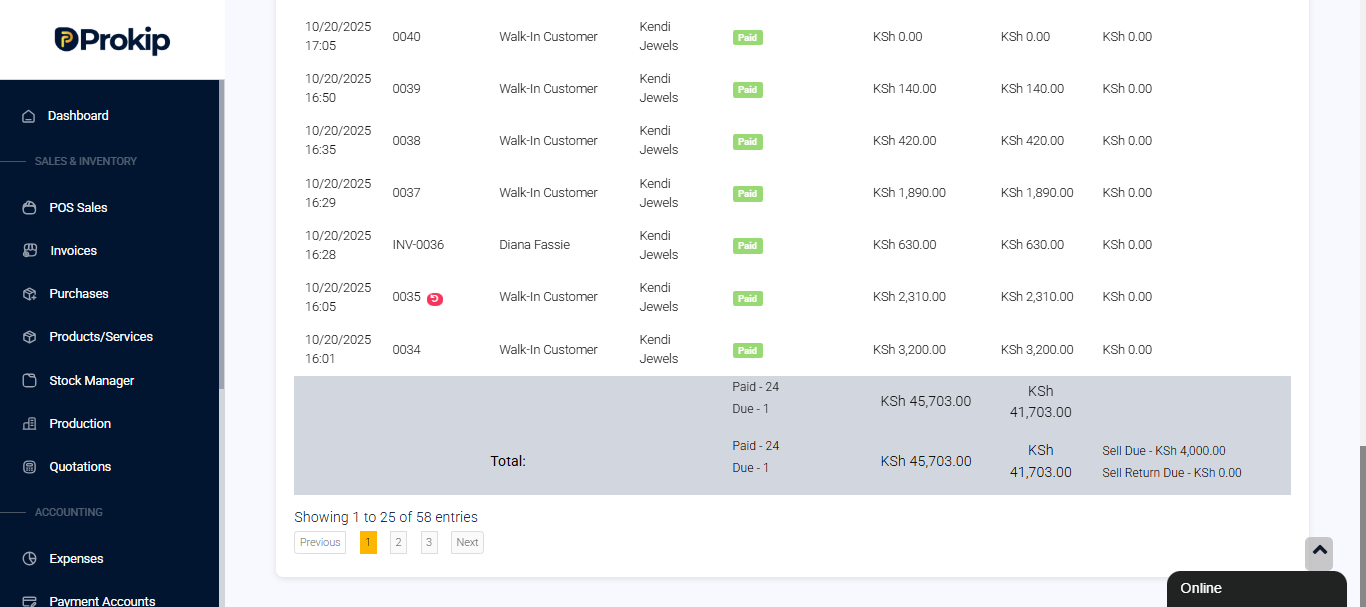
Below the summary, you’ll find the Sales Added table. It shows all invoices handled by that sales representative.
Each row includes:
- Date – When the sale occurred.
- Invoice No. – The sales reference.
- Customer Name – Who made the purchase (Walk-In or named customer).
- Location – The business branch where the sale happened.
- Payment Status – Paid, Partial, or Due.
- Total Amount – Sale value.
- Total Paid – Amount already paid.
- Total Remaining – Any pending balance.
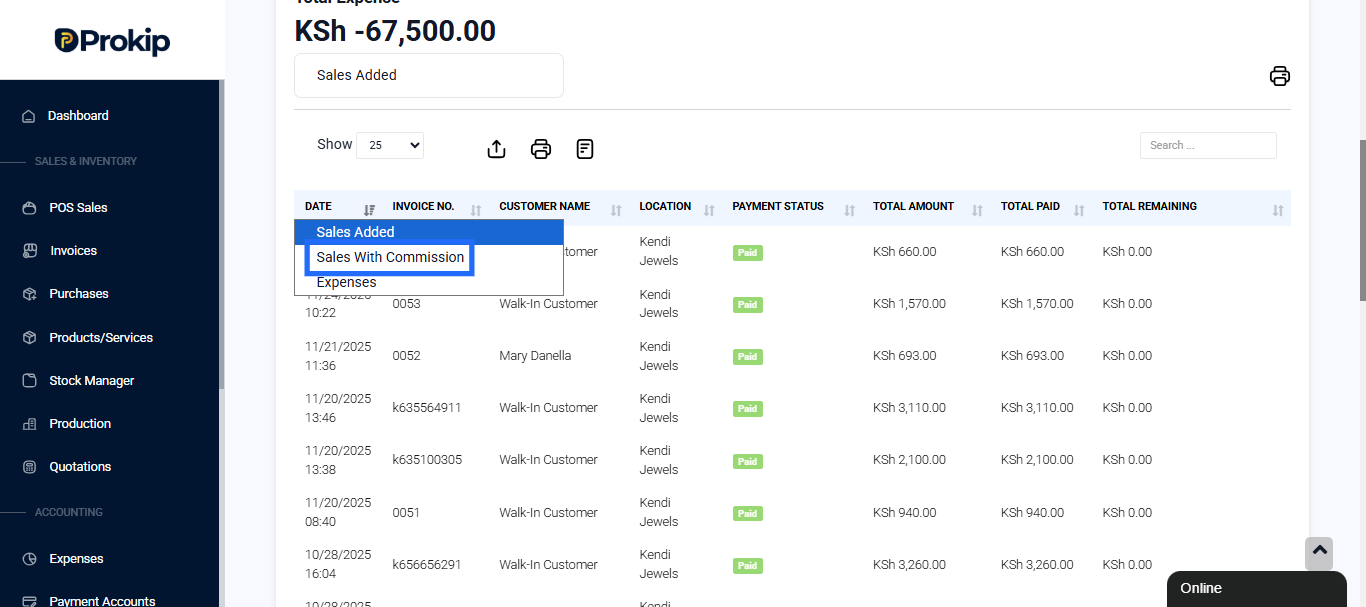
Sales with Commission
In the Sales Added dropdown, you can also choose Sales with Commission to view:
- Sales linked to agents or reps who earn commissions.
- The commission amount per sale.
- Total commissions earned & due.
This helps you calculate payouts for salespeople accurately.
Expenses Section
Select Expenses in the dropdown to see:
- Any costs recorded under that representative (e.g., delivery, transport, or promo costs).
- Helps compare net profit per rep by subtracting expenses from total sales.
Totals at the Bottom
At the bottom of the report, you’ll see:
- Paid – [Number of Sales] – Example: Paid – 14
- Total Sales and Total Paid amounts
- Sell Due and Sell Return Due — shows if any invoices are still unpaid or returned
Why This Report Matters
This report is helpful for:
- Tracking each sales rep’s daily or monthly performance
- Monitoring customer payments per representative
- Calculating commissions accurately
- Ensuring all invoices are properly closed
It’s essential for sales audits and performance reviews.
Best Practices
- Filter by date weekly or monthly to keep data manageable
- Use the commission tab to monitor incentives
- Always confirm “Total Paid” matches actual payment records
- Review “Total Remaining” regularly to prevent overdue balances
Related Articles
- Sales Report Click here – For an overview of total sales performance
- Register Report Click here – For payment and session details
- Sell Payment Report Click here – To track all sales payments